
Team managers · 6 min read
Your first 20 minutes as a team manager
Your team is in PuckFinder and the schedule is flowing. Ten steps in the order that works: roster, parents, safety, reminders, hello. Each one has the screen and the tap, and where teams differ, the branch for yours.
Help › Your first 20 minutes as a team manager
Step by step
Tap a screenshot to see it full size.
- Open your team and look at the schedule
Teams → your team → Events. Everything below starts from this page. Which schedule is yours?
From the association's calendar — the games and practices are already here and keep arriving by themselves; a game that moves on the association site moves here within the hour. Cards read "vs Team A" or "at Team F". Fix mistakes on the association site; they flow here.
From TeamSnap — see Bring your team over from TeamSnap; it syncs every hour too.
Neither, or something's missing — tournaments, exhibition games and team events go in with the + button. Your own events you edit here.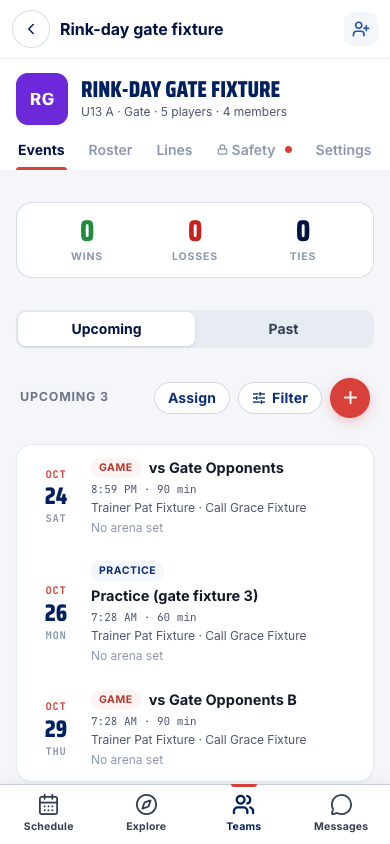
- Open Add people
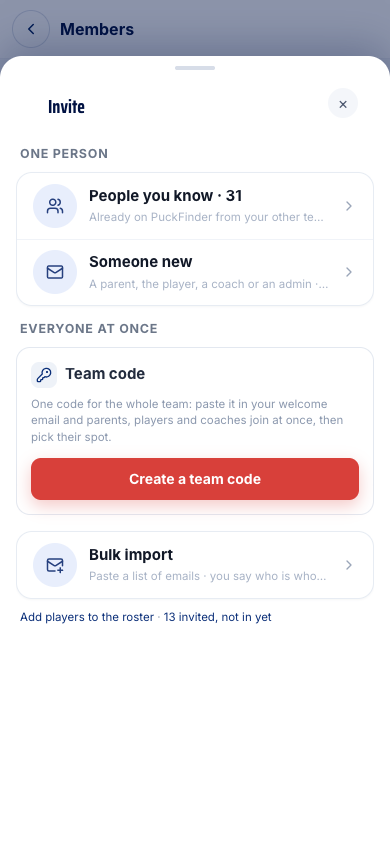
The person-plus icon at the top right of the team page. One sheet, two questions: One person (People you know, Someone new) and Everyone at once (the team code, the roster's families, Bulk import). Each row says what happens after the tap. The last line, Add players to the roster, is where the roster goes in; the rest is for bringing people in once the names exist.
- Add the players — pick the way in that matches what you have
Tap Add players to the roster. The same sheet opens from the + on the Roster tab.
Your roster is in a spreadsheet, an email or the association's list → Add many players, next step.
You only have a few names, or you're adding one late → Add one player: name, number, and their parents' names and emails if you know them.
Your roster lives in TeamSnap → skip this; connecting the team brings the players and their parents across. Bring your team over from TeamSnap.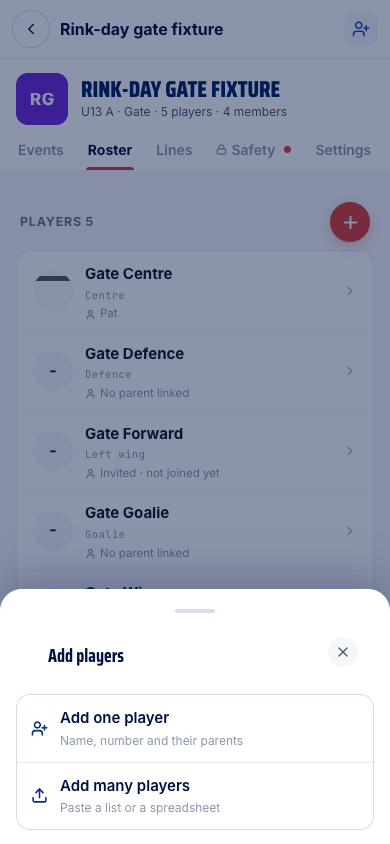
- Paste the roster and review what was found
Add many players opens Import a roster. Paste anything: the team sheet from Google Sheets or Excel, a TeamSnap export, the email thread from the association. Names are enough. Parents' names, emails, phone numbers and jersey numbers come along when they're in the paste and save you step 5. Tap Find the players, check the list it found, fix a name if you need to, and confirm. Nothing is written until you've reviewed it, and every line becomes a roster spot you can edit afterwards.
Jersey numbers and positions can wait; parents fill those in for their own kid. If your own kid is on the team, the team page asks Which kid is this for? — pick their spot and it shows Yours, which is what puts this team on your Schedule.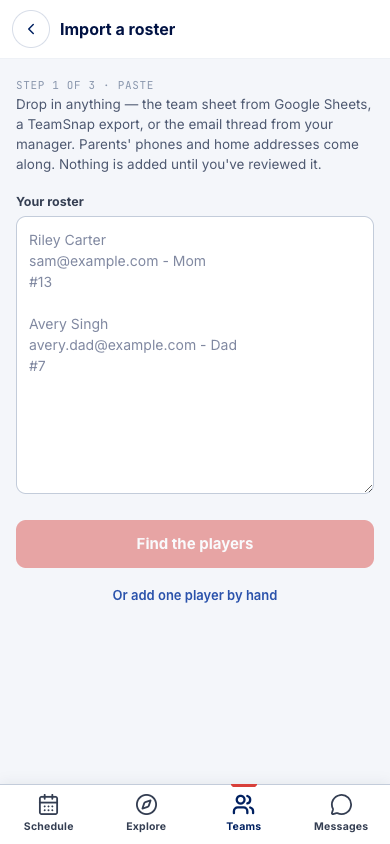
- Bring the parents in — three ways, use the one that fits
Back in Add people.
You already have a group text or an email list → Create a team code and paste the code (or Share the link) there. A parent types it into the app, says who they are, picks their kid from the roster, and they're in. Two taps for them, nothing for you, and "0 joined with it" counts up.
You pasted parents' emails or phones in step 4 → the sheet also shows Invite the roster's families: one tap sends each family their own link by email or text. Good for the parents who won't see the group text.
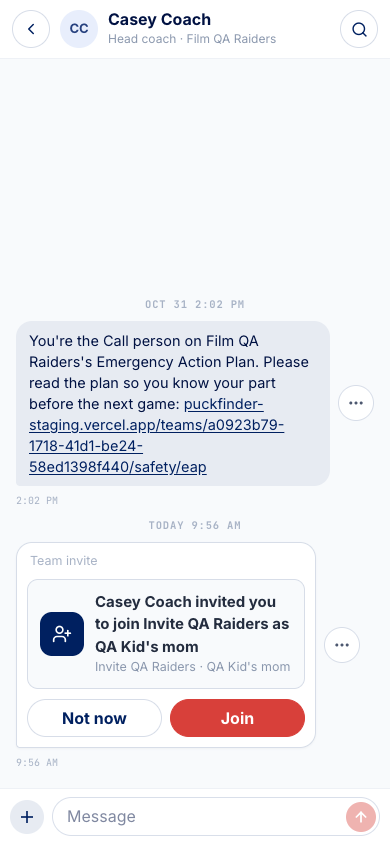
Someone already on PuckFinder — the other parent, a family from your other team → People you know. Tap the person, say who they're here for (a kid from the roster, or the team) and who they are (Mom, Dad, Grandparent, Guardian), and the invite lands as a card in your chat with them: Join or Not now, no email, no text. Their answer comes back in the same chat and the kid's roster card lists them right away.
One person who isn't on the app — a coach, an assistant, a parent who joined late → Someone new: who they are, whose parent, a mobile or an email, and they get a link. Bulk import takes a list of emails when you'd rather pick who is who yourself.
From a kid's roster card — Invite a parent opens the same thing for that kid: People you know first, then name, contact and who they are.
You'll see who's in under Settings → Members and on each roster spot (a parent under the kid, or "not on the app yet"). Parents who haven't joined still get your announcements by email meanwhile.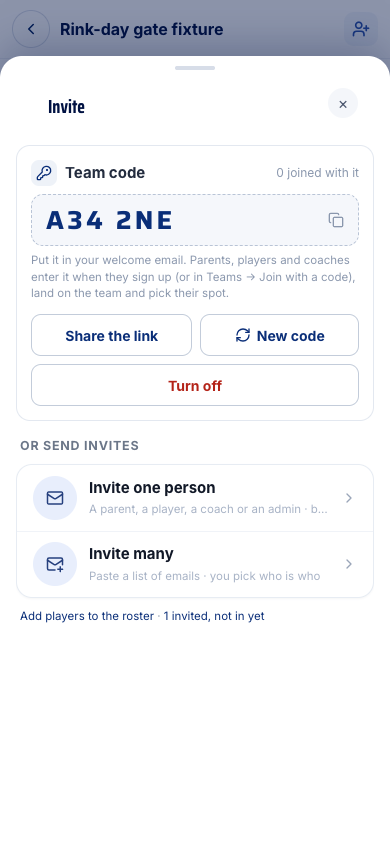
- Someone already on PuckFinder: a card in your chat
The other parent, a family you know from another team, a coach who runs a second team here: People you know lists everyone you share a team with who isn't on this one yet. Tap the person, say who they're here for and who they are, and the invite lands as a card in your chat with them. They tap Join (or Not now) right there; no email, no link, no sign-in. Their answer shows up in the same chat, and the kid's roster card lists them from the moment you send it.
- Name who can read medical records
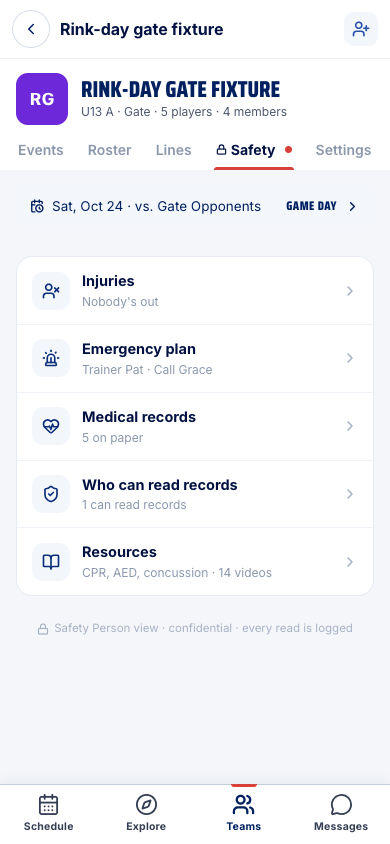
Team → Safety → Who can read records. Until someone is named, nobody can read the medical records parents share and the Game Day screen stays closed. Pick the trainer or safety person from the list of members; it can be you. If they aren't in the app yet, step 5's Invite one person brings them in first.
- They sign the undertaking on their own phone
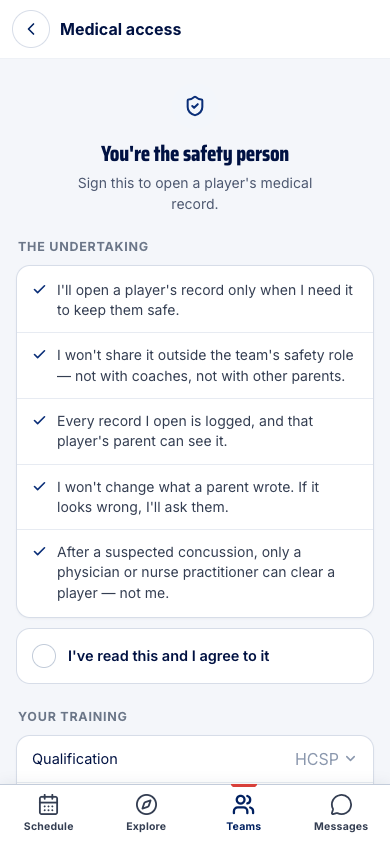
The person you named opens the same Safety tab and reads five lines: open a record only to keep a player safe, never share it outside the safety role, every read is logged and the parent can see it, never change what a parent wrote, and only a physician or nurse practitioner clears a suspected concussion. They tick I've read this and I agree to it, note their training, and from then on they see what parents have shared. Parents are told who can read. More in Your first five minutes as a safety person.
- Set the emergency plan
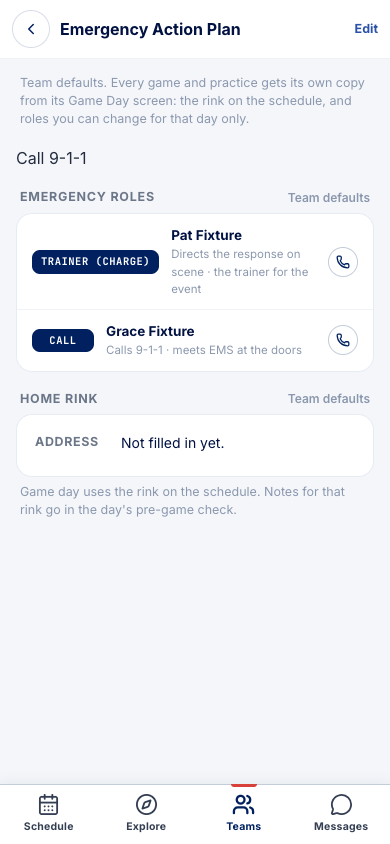
Safety → Emergency plan → Edit. The home rink's address and where the AED is, and who holds the roles on a game night: Charge (the trainer, directs the response) and Call (dials 9-1-1 and meets EMS at the doors). Every game and practice gets its own copy on its Game Day screen, with the rink from the schedule, so away games need no extra work.
- Turn on availability reminders
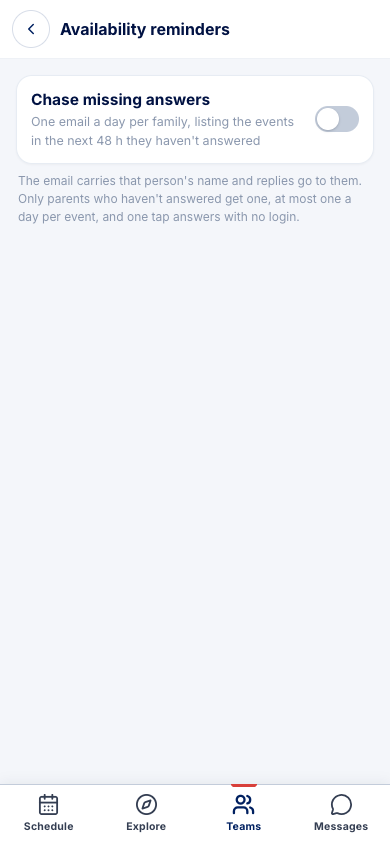
Settings → Availability reminders → Chase missing answers. Each family gets one email a day listing the events in the next 48 hours they haven't answered, with one-tap Going / Not going that needs no sign-in. The email carries your name and replies come to you. You stop chasing; the count shows on each event. Details in Availability reminders.
- Post your first announcement
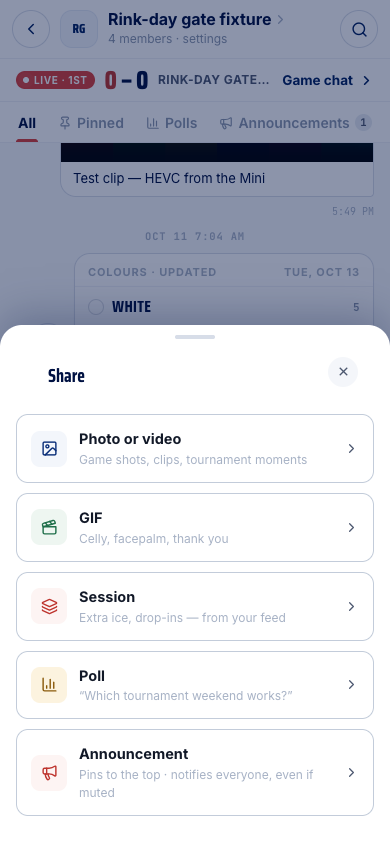
Messages → your team chat → the + beside the message box → Announcement. Say hello, say the code is the way in, say what's next. An announcement pins to the top and notifies everyone, even people who muted the chat; parents who haven't joined yet get it by email, so nobody misses it while the team fills in. Ordinary messages go in the same box without the +; coaches can post announcements too.
What you'll have after 20 minutes
- A schedule that updates itself, read as "vs Team A", with the rink and the time.
- A roster parents can claim, with their kid's number and position filled in by them.
- Parents arriving on their own with the code, and the rest reached by email meanwhile.
- A named safety person who can read the medical records parents share, and a plan for game night.
- Availability answered by email, without you asking.
- A first announcement everyone has seen.
Later, when you want them
- Team jobs — Den Mom, snacks, the penalty box: set a job up once and parents sign up event by event. Help wanted.
- Lines — coaches build the lines on the game card and publish them to the chat once. Lines for a game.
- Jersey colours and photos — Settings → Jerseys, and the team crest at the top of the team page.
Questions managers ask
Do parents have to install the app?
No. Announcements reach parents who haven't joined by email, and availability reminders are answered with one tap in the email, no sign-in. The app adds the chat, the schedule on their phone, and their kid's medical record. The code works on the web too: puckfinder.app, Teams, Join with a code.
A parent says the code doesn't work.
Check the Add people sheet: the code is live if it shows there with a "joined with it" count. Turn off ends a code for good, and New code replaces it, so a code pasted into an old email may be stale. Share the link instead; it carries the code.
Can both parents join?
Yes. Each parent joins with the same code (or their own invite) and picks the same kid on the roster. Both get the reminders, both can read the kid's record, and the roster spot lists both under the kid. Quickest for a parent who already uses PuckFinder: open the kid's roster card → Invite a parent → People you know, and they get a Join card in your chat.
I'm a parent, not an admin. Can I invite anyone?
Yes, two ways. The person-plus icon on the team page shows the team code to share with a family that should be here (if there isn't one yet, ask a team admin to create it), and your own kid or kids underneath for inviting the other parent, a grandparent or a guardian. You can't invite for someone else's kid; that's the admin's.
A parent picked the wrong kid.
Ask them to open the spot and unlink themselves (their row under the kid), then pick again; or fix the parents yourself under Edit on the roster spot. A kid they created by mistake is an extra spot you can remove from the Roster tab.
A kid has two teams, or a parent manages two teams.
Fine. Teams sit side by side under Teams, the Schedule shows every team's events together with the team colour, and a parent picks which kid each team is for. Managers hold the role per team.
Who can see a medical record?
Only the people you named under Who can read records, after they sign the undertaking, and the kid's own parents. Coaches, other parents and other managers never see it, and every read is logged where the parent can see it. You can't read a record either unless you named yourself.
What happens when a game moves?
A game that moves on the association calendar (or in TeamSnap) moves here within the hour, and everyone on the team gets one push and one email summarising the day's schedule changes. Nothing is posted to the chat. Events you added or edited yourself send no notice; post an announcement when the change matters.
How do I remove someone?
Settings → Members → the person → Remove from the team. Their kid stays on the roster for the other parent; remove the roster spot separately if the family has left. Someone who should never have joined with the code: remove them, then New code.
Can I change who the safety person is?
Yes, at any time: Safety → Who can read records picks someone else. The previous person's access ends when you remove them from the list; records they already opened stay in the log.
Does anyone else see the team?
The chat, the roster, RSVPs and records are private to the people you let in. A team from the association's calendar also has a public page (puckfinder.app/t/your-team) with what the association already publishes: the next games and practices, the staff, and a Follow button that brings a family to your team. Nothing private is on it.
What does it cost?
Nothing. Teams, schedule, chat, reminders, lines and the safety tools are free for every team.
Stuck?
Email john@puckfinder.app — a real person, usually the same day.