
Video · 1:40
Bring your team over from TeamSnap
Connect once, import the team, and choose who owns the schedule from here on.
Help › Bring your team over from TeamSnap
Step by step
The same flow as the video, in writing. Tap a screenshot to see it full size.
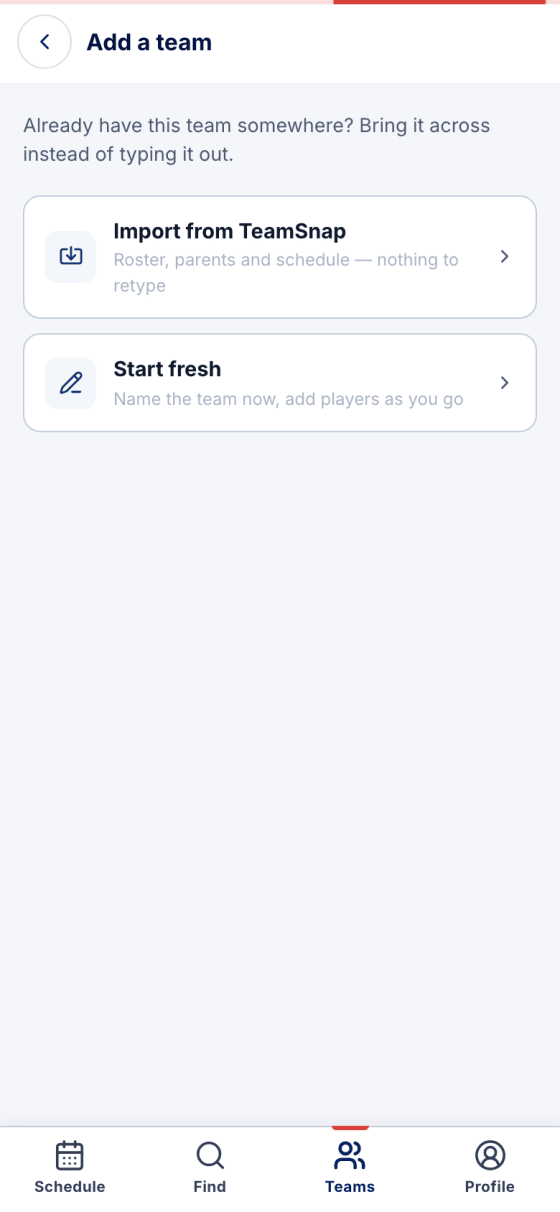
- Teams → New team
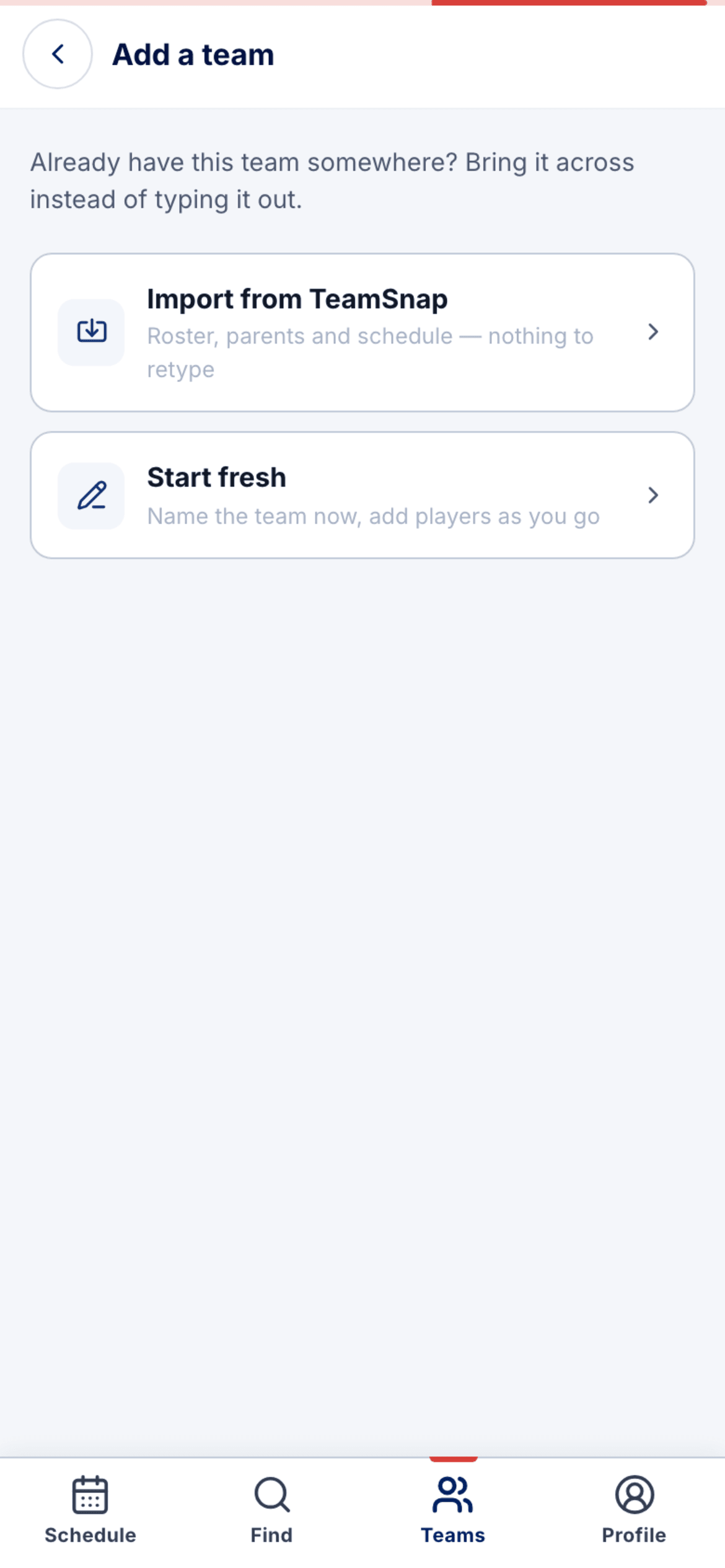
Pick Import from TeamSnap instead of typing the team out. Roster, parents and schedule come across.
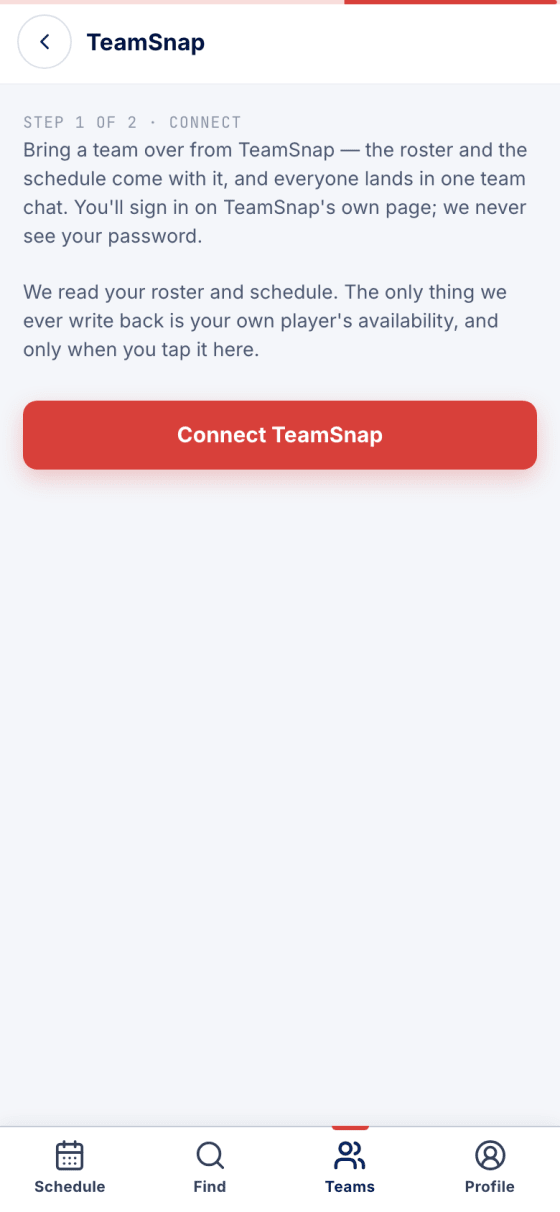
- Connect
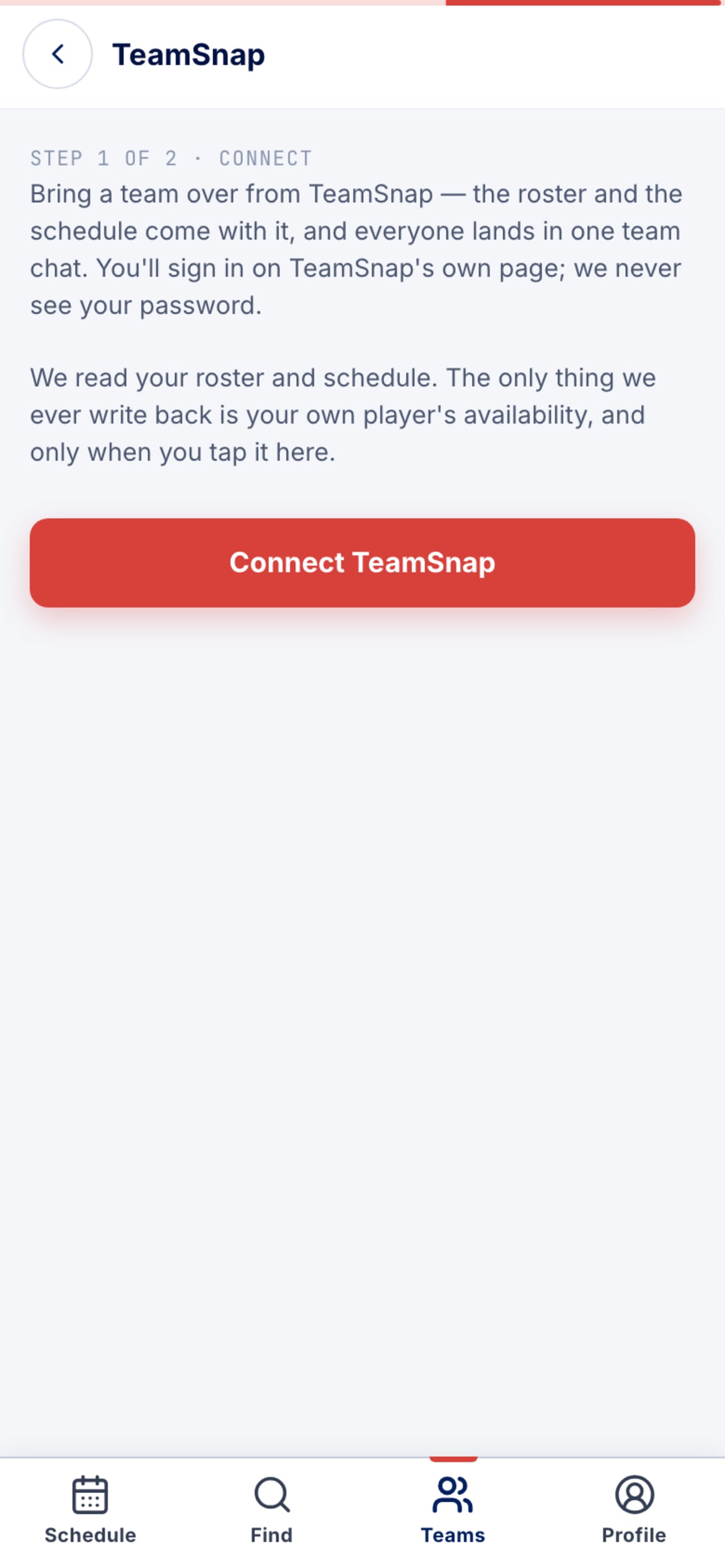
Connect TeamSnap sends you to TeamSnap's own sign-in page; PuckFinder never sees your password. We read your roster and schedule, and only ever write back your own player's availability.
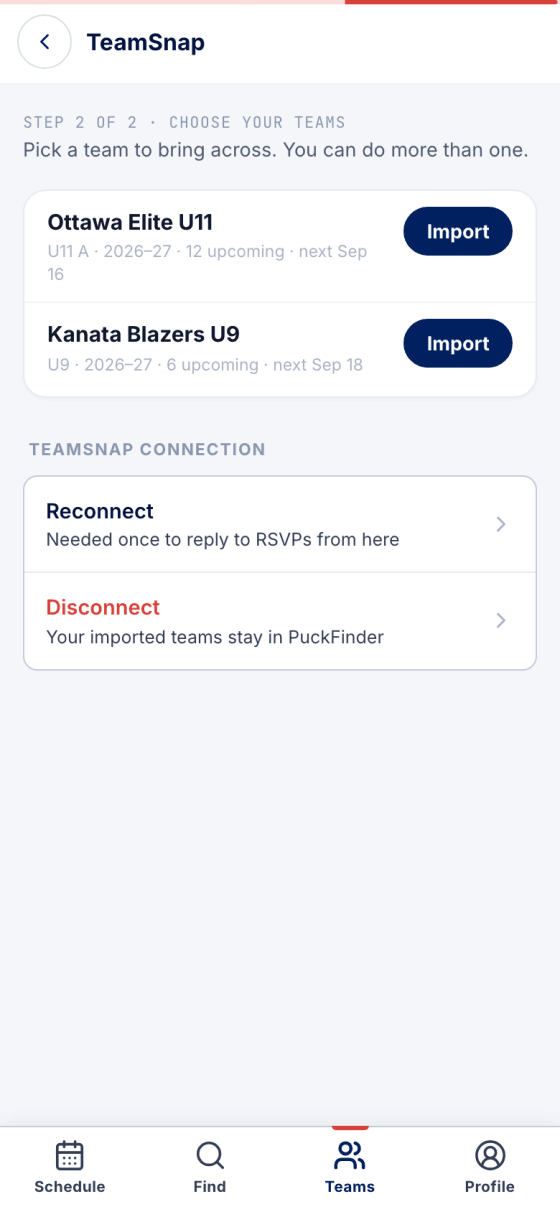
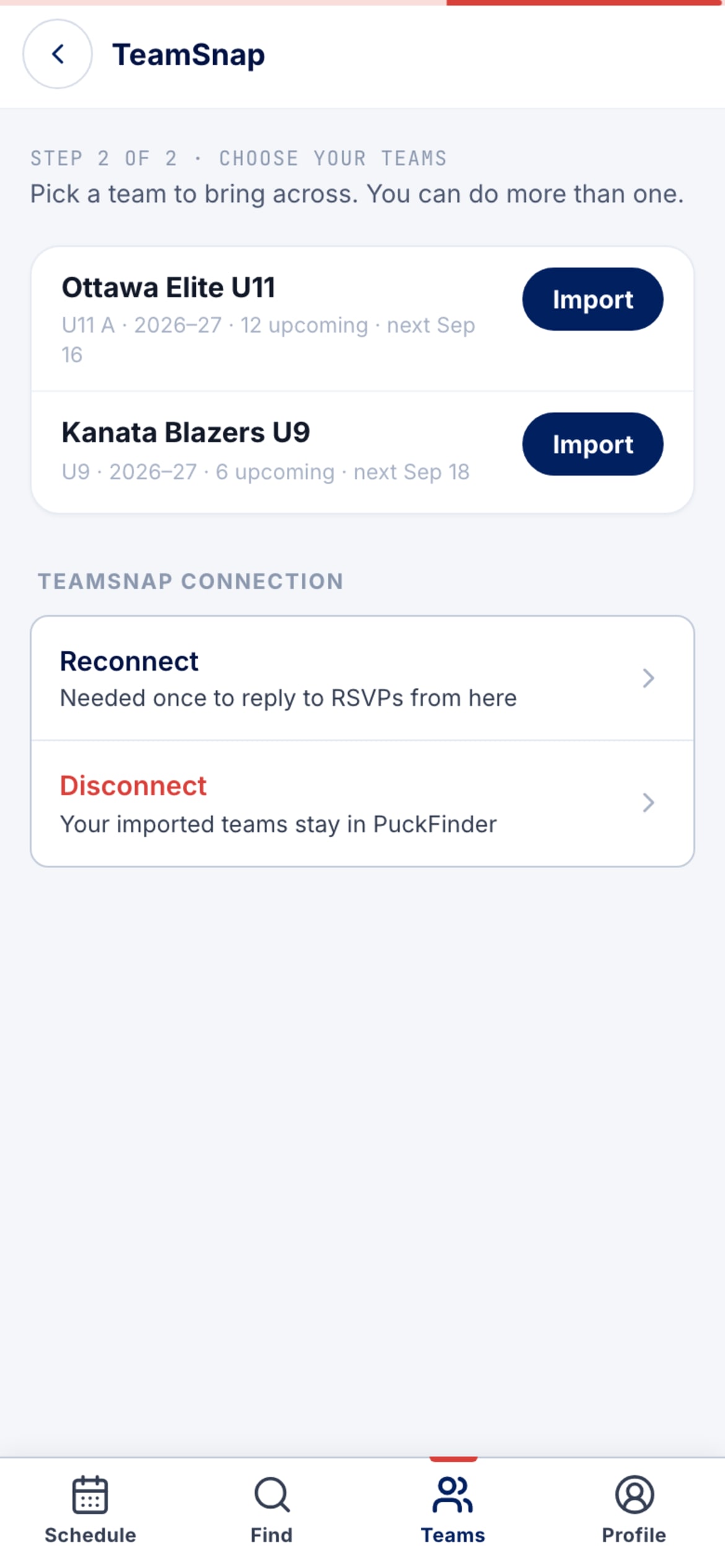
- Pick your teams
Your TeamSnap teams, with what's on their calendars. Import each one you want here. Reconnect and Disconnect live below the list.
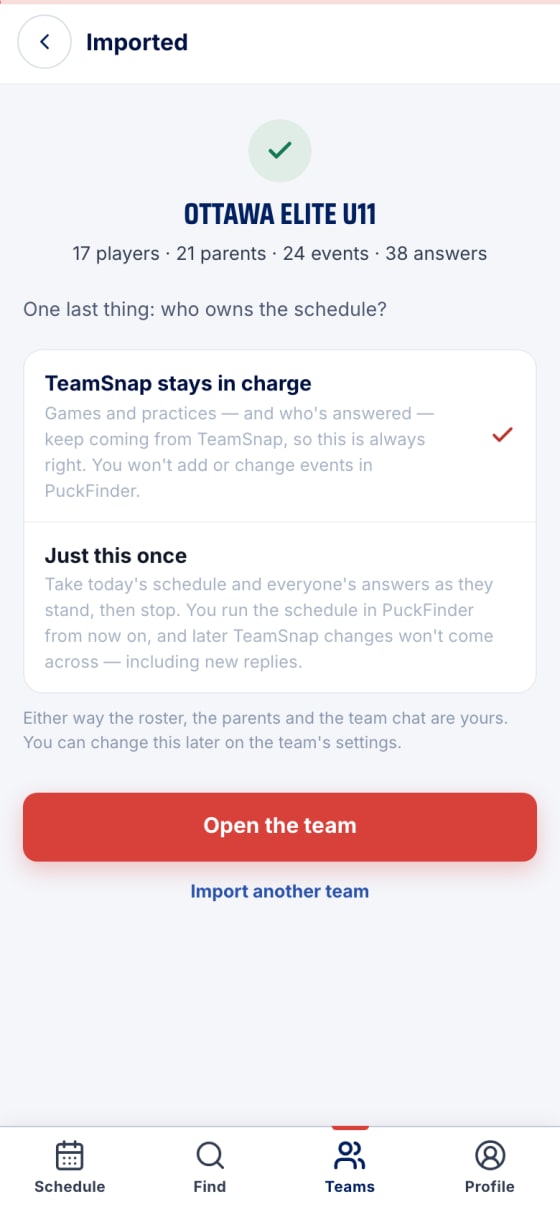
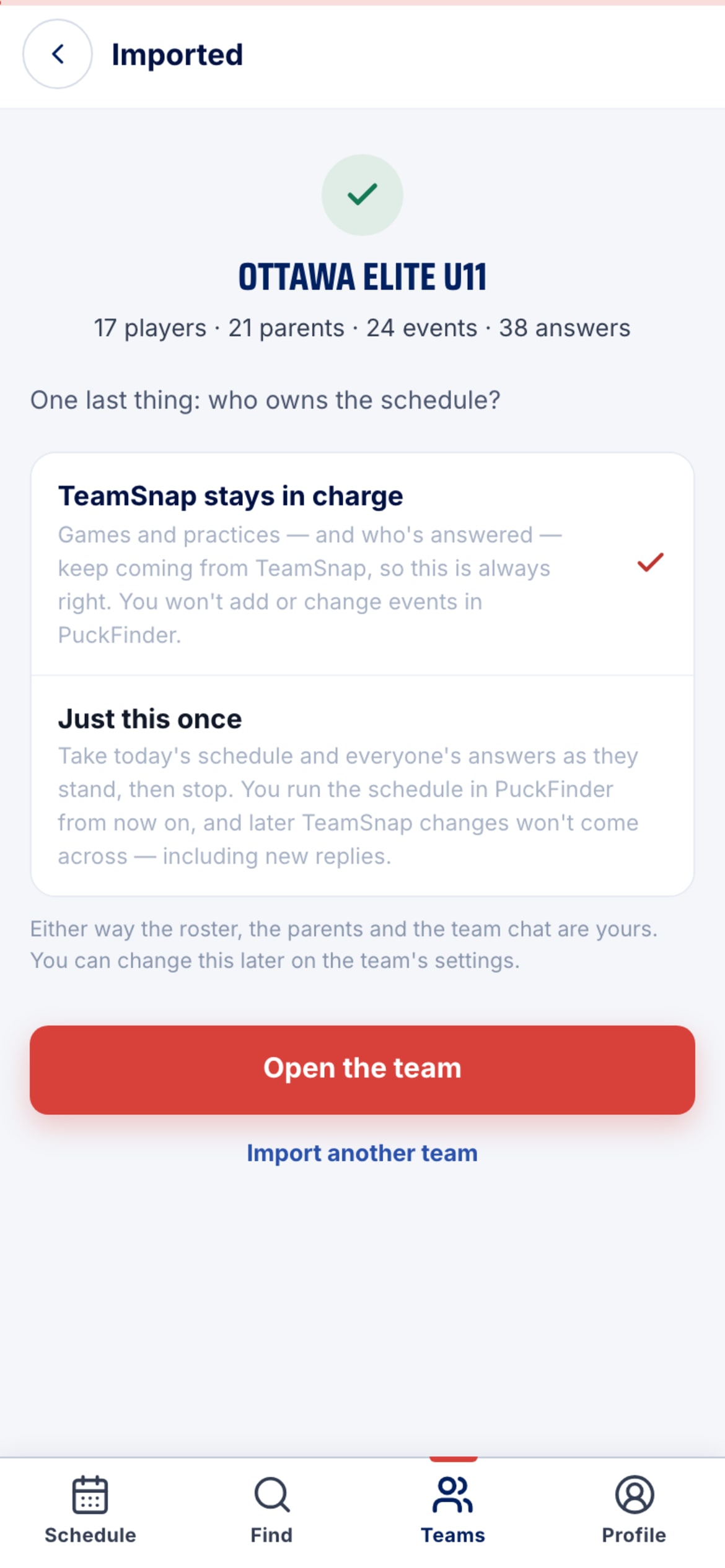
- Who owns the schedule?
TeamSnap stays in charge keeps games, practices and RSVPs flowing from TeamSnap. Just this once takes today's snapshot and stops. Then Open the team.
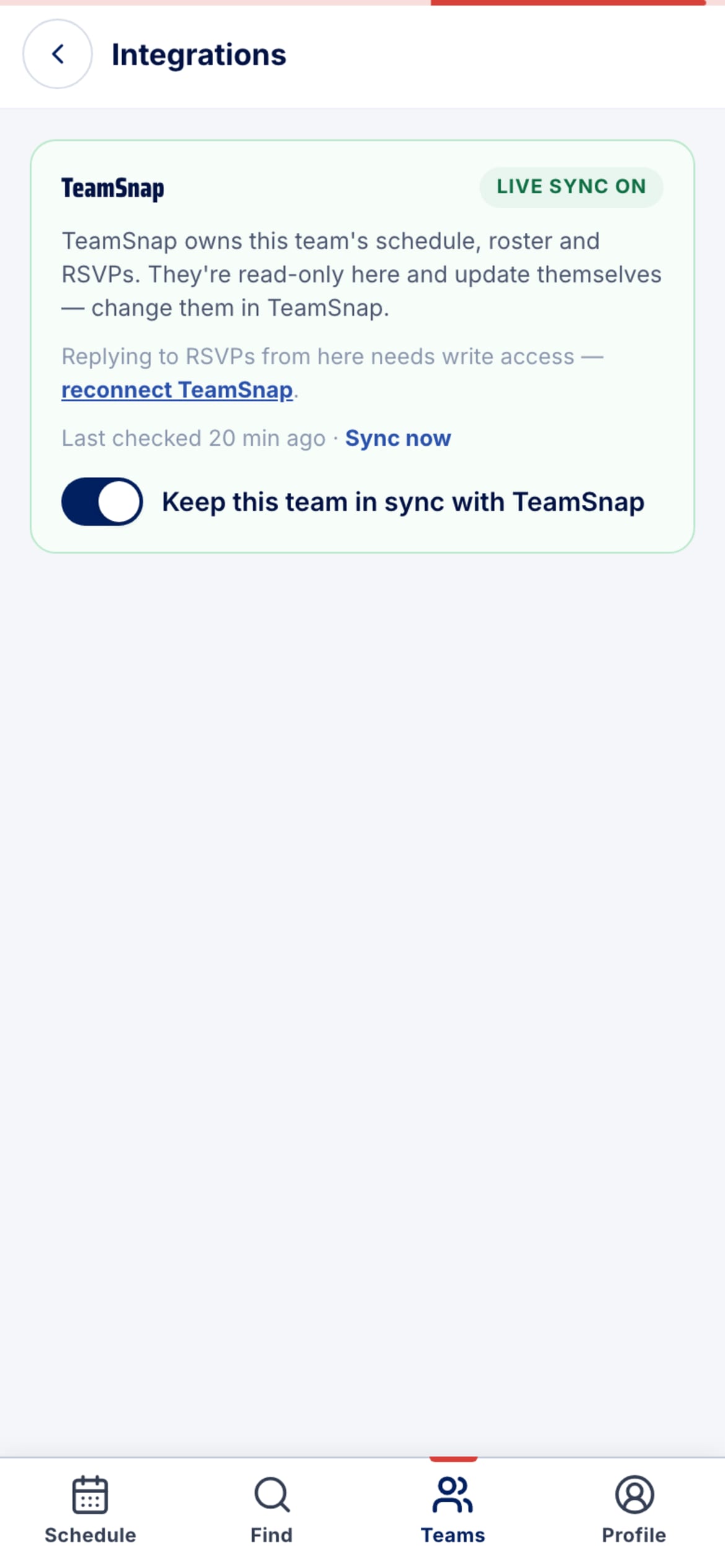
- Change it later
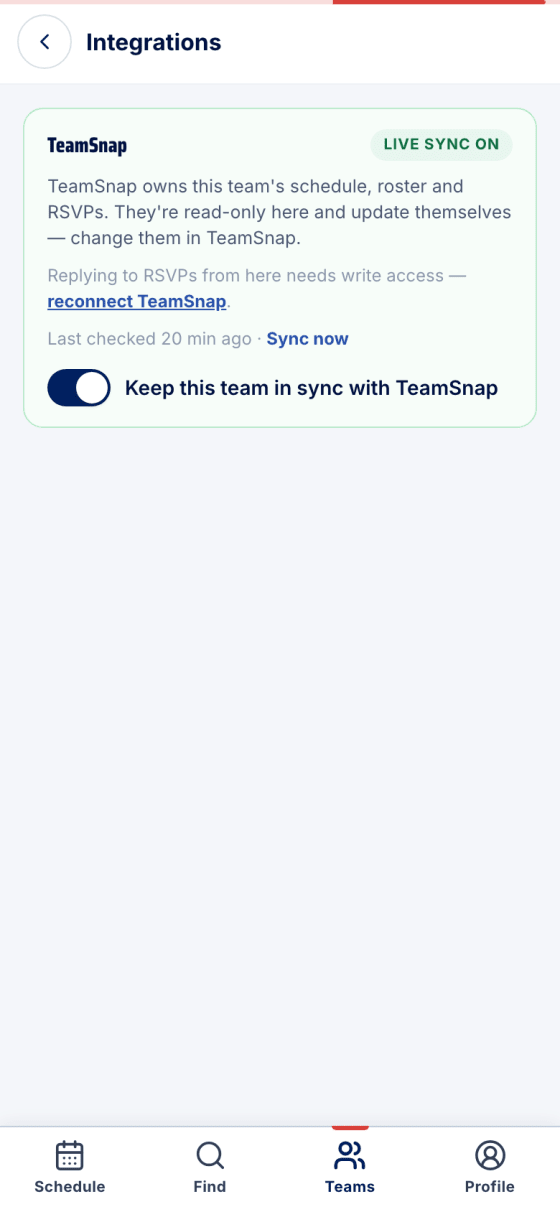
Team → Settings → Integrations. With live sync on you see when it was last checked, a Sync now link, and the keep-in-sync toggle.
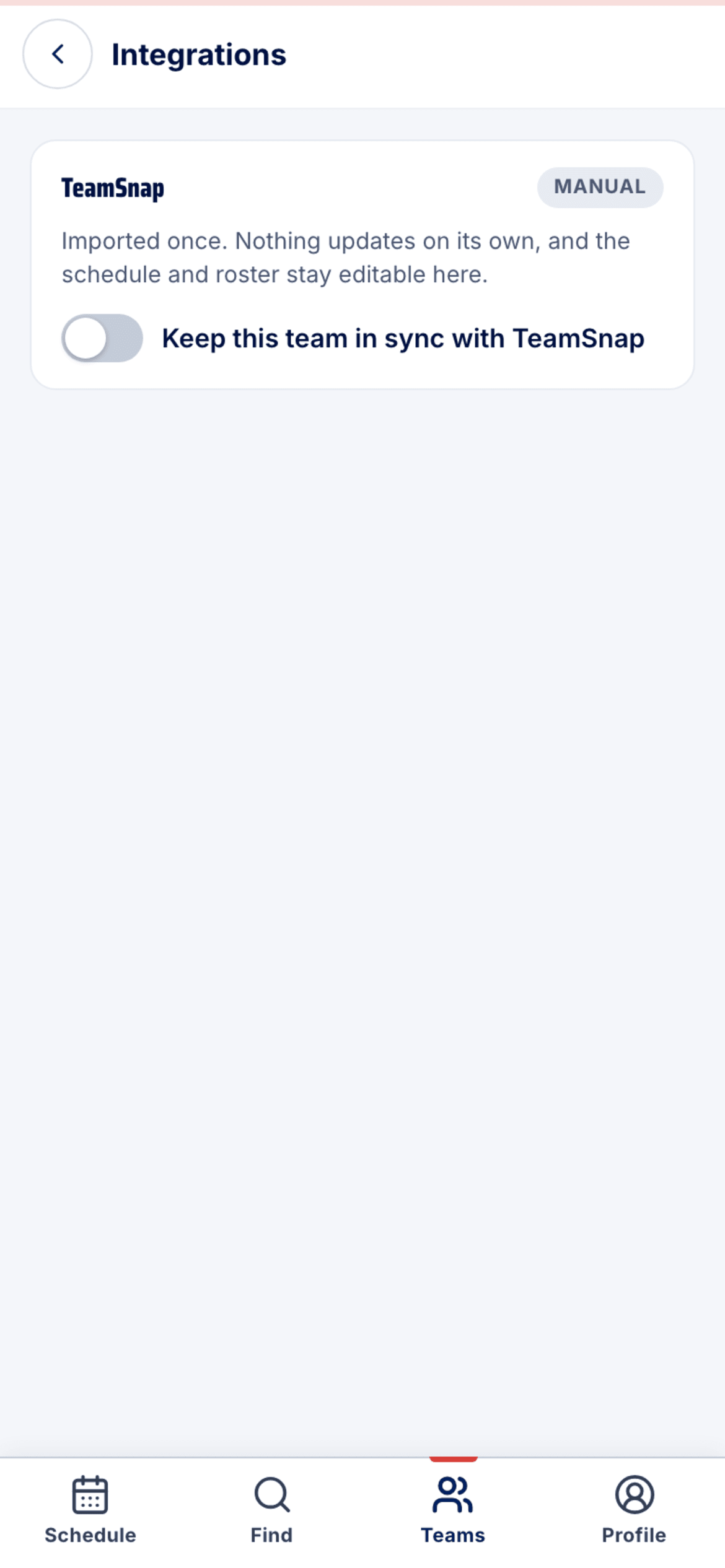
- Switching to manual
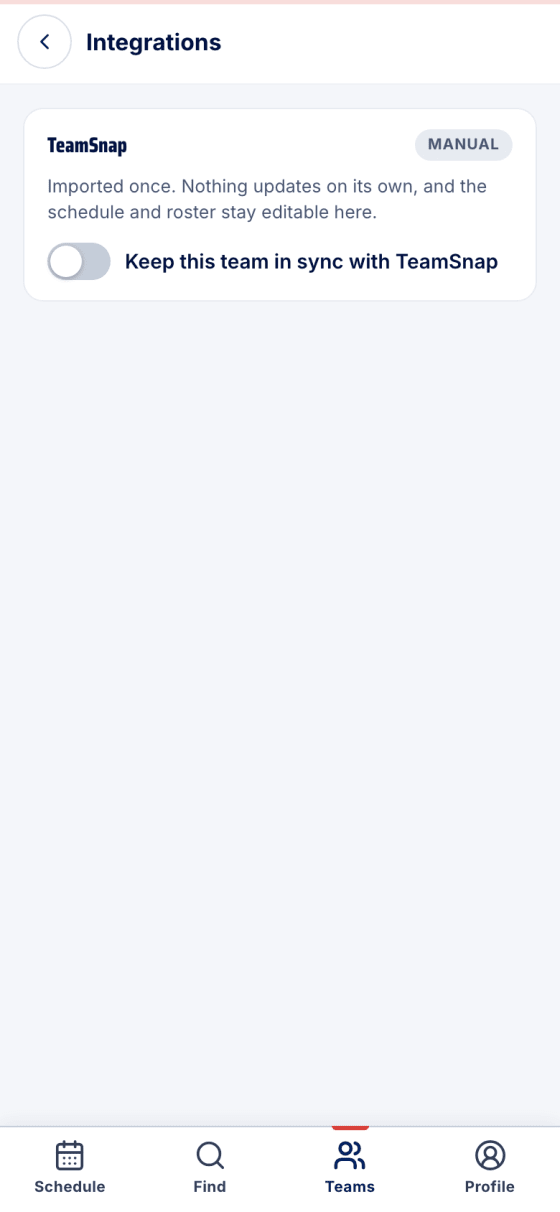
Turn the toggle off and the team is Manual: imported once, nothing updates on its own, and the schedule and roster become editable here. Turn it back on any time.
The two sync options
- TeamSnap stays in charge (live sync) — games, practices and who's answered keep coming from TeamSnap, so PuckFinder is always right. The schedule and roster are read-only here; change them in TeamSnap. Replying to RSVPs from PuckFinder needs write access, which is one extra reconnect.
- Just this once (manual) — takes today's schedule and everyone's answers as they stand, then stops. You run the schedule in PuckFinder from now on; later TeamSnap changes, including new replies, won't come across.
Either way the roster, the parents and the team chat are yours. Switch between the two any time under Team → Settings → Integrations; Sync now pulls the latest on demand.
Stuck?
Email john@puckfinder.app — a real person, usually the same day.