
Video · 1:18
Your first five minutes as a safety person
Sign the undertaking once, find your way around the Safety tab, and read what parents chose to share.
Help › Your first five minutes as a safety person
Step by step
The same flow as the video, in writing. Tap a screenshot to see it full size.
- Team → Safety
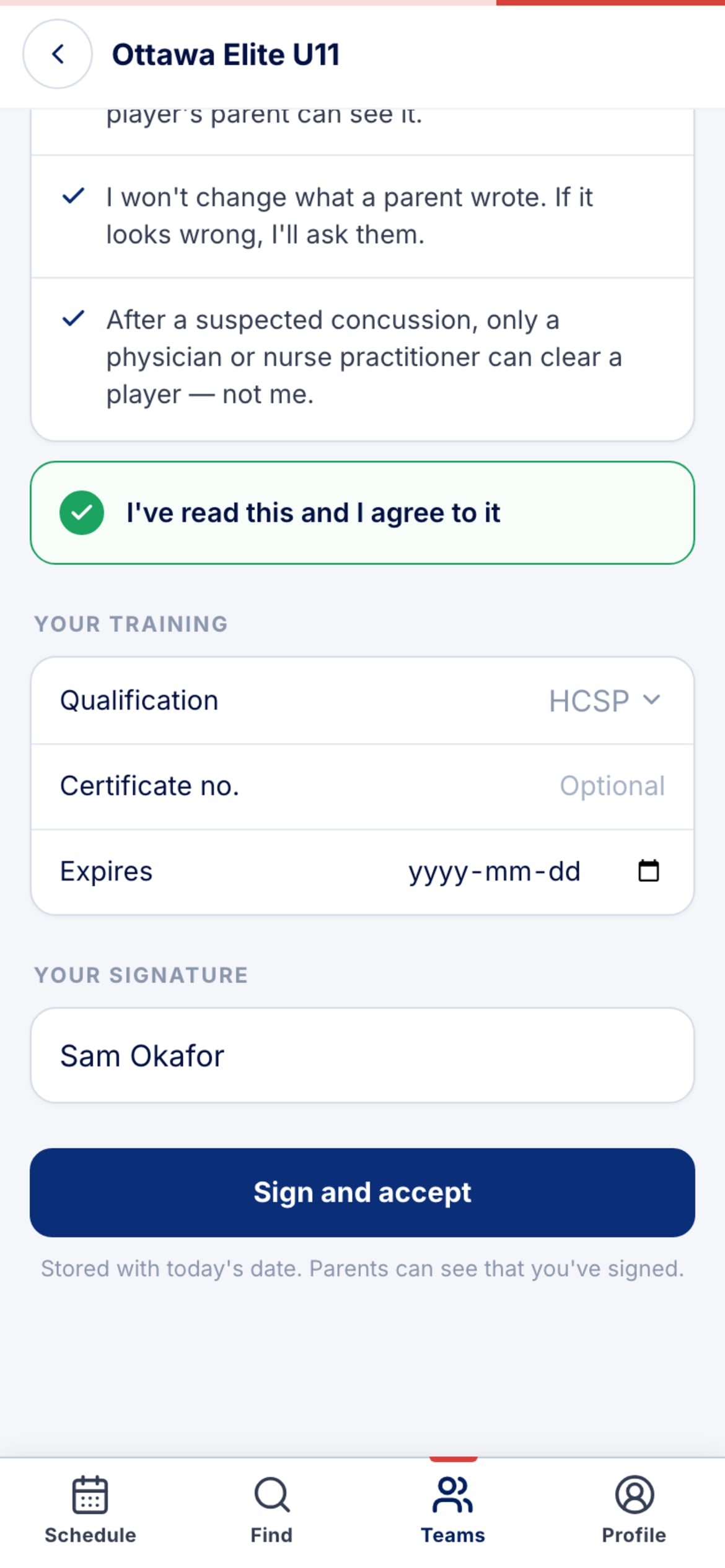
Once a team admin has appointed you, the Safety tab shows the undertaking and nothing else. Five lines on how you'll treat a record — read them; parents will see that you signed.
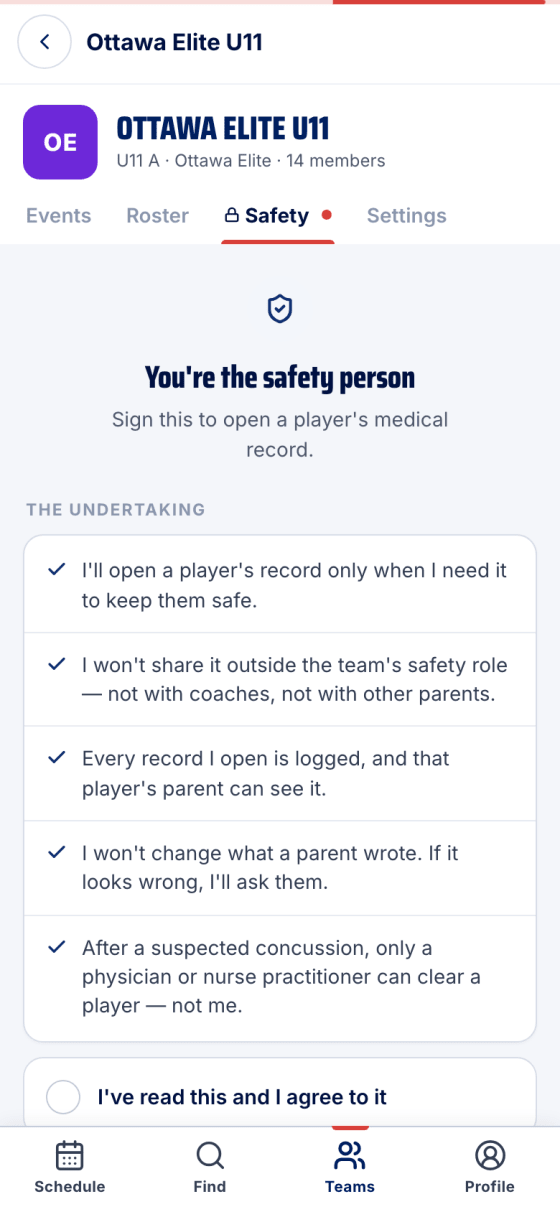
- Sign it once
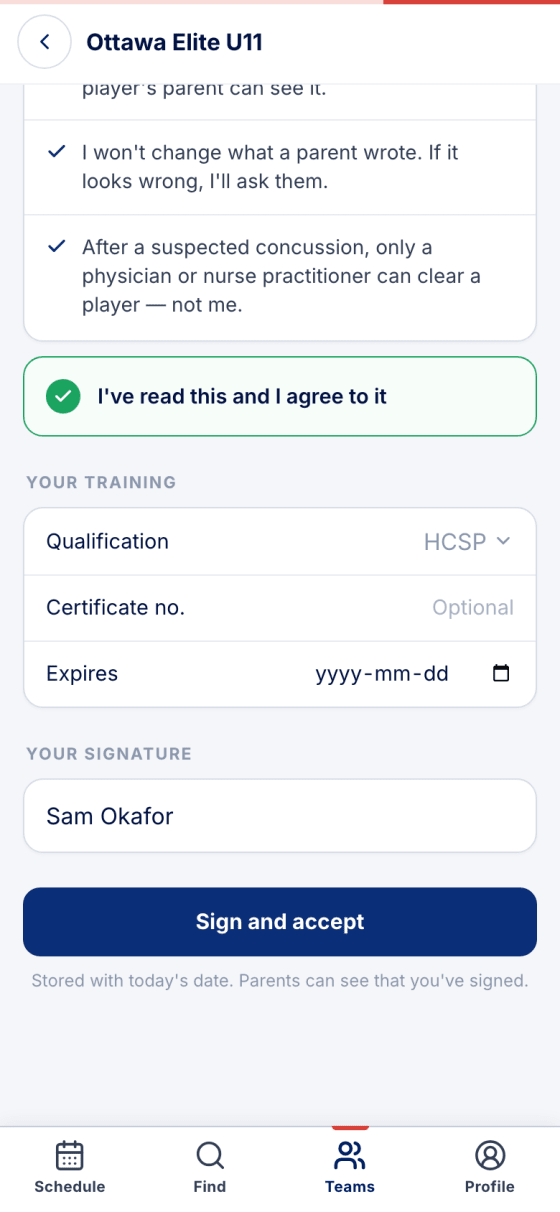
Tick I've read this and I agree to it, add your qualification (certificate number and expiry are optional), type your name and tap Sign and accept. It's stored with today's date.
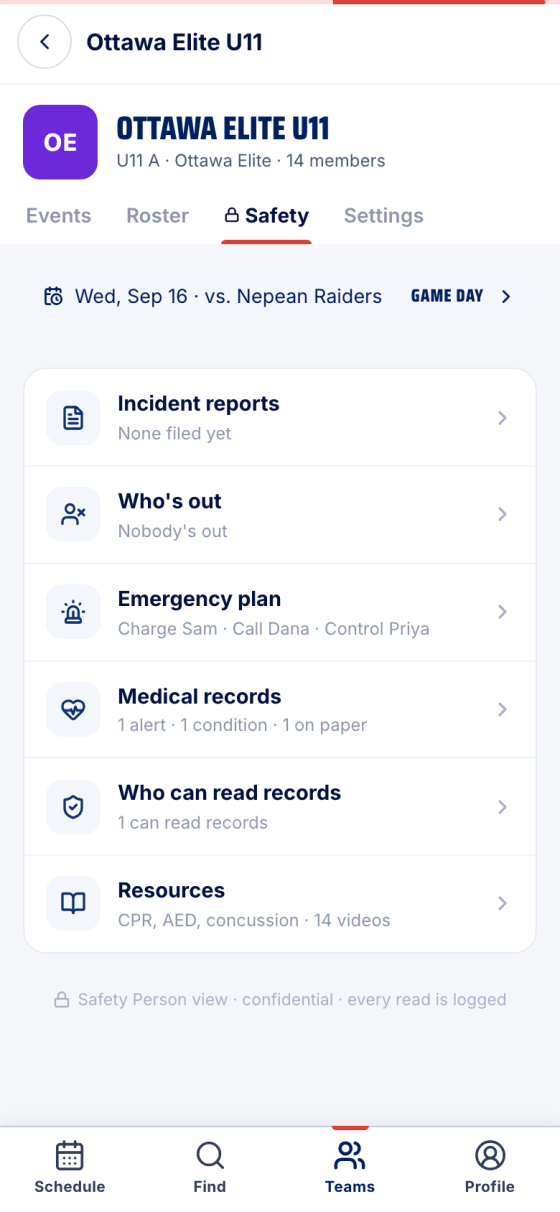
- Your safety office
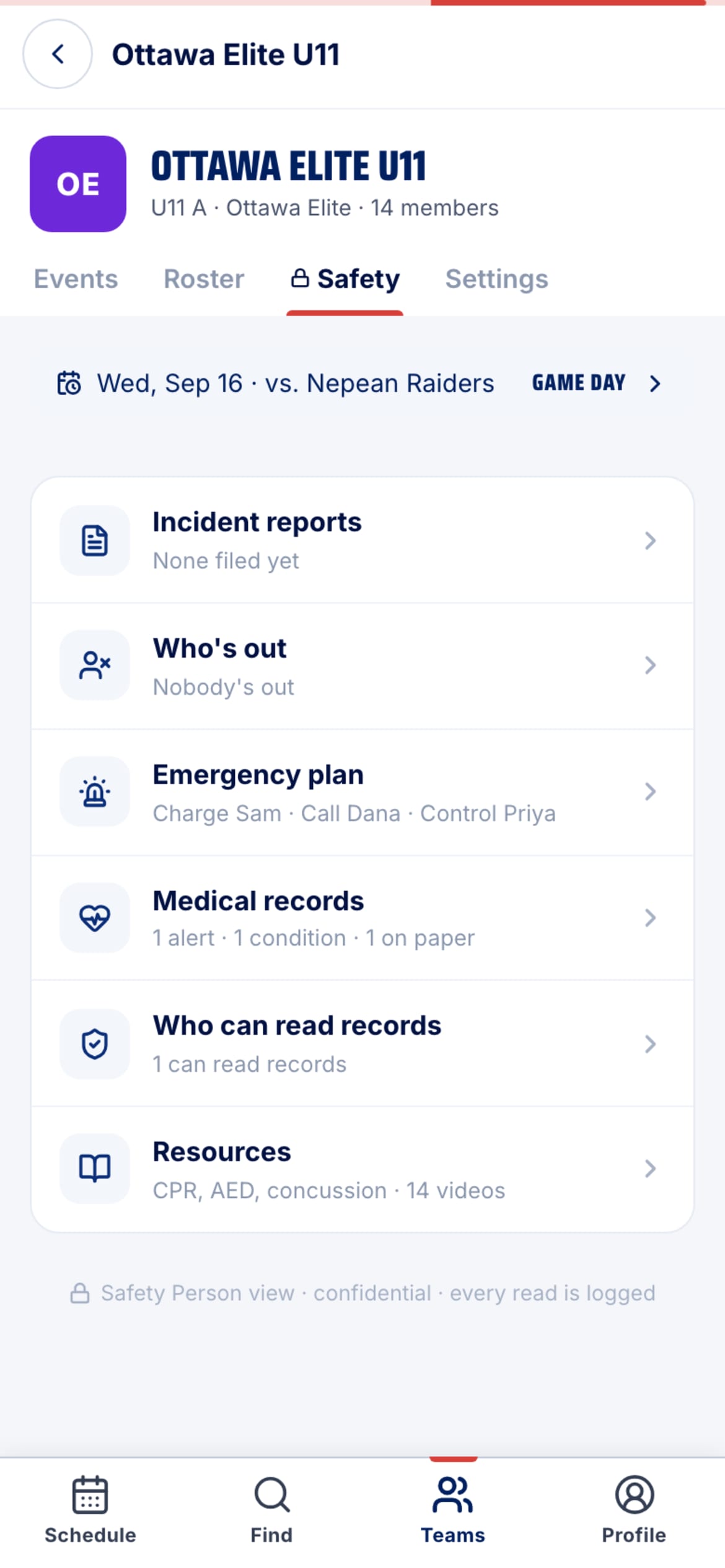
The tab unlocks: Incident reports, Who's out, the Emergency plan, Medical records, Who can read records and Resources. Tonight's game sits at the top.
- What parents shared
Flagged kids first, with the alert and where the medication is. On paper means the parent hasn't shared a record — treat unknown as unknown. Shared, nothing flagged is the good news.

- Open a record
Read-only, and access logged — the parent sees that you opened it and when. Alerts first, then meds, allergies, history and the emergency contacts.

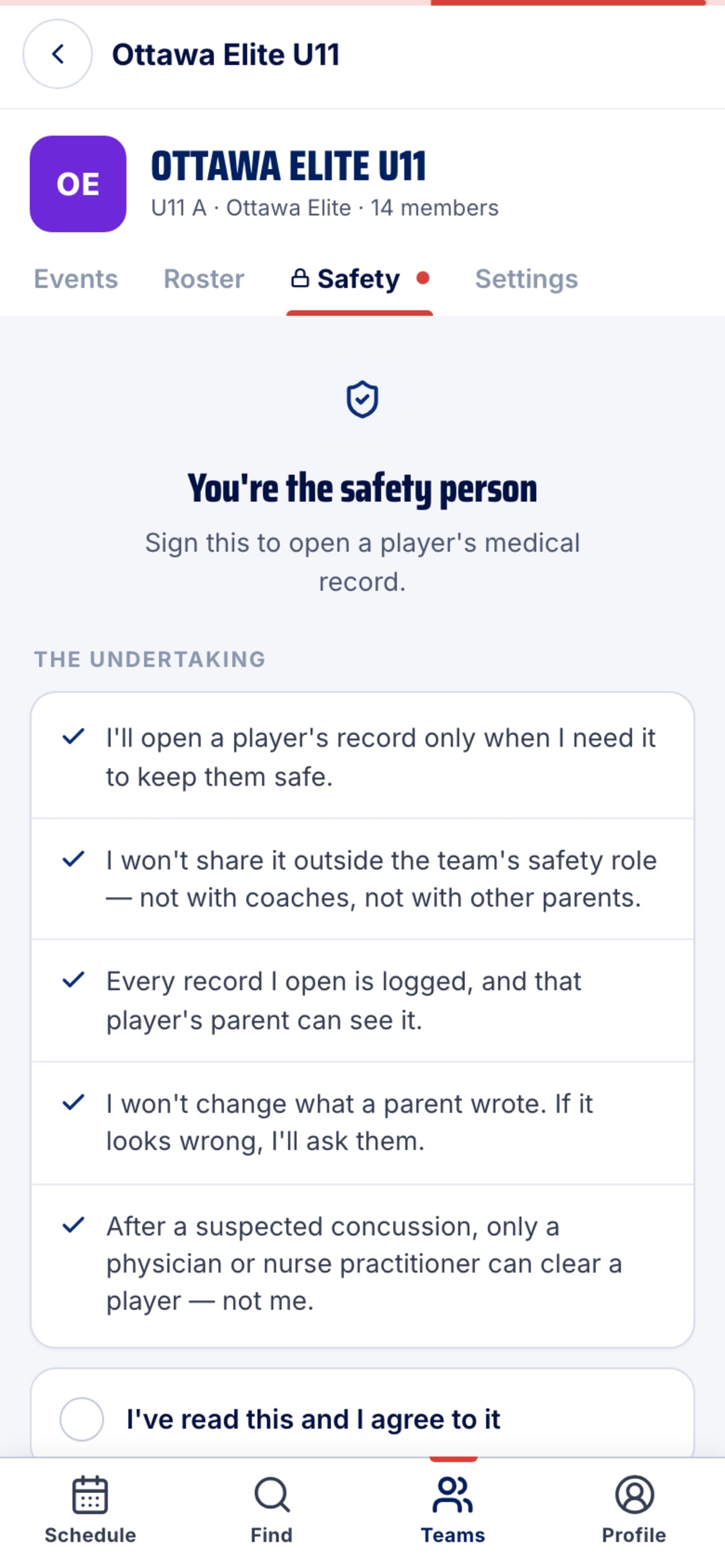


Before you can read anything
A team admin appoints you (Team → Safety → Who can read records), then you sign the undertaking on the Safety tab. Until then the tab shows only the form. Your qualification is shown to parents when they decide what to share.
Stuck?
Email john@puckfinder.app — a real person, usually the same day.