
Video · 2:11
Lines, done
Start from last game, tap players into spots, call someone up, publish once. Every family sees where their kid plays, and a printable board goes on the door.
Help › Lines, done
Step by step
The same flow as the video, in writing. Tap a screenshot to see it full size.
- From the game card
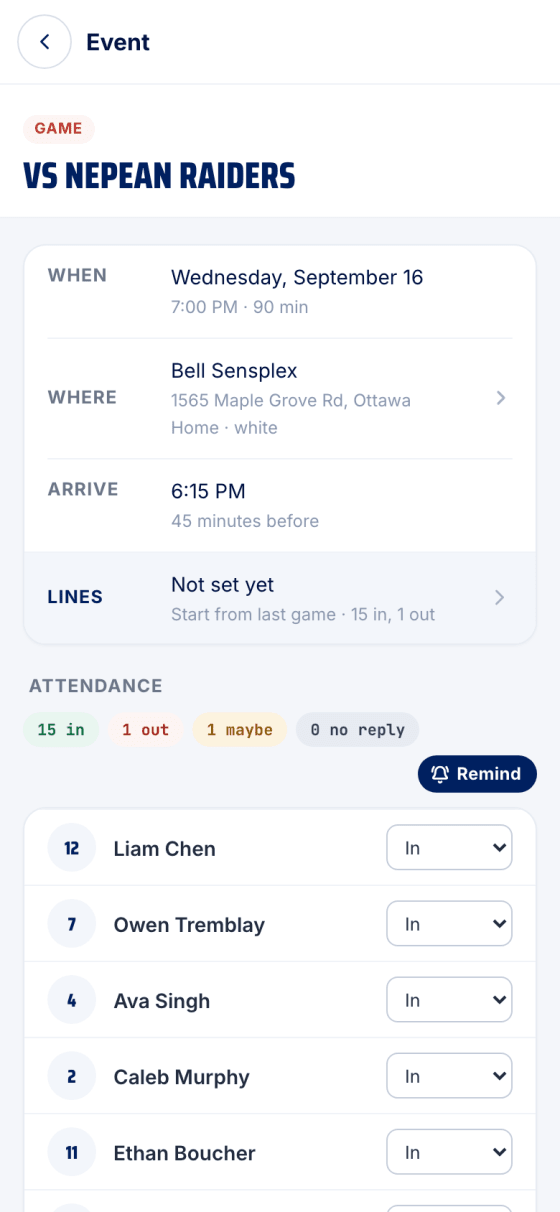
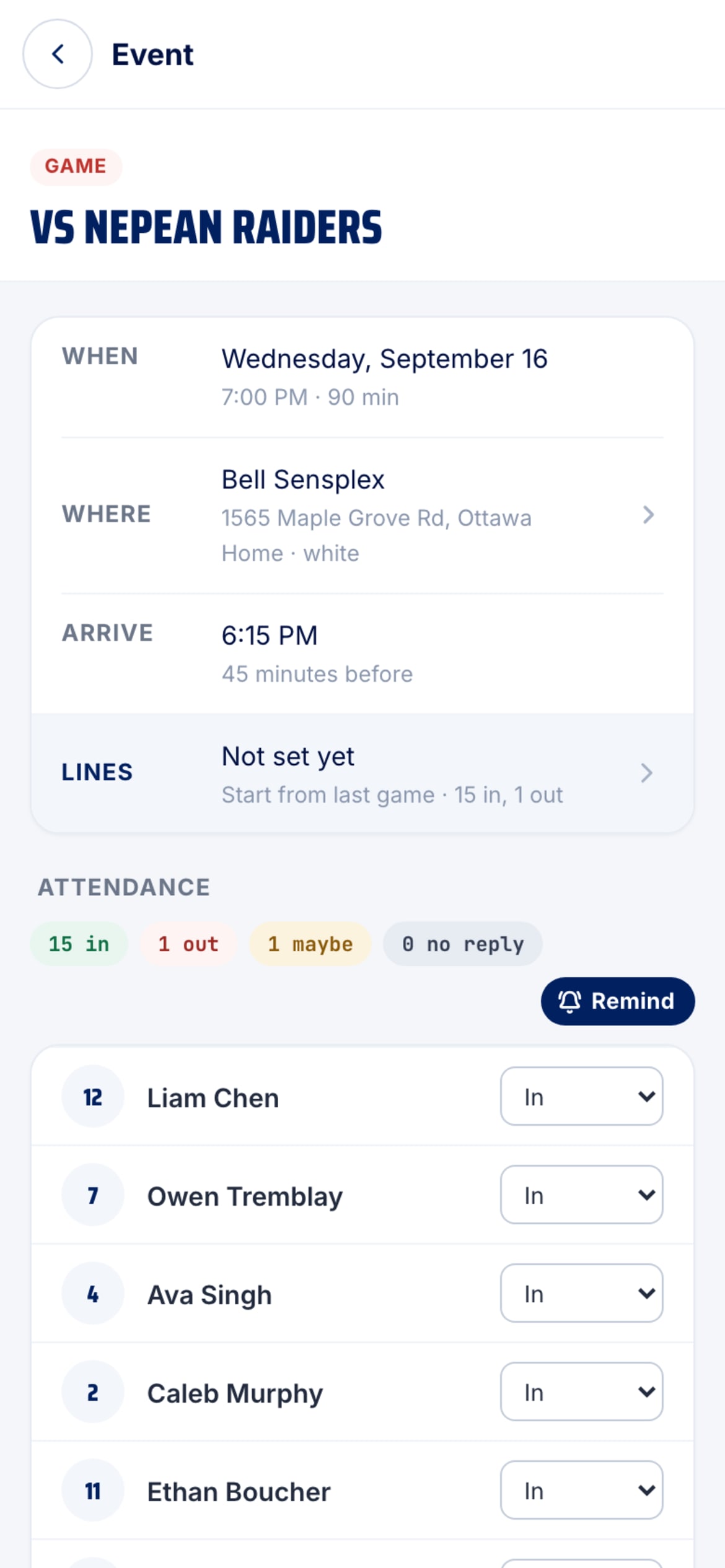
Open a game. Staff see a Lines row between Arrive and Safety: Not set yet with how many have answered In and Out, Draft · 3 spots open while you build, Lines up once published. It turns amber if someone answers Out after you've published.
- Start where you left off
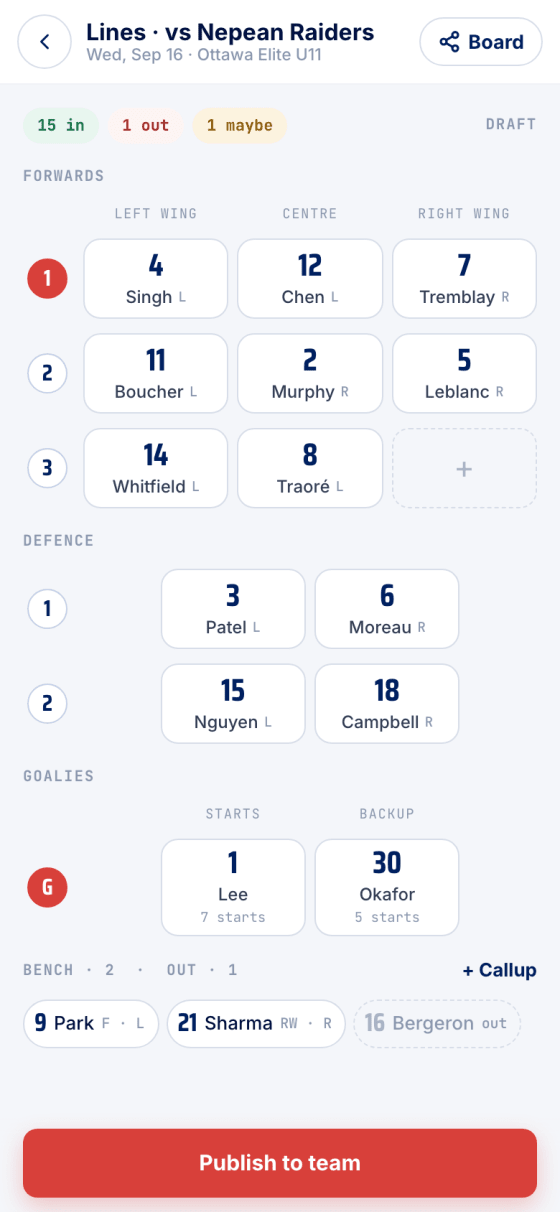
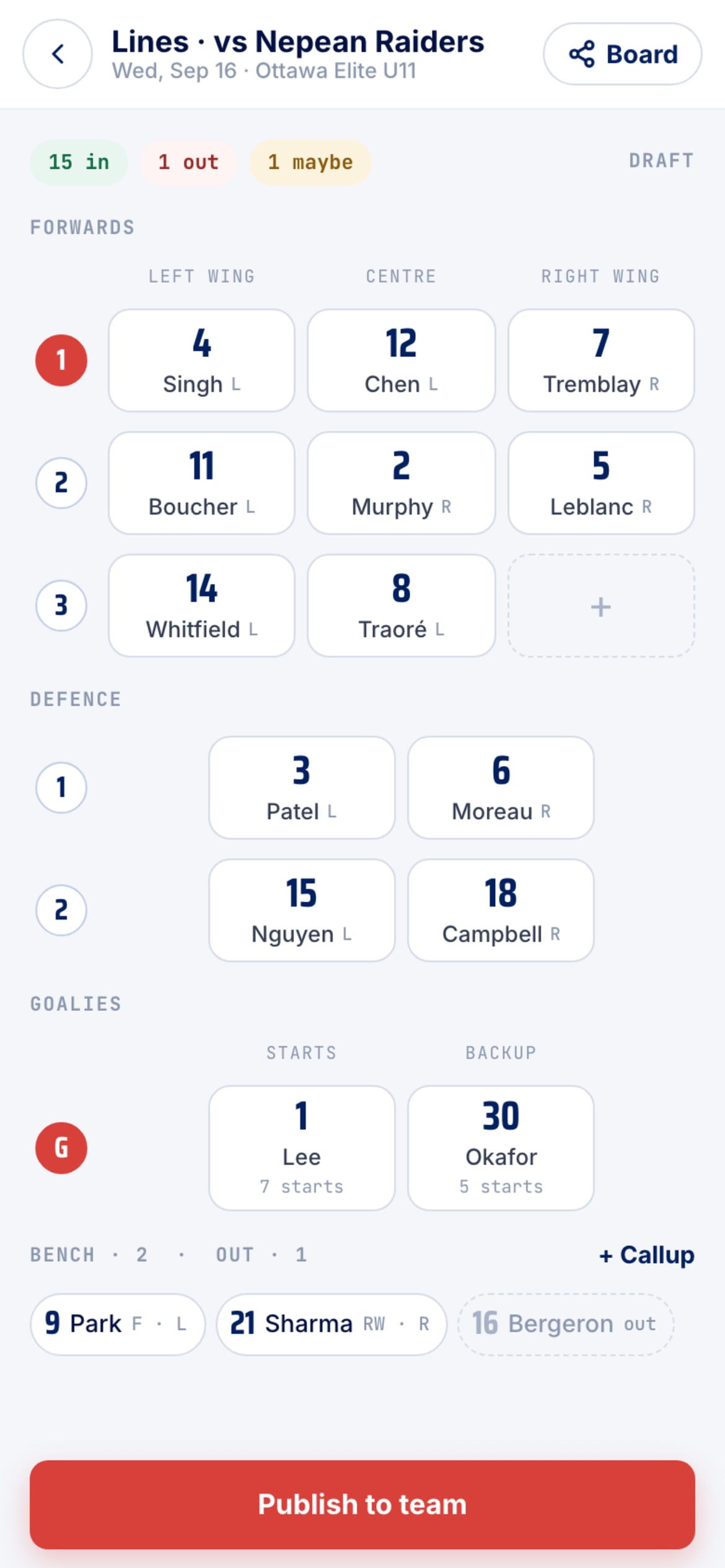
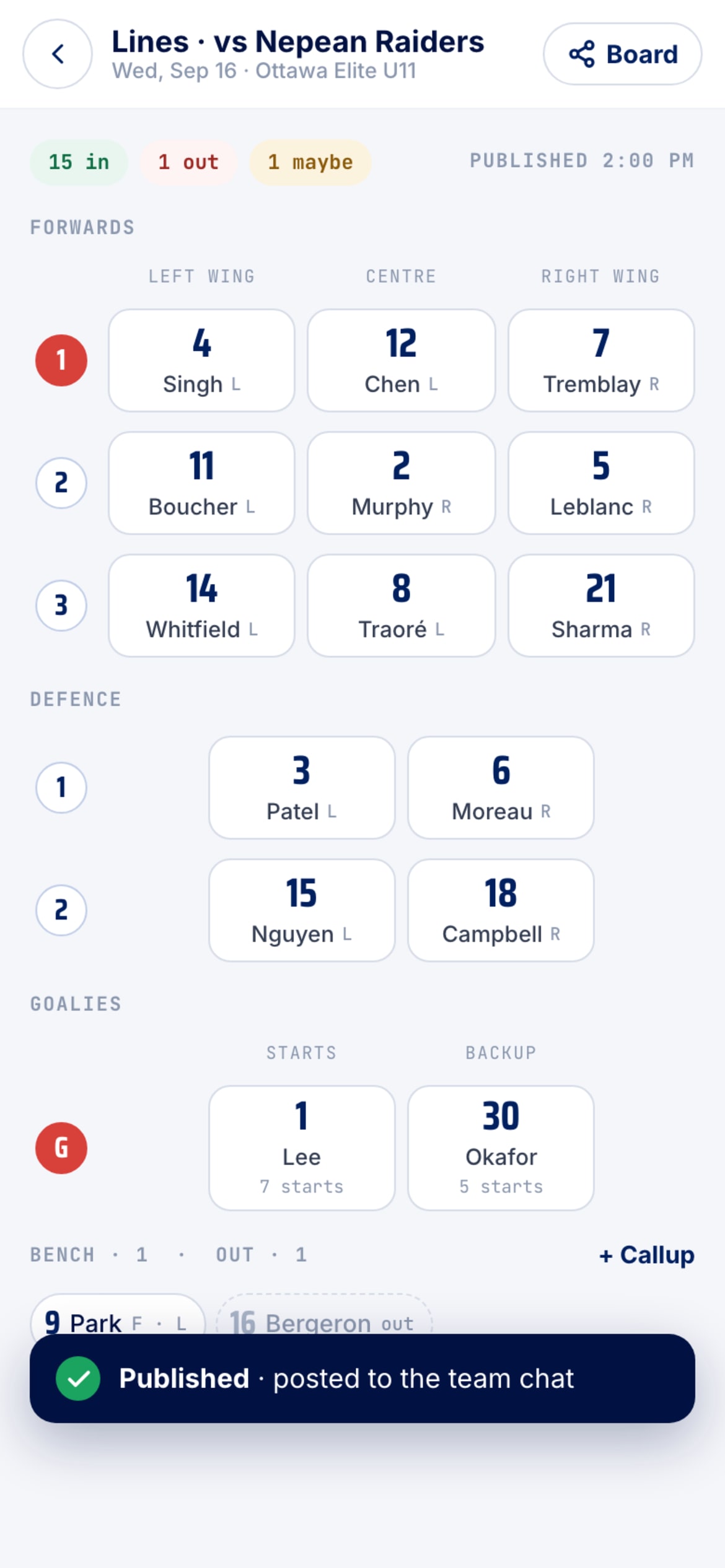
The builder opens empty with one big card: Start from last game. It copies the lines you used last time, and anyone who answered Out for this game goes straight to Out, leaving their spot open. No previous game? Start from the roster.
- Fill a spot
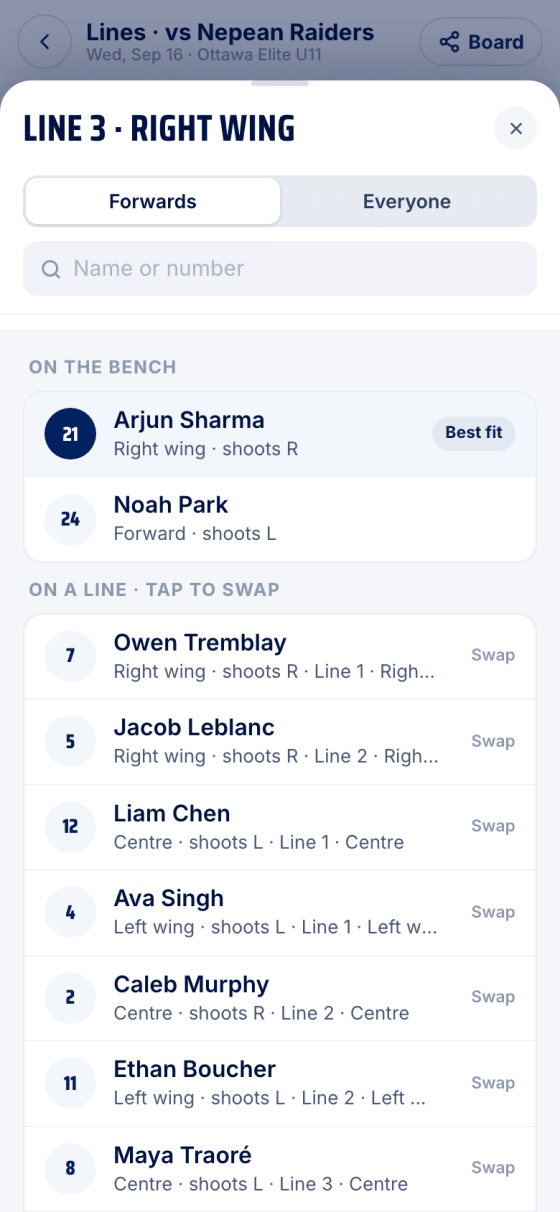
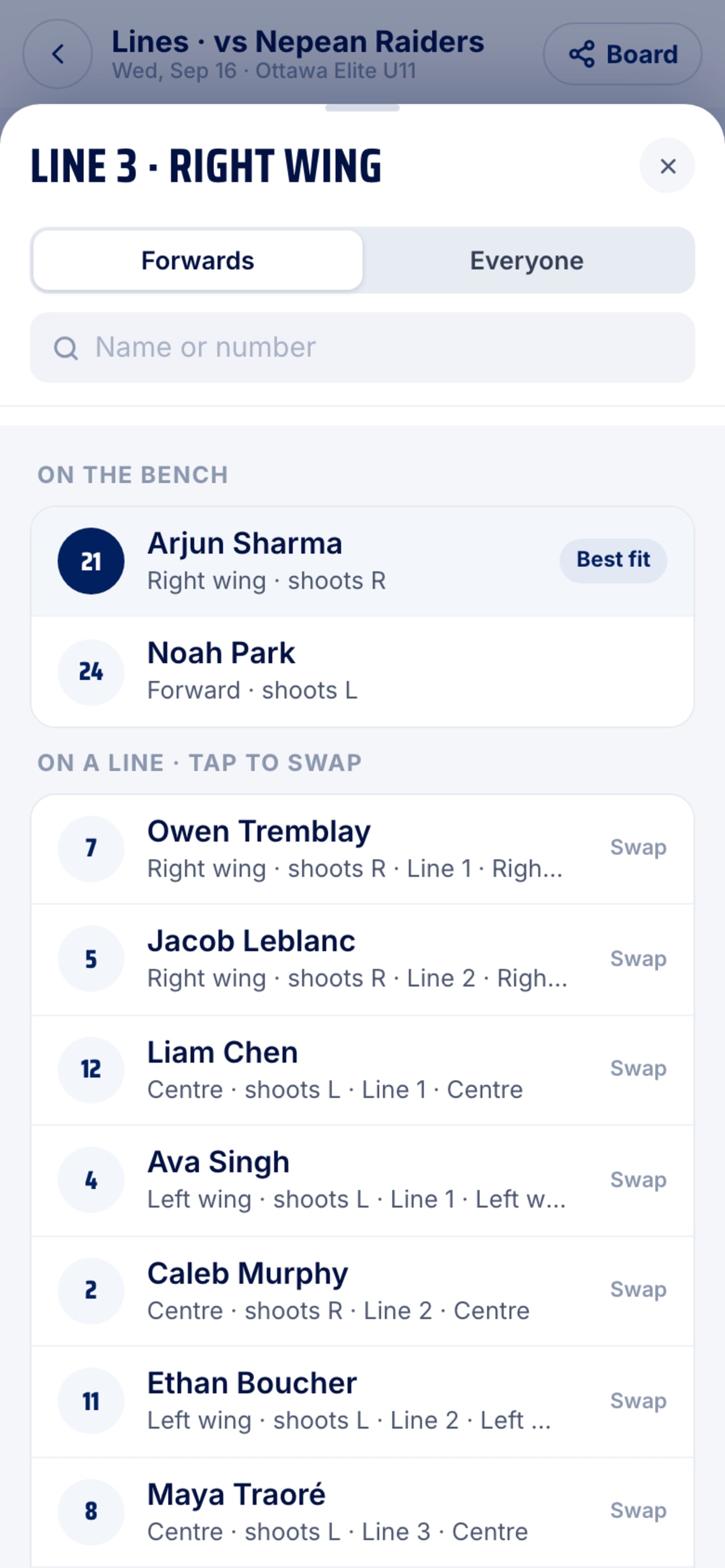
Tap an empty spot. The picker shows players for that position first, best fit on top, with Maybe and Out marked. Everyone lists the whole bench. Tap a name to place them. Every change saves as a draft on its own.
- Tap, then tap
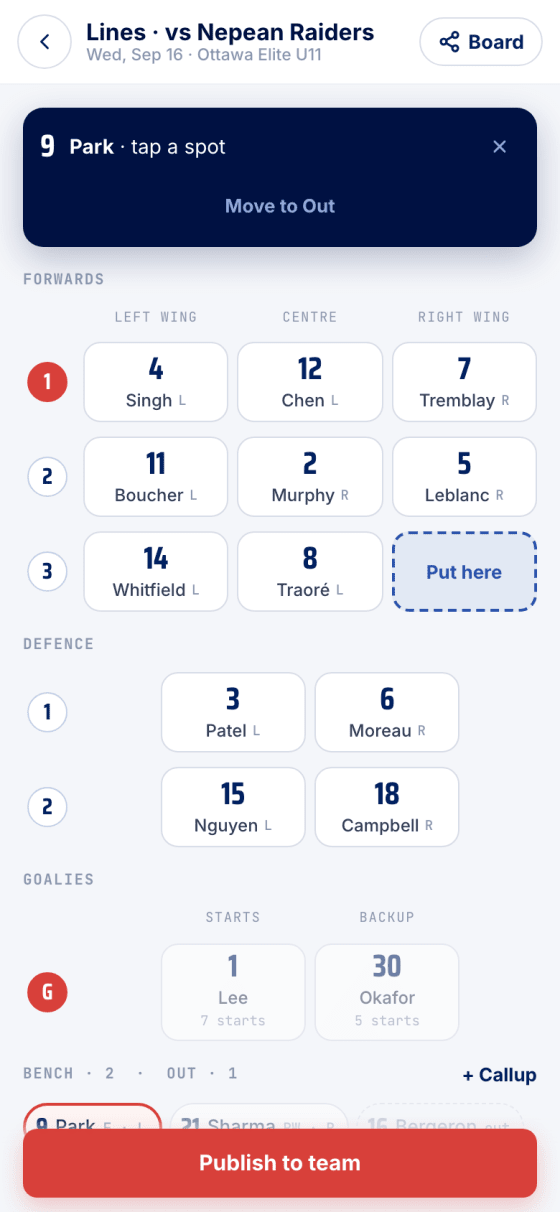
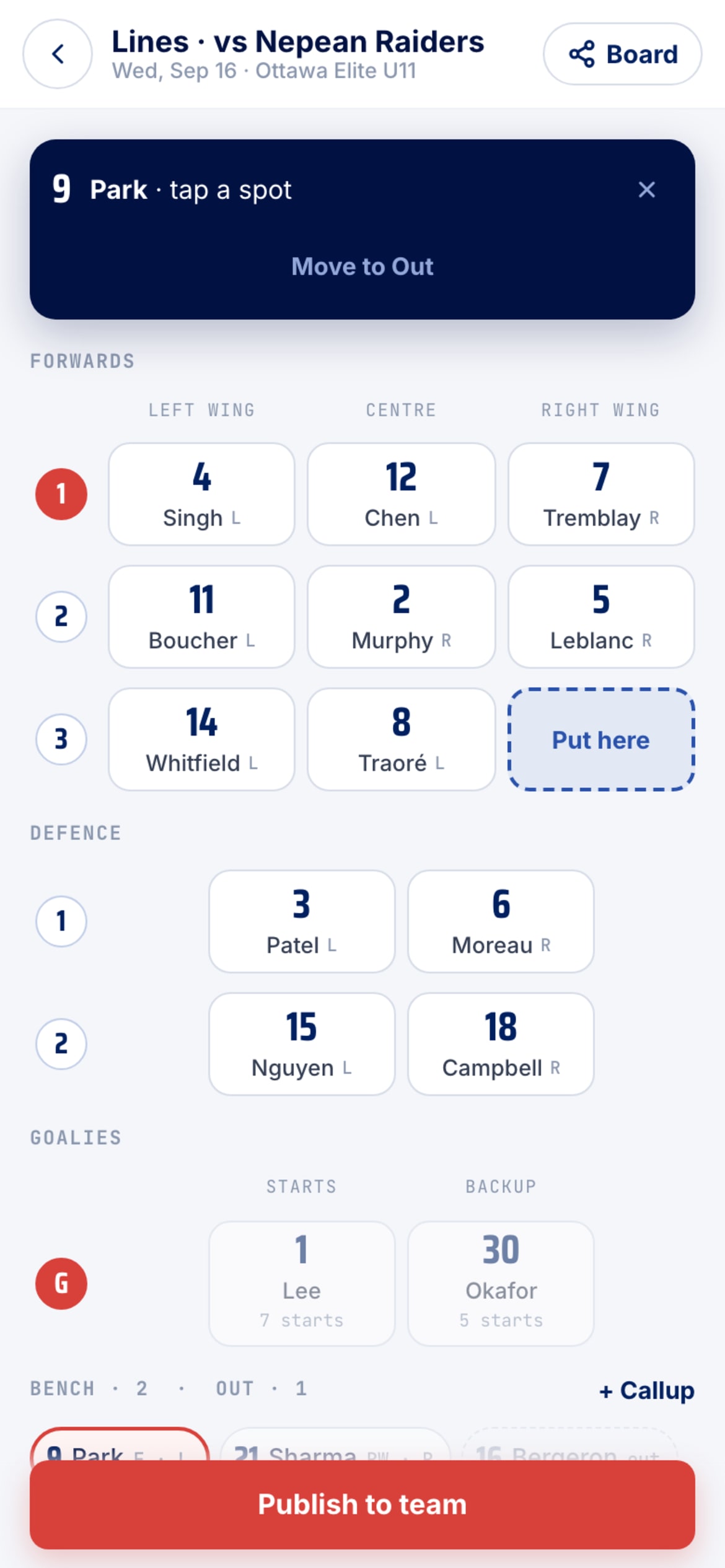
To move someone already placed, tap them, then tap where they go. Spots that fit light up; tapping an occupied spot swaps the two players. While a player is picked, the banner offers Send to bench and Move to Out. Tap a line's number to make it the starting line.
- Call someone up
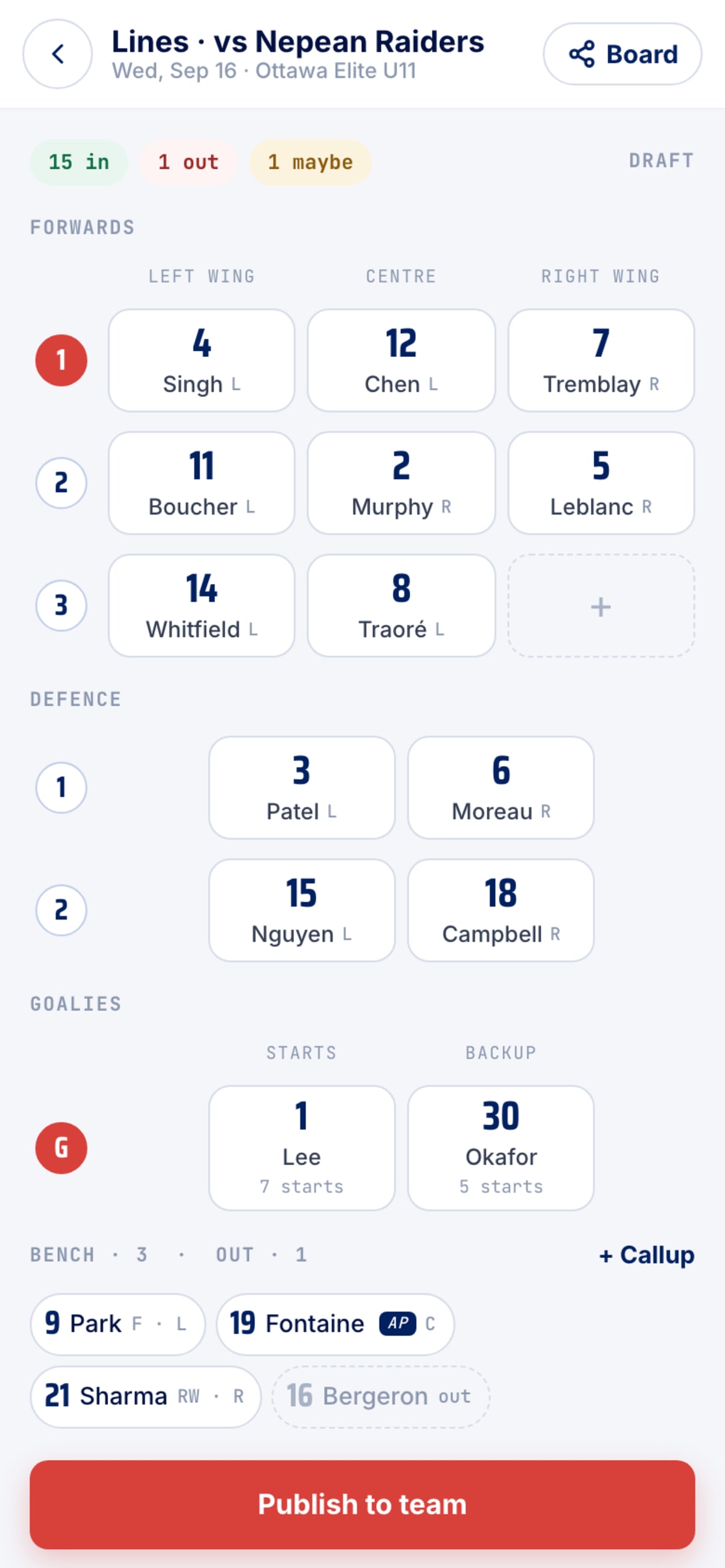
Callup searches your association and remembers who has played with you before. Tap a name and they're on your bench, tagged AP. Not on PuckFinder? Add by name, number and position, for this game only.
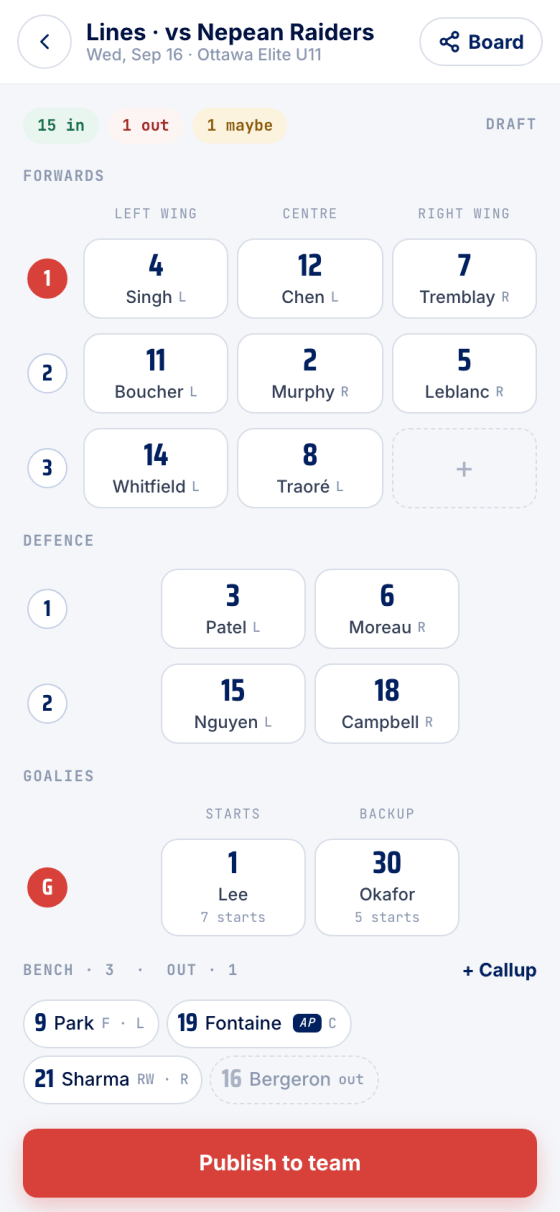
- Publish once
Goalie tiles show their season starts. When the lines are right, Publish to team posts them once to the team chat, with a push. If spots are still open it asks first. Edits after that are silent: the page and the board just update.
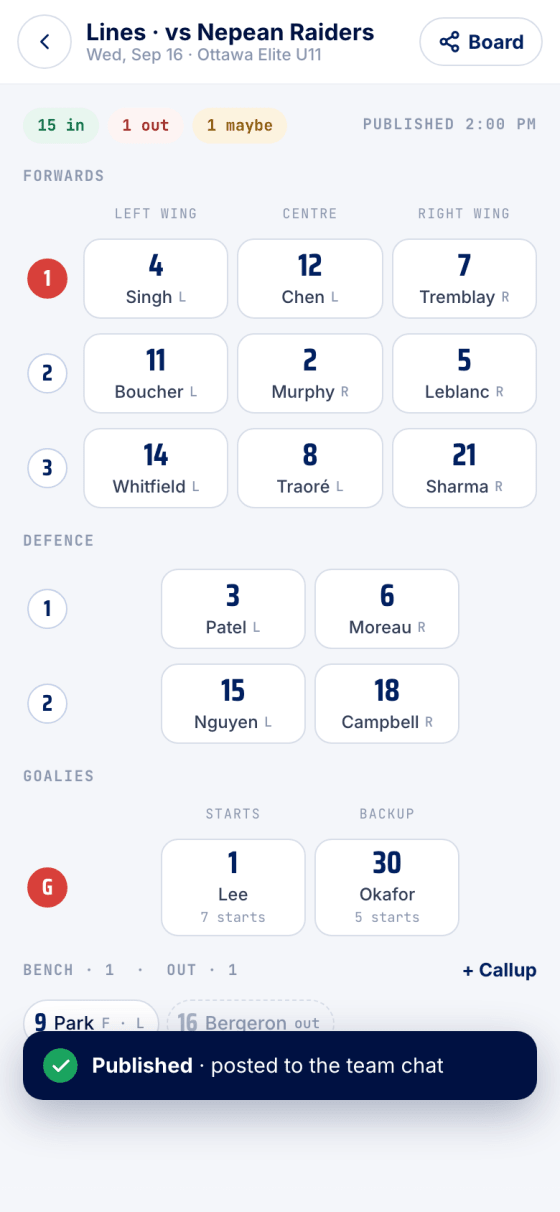
- What a parent sees
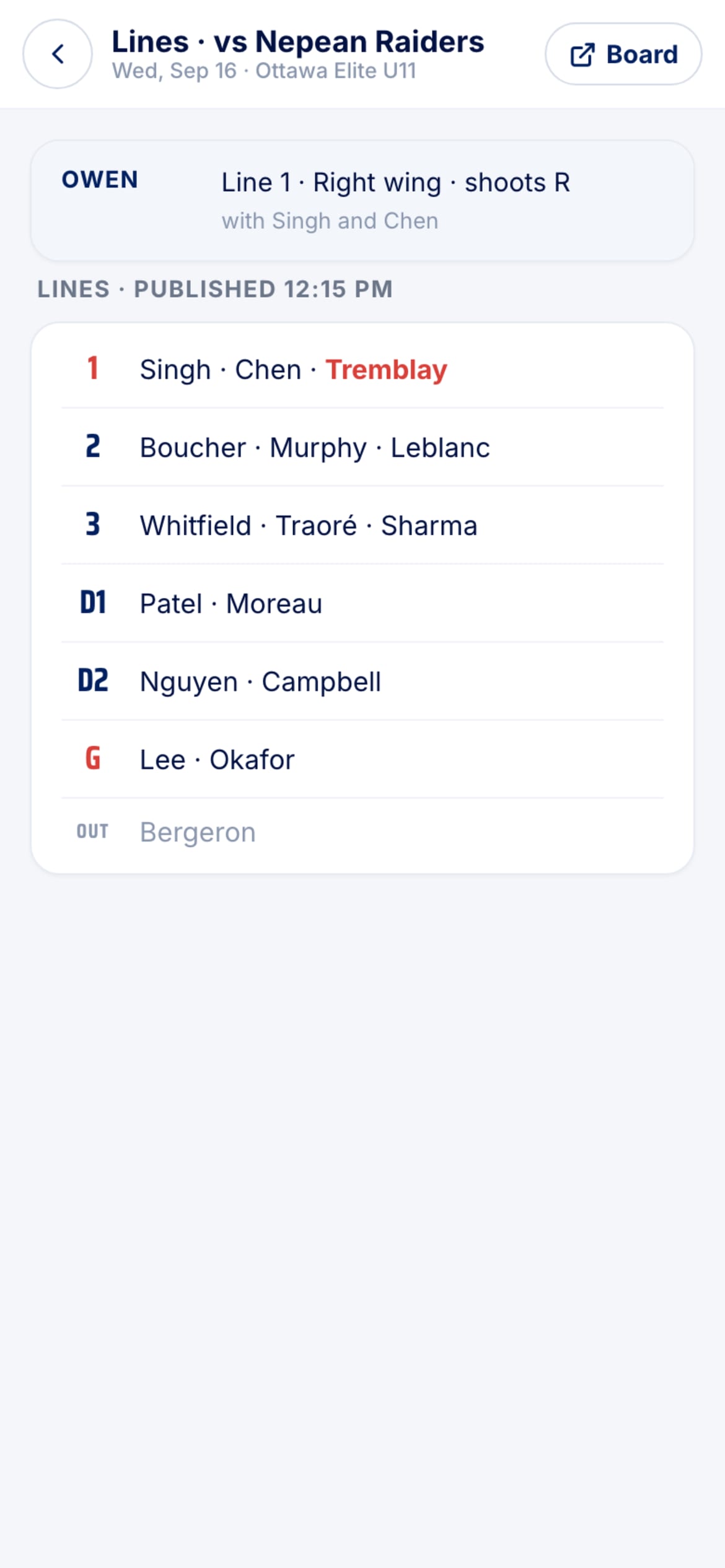
The same page, read-only: their kid first, Line 1 · Right wing · shoots R, with Singh and Chen, then the whole lineup with their kid highlighted. A team setting can limit parents to their own line only. Drafts are never shown.
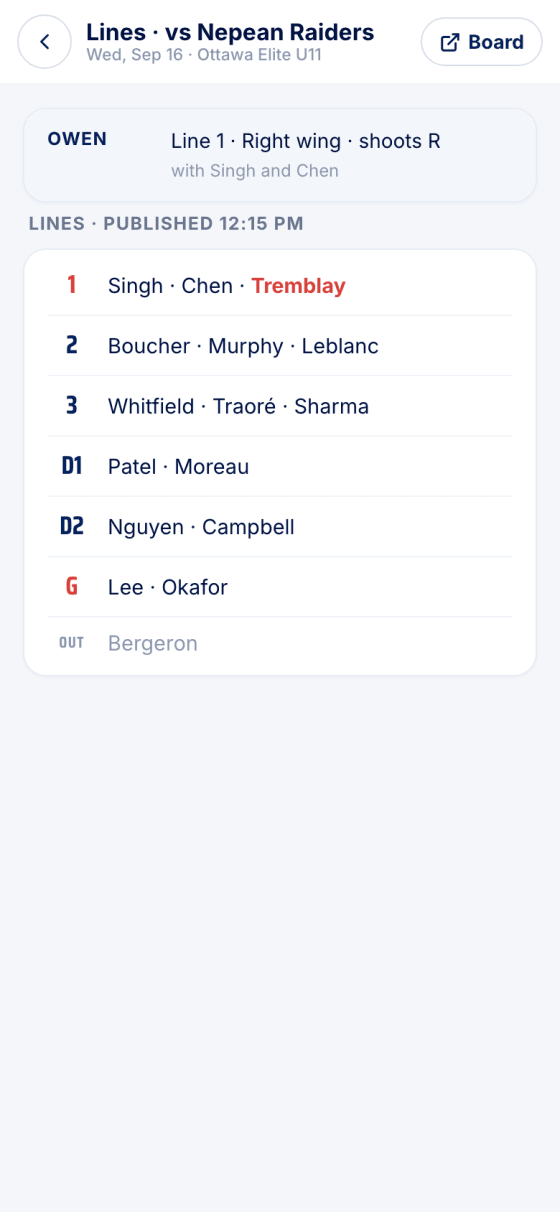
- The board
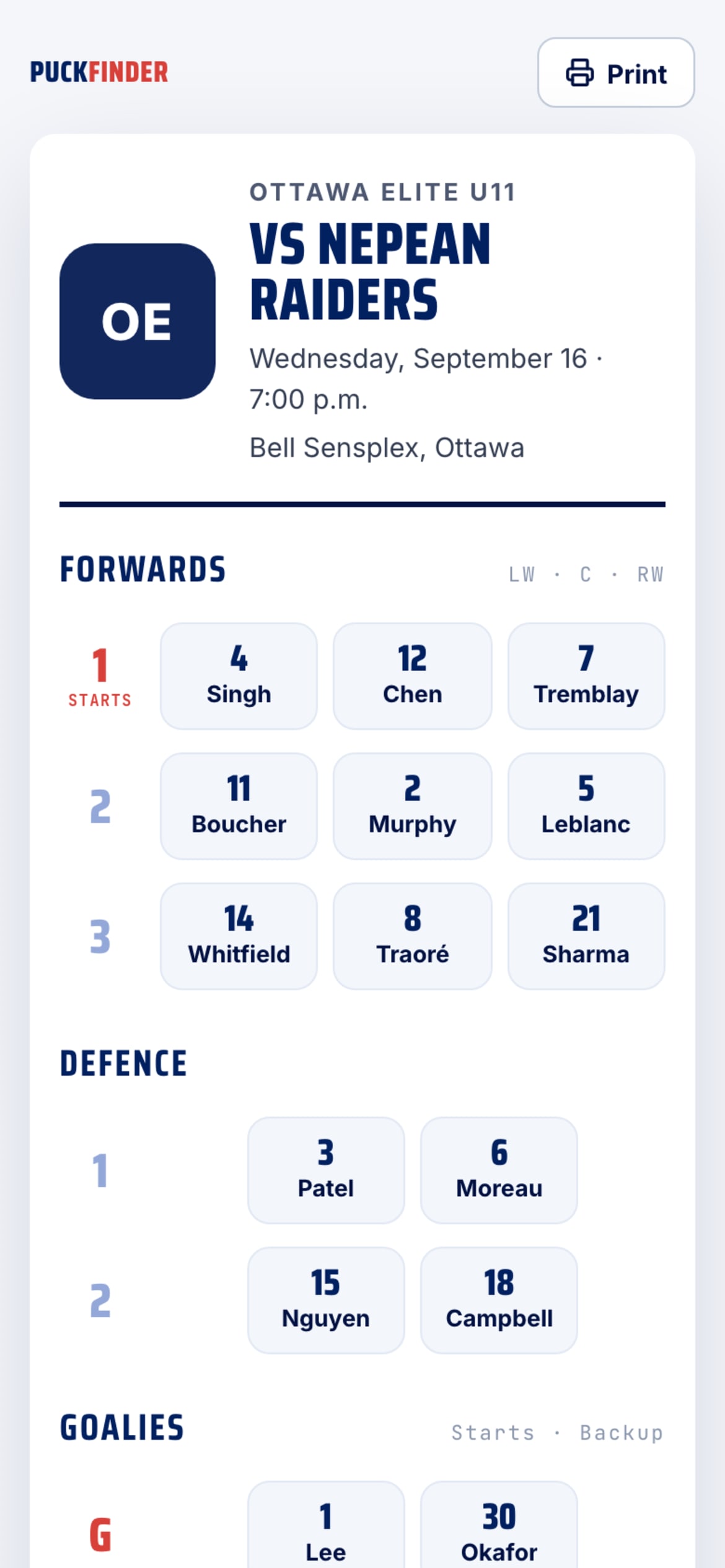
Board mints a public link and offers copy, share, open and print. The page shows crest, game, rink, every line, pairs, goalies, callups and who's not dressed, and prints on A4 for the door. It always shows the newest published version; Turn the link off revokes it.
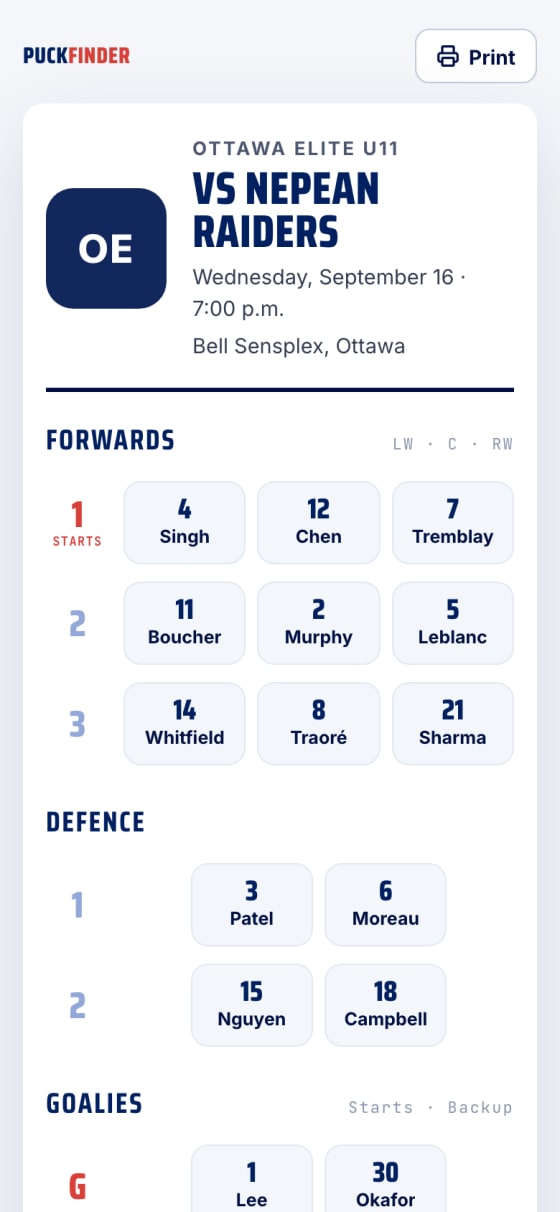
- Fair ice, all season
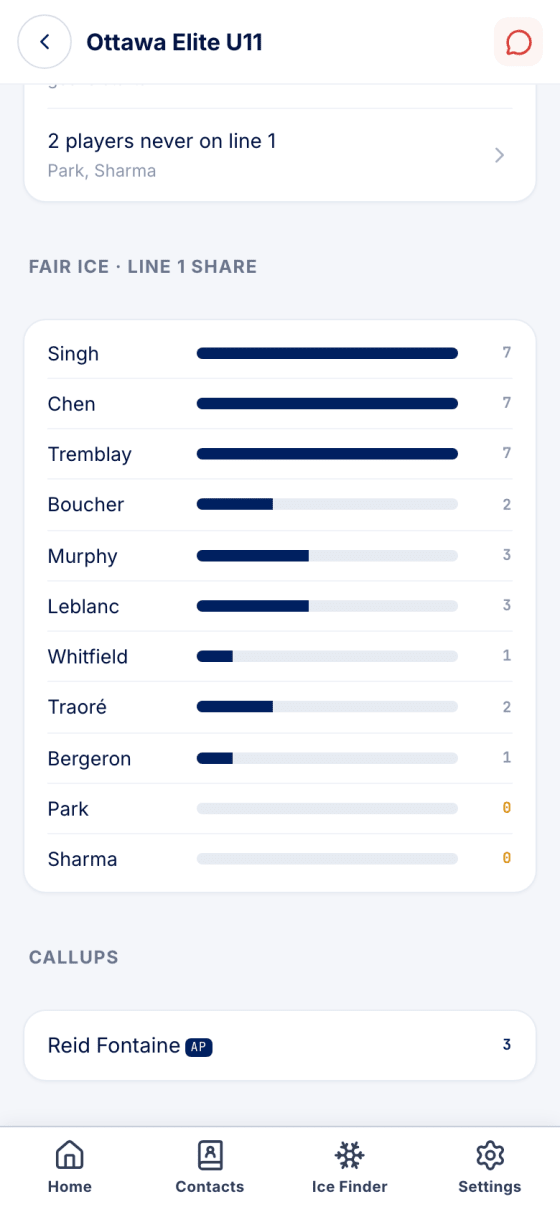
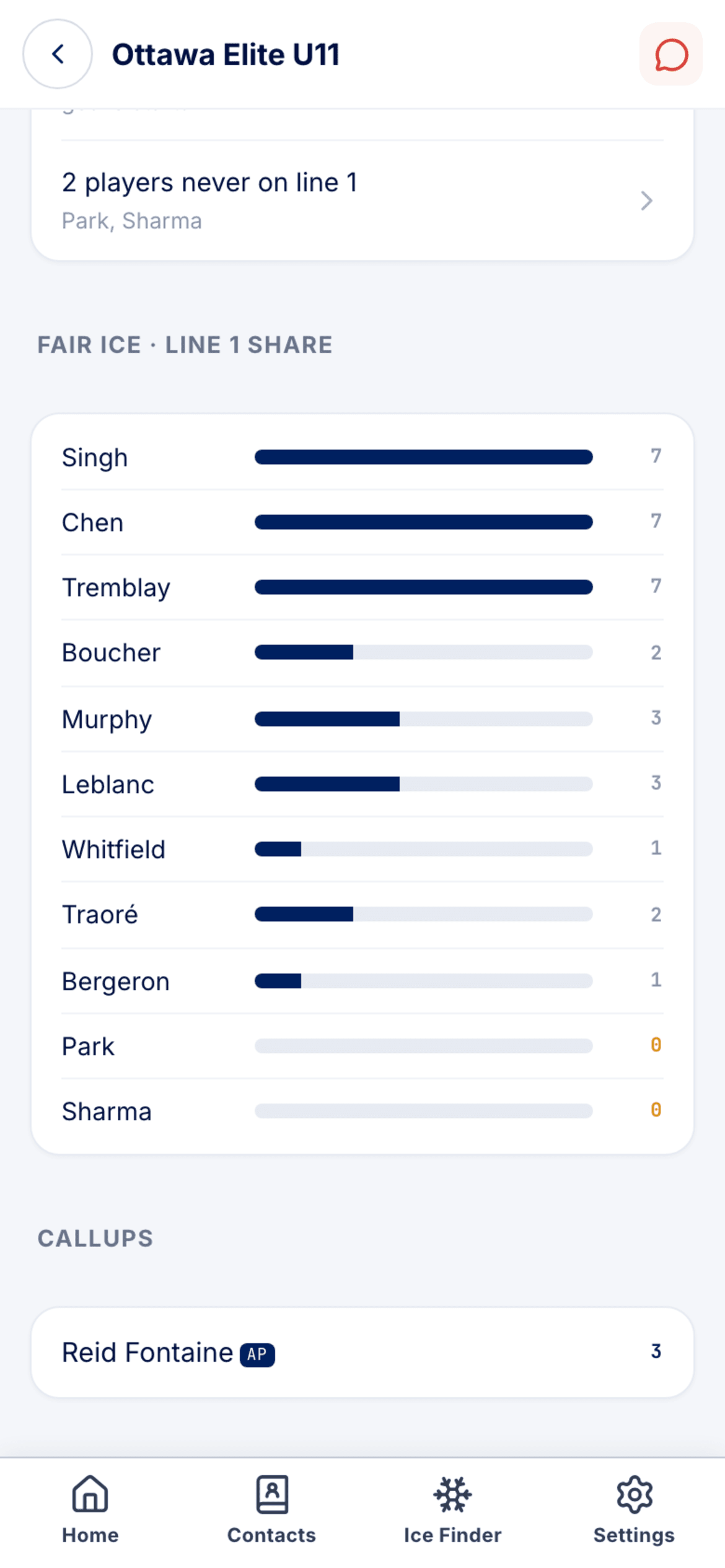
Team → Lines is the season so far: most used lines and pairs, goalie starts and backups, and who has never had line 1. One bar per forward shows their share of line 1, amber when it's zero. Each game's lines are kept underneath.
- Settings
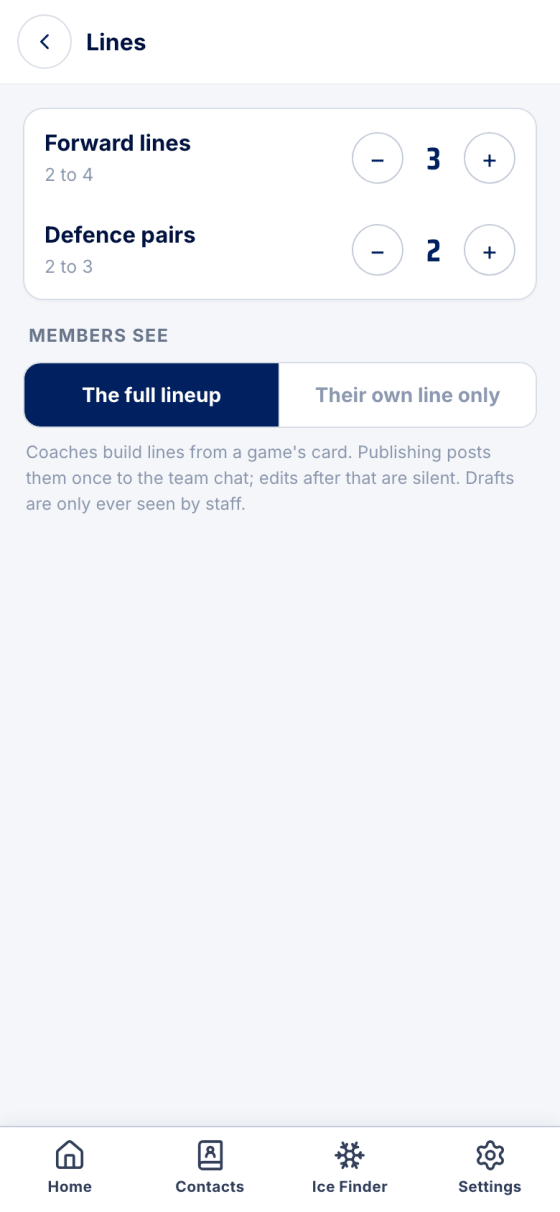
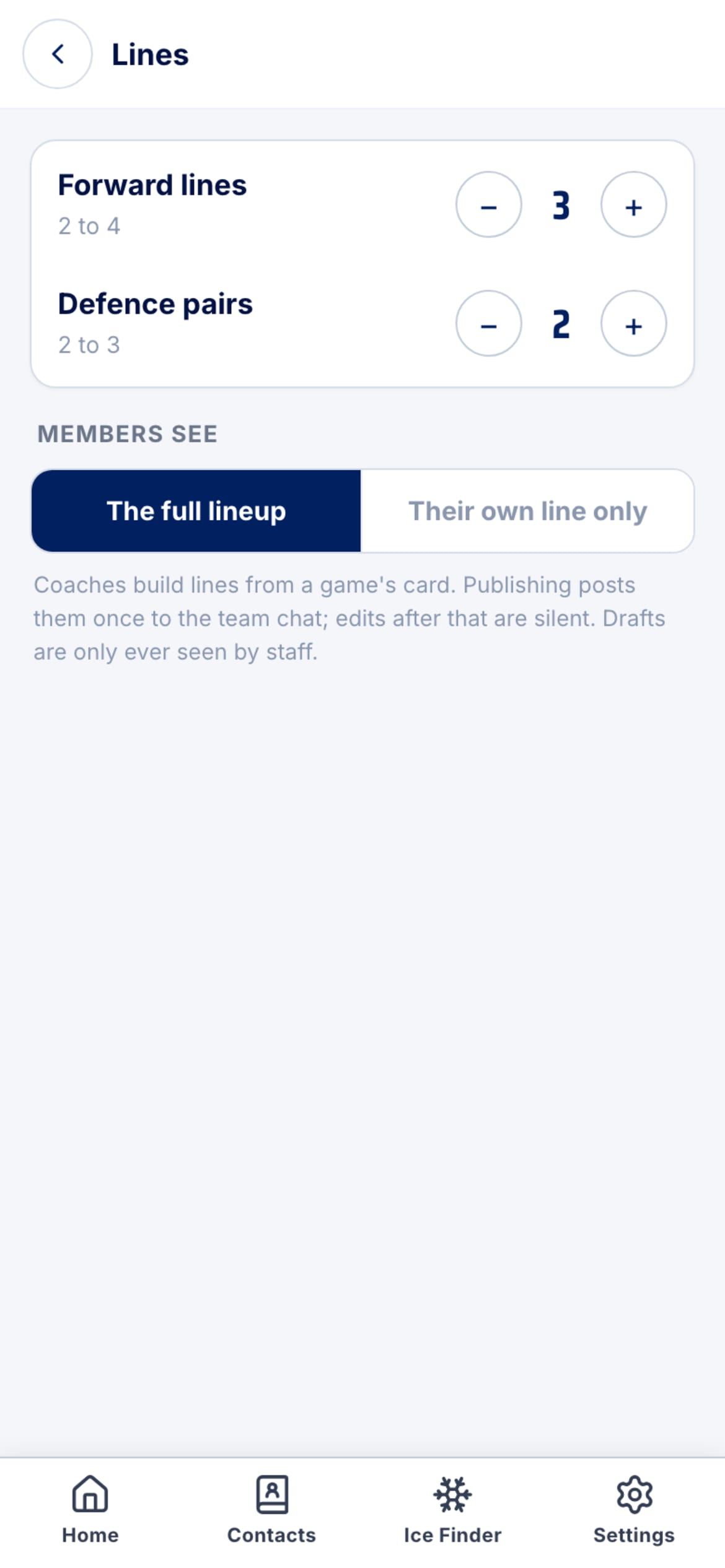
Team → Settings → Lines: two to four forward lines, two or three defence pairs, and whether members see the full lineup or their own line only. Admins only.
- Positions and shoots
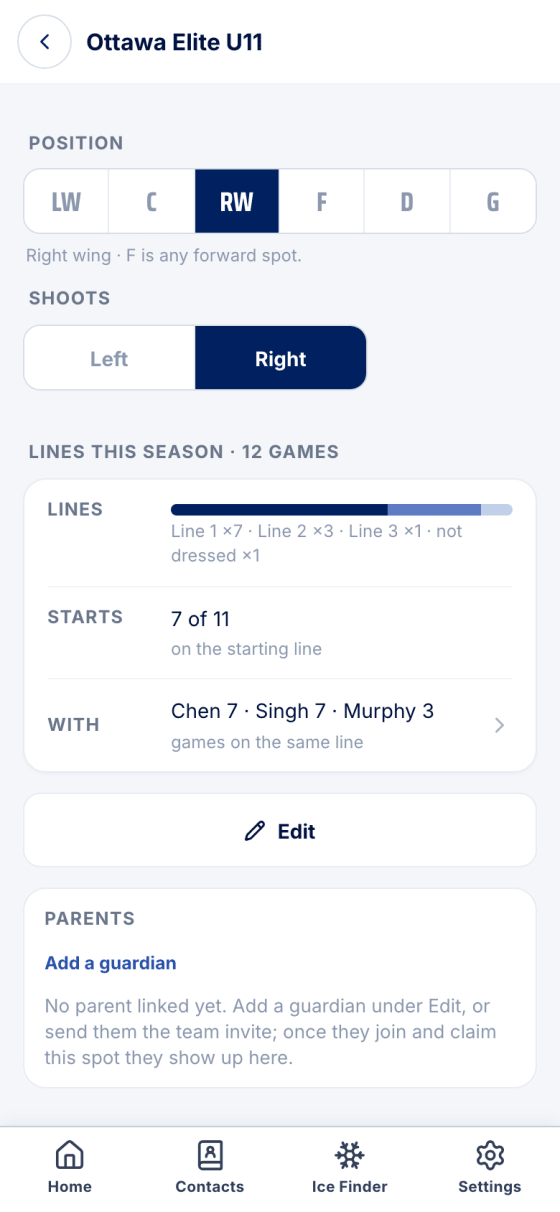
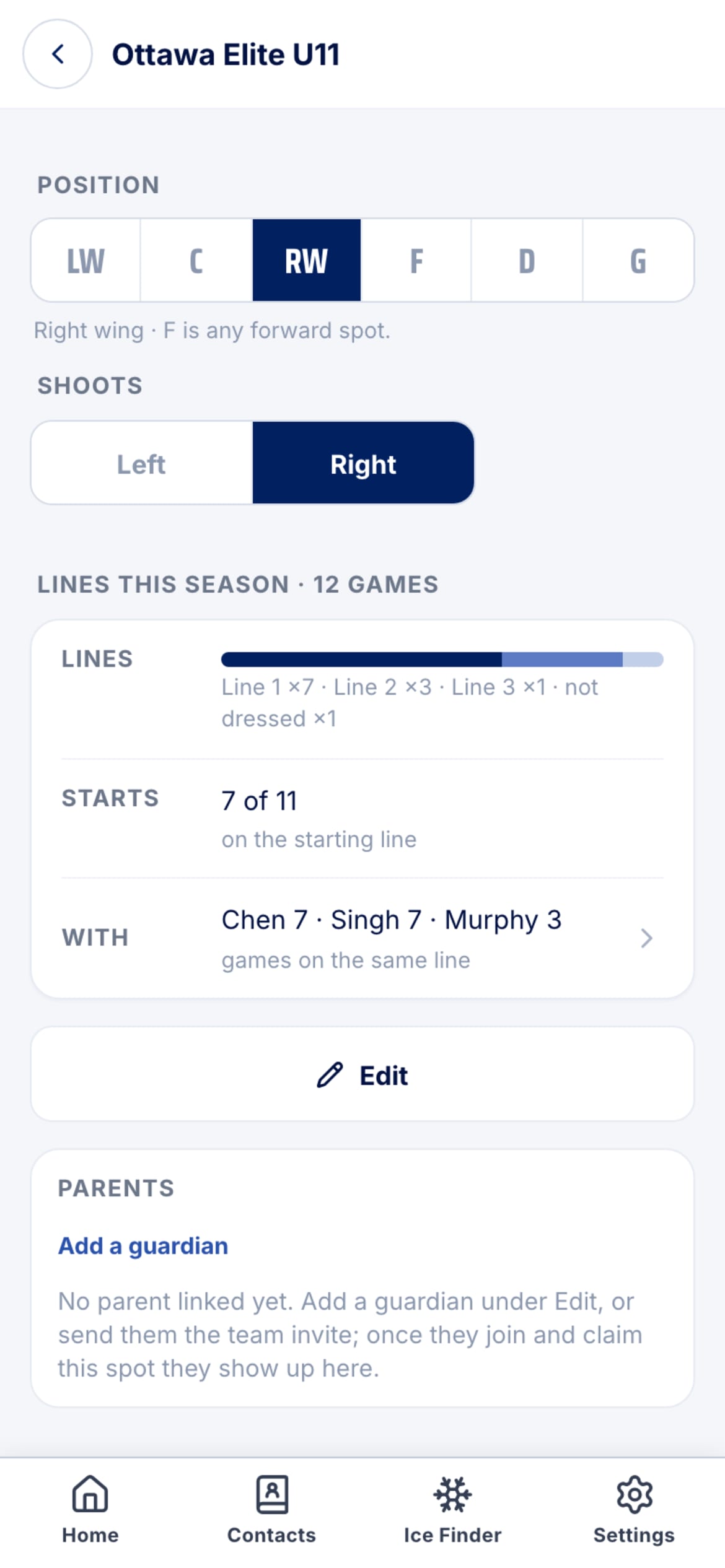
On a player's card, set their position (LW, C, RW, F for any forward spot, D, G) and which way they shoot. Parents can set this for their own kid. The picker and the fit colours use it; Lines this season on the same card shows how their ice has been shared.
Good to know
- Who can build: admins and coaches. Parents get the read-only view; a draft is invisible to them until you publish.
- Fit is a hint, not a rule. A defenceman at wing shows amber with a D beside the name; a goalie at wing is dimmed. Nothing stops the drop.
- Out after publishing: the spot turns red, the game card goes amber and names them. Move them to Out and publish the update.
- Paused team: publishing still works; the chat post is skipped and the toast says so.
Stuck?
Email john@puckfinder.app — a real person, usually the same day.