
Video · 2:34
Stop chasing who's coming
Automatically, by hand, or both: parents who haven't answered get an email with In / Out / Maybe, and one tap answers — no account, no login. The same rules either way.
Help › Stop chasing who's coming
Step by step
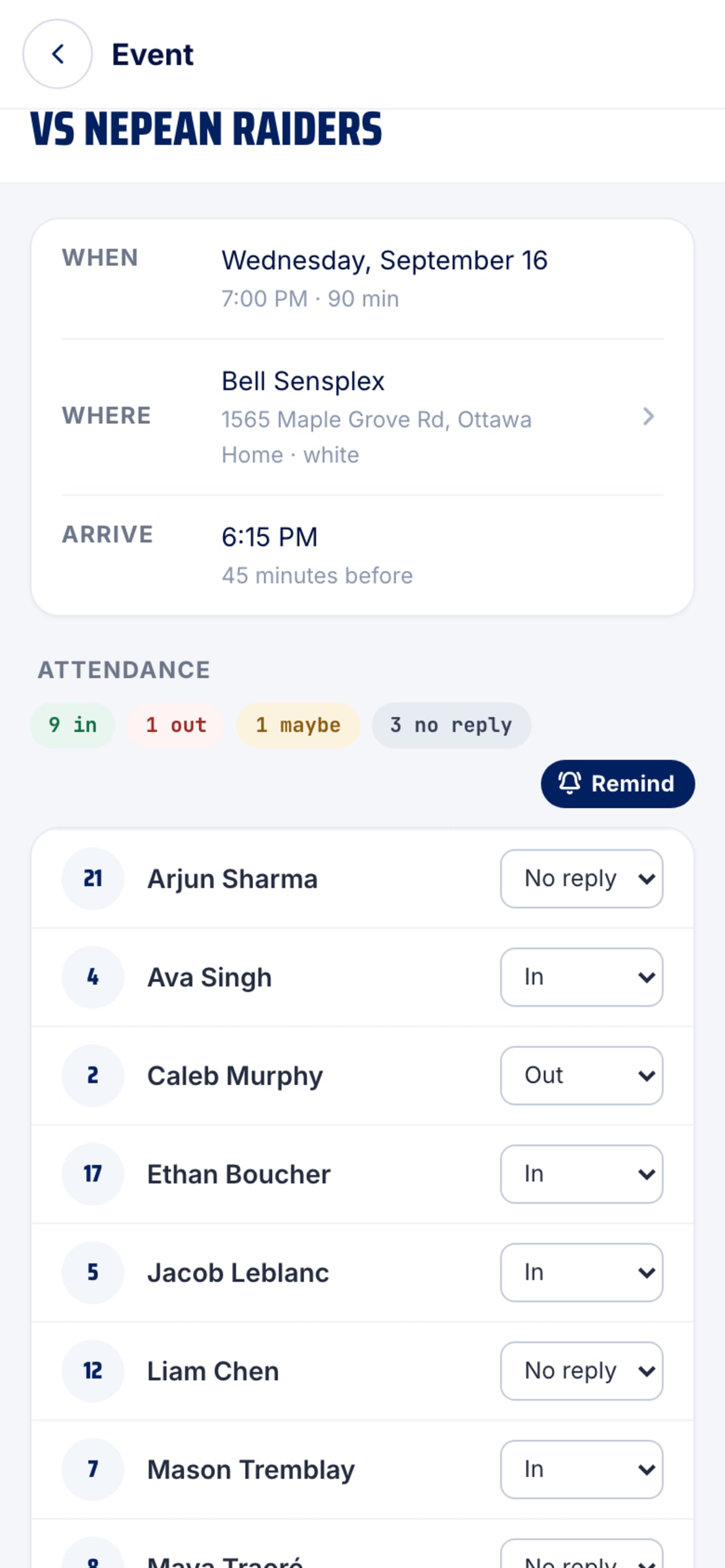
The same flow as the video, in writing. Tap a screenshot to see it full size.
- Find the switch
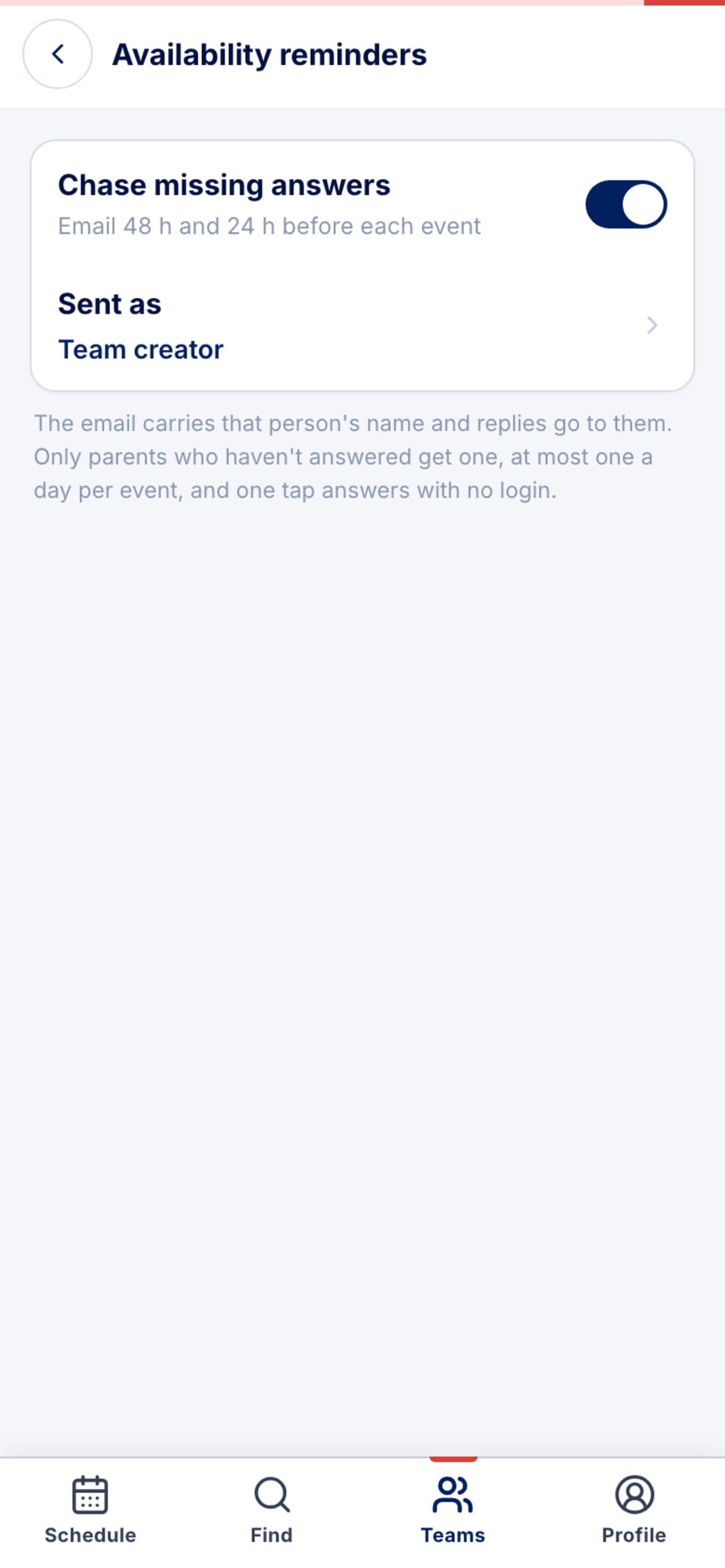
Team → Settings → Availability reminders. Only a team admin can change it, and it's off until you turn it on — a team that never asked doesn't start getting chased.

- Turn it on
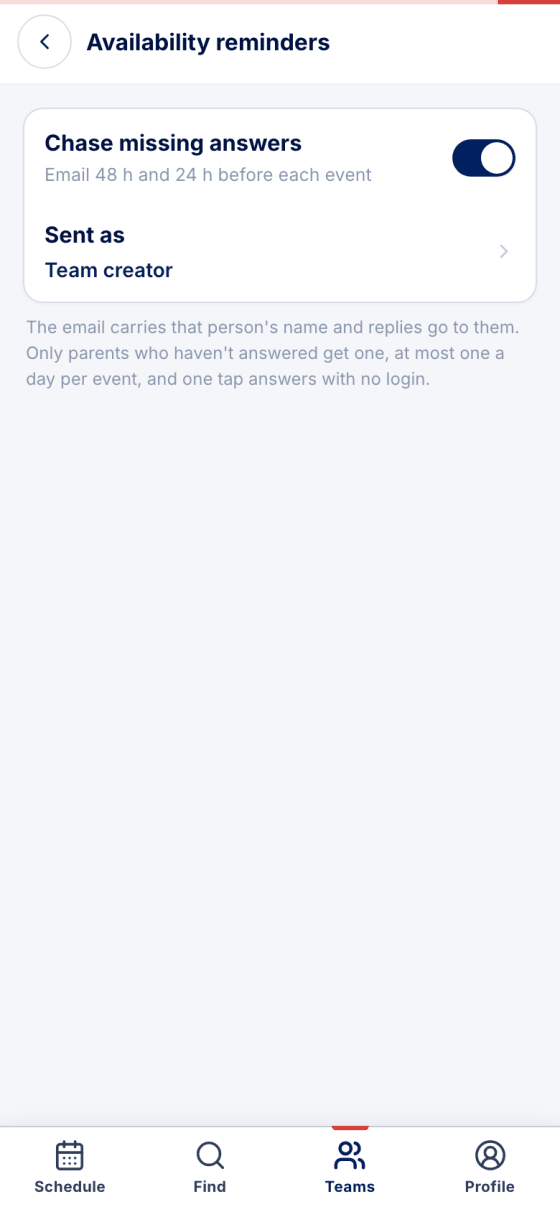
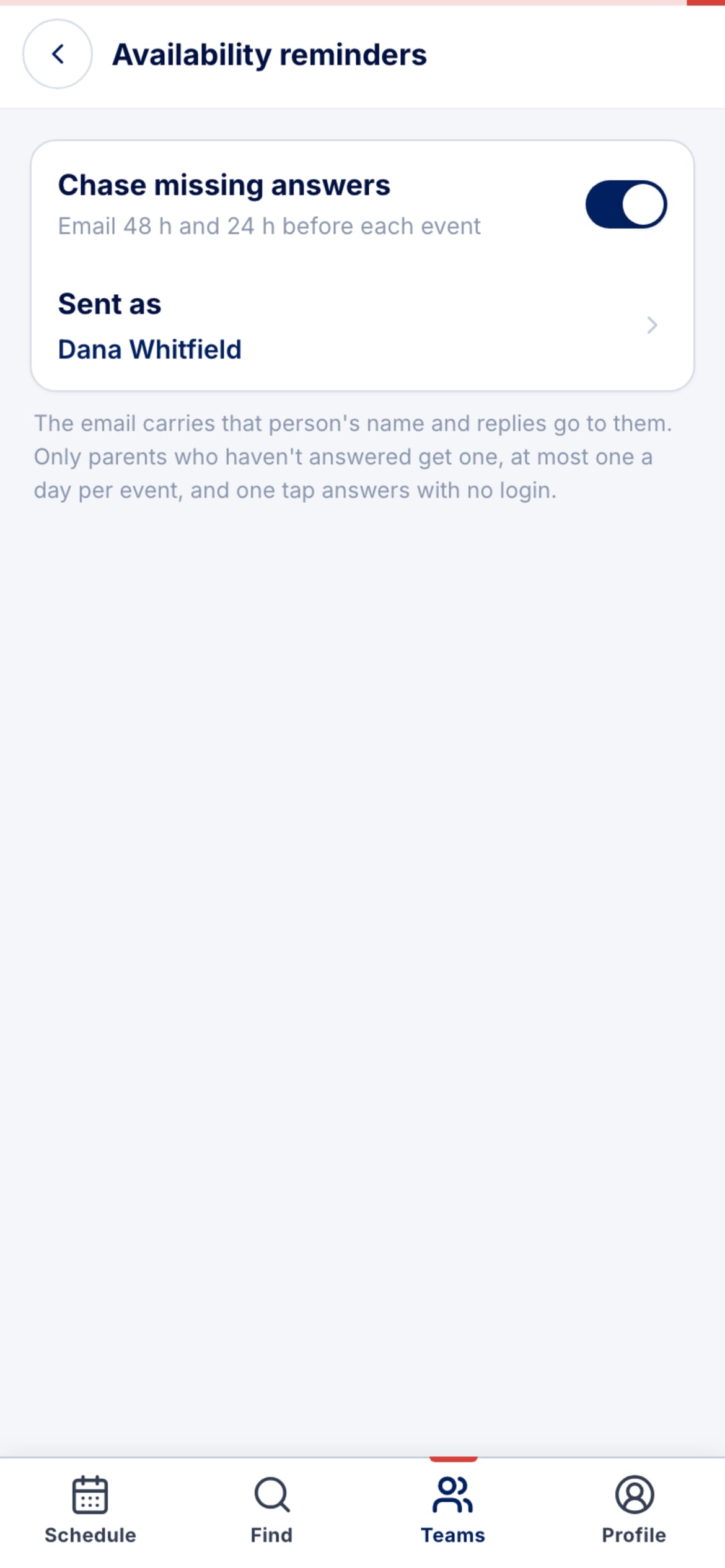
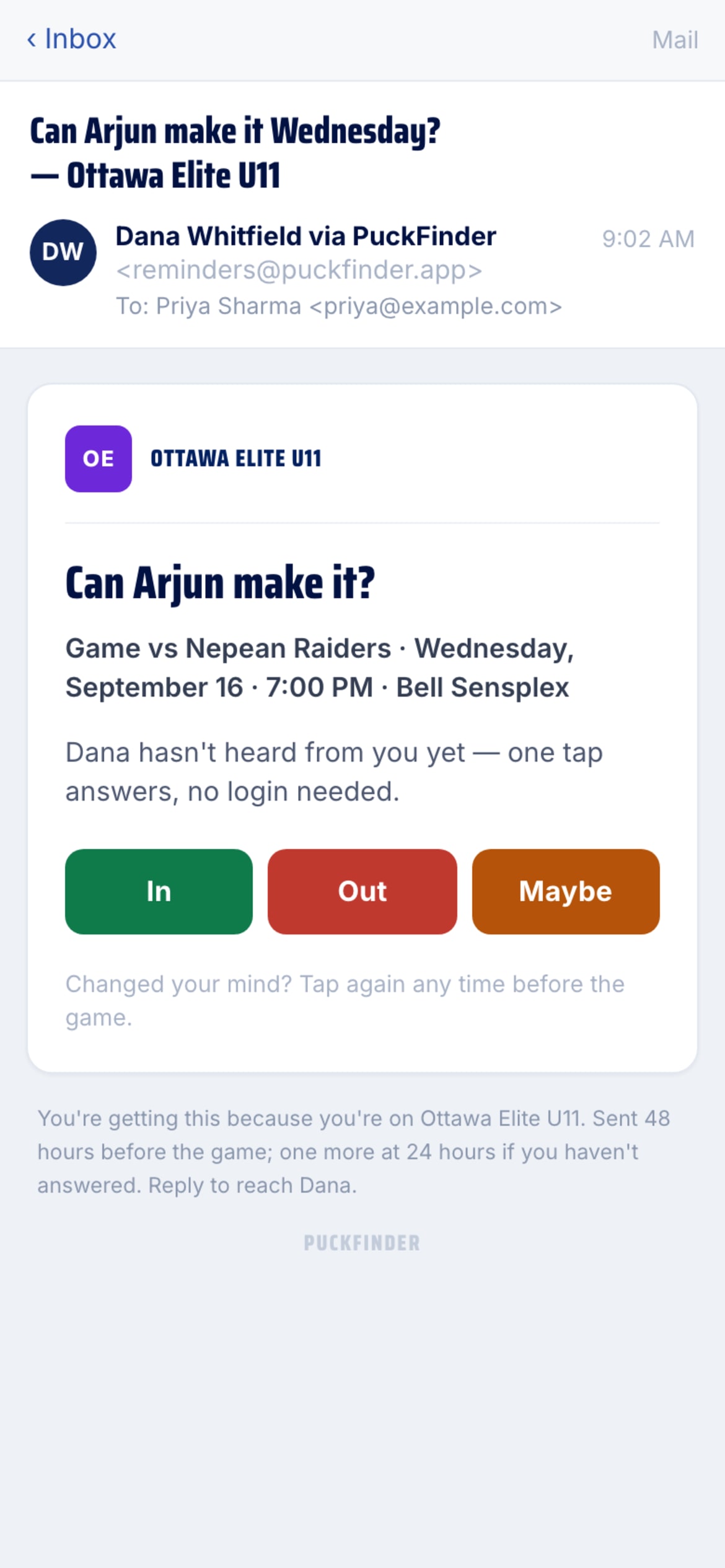
Chase missing answers emails parents 48 hours and 24 hours before each event. A Sent as row appears underneath.
- Choose who it's sent as
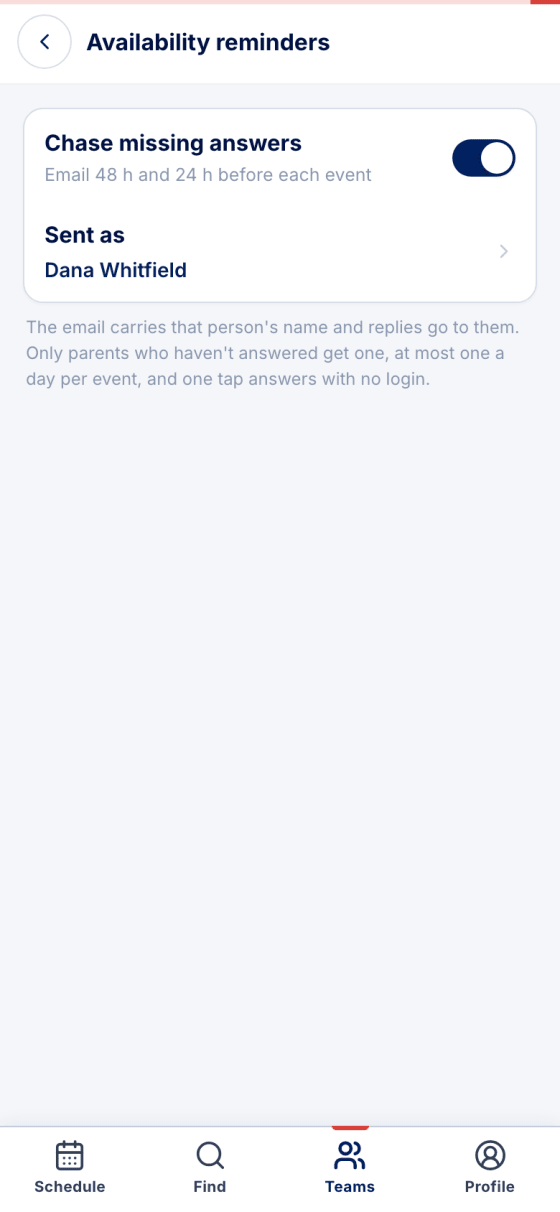
The team creator by default, or any admin or coach. The email carries that person's name and replies go to them, so a parent who answers "we're away that week" reaches a real person.
- Or remind by hand
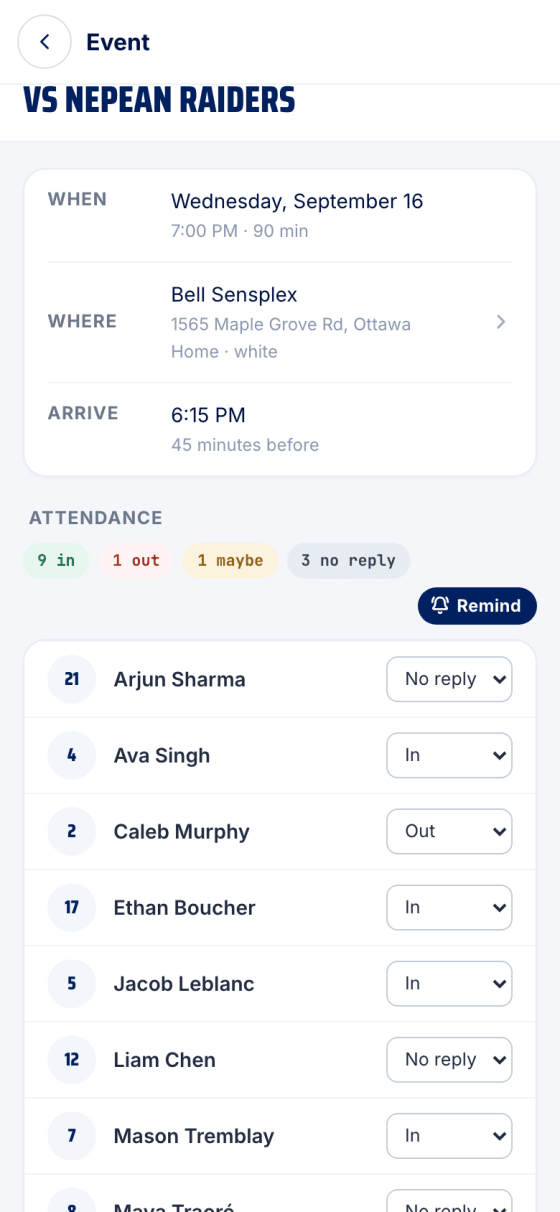
On any upcoming event, admins and coaches see Remind beside the no-reply count. It works whether or not the automatic switch is on. Under it, a line shows what's gone out already.
- The Remind sheet
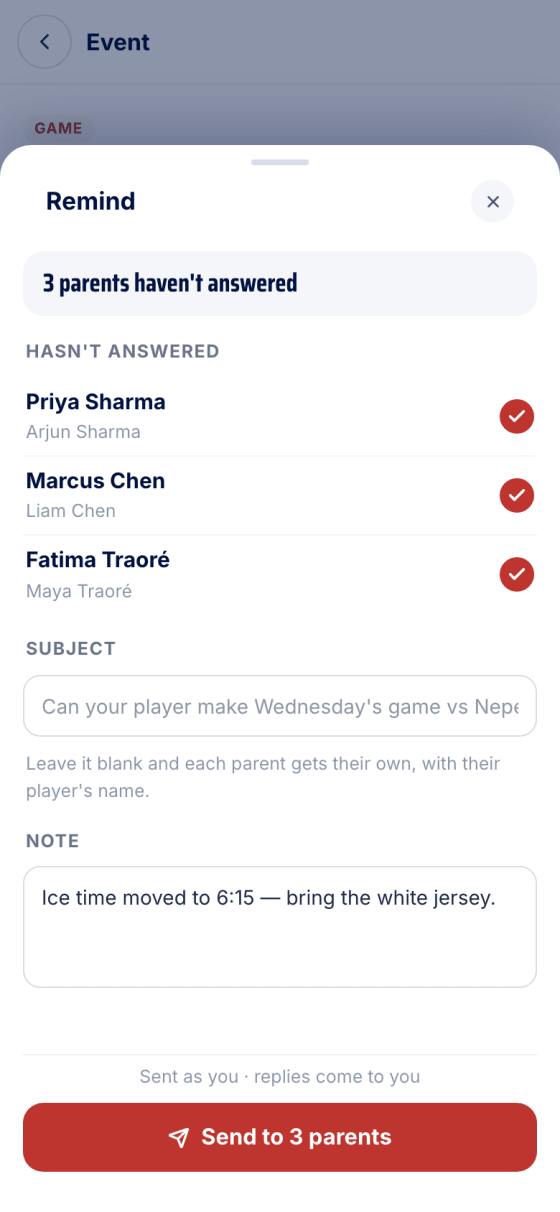
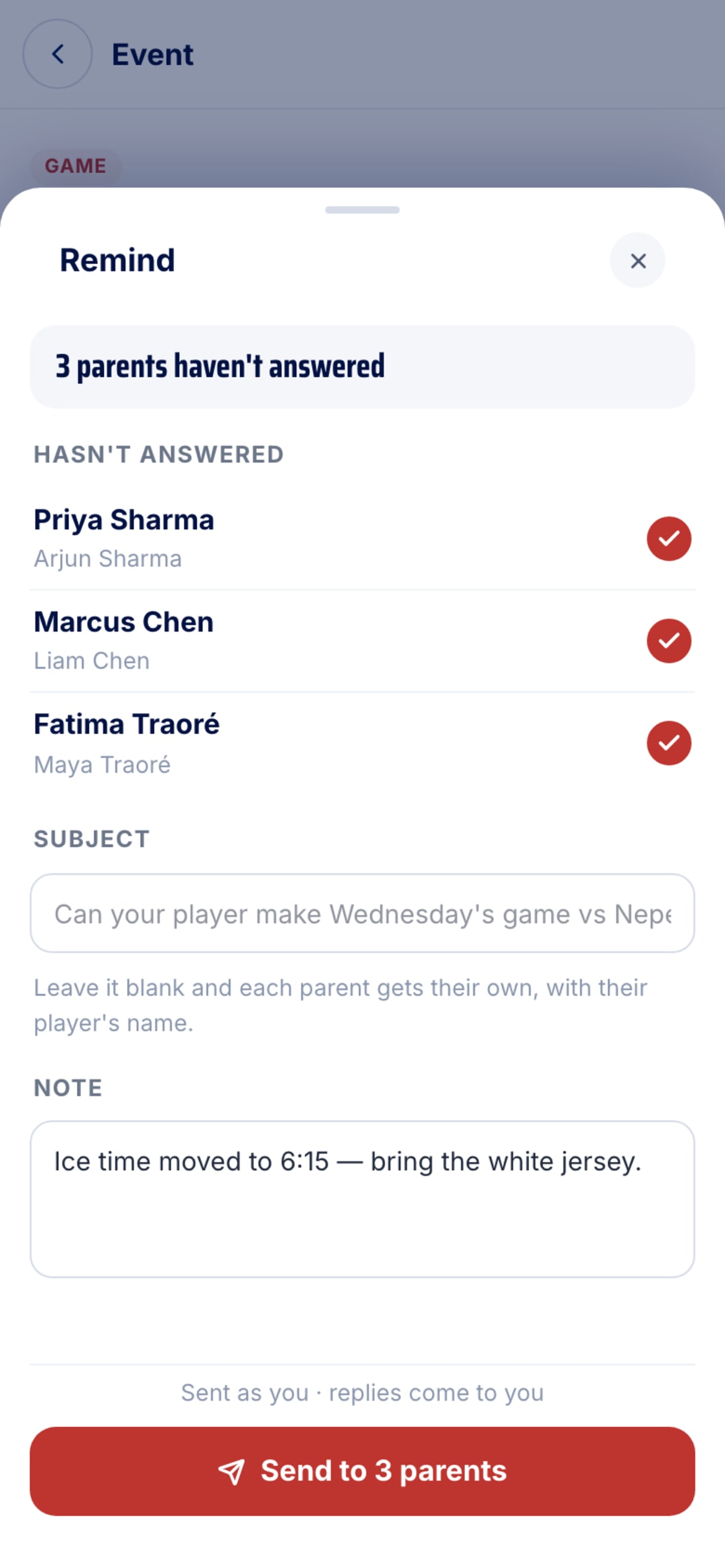
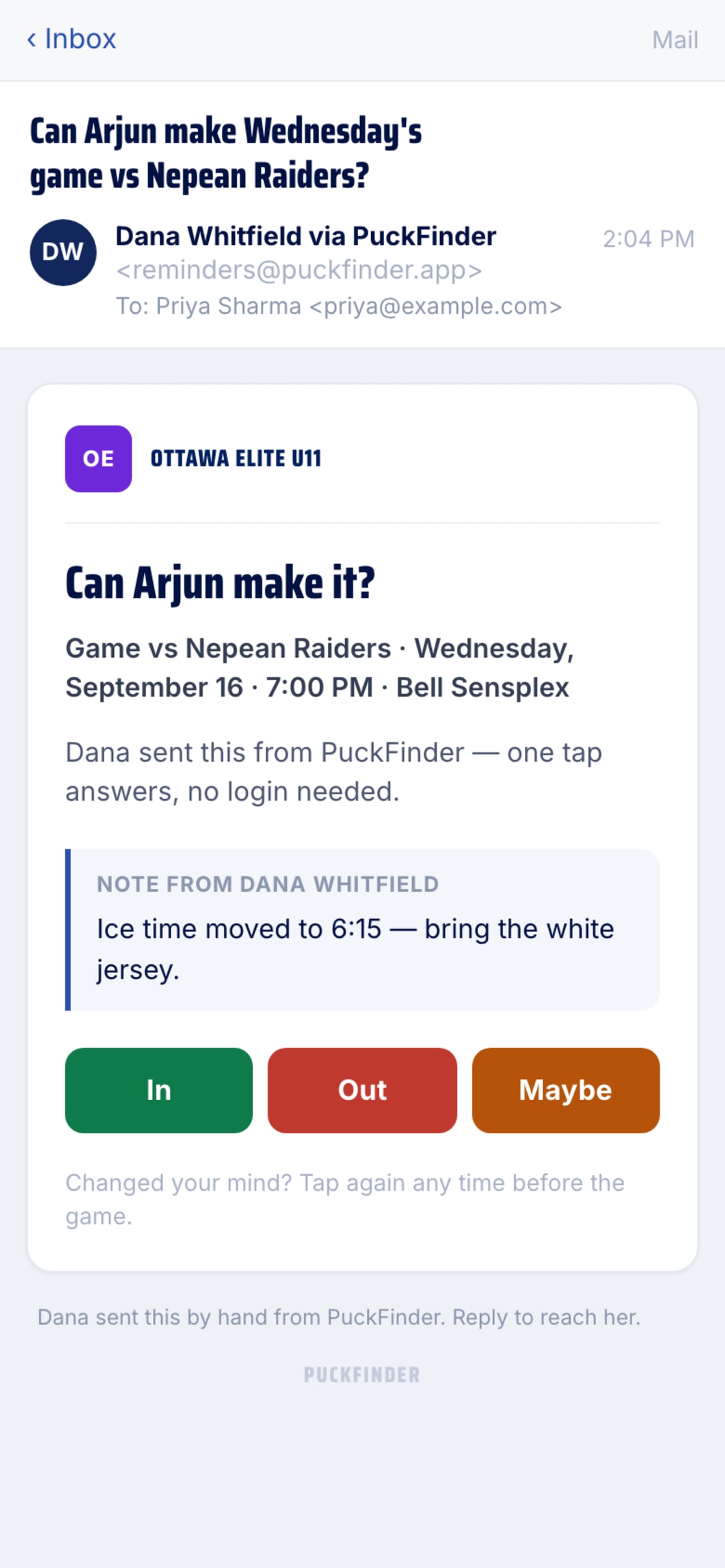
It opens on where things stand: which parents haven't answered, each ticked and ready. Untick anyone, add a subject if you don't want the default, and a note — ice time moved, bring the white jersey.
- Sent as you
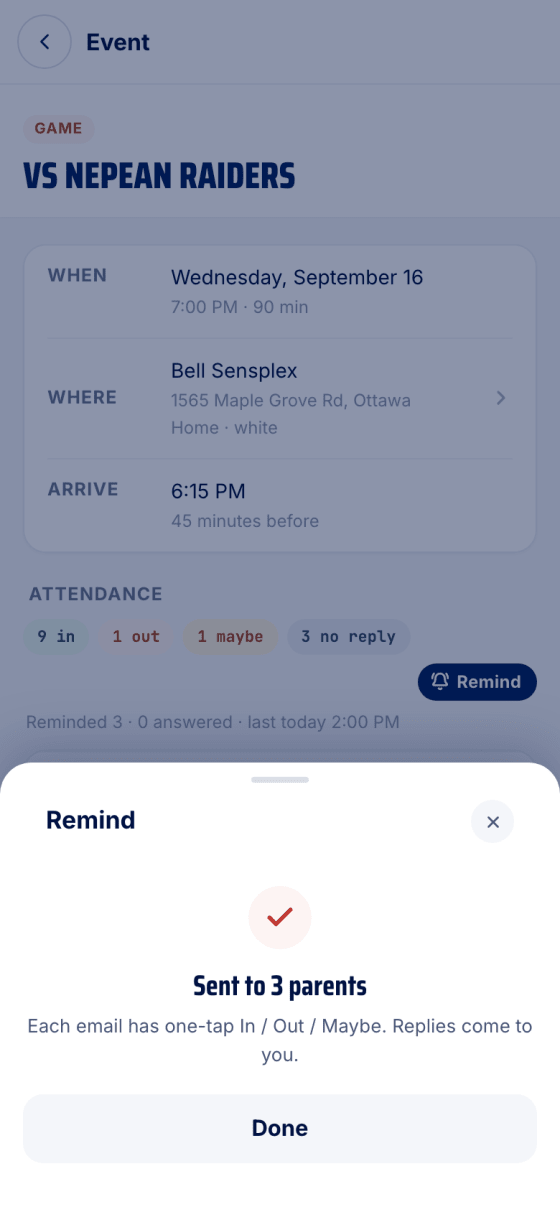
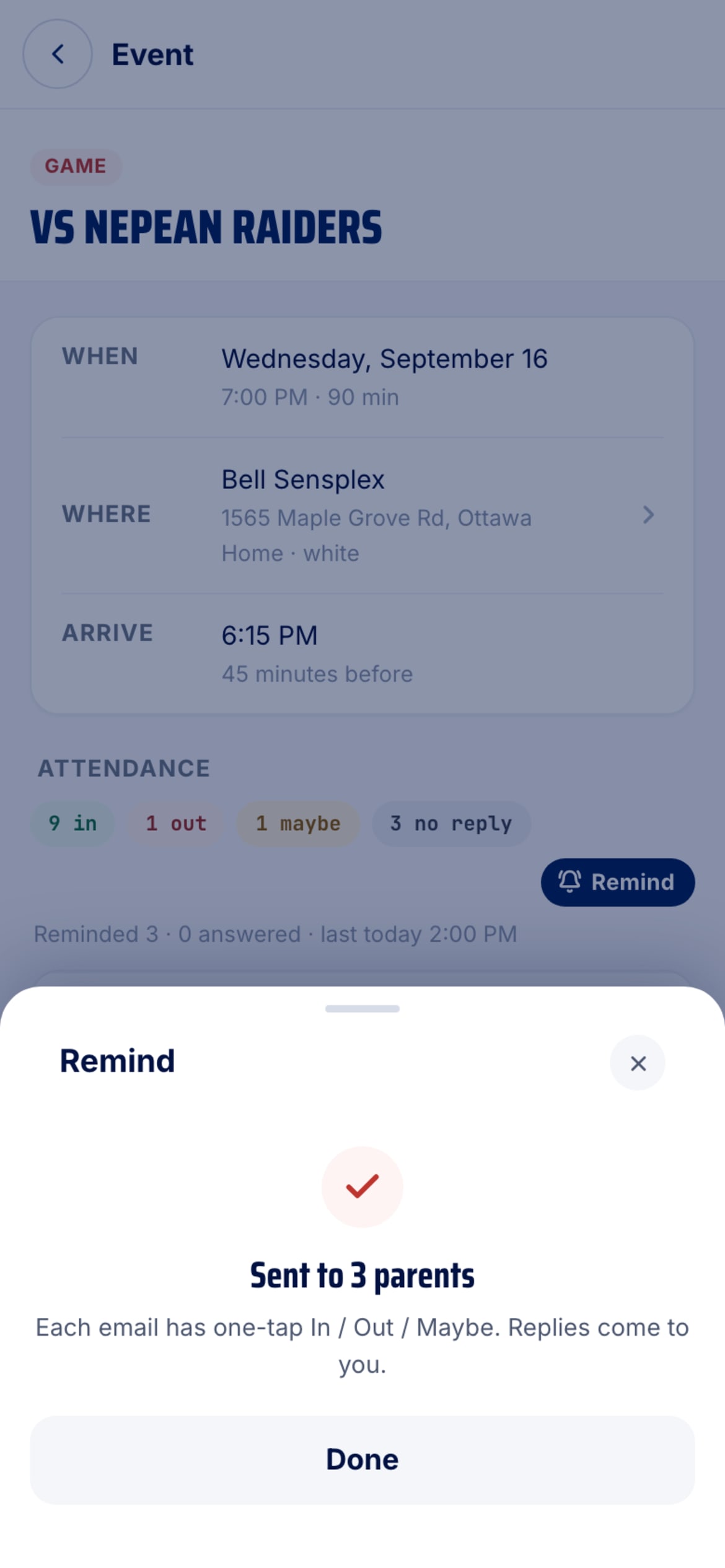
The button says how many it goes to. A manual reminder is sent as the person who pressed Send, and replies come back to them. The event page then shows Reminded 3 · 0 answered · last today.
- Once a day, at most
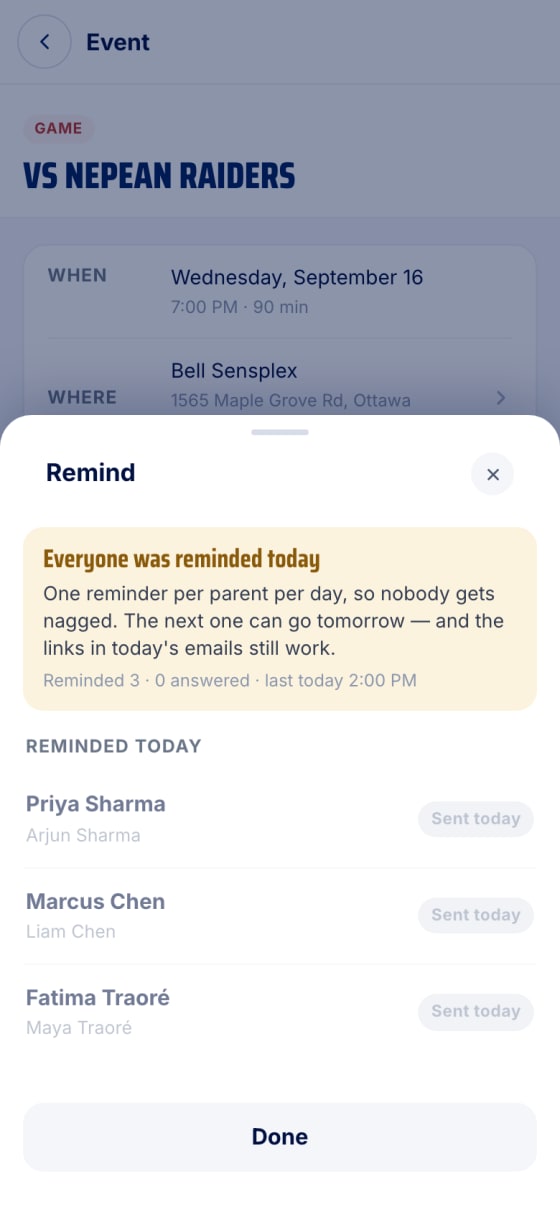
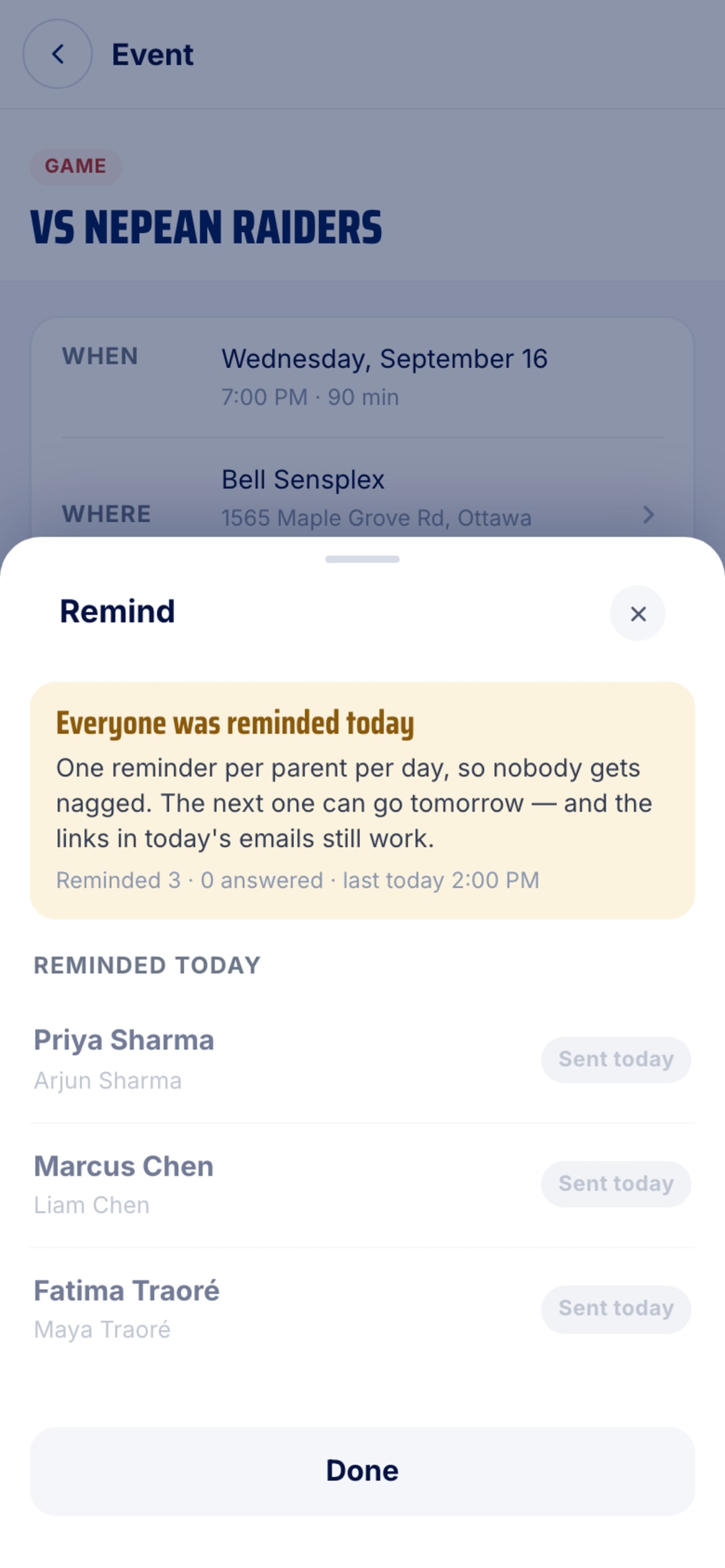
Open Remind again the same day and it tells you why there's nobody to send to: one reminder per parent per day, so nobody gets nagged. The next one can go tomorrow, and today's links keep working.
- The 48-hour email
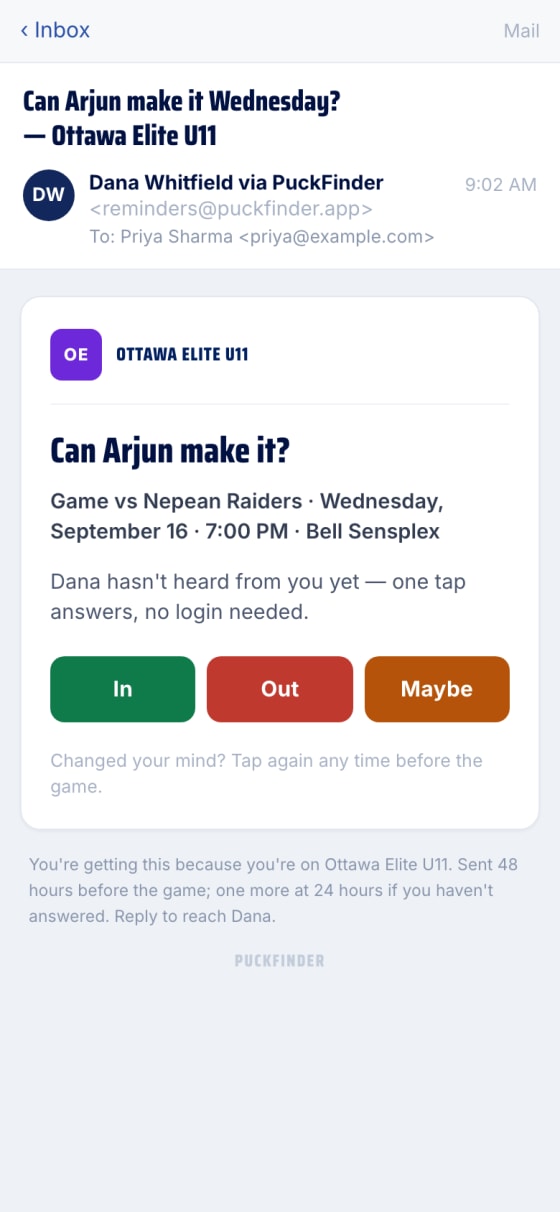
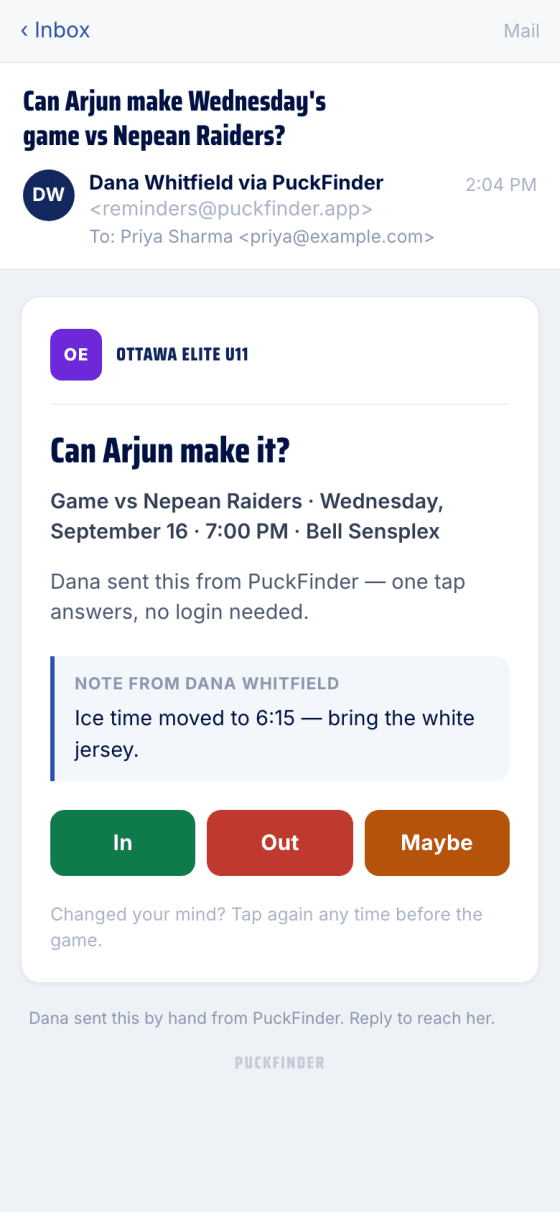
Only parents who haven't answered get it. The game, the time, the rink, and In / Out / Maybe for each of their kids on the team. The buttons open the answer page; the tap there is the answer, so a mail scanner that follows links can never answer for a parent.
- The 24-hour email
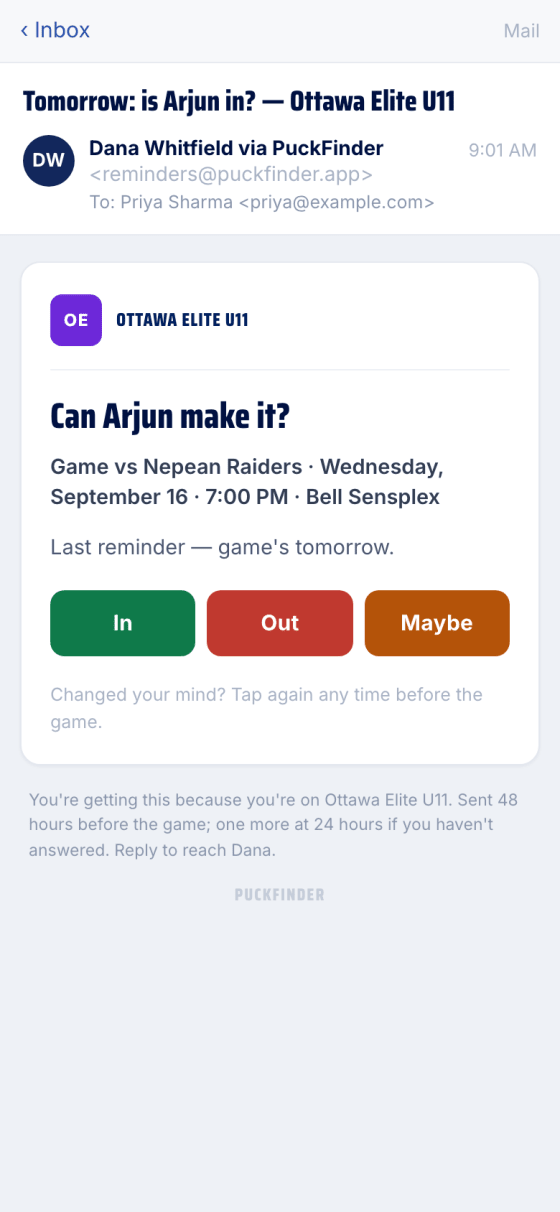
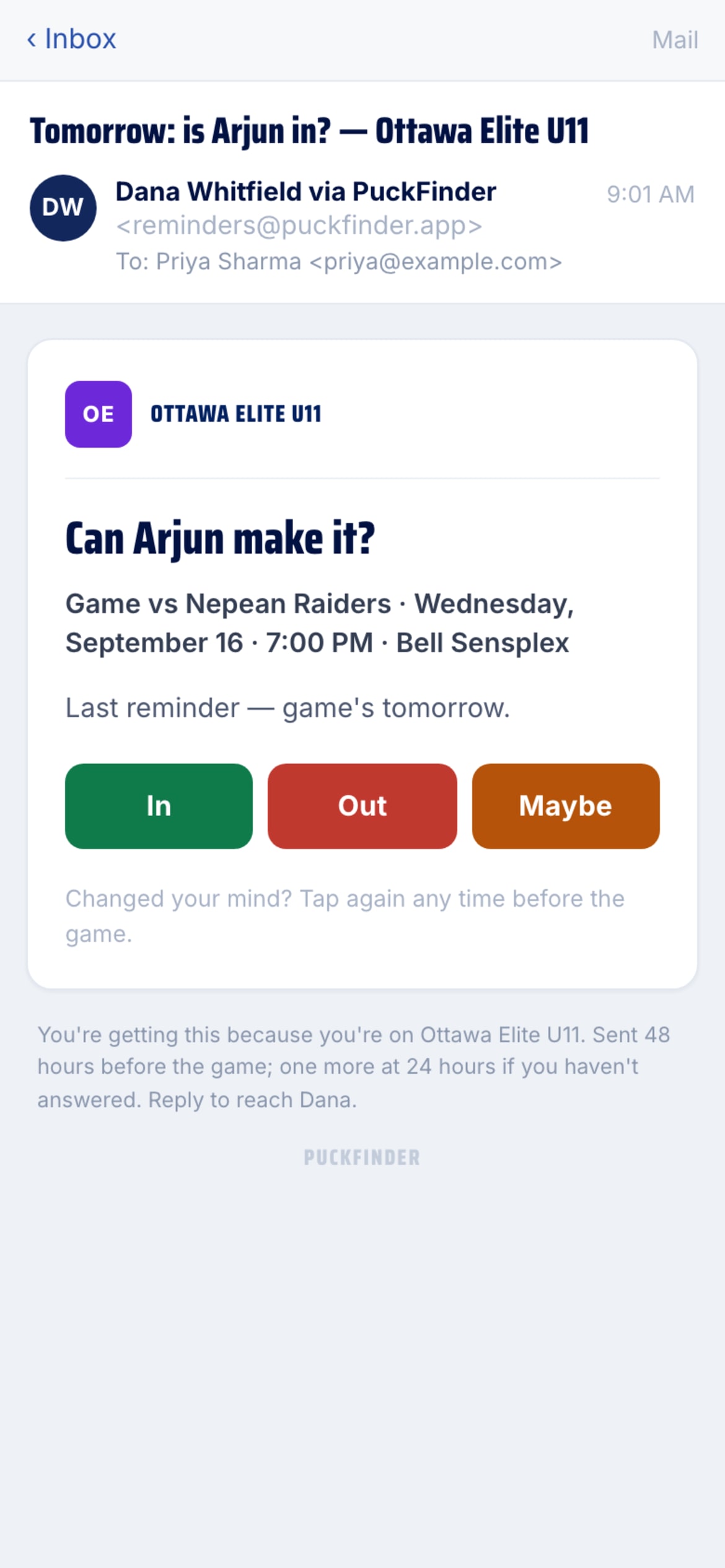
Still nothing the day before? One more, and that's it — never more than one email a day per event.
- A manual reminder's email
Same buttons, but it reads as a note from the coach: their name, their subject if they set one, and their note quoted in the body. Reply reaches them directly.
- No account? One tap
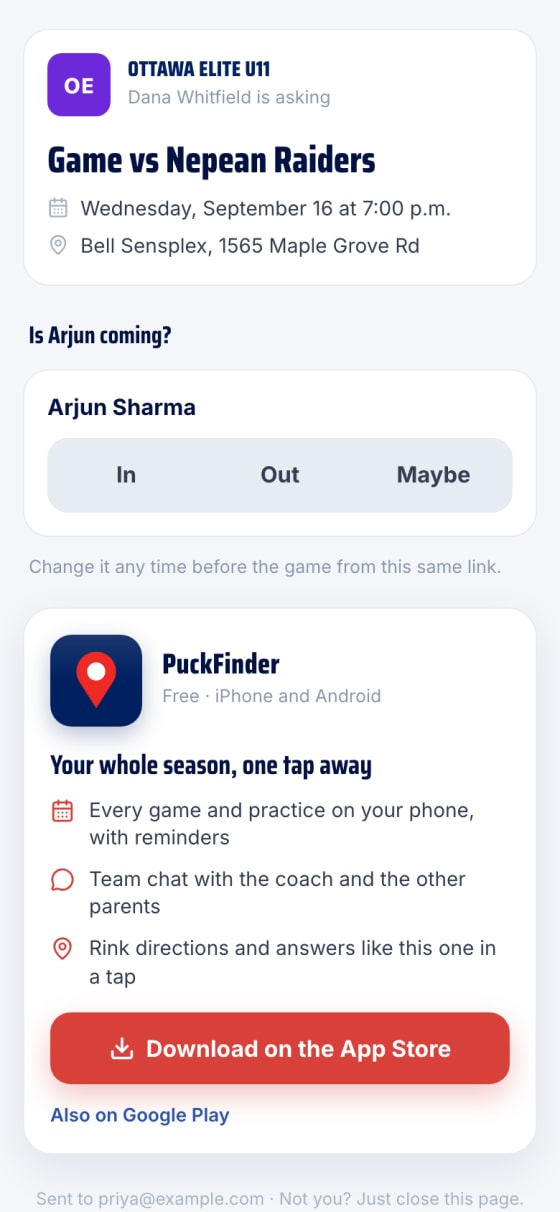
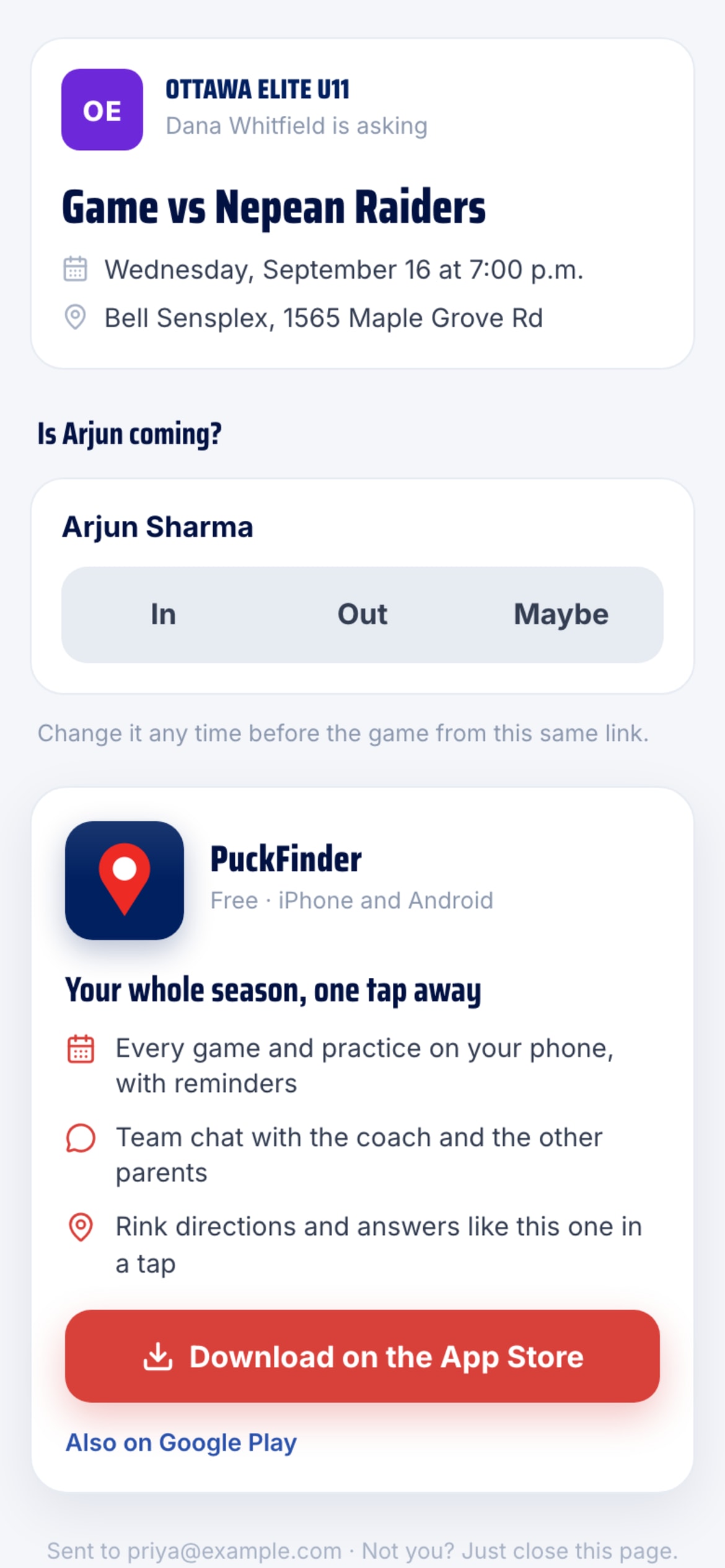
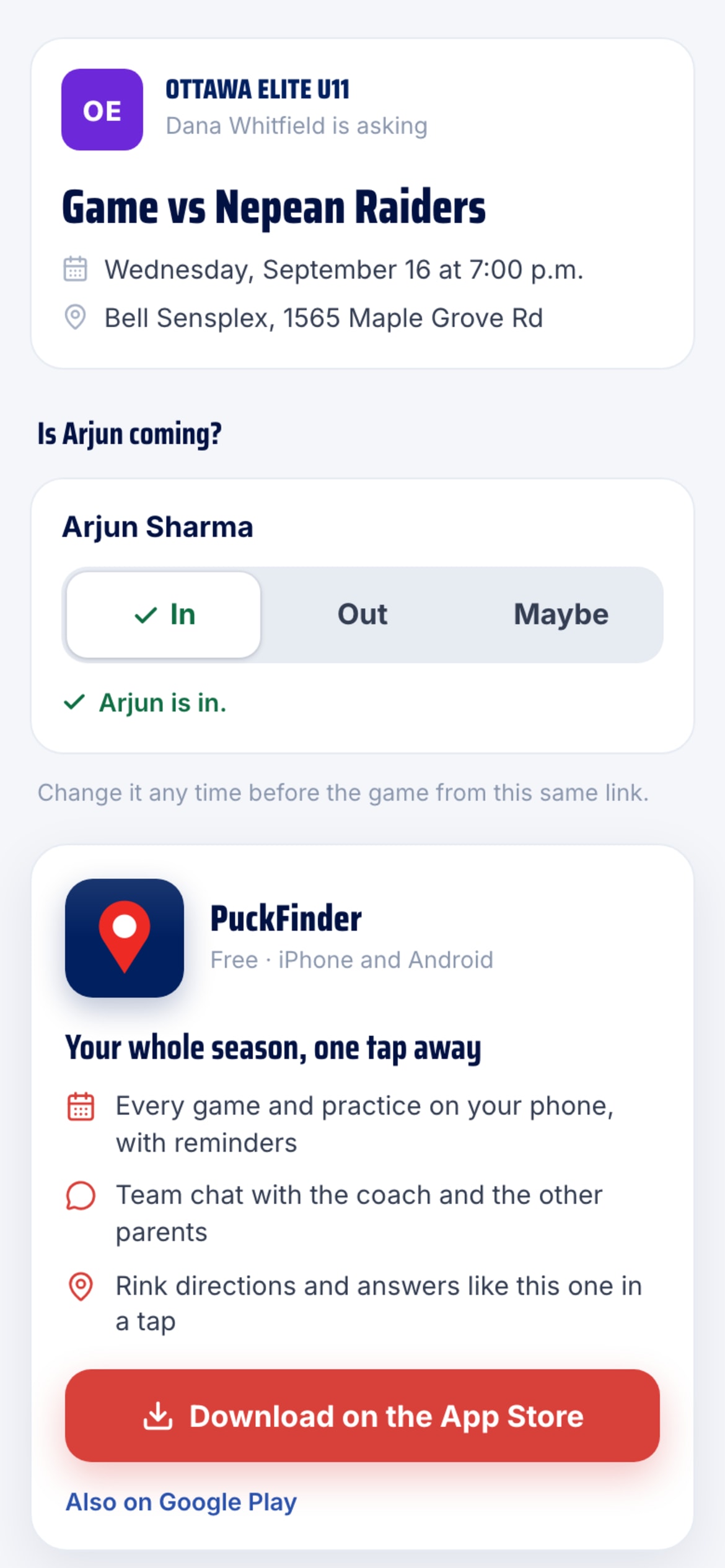
Most parents we chase have no PuckFinder account, and they don't need one. The link is the key: the page shows only their kids, with the button from the email highlighted. Tap to confirm.
- Answered
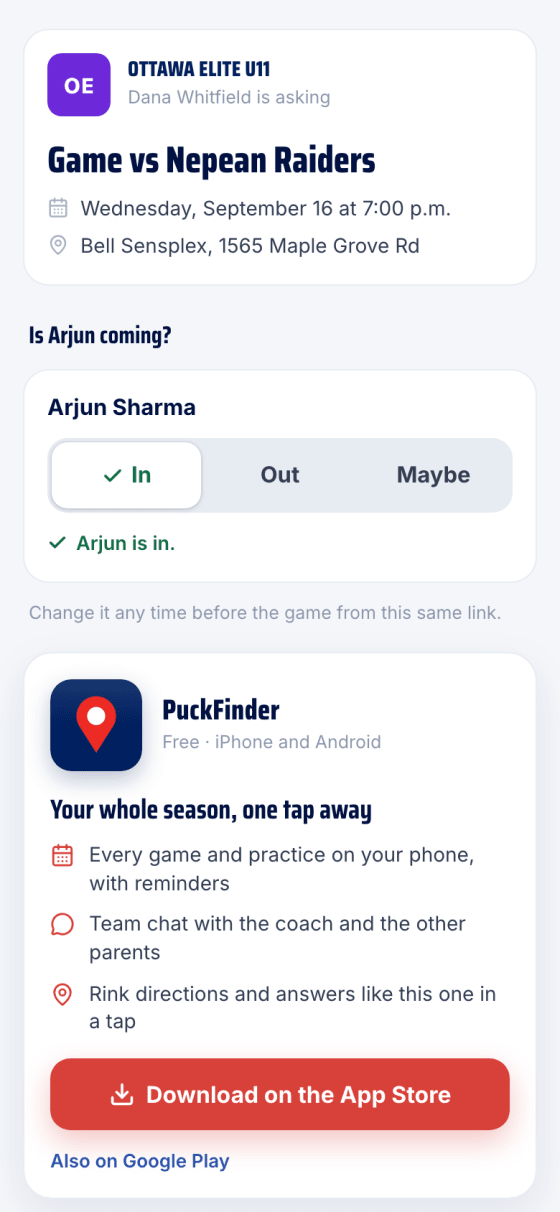
A line confirms it, and the answer can be changed any time before the game from the same link. Only now does the page mention the free app.
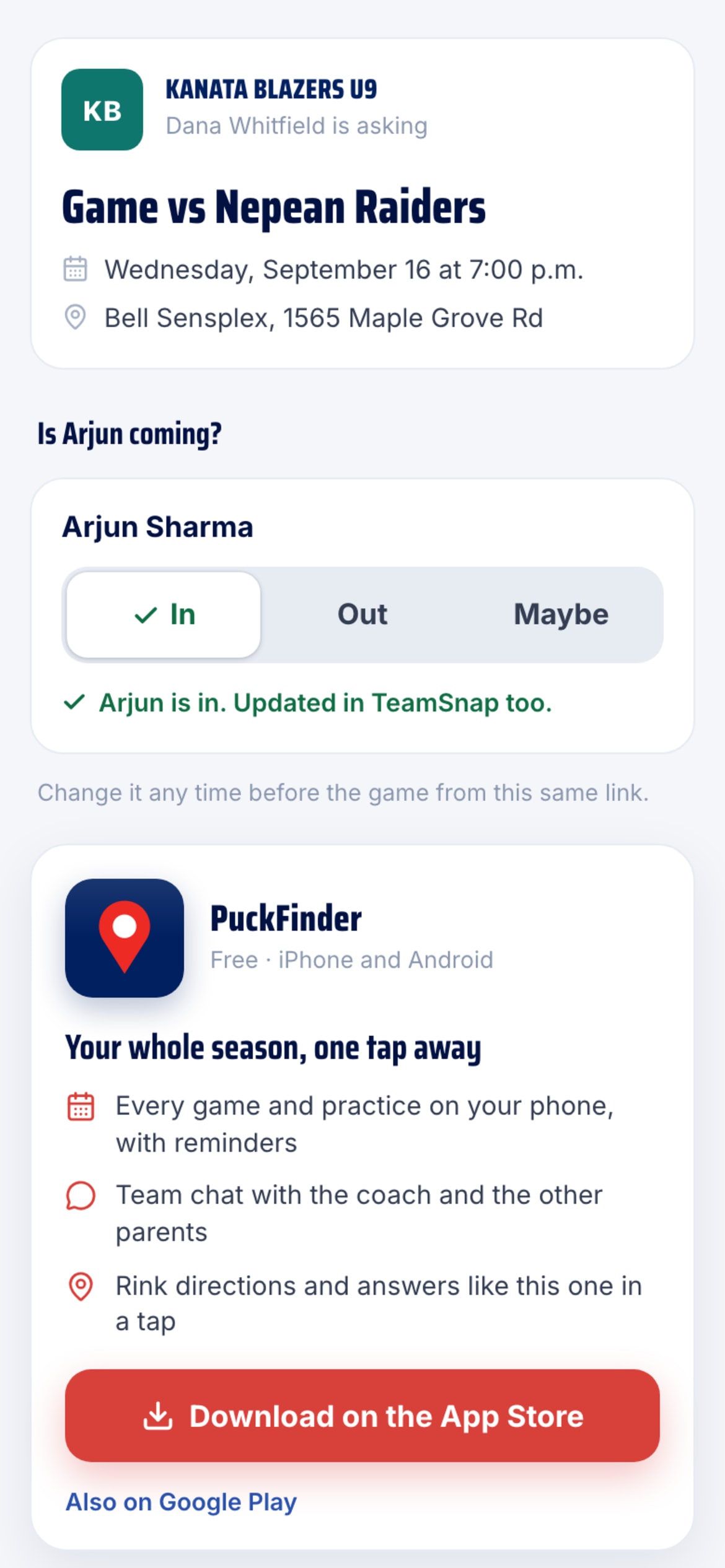
- TeamSnap teams
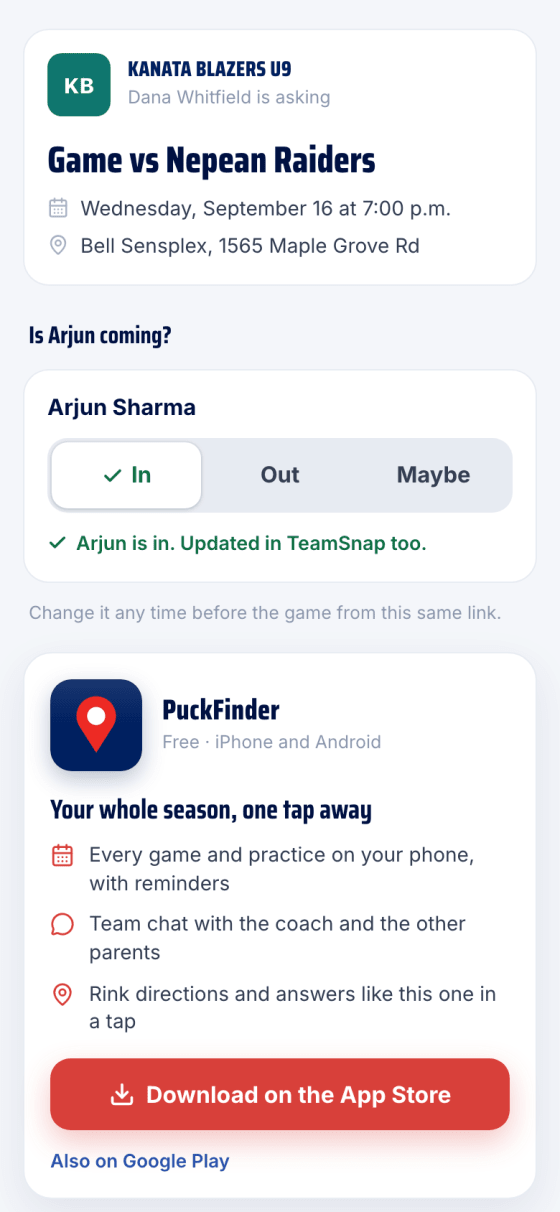
On a team synced from TeamSnap the answer is written to TeamSnap first, exactly as the app does for a signed-in parent, then kept here. The confirmation says Updated in TeamSnap too.
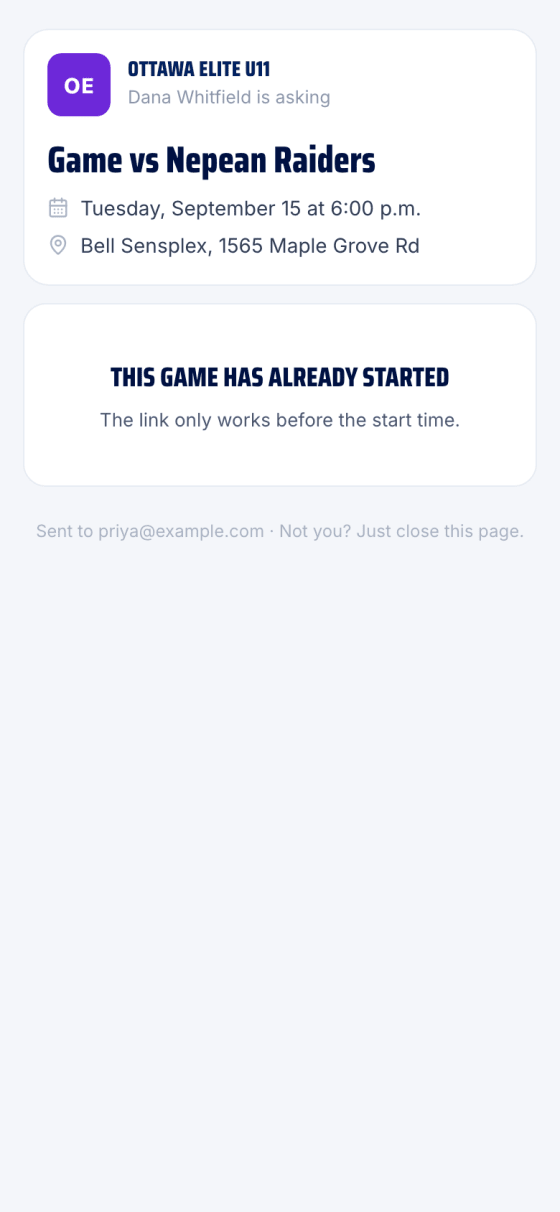
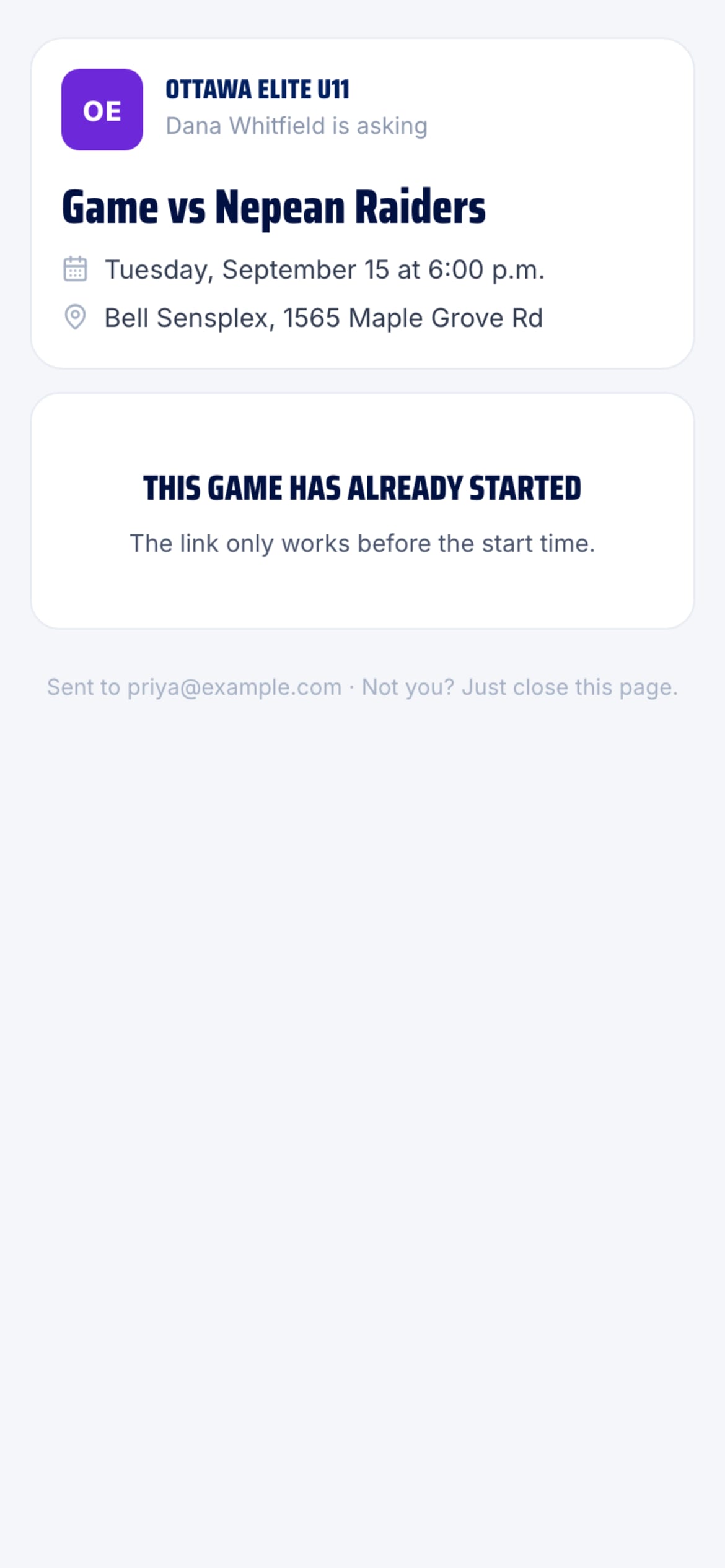
- After the start time
A link only works before the event starts. After that it says so — nothing to answer.
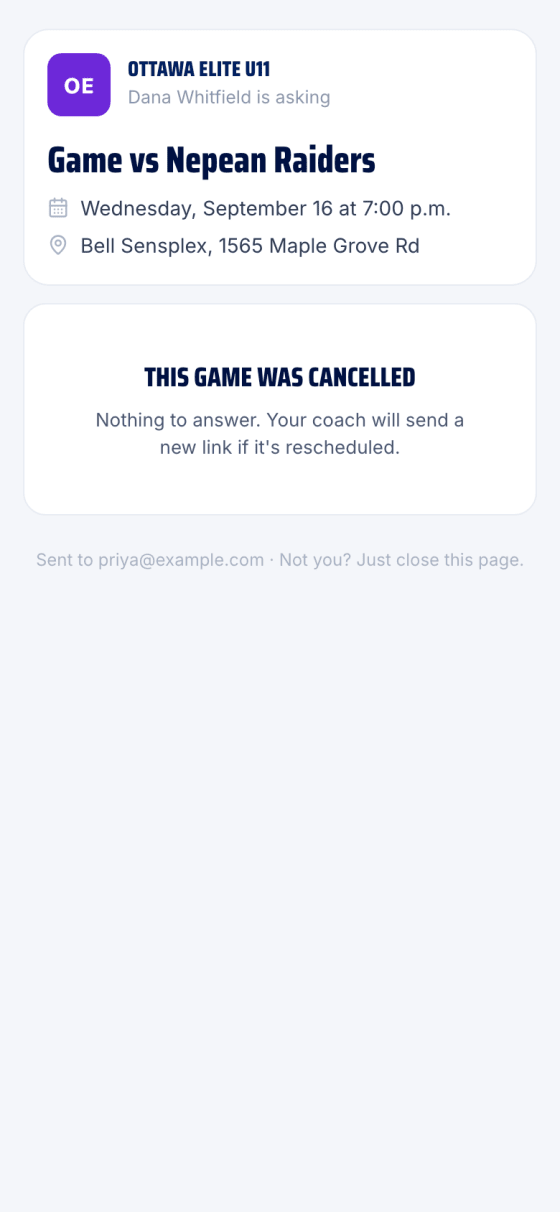
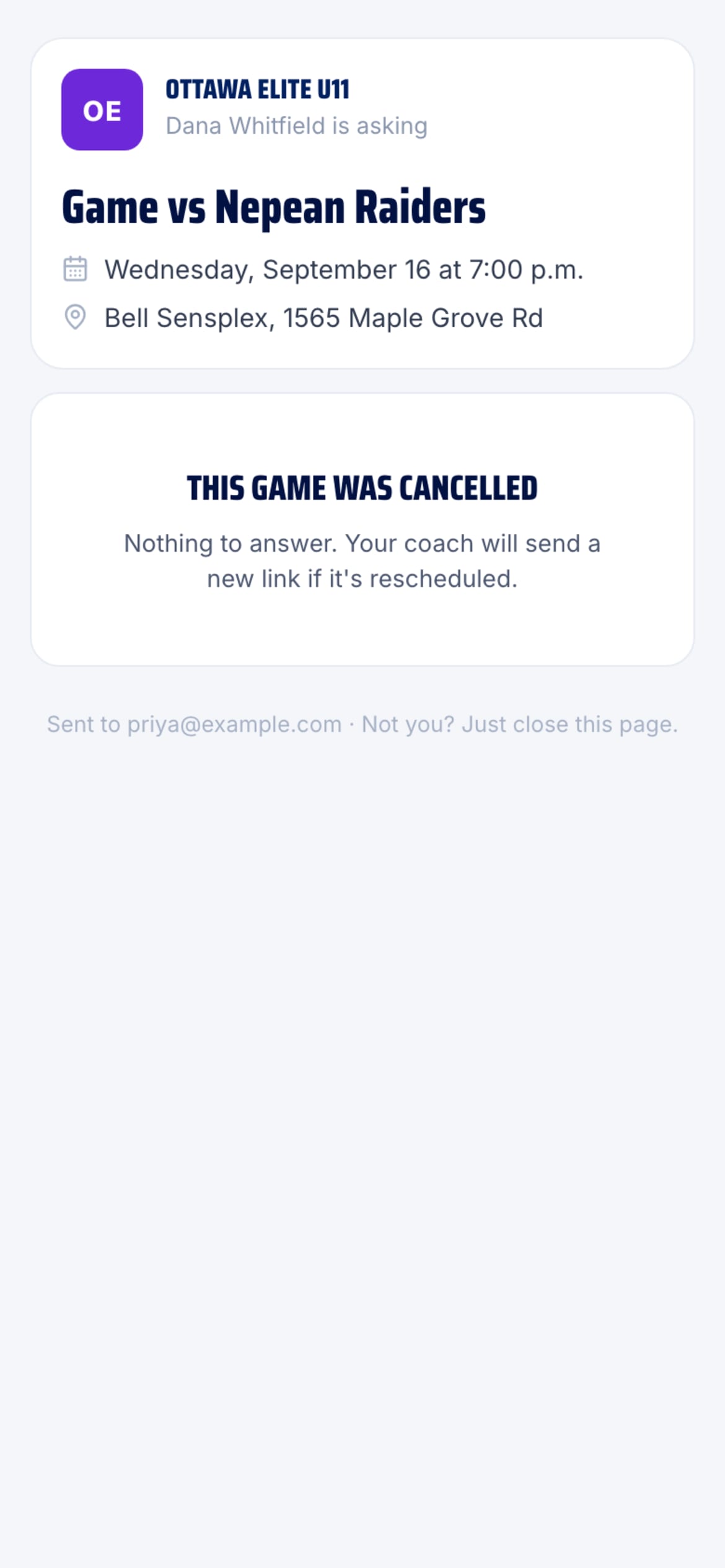
- Cancelled
If the event is cancelled the link says so, and a new link comes if it's rescheduled.

The rules, in one place
They are the same whether a reminder was automatic or sent by hand.
- Who: only parents who haven't answered for that event. Answer in the app, on TeamSnap, or from a link, and the reminders stop.
- Automatic: 48 hours before the event, and once more at 24 hours if there's still no answer.
- Manual: whenever an admin or coach taps Remind on an event, for the parents they tick.
- How often: one email per parent per day for an event, counting both kinds — a kid with two parents on the roster counts as two. If the automatic one went out this morning, a manual one waits until tomorrow, and the sheet says so.
- From whom: automatic emails carry the Sent-as person's name (or the team creator's); a manual one carries the name of whoever pressed Send. Replies go to that person.
- TeamSnap teams: an answer from a link is written to TeamSnap first, then kept here.
- What the link shows: the event and that parent's kids on the team. Nothing else about the team — no roster, no chat, no other families.
- A wrong address: the page ends with "Sent to … · Not you? Just close this page." Nothing happens unless someone taps an answer.
Stuck?
Email john@puckfinder.app — a real person, usually the same day.