
Team managers · 2 min read
An announcement that reads well
Give it a subject, set the day and the bus time in bold, list what to bring, and attach the schedule. It looks the same in the chat and in everyone's inbox.
Help › An announcement that reads well
Step by step
Tap a screenshot to see it full size.
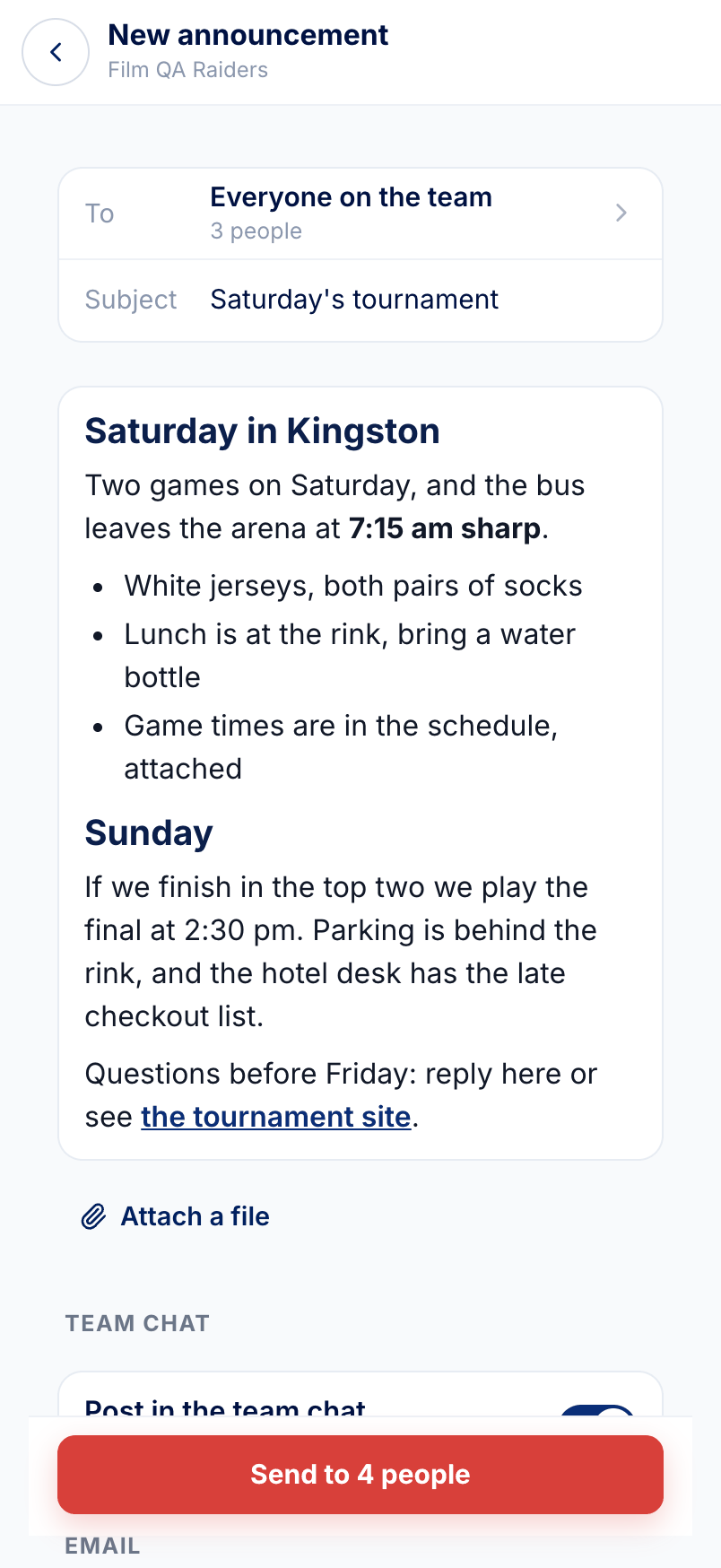
- Subject and note
Team chat → + → Announcement. Subject is the title on the card in the chat and the subject of the email. Leave it empty and the email is titled with the team's name and the first line of your note. The subject row is there whenever the email goes out now.
- Write on the whole screen
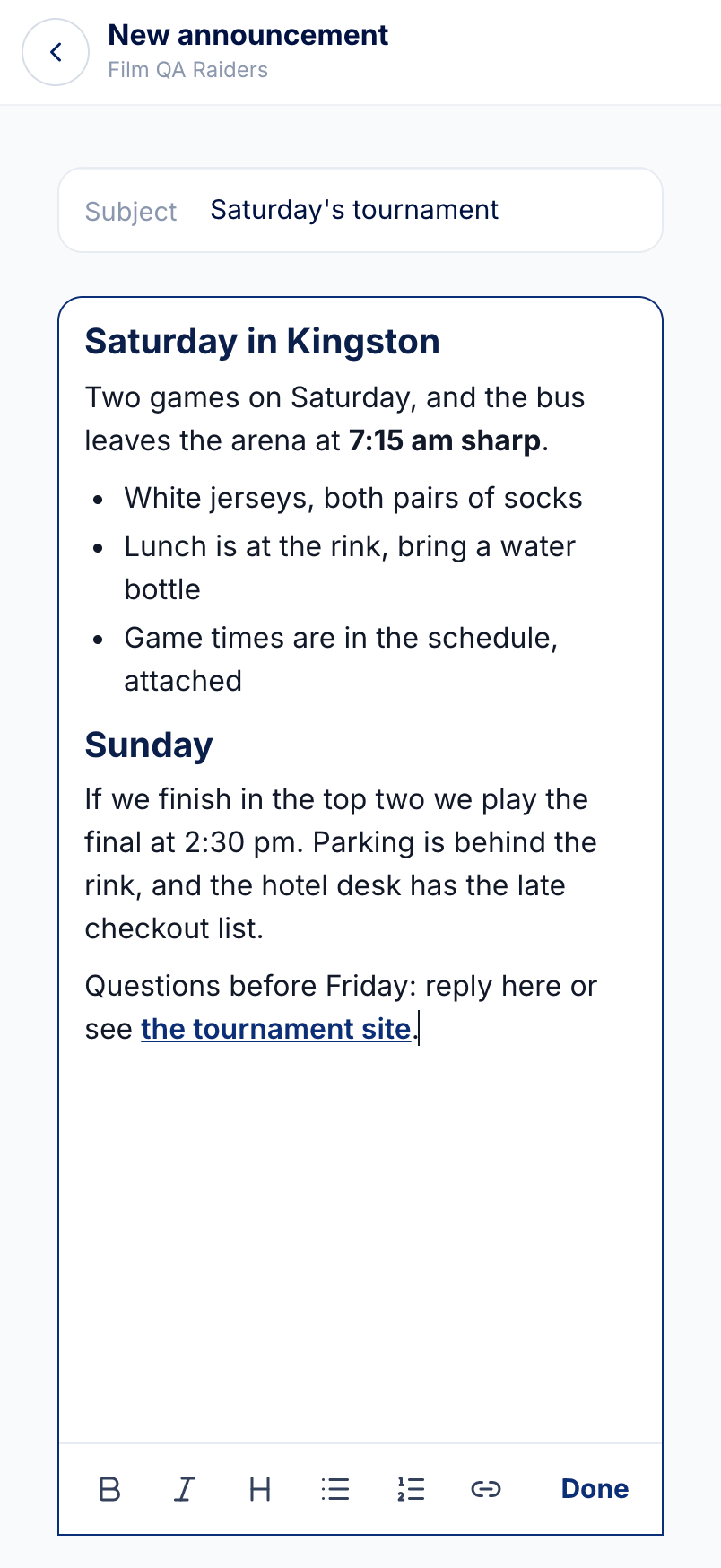
Tap the note and it takes the screen. The bar above the keyboard has bold, italic, heading, bullets, numbers and link; slide it for picture and attach. Select words first to make them bold or a link. Done brings the rest of the page back.
- Attach a file
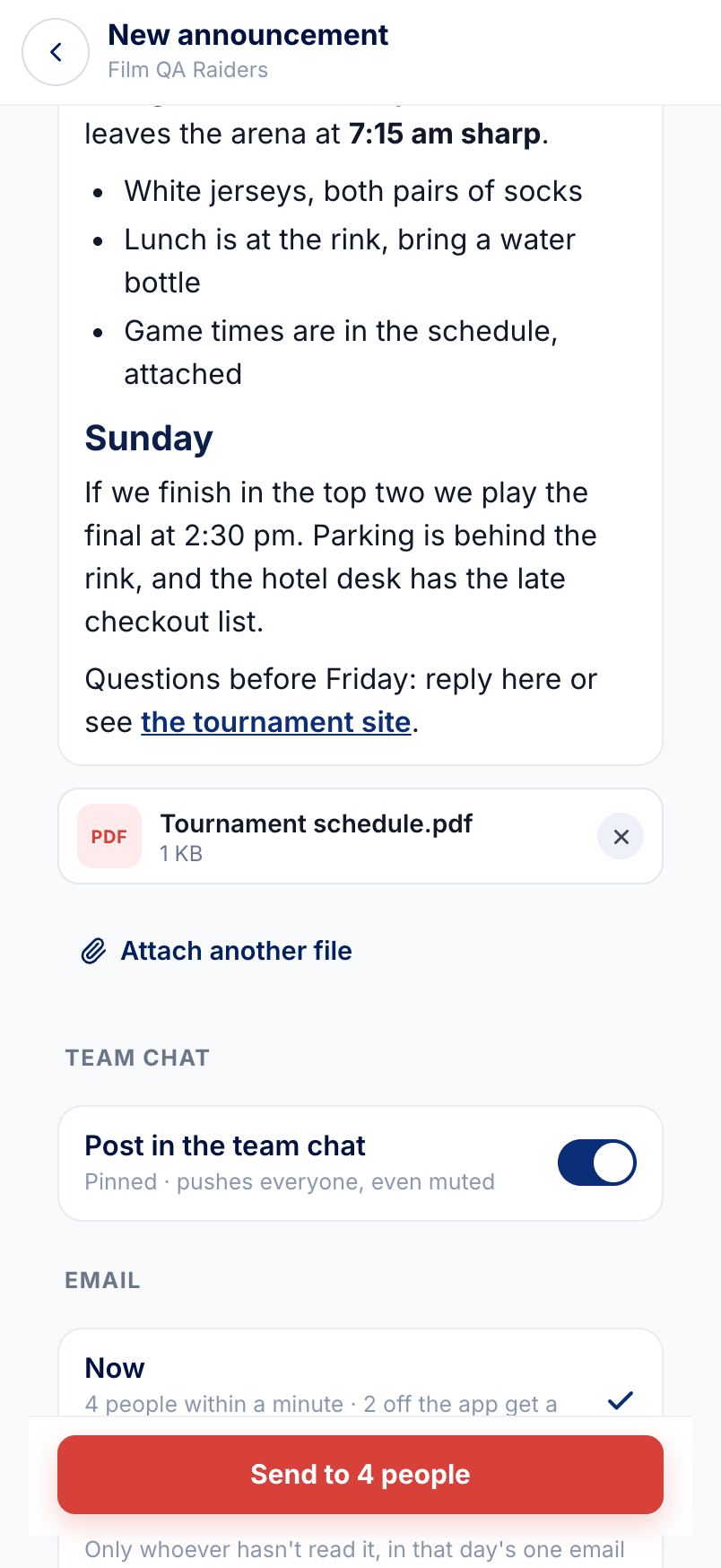
Attach a file under the note: a PDF, Word, Excel or PowerPoint file, a CSV, or a picture, up to 5 files of 15 MB each. The ✕ takes one off before you send.
- In the chat
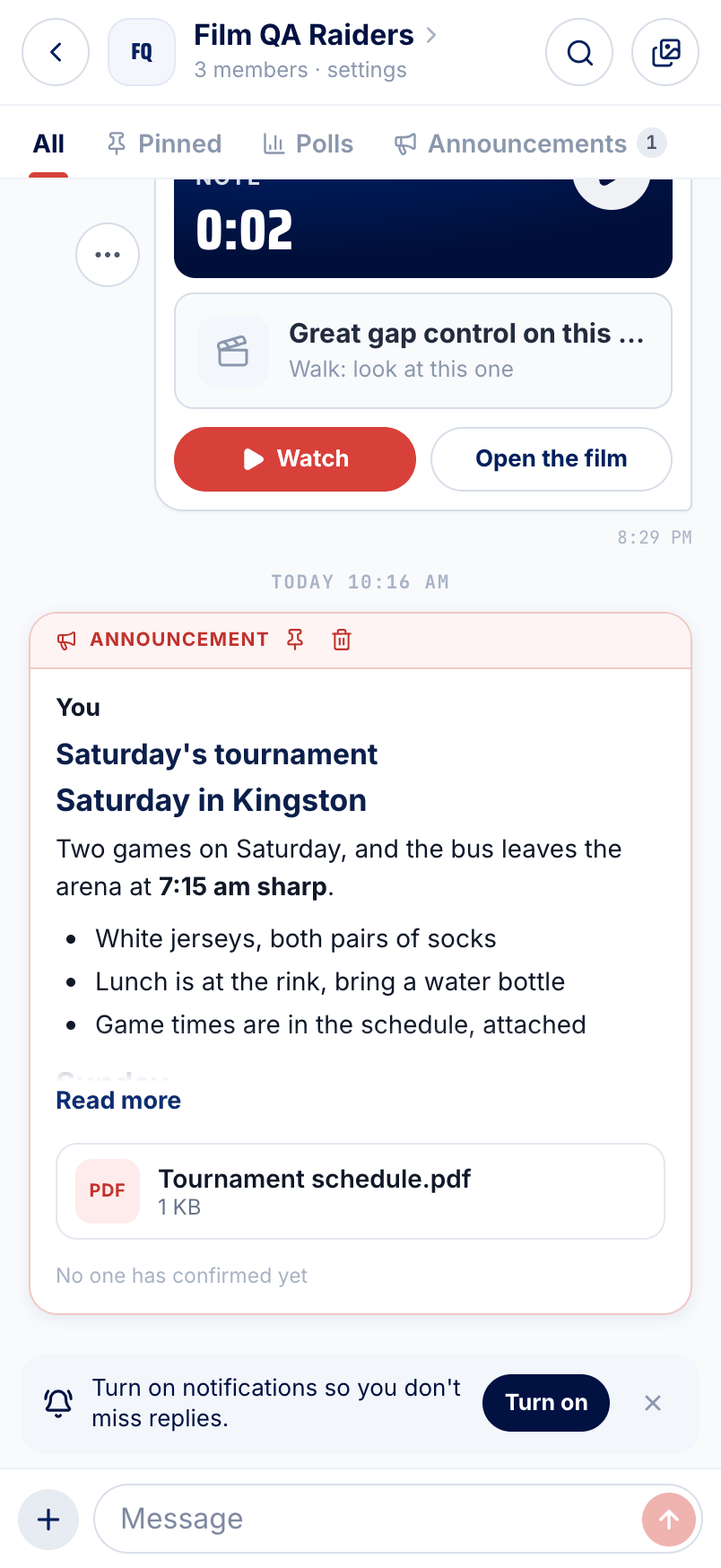
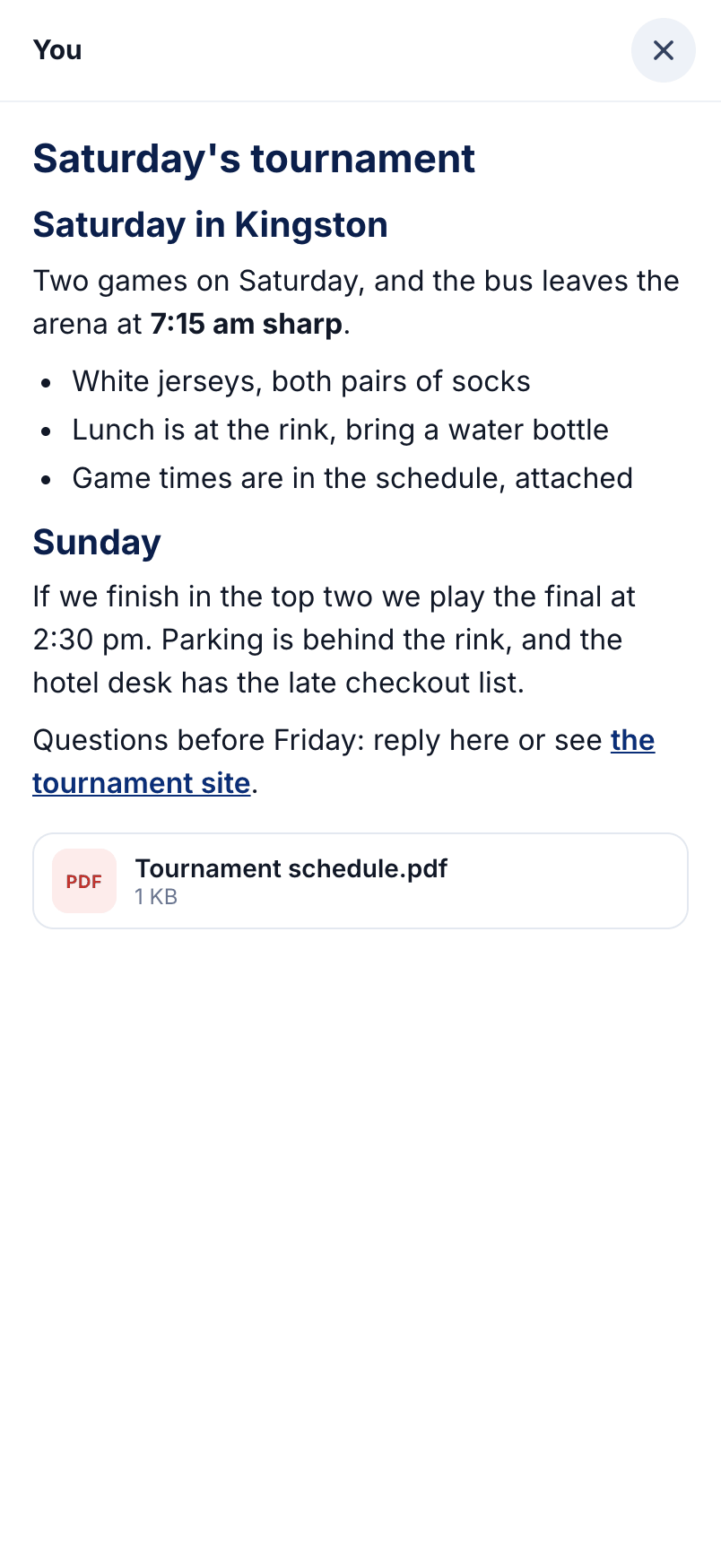
The card shows your subject, the note as you formatted it, and the file. A long note folds after a few lines; Read more opens all of it. Tap the file to open it.
- Read more
The whole note on its own screen, with the file at the bottom. The ✕ goes back to the chat.
- In the inbox
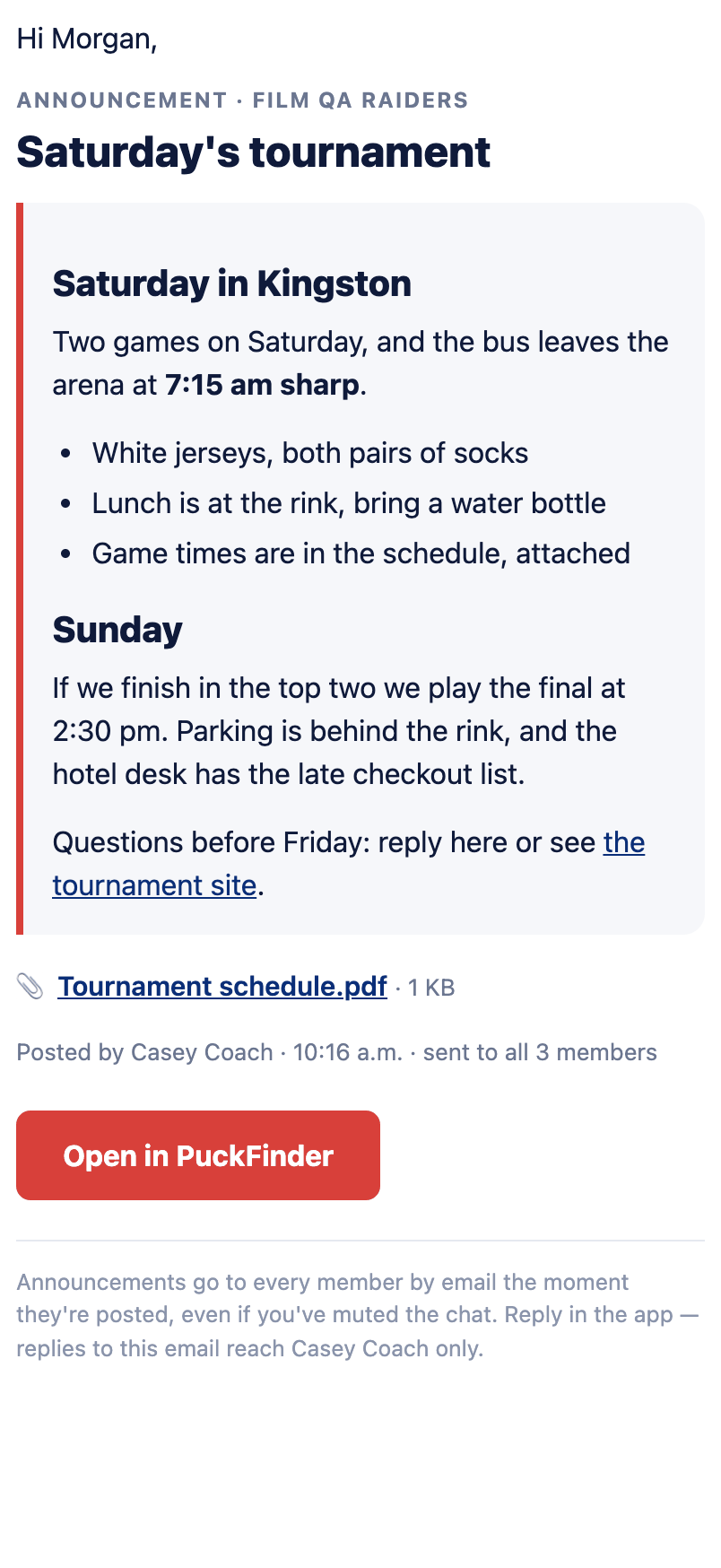
The email has your subject, the same headings, bold and lists, and the file as a link. Parents who have not joined the app get it too. The file is not attached to the email, so nothing is too big to deliver.
Good to know
- Who can post one: the team's managers and coaches. Everyone can read it and open the file.
- Pictures in the note: up to 6, placed where you put them. They show in the chat and in the email.
- File links: a file is stored on PuckFinder and shared as a private link that cannot be guessed. Anyone who has the link can open the file, so a forwarded email still works for a grandparent. Search engines are told to stay out.
- Take a file back: delete the announcement and its file links stop working at once.
- The 5:30 pm catch-up: if you choose the catch-up instead of Now, the email carries the words of your note without the formatting, and there is no subject row.
- To some of the team only: the same subject, formatting and files work in an email-only announcement. See An email to some of the team.
- Who is told: an announcement reaches everyone, muted or not. See Who gets pinged when you post.
Stuck?
Email john@puckfinder.app — a real person, usually the same day.