
Guide · 3 min read
Add your own events
Power skating you booked somewhere else, a dryland session, a dentist appointment that clashes with practice. Put it on your player's Schedule so the whole week is in one place.
Help › Add your own events
Step by step
Tap a screenshot to see it full size.
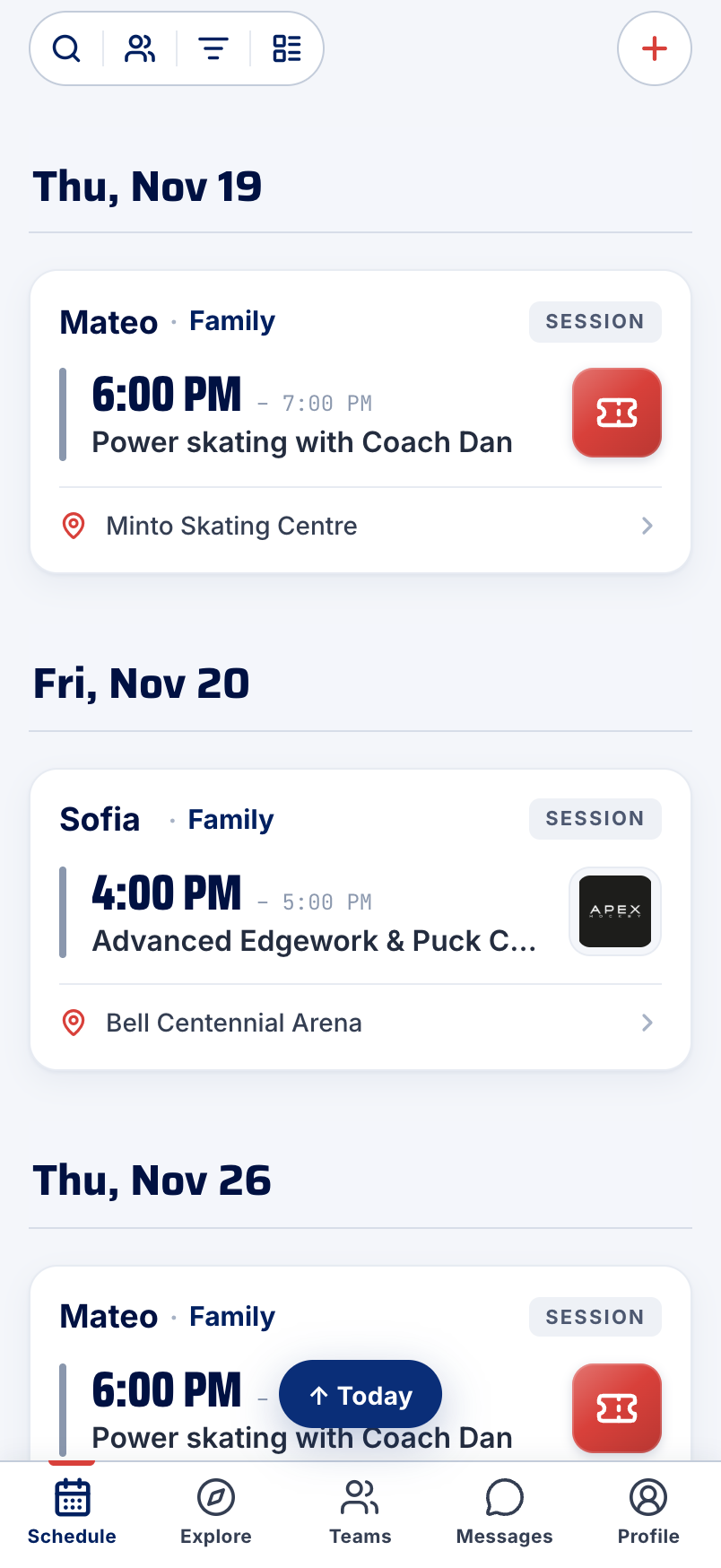
- Tap the plus
Schedule → the round + at the top right. Your own events sit in the Schedule with the team's games and practices. They are marked Family, so you can tell them from what a team or an organizer put there.
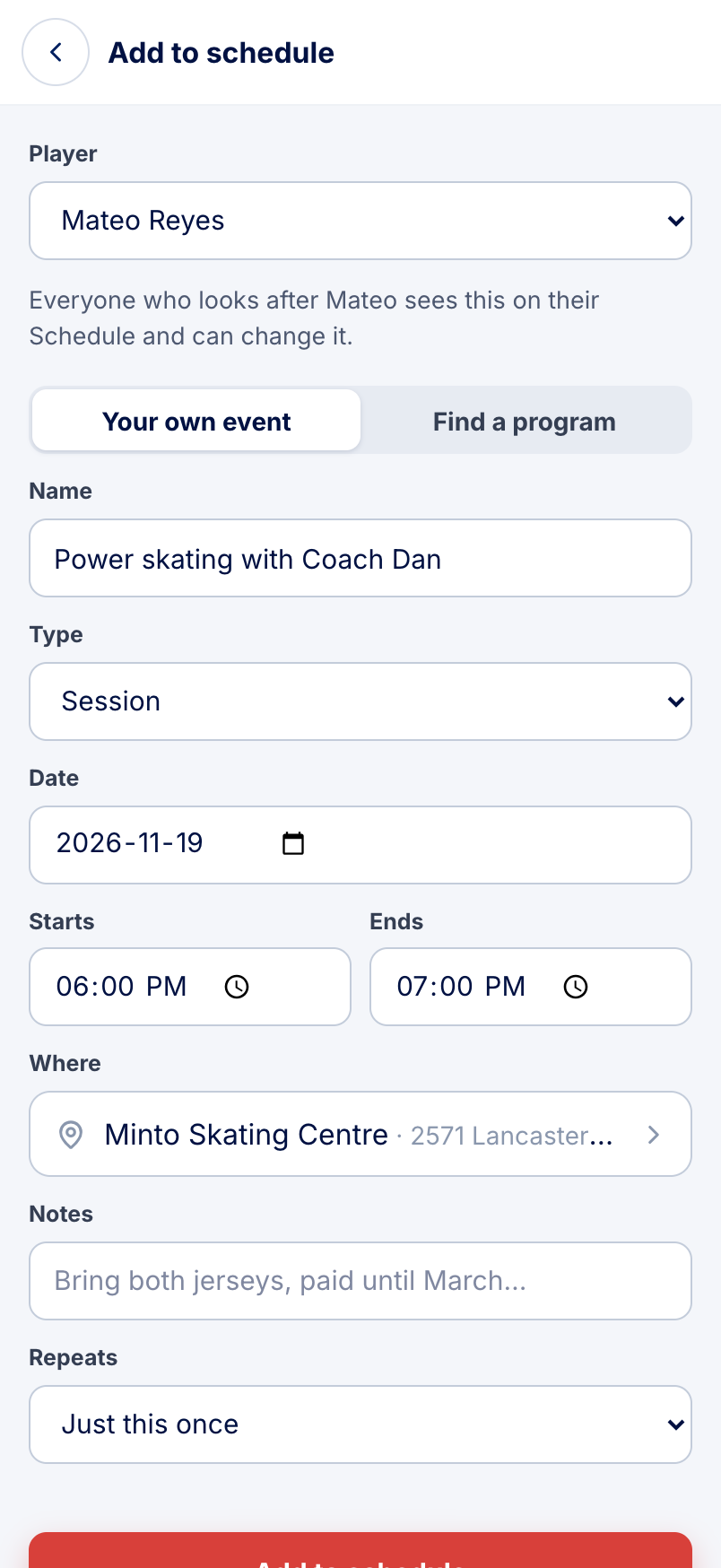
- Choose the player and fill it in
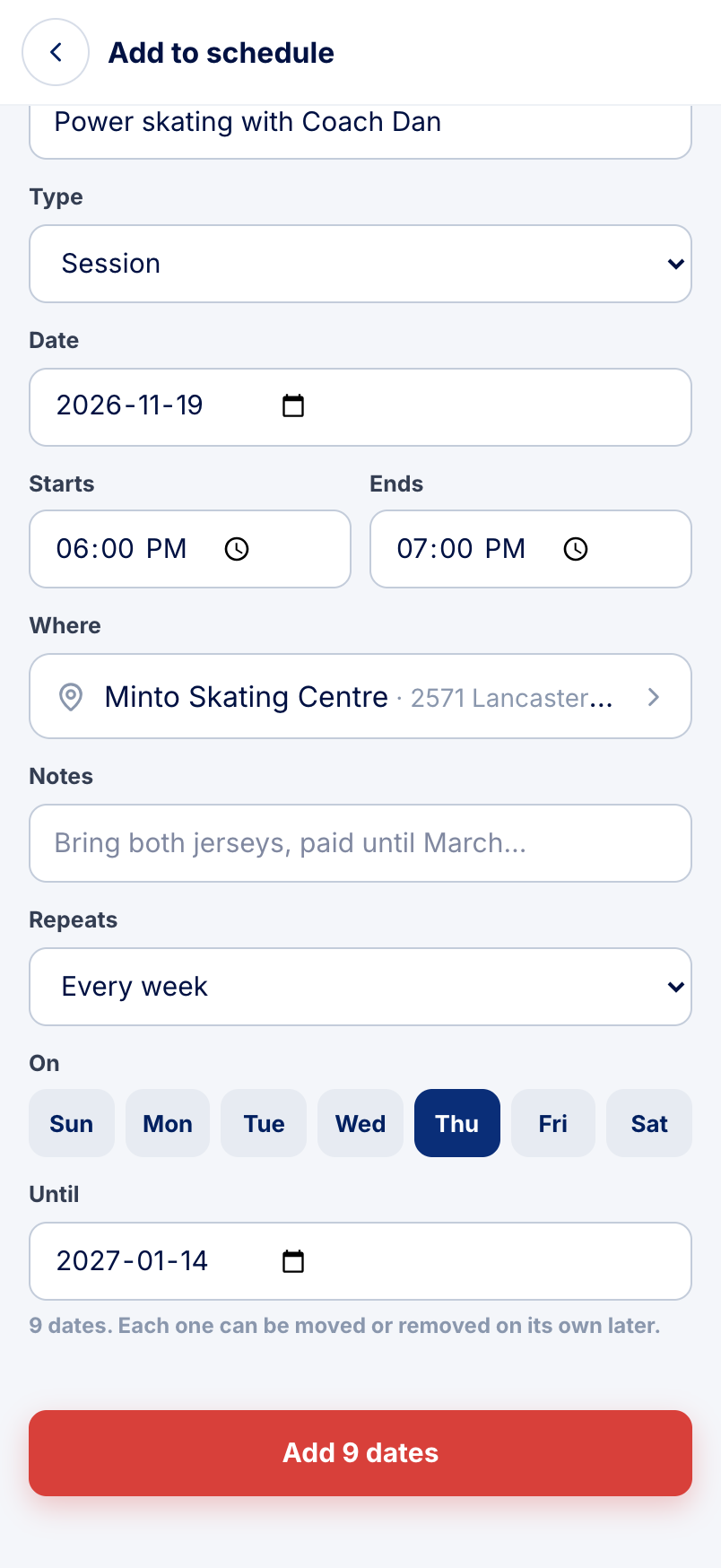
Player, Name, Type, Date, Starts, Ends. With more than one player you choose who it is for; nobody is picked for you. Type is Session, Practice, Game, Off-ice or Other; Off-ice is for dryland and the gym, and is counted apart in Ice time. Notes are optional.
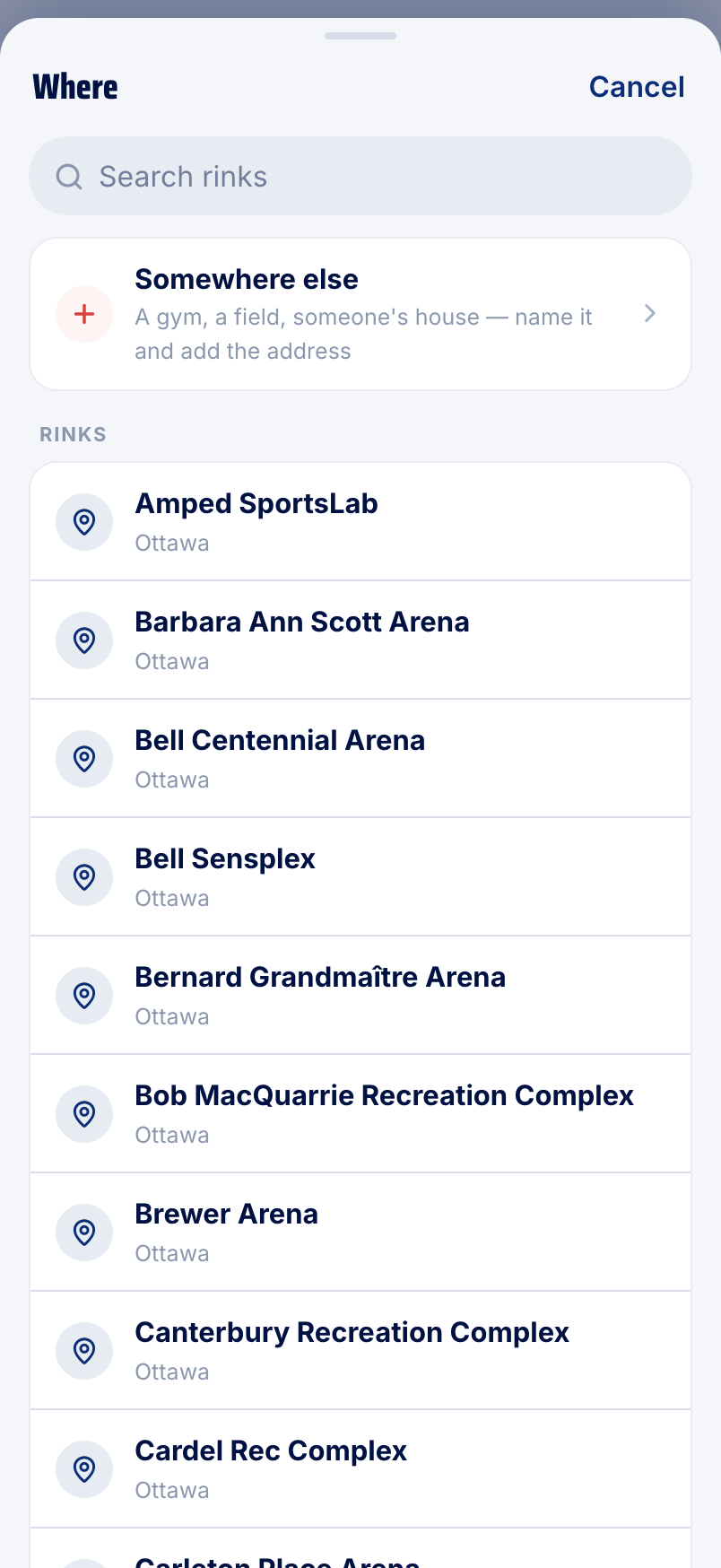
- Say where
Where opens a list. Somewhere else is the first row; the rinks are under it, with a search box on top.
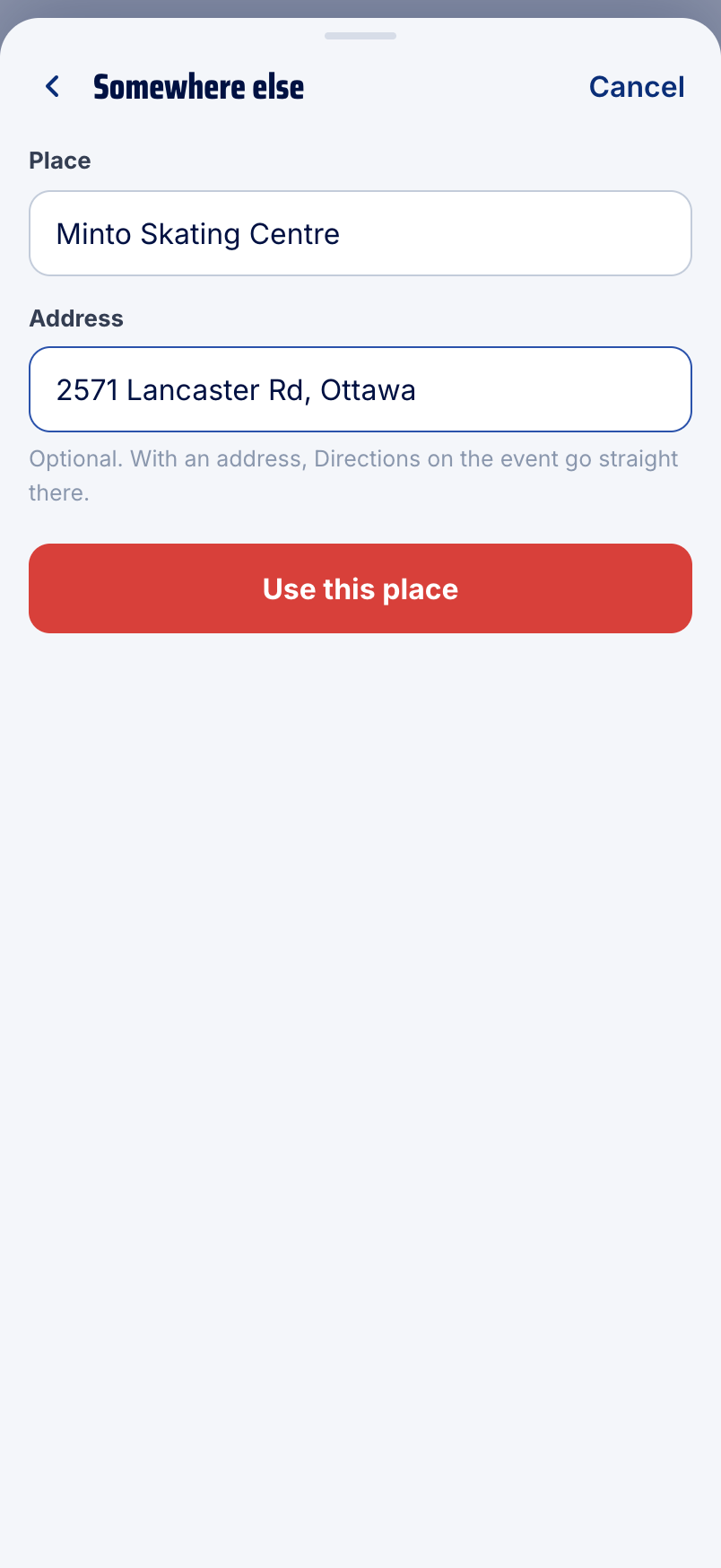
- A place that isn't a rink
Somewhere else → Place and Address. A gym, a field, someone's house. The address is optional; with one, Directions on the event go straight there.
- Make it weekly
Repeats → Every week. Pick the days and the last date. Each date is saved on its own, so you can move or remove one later without touching the rest.
- Or find a program we already know
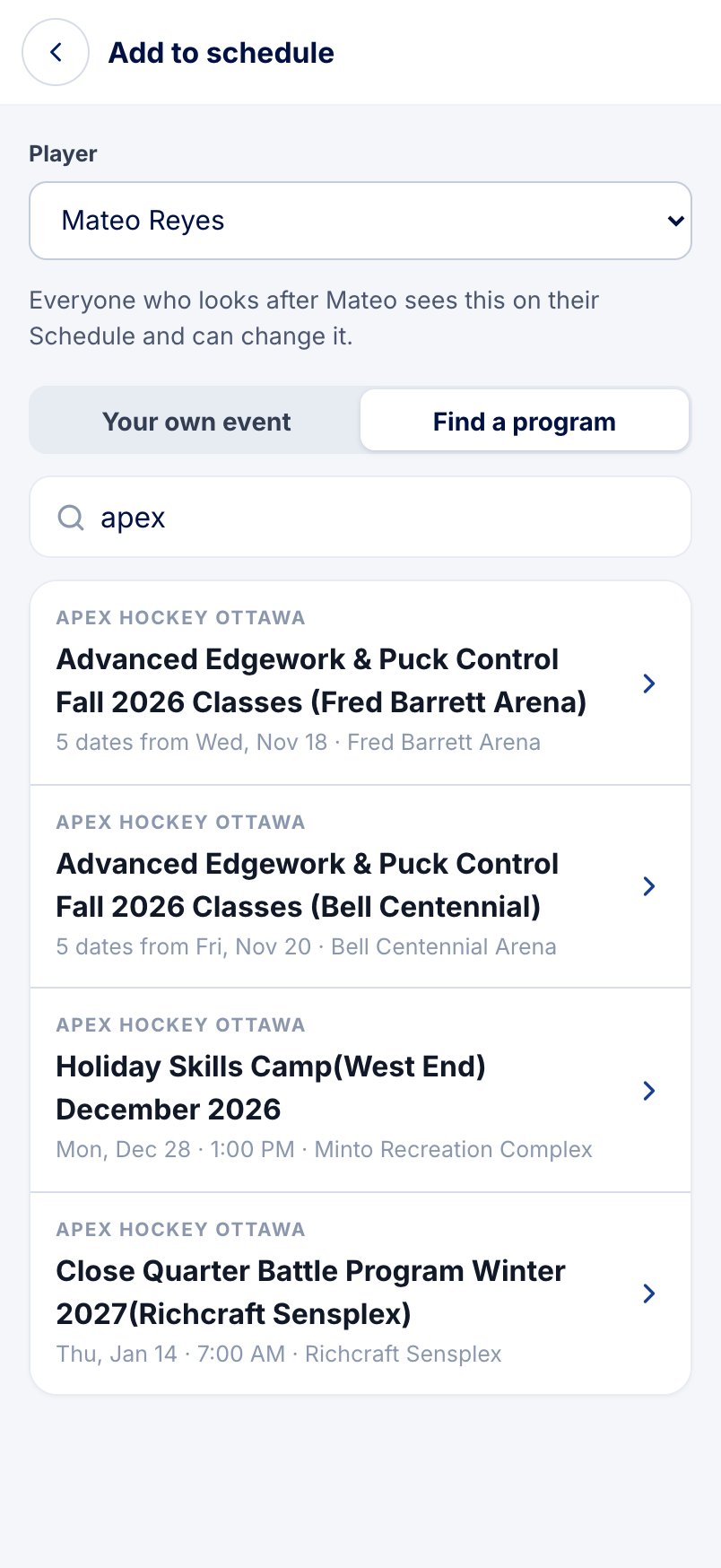
Find a program. Signed up with Apex, Amped or another organizer outside PuckFinder? Search by the program's or the organizer's name.
- Tick the dates
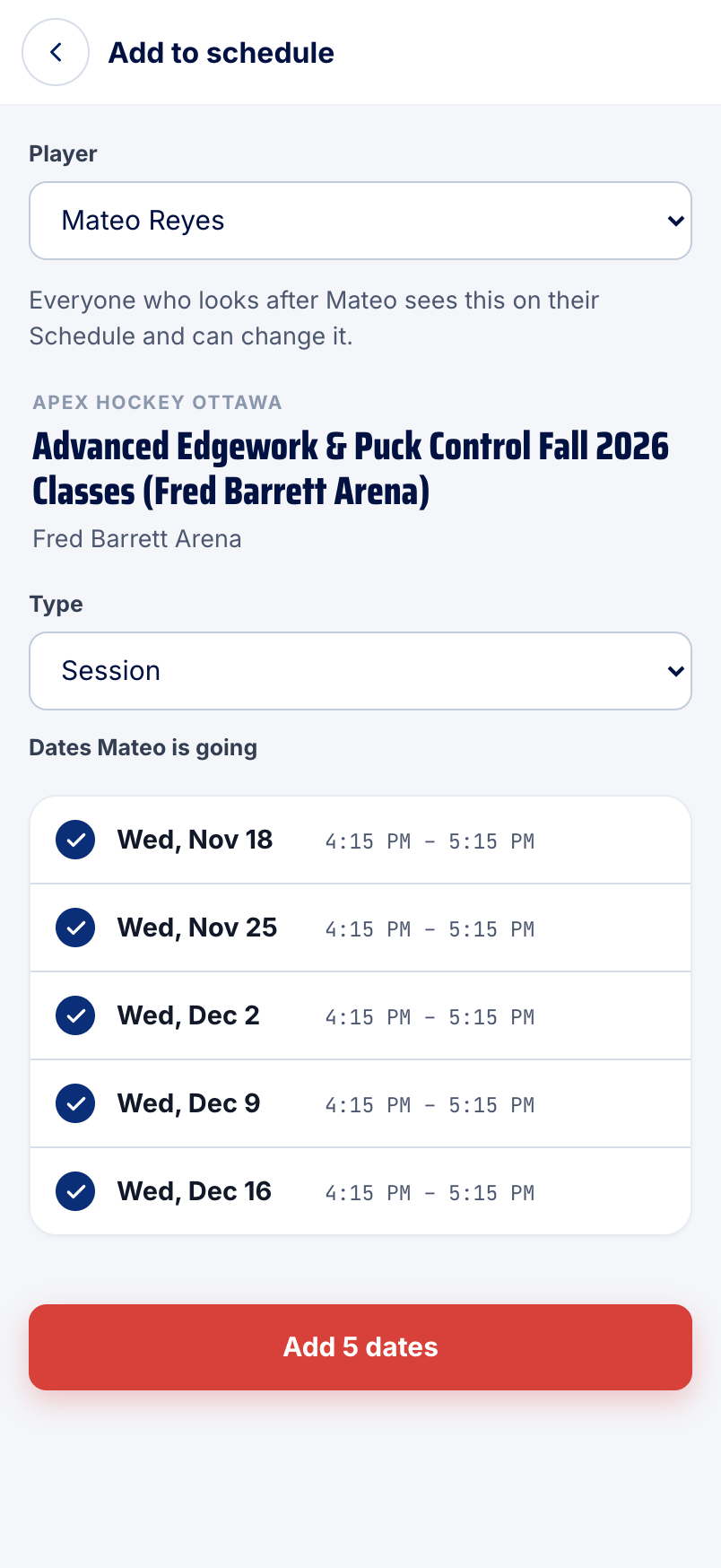
Pick the program, tick the dates your player is going, Add. The name, the times and the rink are filled in, and the card carries the organizer's logo.
- Change it or remove it
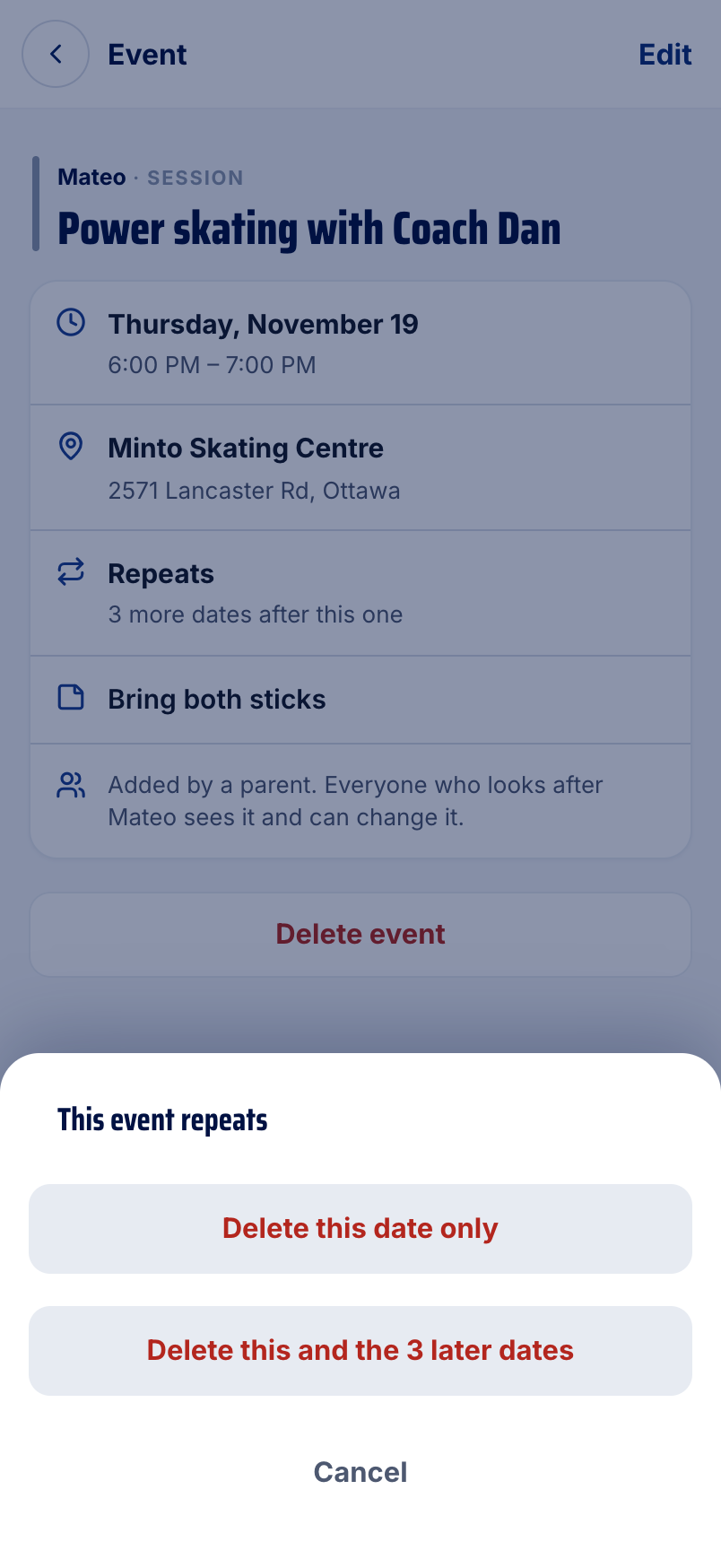
Tap the event → Edit, or Delete event. For one that repeats you choose: this date only, or this one and every later date.
Who sees it
- The event belongs to the player. Everyone who looks after that player in PuckFinder sees it on their Schedule and can edit or delete it.
- Coaches, managers and other families do not see it. It is not on the team's schedule.
- It shows in all three Schedule layouts: cards, list and calendar. See Cards, list or calendar.
The fine print
- Adding a program this way does not book it or pay for it. It only puts the dates on your Schedule; you still register with the organizer.
- If the organizer later moves a date, your copy does not move with it. Edit it yourself.
- There are no reminders or availability questions for your own events yet, and they are not in the calendar link you subscribe to from your phone's calendar.
- An event you typed in gets a tile in the player's colour with an icon for its type. One picked from a program gets the organizer's logo.
Questions
My partner added something. Can I change it?
Yes. Either of you can edit or delete anything on a player you both look after.
I can't find the program.
Search finds programs with dates still to come from the organizers PuckFinder lists. If yours isn't there, switch to Your own event and type it in; the search hands over what you typed.
I changed the time on one date of a weekly event.
Saving asks whether the change is for this date only or for this one and every later date. Later dates move by the same amount of time.
Why does it say Choose which player this is for?
You have more than one player and none was chosen. Pick one in the Player field and save again.
Stuck?
Email john@puckfinder.app — a real person, usually the same day.