
Guide · 2 min read
Cards, list or calendar
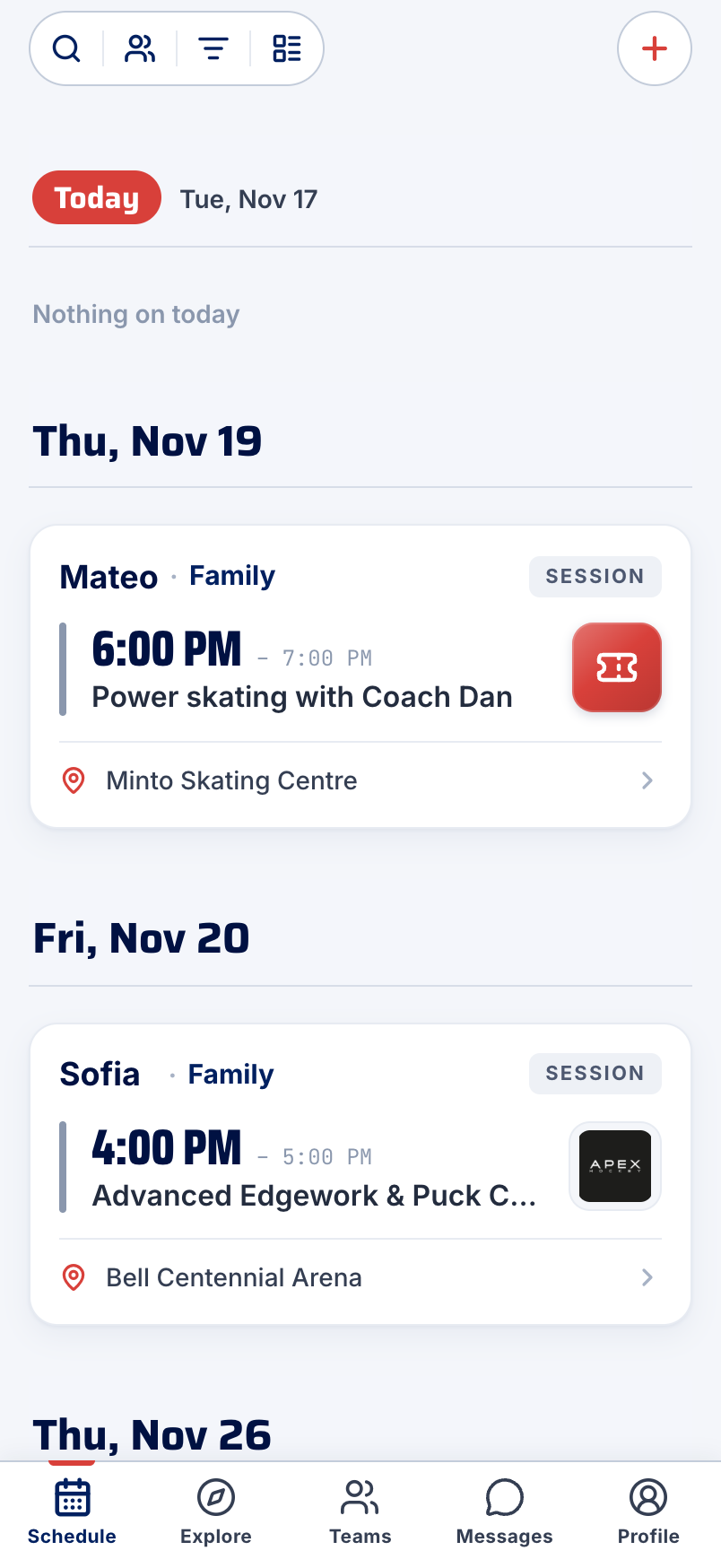
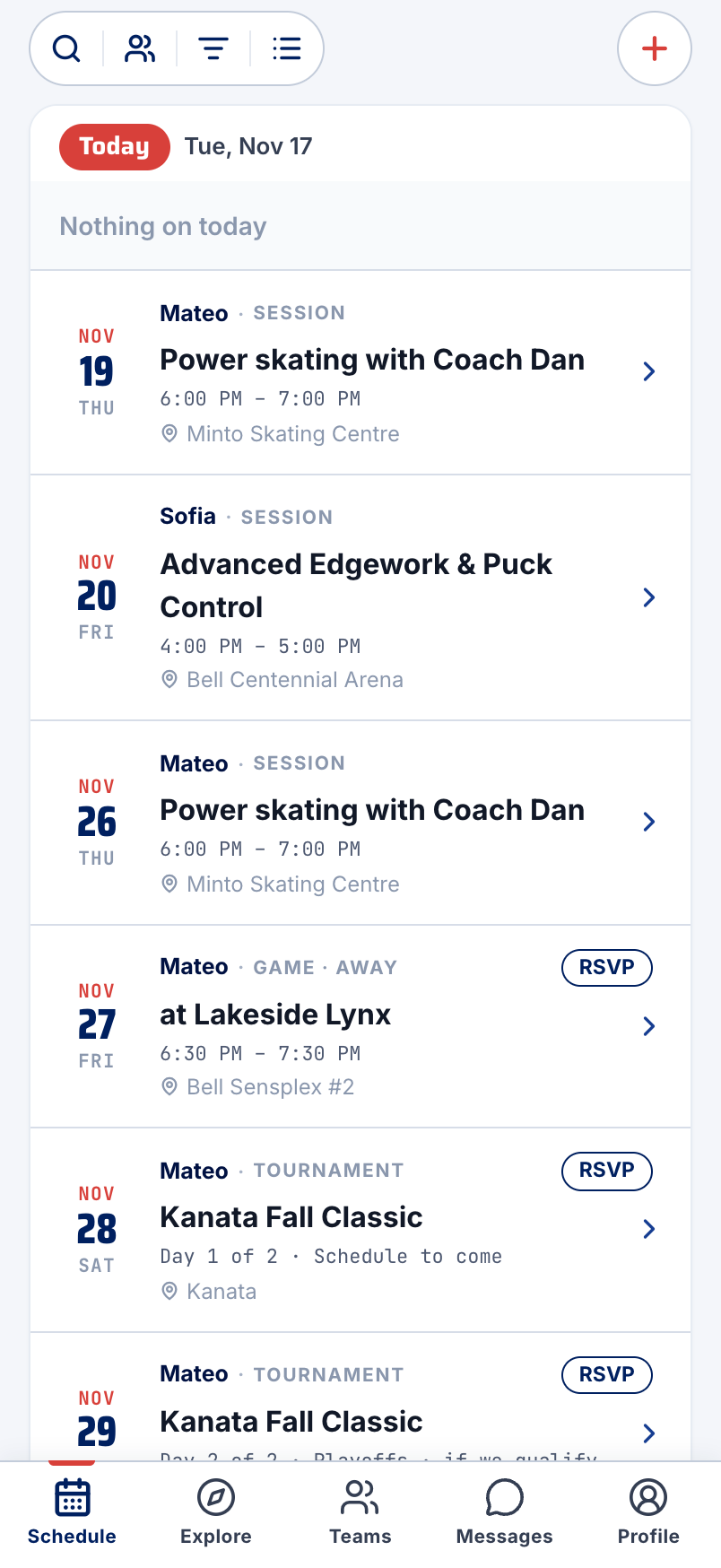
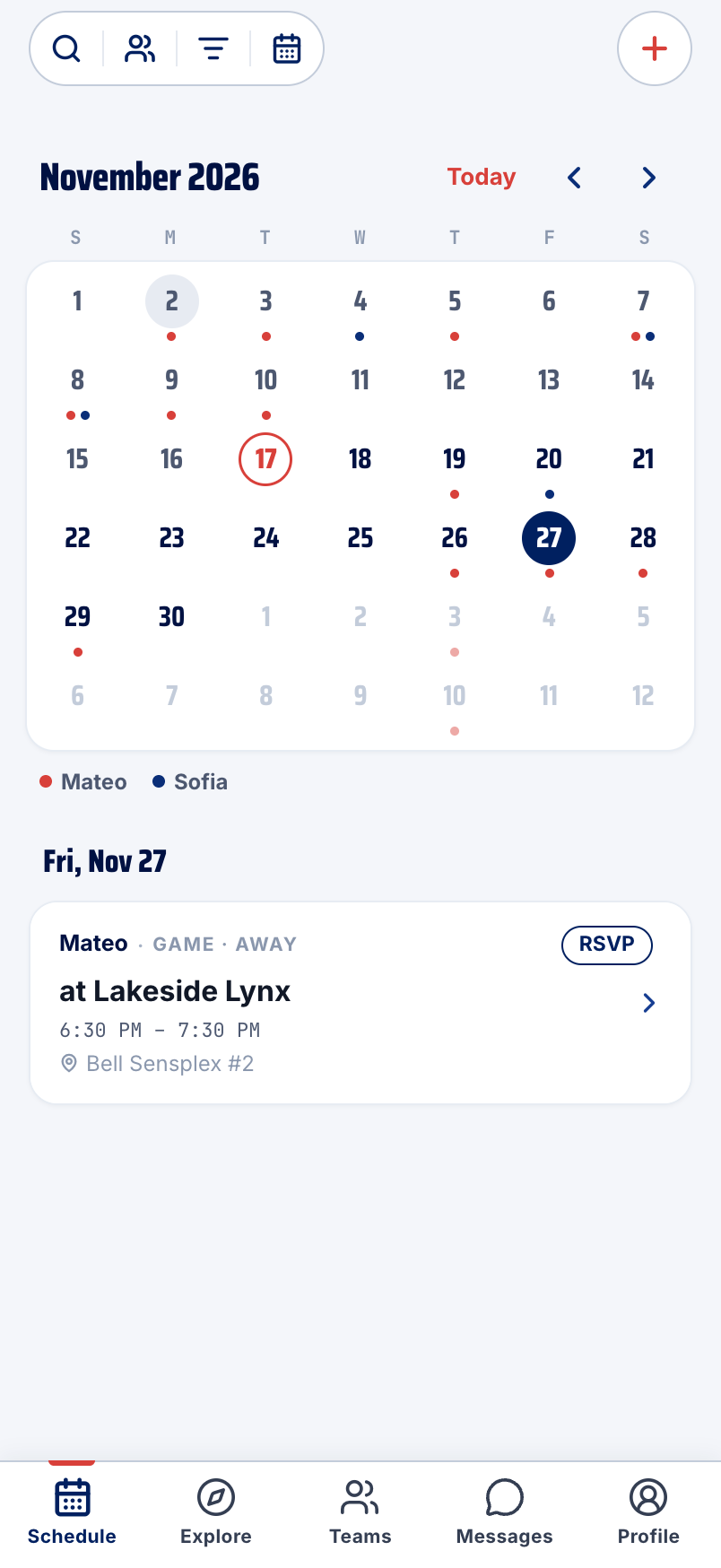
The same week three ways: roomy cards, a tight list, or a month with a dot for each player. Pick the one you like; the app remembers it on that phone.
Help › Cards, list or calendar
Step by step
Tap a screenshot to see it full size.
- The bar at the top
Search, player, show, layout sit together on the left. The round + on the right adds your own event.
- Pick a layout
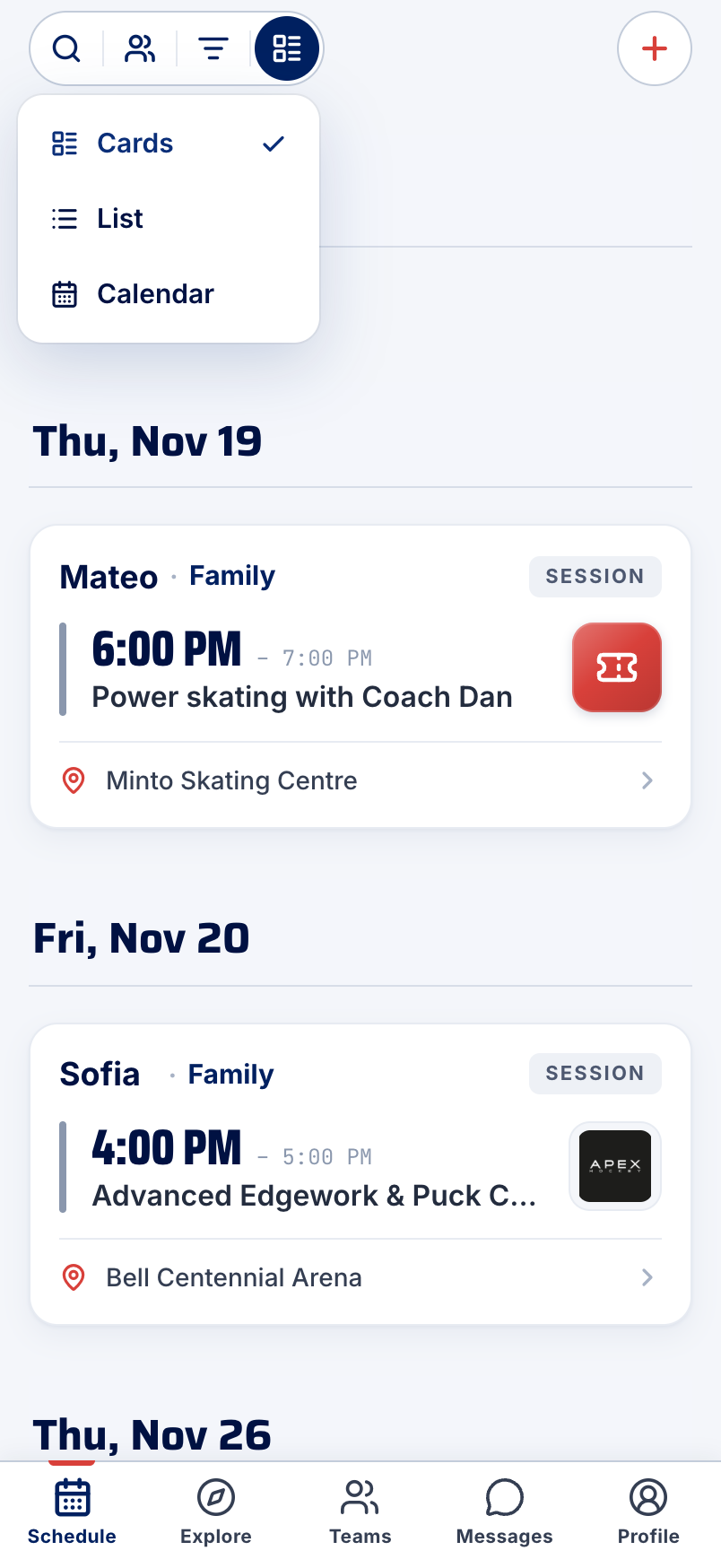
Tap the layout icon → Cards, List or Calendar. Cards show the most about each event and let you answer right there.
- List
One row per event: the date, whose it is and what kind, the name, start and end time, and the rink. The pill on the right is your answer; tap it to change it, or tap the row to open the event.
- Calendar
The month on top, the day you tap underneath. It opens on today. Each dot is a player with something on that day, in that player's colour; the names are under the month. The arrows or a swipe change the month, and Today brings you back.
- Search
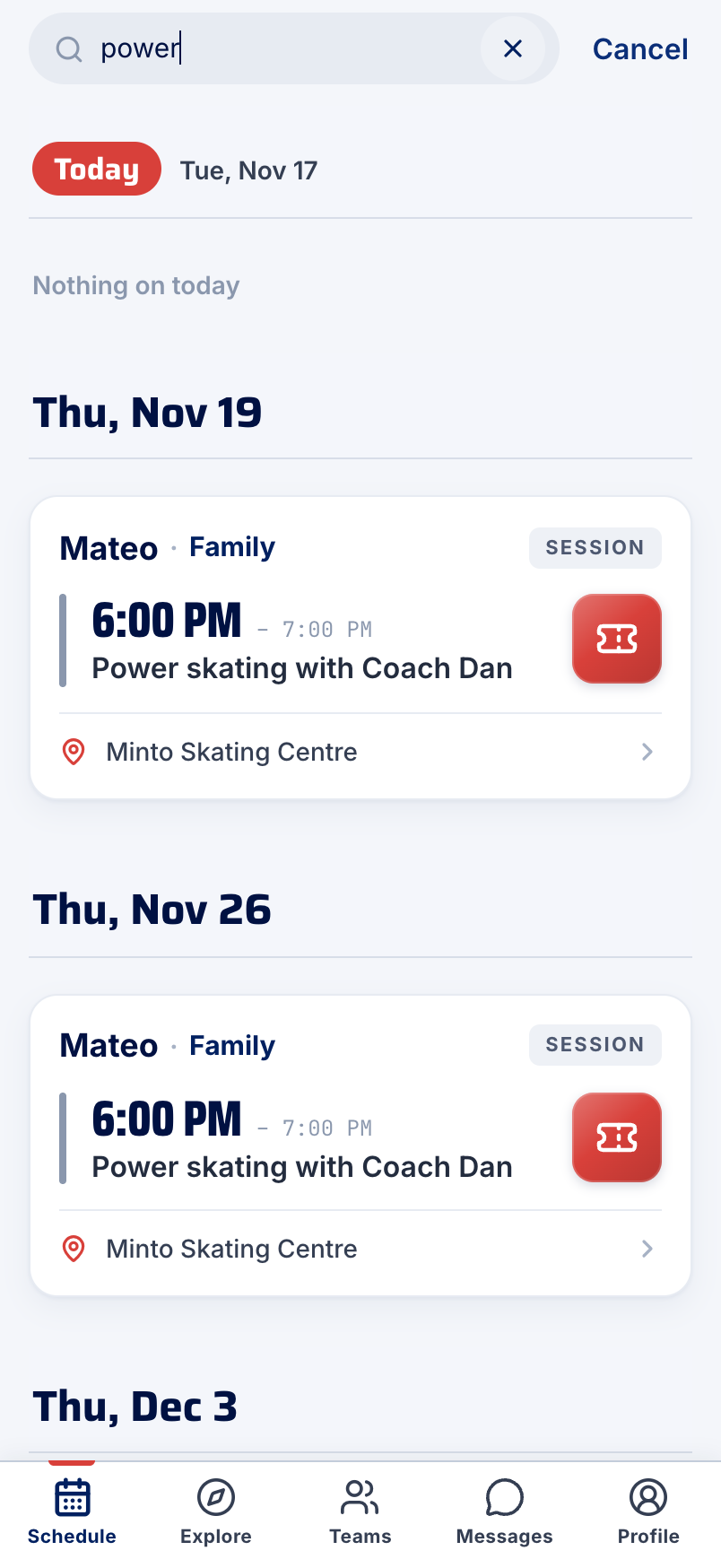
Tap the magnifying glass and type. The field takes over the bar and the Schedule narrows as you type: a team, an opponent, a rink, a program. Cancel clears it.
Good to know
- The player icon narrows the Schedule to one of your players. The next icon shows only games, practices or sessions.
- The layout is remembered on each phone or browser separately.
- In the calendar, a grey dot is something that isn't tied to one of your players, such as a session you coach.
- Days already behind you in the month keep their team games and practices, so you can tap back to last week's game.
- To put something of your own on the Schedule, see Add your own events.
Stuck?
Email john@puckfinder.app — a real person, usually the same day.