
Guide · 3 min read
Ice time, week by week
How many hours the team has booked this season and in the weeks ahead, and how many hours one player is really putting in across every team, session and event. Dryland and the gym are counted apart from the ice.
Help › Ice time, week by week
Step by step
Tap a screenshot to see it full size.
- The team's hours
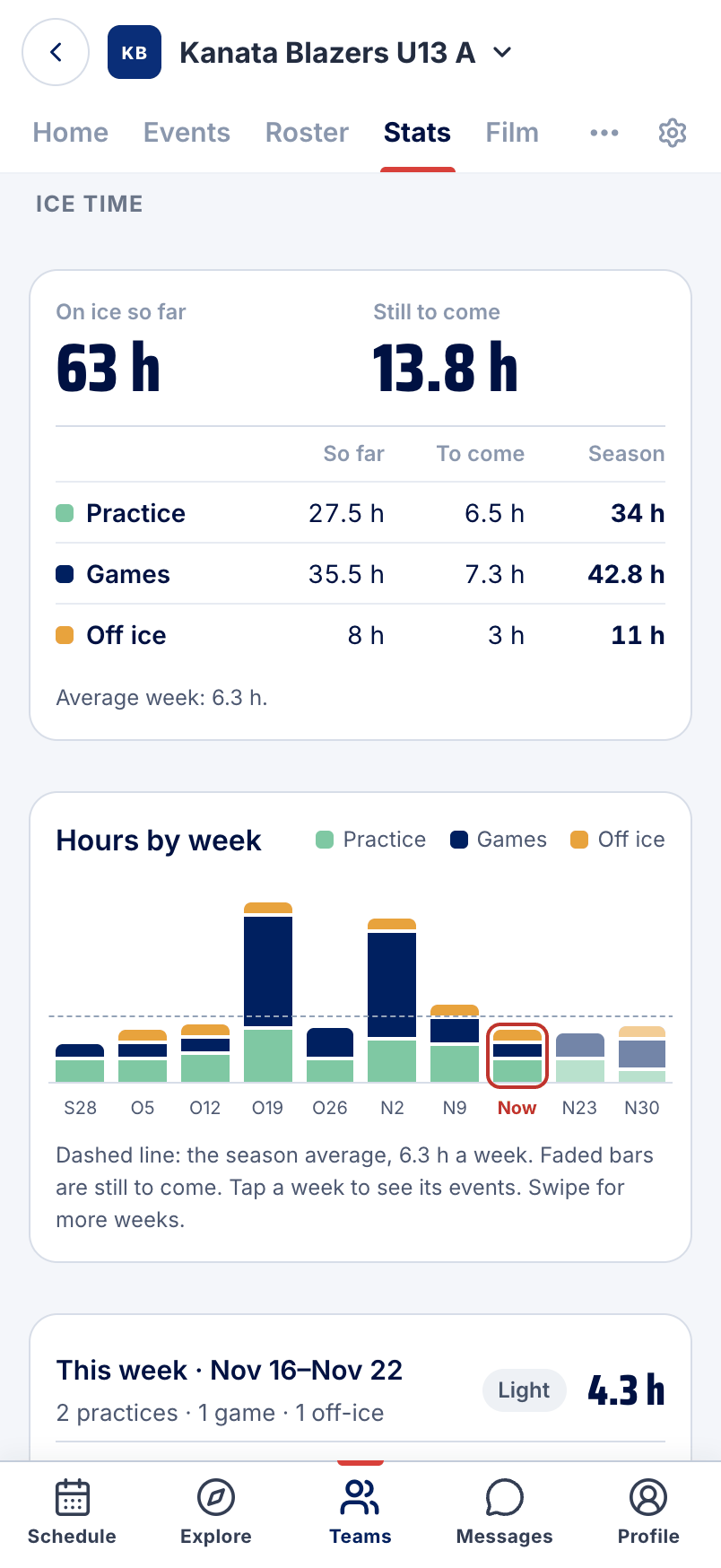
Teams → your team → Stats → Ice time. On ice so far is the ice already played; Still to come is what is on the schedule from today on. The table under them splits practice, games and off-ice the same way, with the season total in the last column. Tap On ice so far to open the Past list.
- The weeks coming up
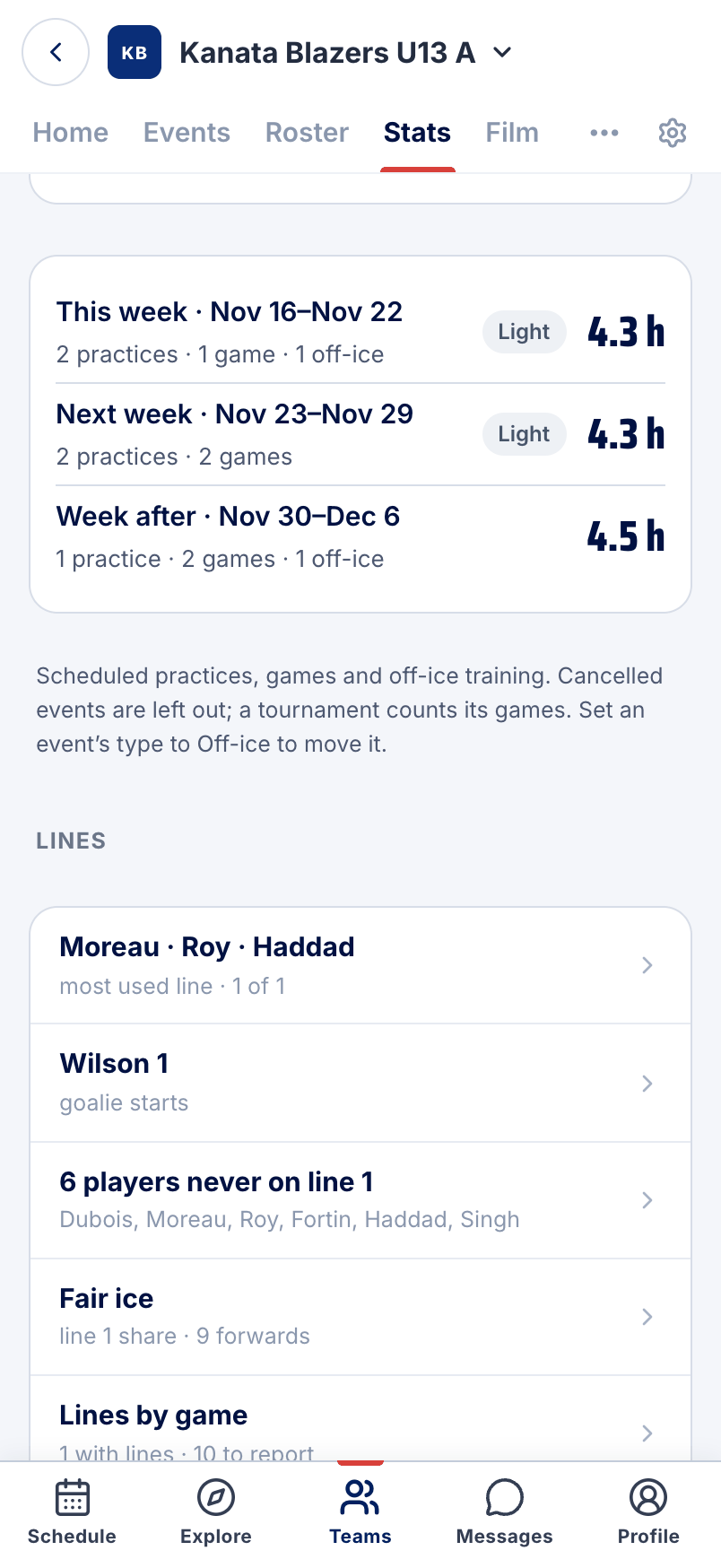
Hours by week opens on the last few weeks, this week and the two ahead; swipe the chart sideways for the rest of the season. The dashed line is the season average and faded bars are still to come. Below it, the next three weeks are spelled out with what is in each. A week well over the average is marked Heavy; one well under is Light.
- Check a week
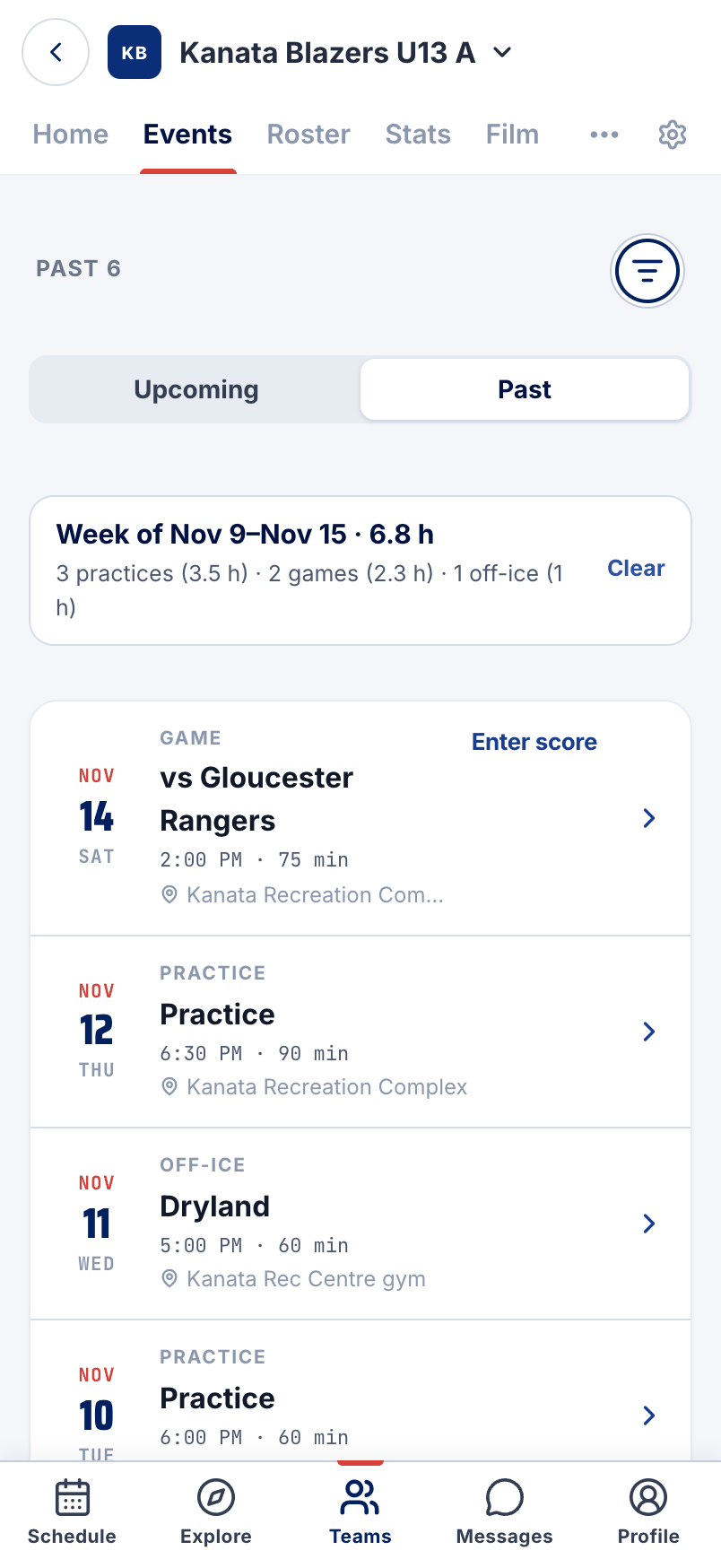
Tap a bar, or one of the three weeks under the chart. Events opens on that week alone, with the hours at the top and how they add up: practices, games and off-ice. The list below is what was counted.Clear takes the week off again.
- See only the off-ice events
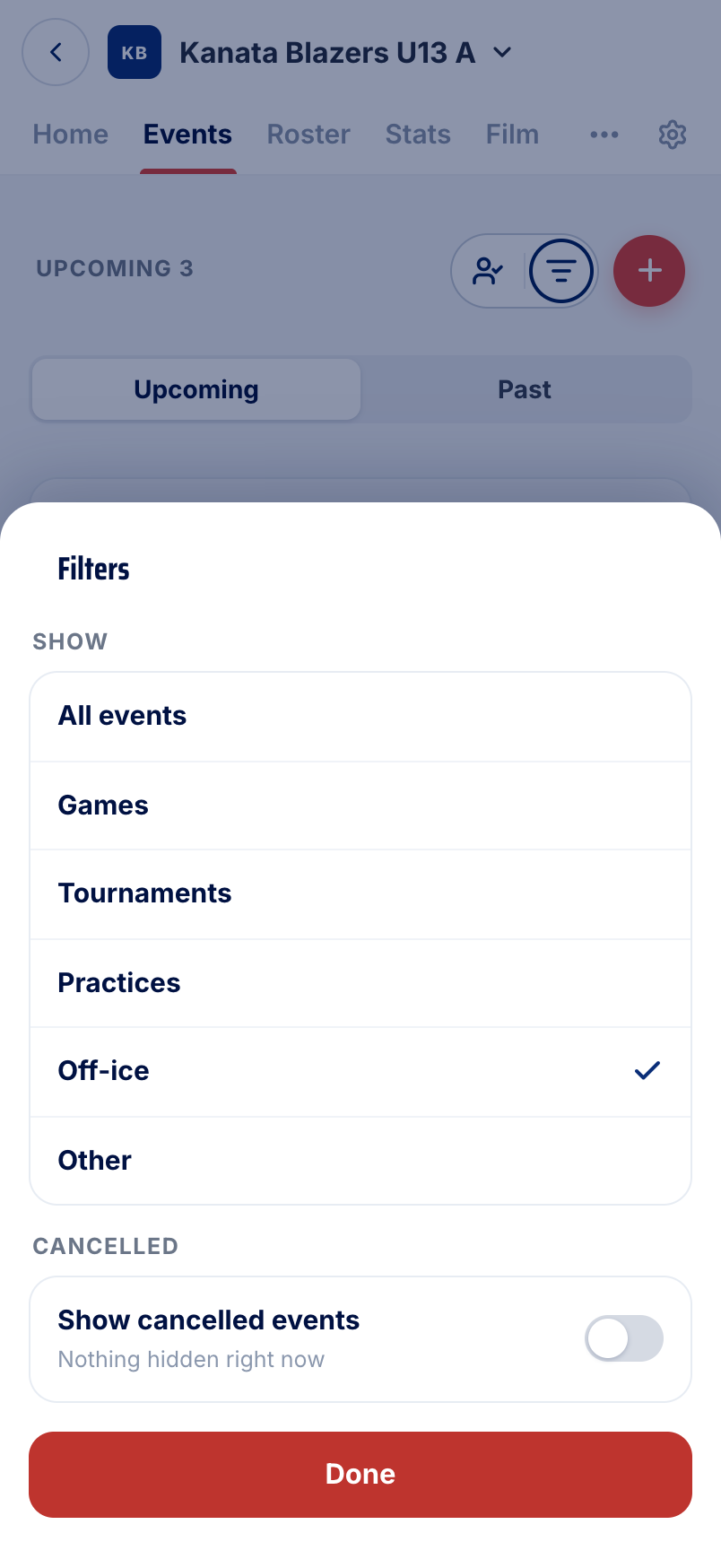
Events → the filter button → Off-ice. The list shows the team's dryland and gym sessions and nothing else, on Upcoming and on Past. Practices no longer includes them. The filter also works together with a week picked from the chart.
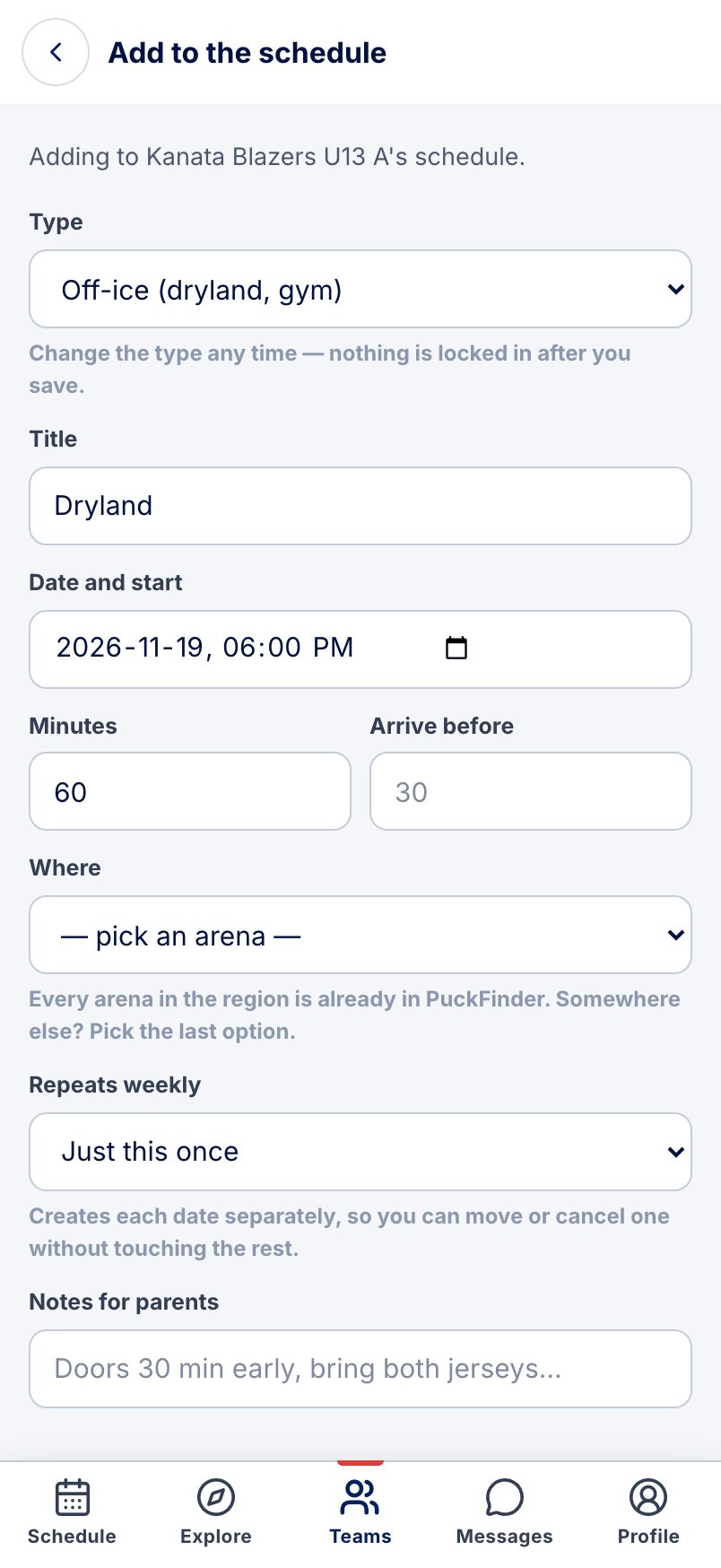
- Dryland is its own type
Type → Off-ice when you add or edit a team event. Use it for dryland, the gym or a team workout. It still behaves like a practice for availability and arrival times; it is only counted apart. An event named Dryland, Off-ice, Gym, Fitness, Workout or CrossFit is set to Off-ice for you, including ones that arrive from TeamSnap.
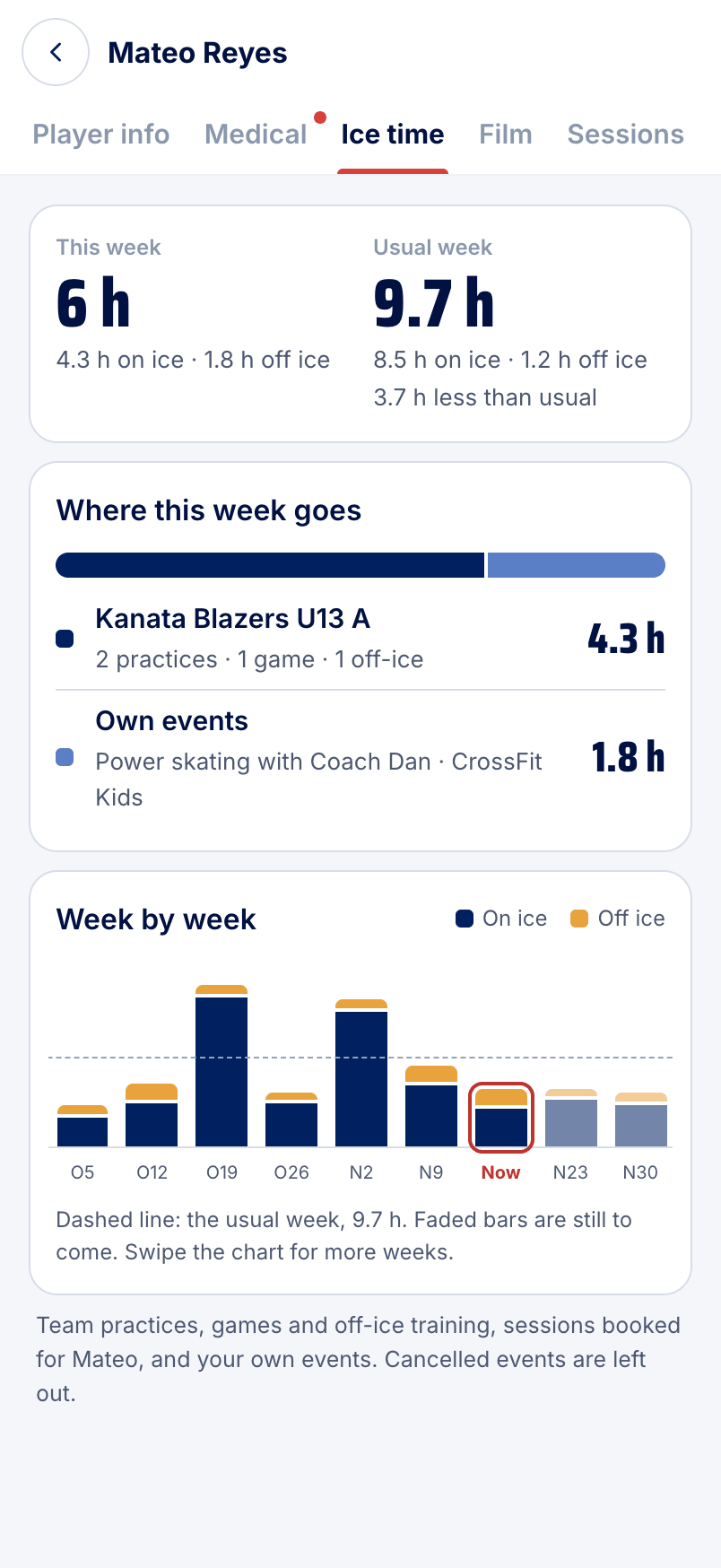
- One player's week
Profile → your player → Ice time. This adds up everything PuckFinder knows for that player: every team they are on, sessions you booked for them, and events you added yourself. Usual week is the average of the last six full weeks, so you can see a heavy week coming. Swipe the bars sideways for earlier and later weeks.
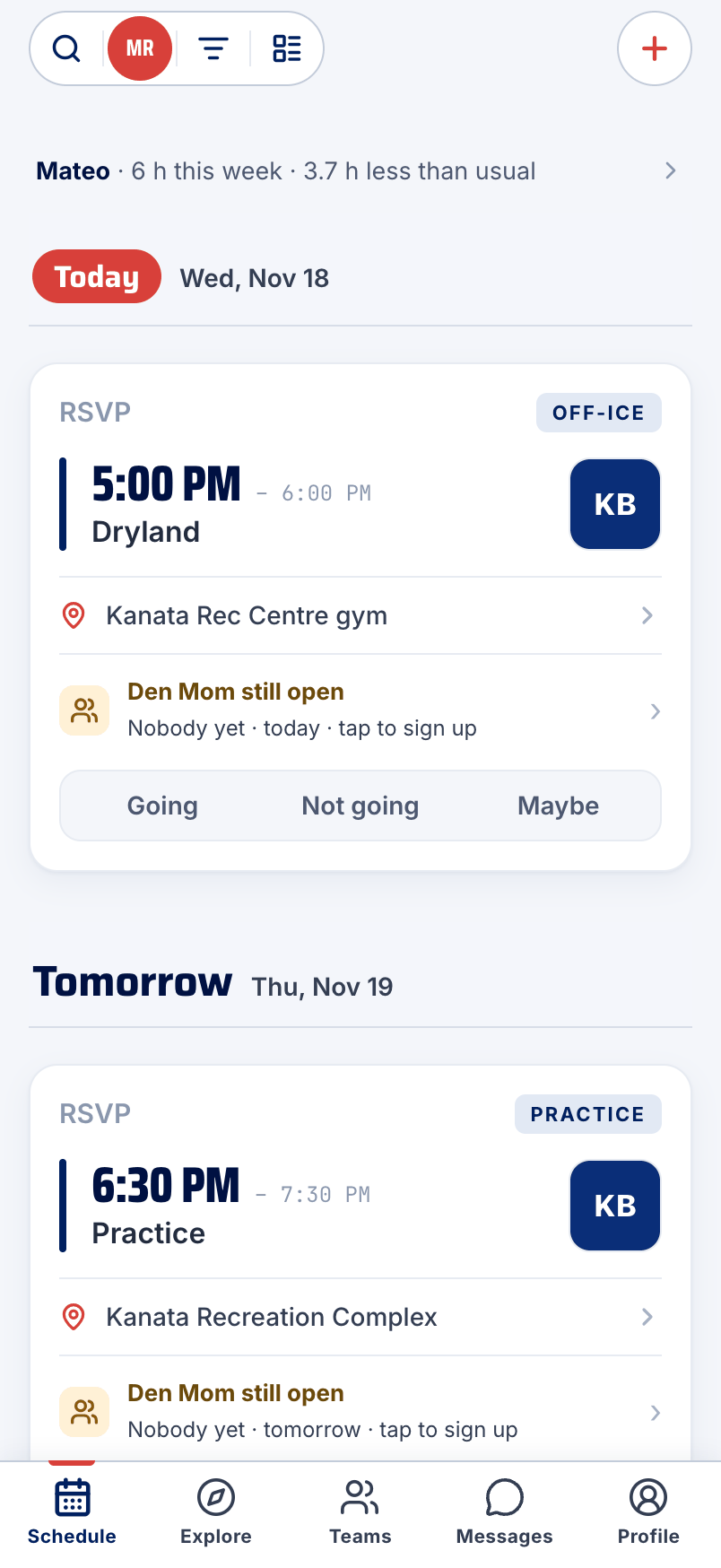
- From the Schedule
Schedule → pick one player. With one player chosen, a line at the top says their hours this week and how that compares with usual. Tap it to open their Ice time tab.
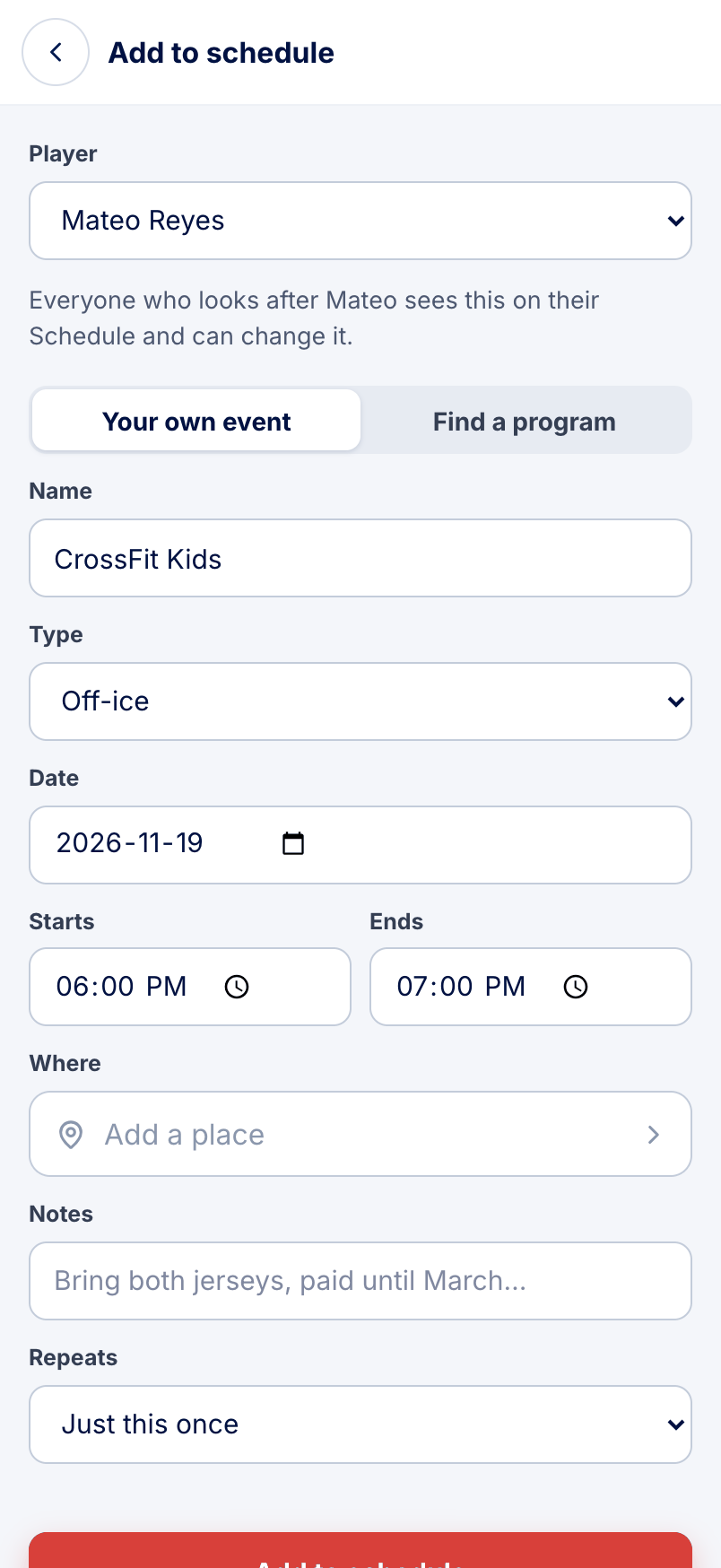
- Your own off-ice events
Schedule → + → Type → Off-ice. CrossFit, a gym session or dryland you arranged yourself counts toward the player's week as off ice. See Add your own events.
What is counted
- On ice: practices and games on a team's schedule, sessions booked through PuckFinder, and your own events of type Session, Practice or Game.
- Off ice: anything of type Off-ice, on a team or your own.
- Not counted: events of type Other (a team dinner, photos, a meeting) and anything cancelled.
- Tournaments count through their games. A tournament with no games posted yet adds nothing, so that week reads light until the schedule arrives.
- Each event counts for the length on the schedule, not for time actually skated. Weeks run Monday to Sunday.
Who sees it
- The team's Ice time is on the Stats tab for everyone on the team.
- A player's Ice time tab is for the people who look after that player. Coaches and other families do not see it.
Questions
A dryland session is showing as ice time.
Open the event, tap Edit and set Type to Off-ice. Team events need a coach or manager to change them; your own events you change yourself.
An event was set to Off-ice and it is on the ice.
The name matched a word such as Gym or Fitness. Edit it and set Type back to Practice. It stays that way.
The same hour is counted twice.
If you added your own event for something that is also on a team's schedule, both count. Delete your copy.
There is no Off ice number on my team.
It appears once the team has at least one off-ice event this season.
Stuck?
Email john@puckfinder.app — a real person, usually the same day.