
Everyone · 1 min read
Share a file in a chat
The tournament schedule, a waiver, the snack list: send it in the chat like a photo, and find it again later without scrolling.
Help › Share a file in a chat
Step by step
Tap a screenshot to see it full size.
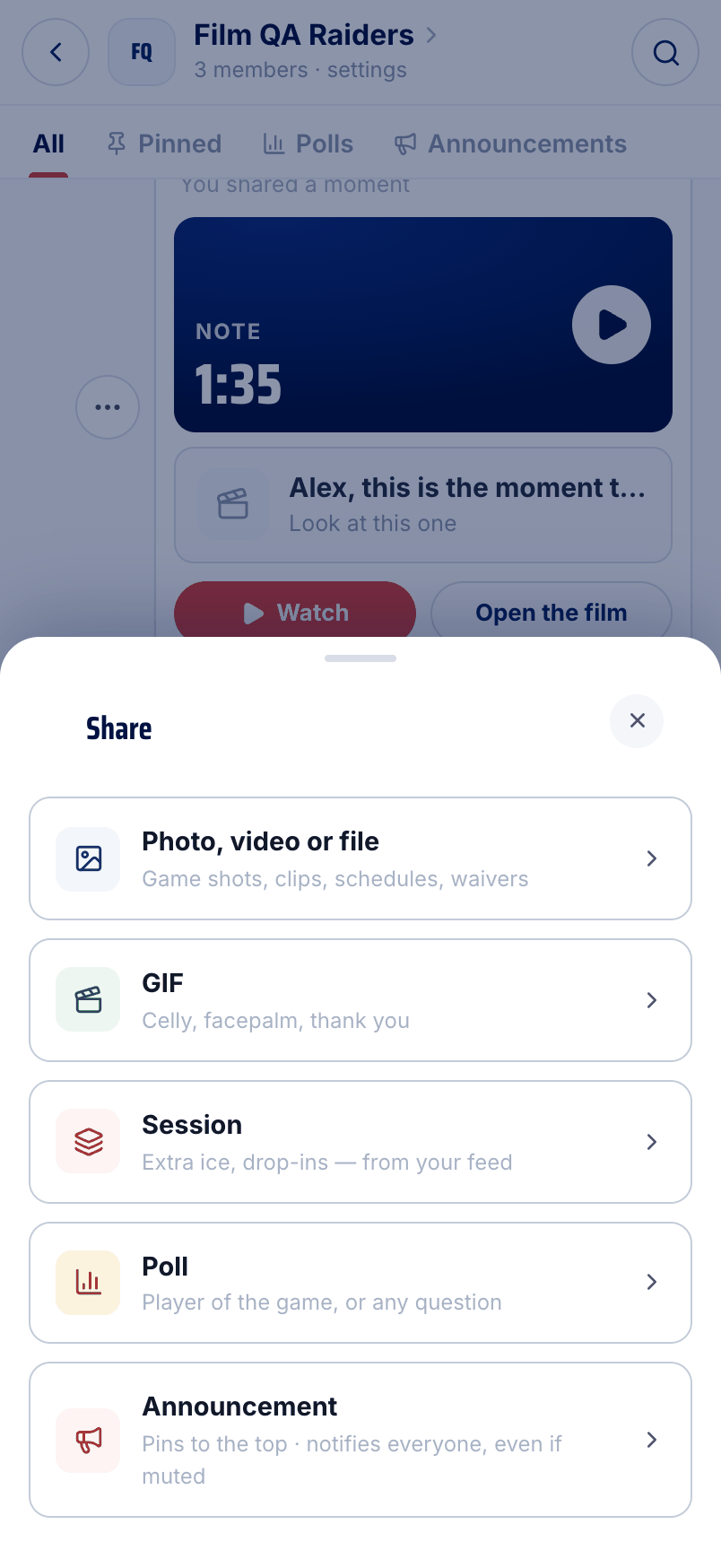
- The + menu
In any chat, tap + and then Photo, video or file. Your phone asks where to look: choose Files for a PDF, Word, Excel, PowerPoint or CSV file. Up to 5 at once, 15 MB each.
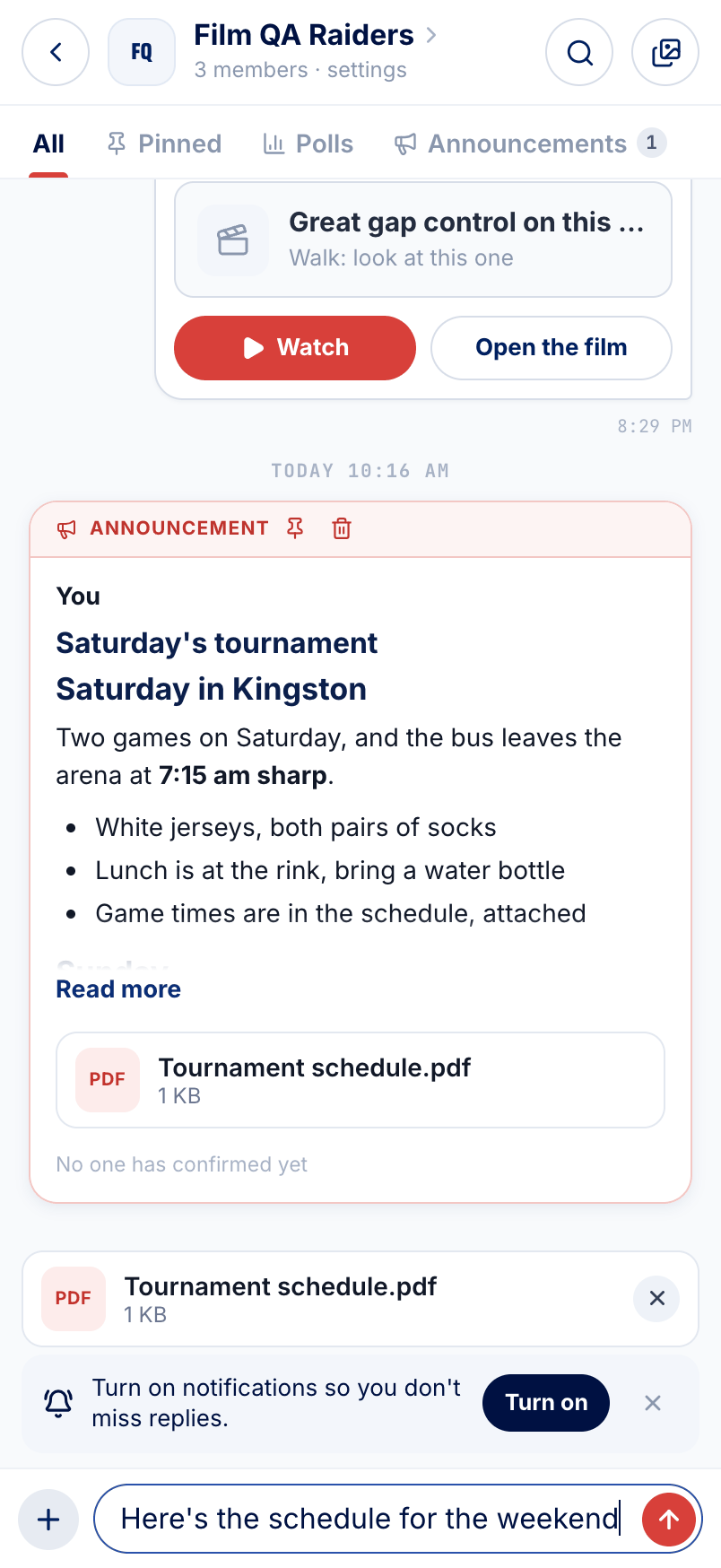
- Add a word and send
The file waits above the message box. Type a line to go with it, or send it on its own. The ✕ takes it off.
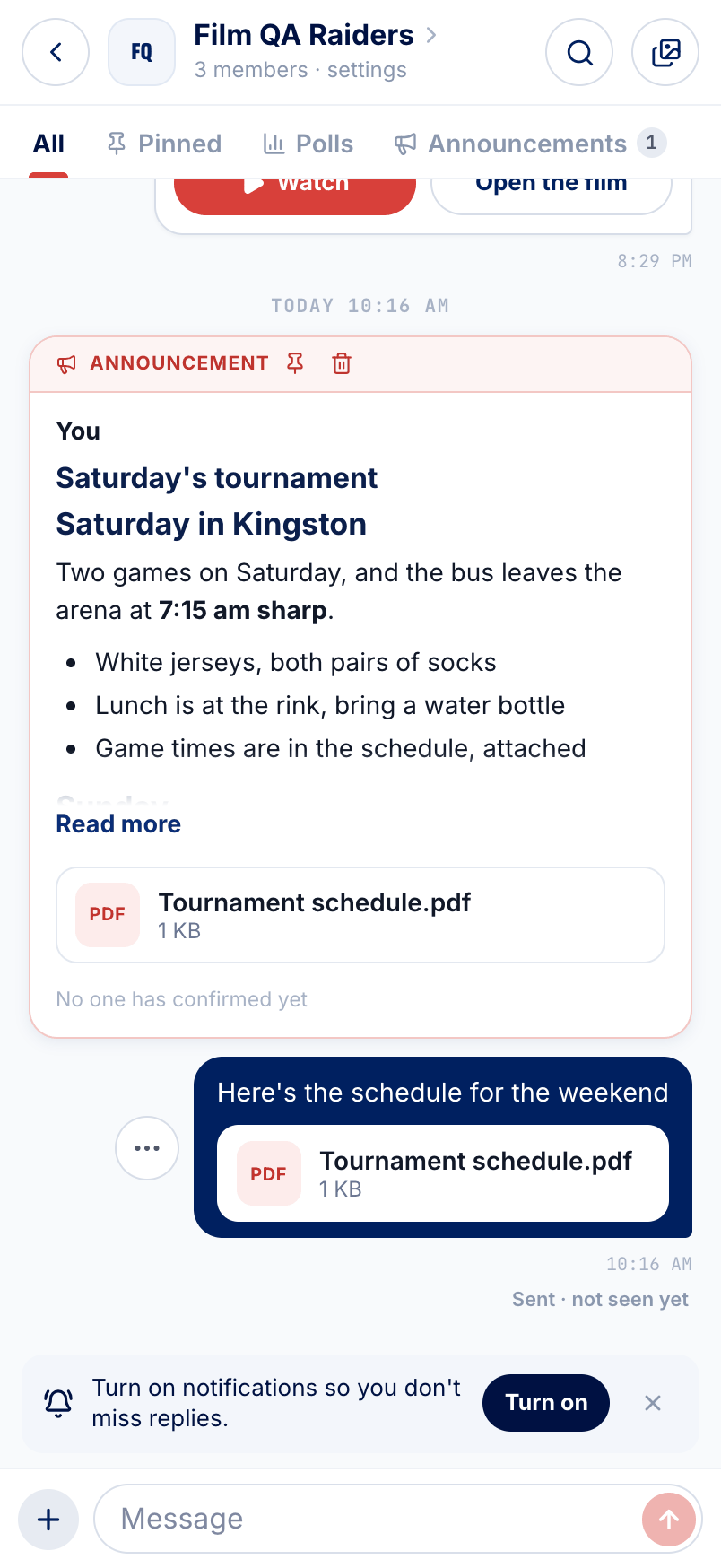
- In the chat
It arrives as a row with its name and size. Tap it to open it.
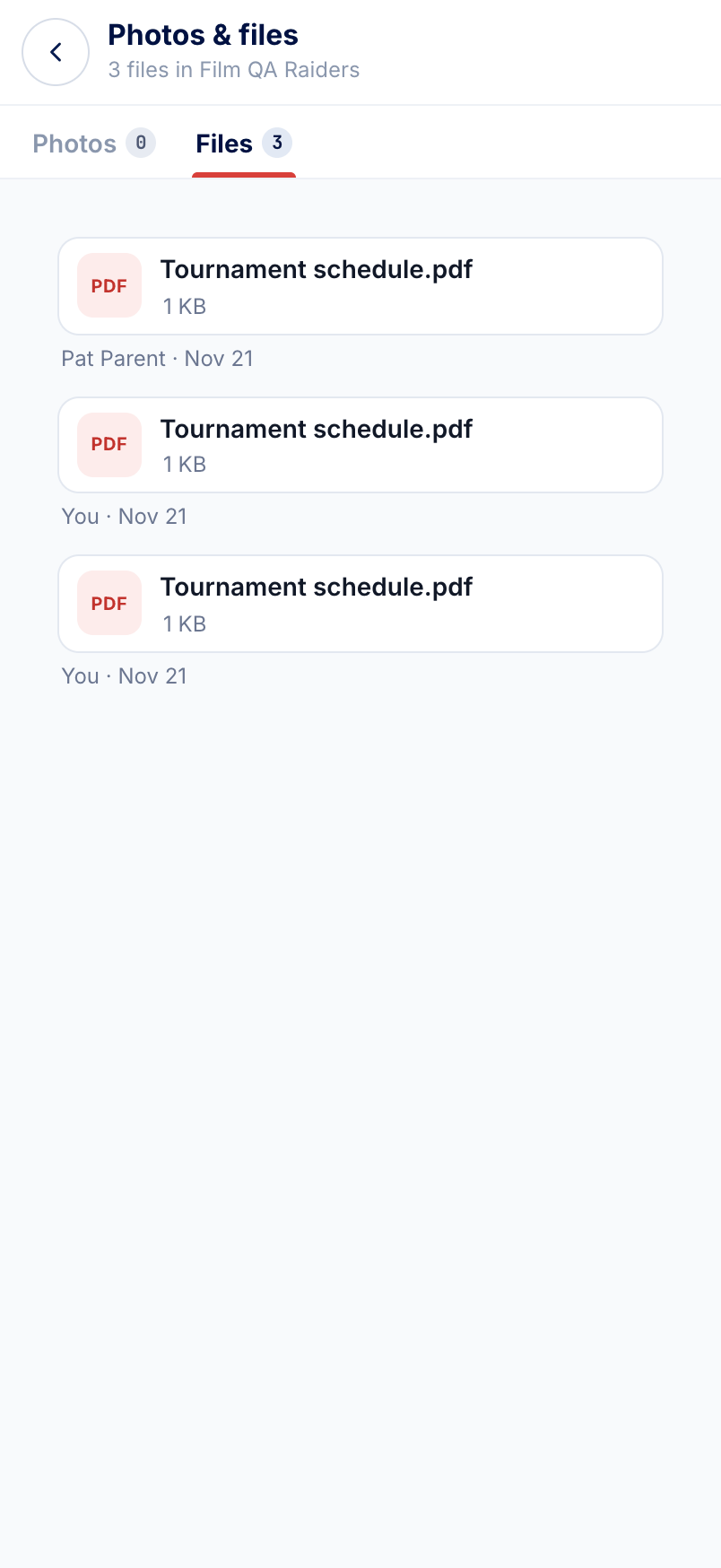
- Find it later
The pictures button at the top of the chat → Files. Every file the chat has seen, newest first, with who sent it and when.
Good to know
- Who can send one: anyone in the chat, in team chats, group chats and direct messages.
- Who can open it: everyone in the chat. A file is shared as a private link that cannot be guessed; anyone given that link can open the file.
- Take it back: delete your message and the file's link stops working at once.
- Photos and videos go through the same row and land in the team's Photos. See Every photo, in one place.
- Coaches and managers can also attach a file to an announcement. See An announcement that reads well.
Stuck?
Email john@puckfinder.app — a real person, usually the same day.