
Guide · 4 steps
Every photo, in one place
Every photo shared in the team's chats is under the team's Photos tab, and anyone on the team can make an album for a game, a tournament or the season and add to it from their phone.
Help › Every photo, in one place
Step by step
Tap a screenshot to see it full size.
- Find the team's photos
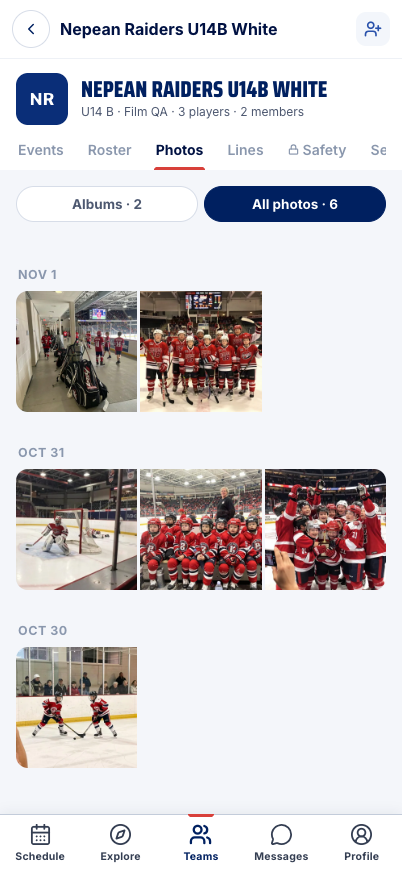
Open the team and tap Photos. All photos is everything anyone has shared in the team chat and the game chats, newest first, with the game it was shared from. Tap one to see it full size and swipe through the rest.
- Make an album
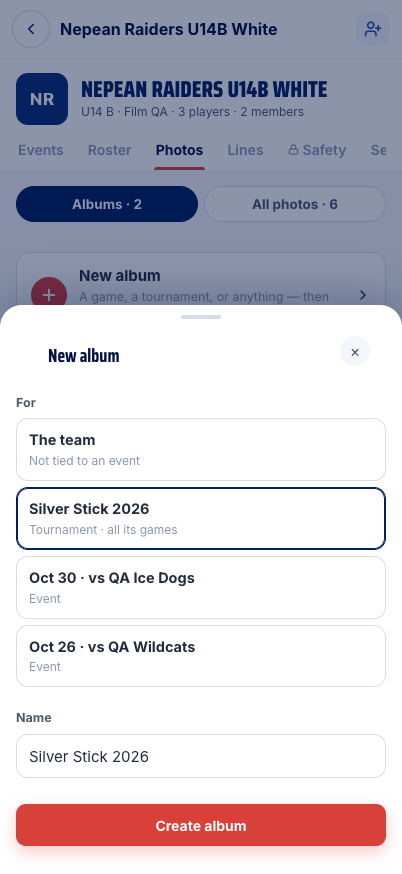
On Albums, tap New album. Pick what it is for — a game, a practice, a tournament, or just the team (a tournament stands for all its games) — and give it a name. You land in the album, ready to add photos.
- Add photos
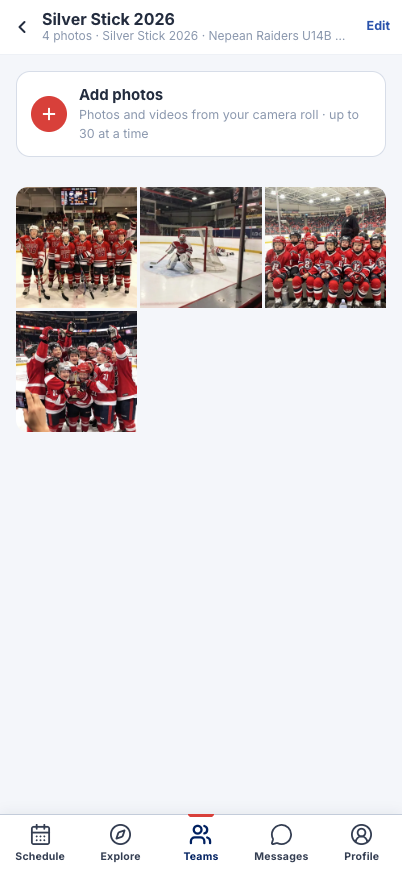
Add photos opens your camera roll — photos and videos, up to 30 at a time; a video shows as a tile with ▶ and plays in place. Everyone on the team can add; the person who added a photo, or a coach, can take it out again with Edit.
- Tell the team
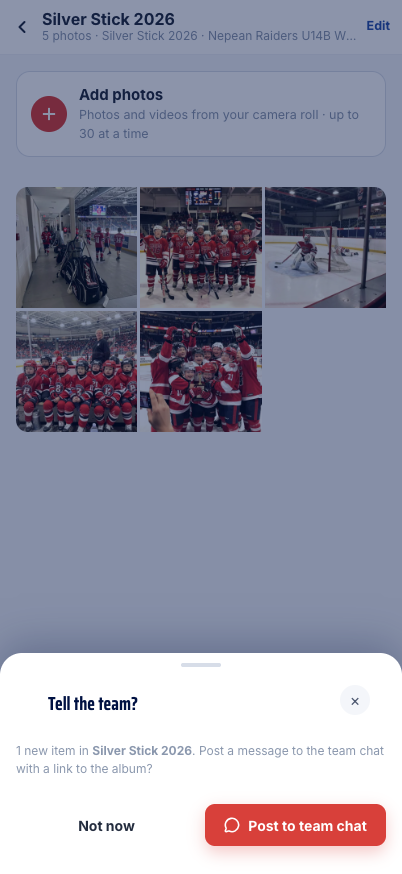
After an add, PuckFinder asks Tell the team? — Post to team chat drops a message in the team chat with the first photos and a link to the album, so nobody has to go looking. Not nowskips it. A game's or tournament's album also shows as a row on that event's page.
Good to know
- Who sees them: everyone on the team, and nobody else. Photos live where they were shared; an album is a way to find them, so taking a photo out of an album does not delete it from the chat.
- Tournament albums: pick the tournament in the For list and the album shows on every game of that weekend.
- Deleting an album: the person who made it, or a coach, from Edit. The photos stay in the chats they came from.
Stuck?
Email john@puckfinder.app — a real person, usually the same day.