
Guide · 3 min read
Choose how you're notified
One screen decides what buzzes your phone, what lands in your inbox, and what waits for one email at the end of the day. Nothing changes until you change it.
Help › Choose how you're notified
Step by step
Tap a screenshot to see it full size.
- Open Notifications
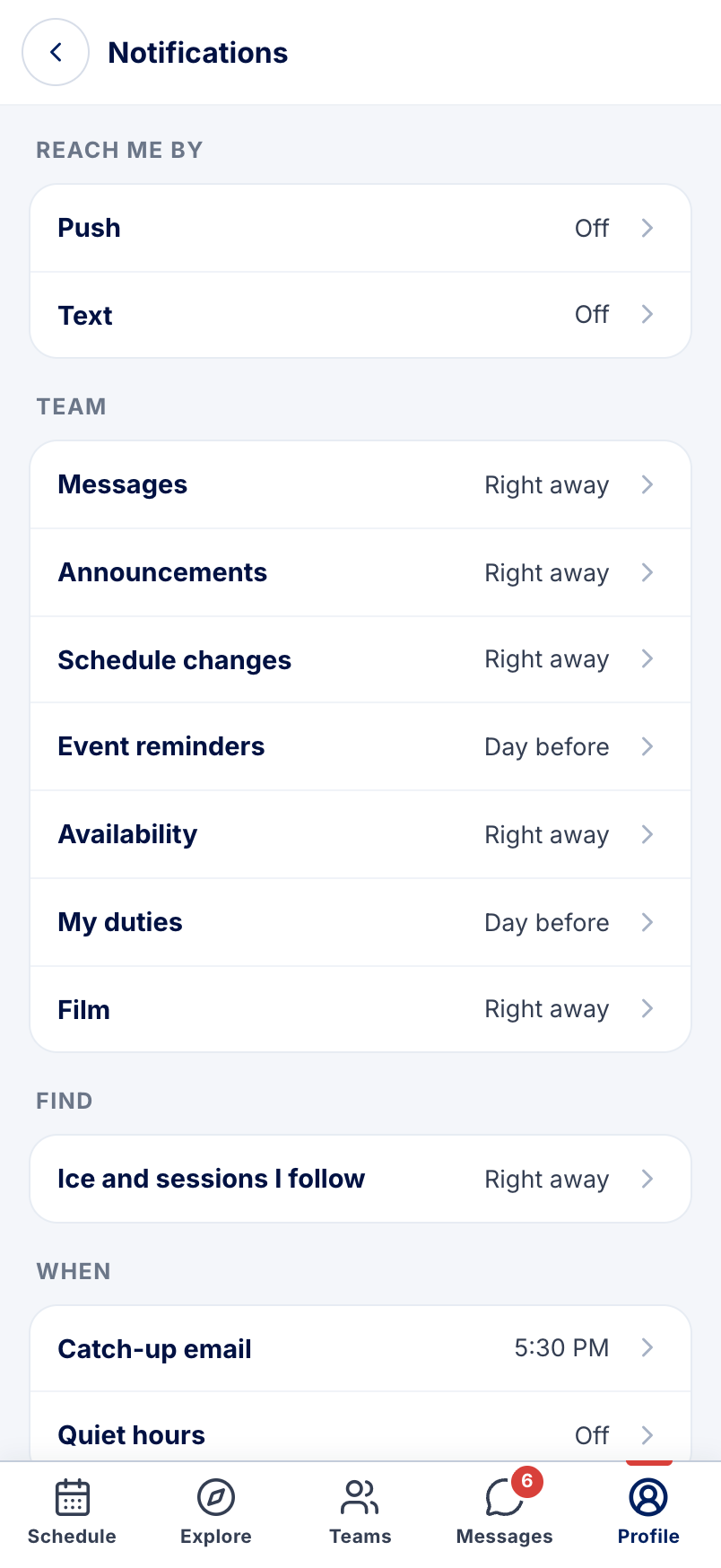
Profile → Notifications. One line for each kind of notice. The word on the right is when the first thing reaches you: Right away, Day before, a time such as 5:30 PM, or Off. Tap a line to change it.
- Messages
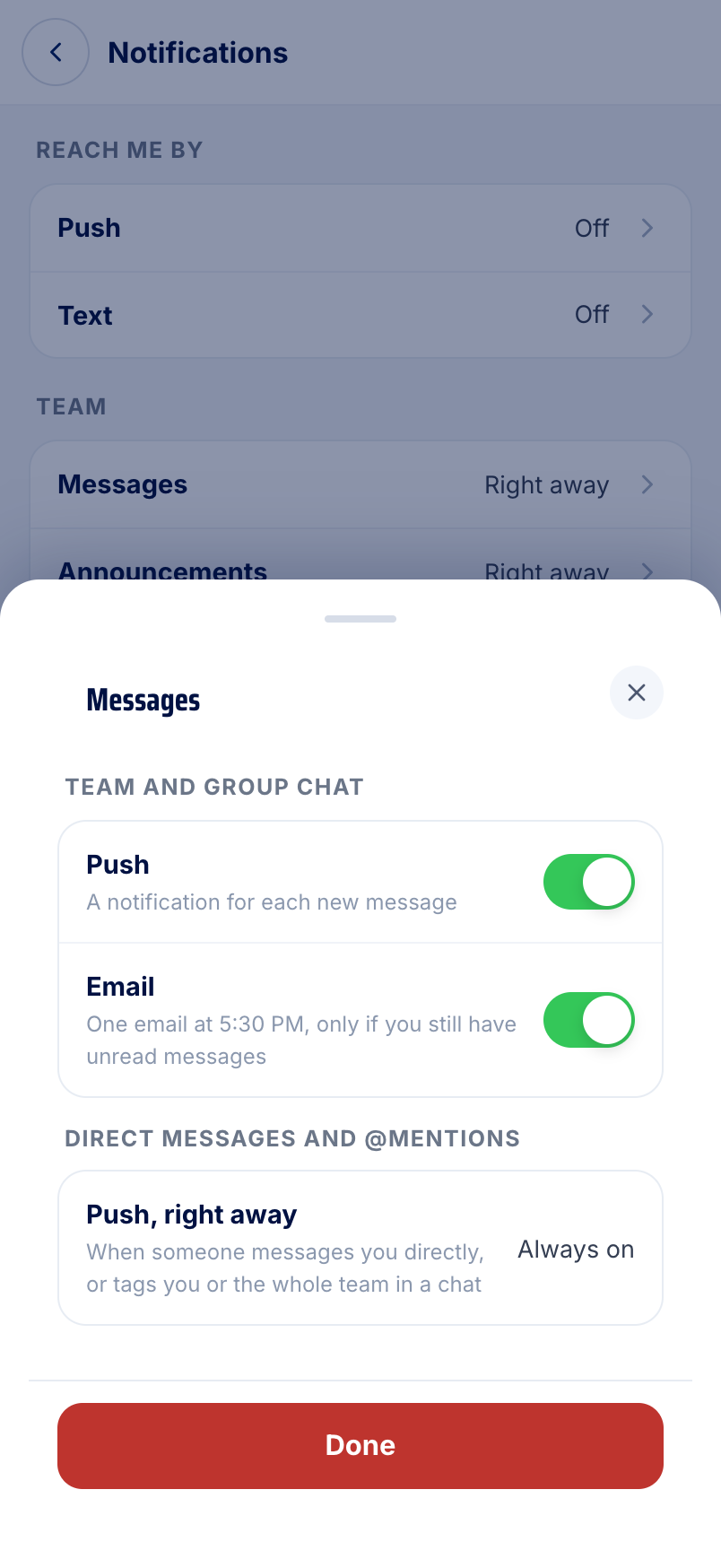
Team and group chat has two switches. Push is a notification for each new message. Email is one email at 5:30 pm, only if you still have unread messages. Turn Push off and keep Email on to stop the buzzing and still get the summary. Direct messages and @mentions always push right away: when someone messages you directly, or tags you or the whole team.
- Every other line: Push, then Email
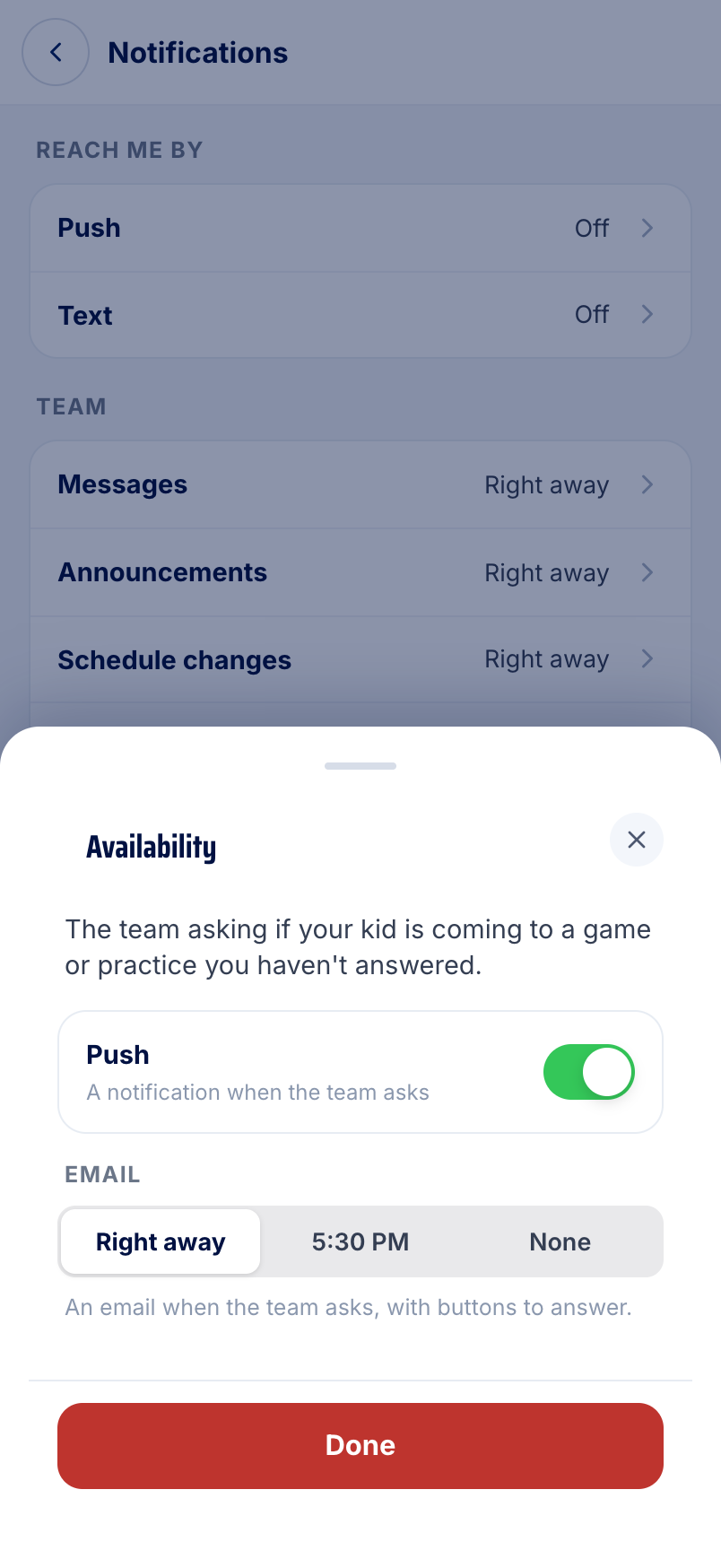
Push is a switch: a notification on your phone when it happens. Email is one choice: Right away, 5:30 PM or None. The line under it says exactly what you will get. Announcements, Schedule changes, Event reminders, Availability, My duties, Film and the ice you follow all work this way.
- Send the email to your catch-up
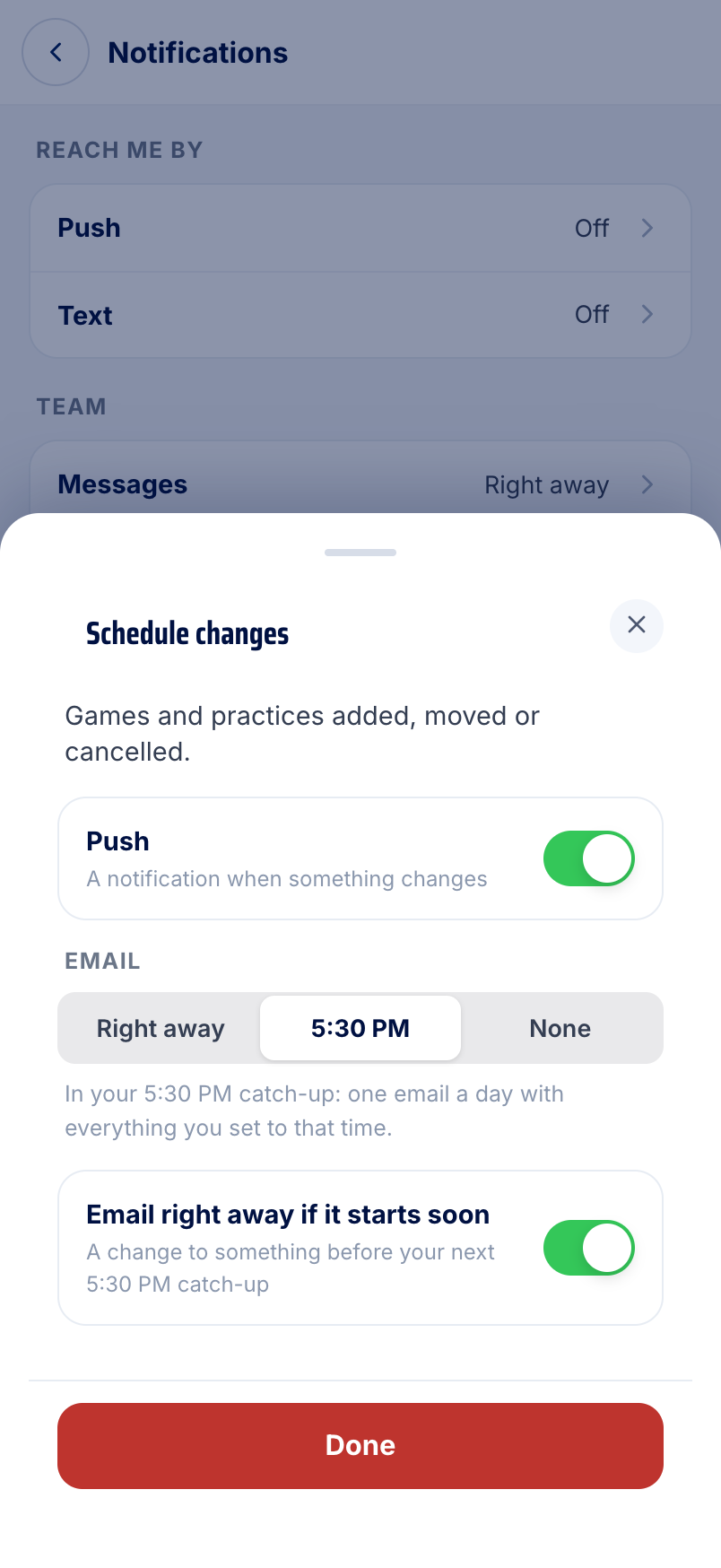
Email → 5:30 PM. That line's email now waits for your catch-up: one email a day with everything you set to that time, for all your players and teams. Push is separate, so with Push on you still get the notification right away. For Schedule changes, Email right away if it starts soon keeps a last-minute change from waiting until evening.
- Pick the catch-up time
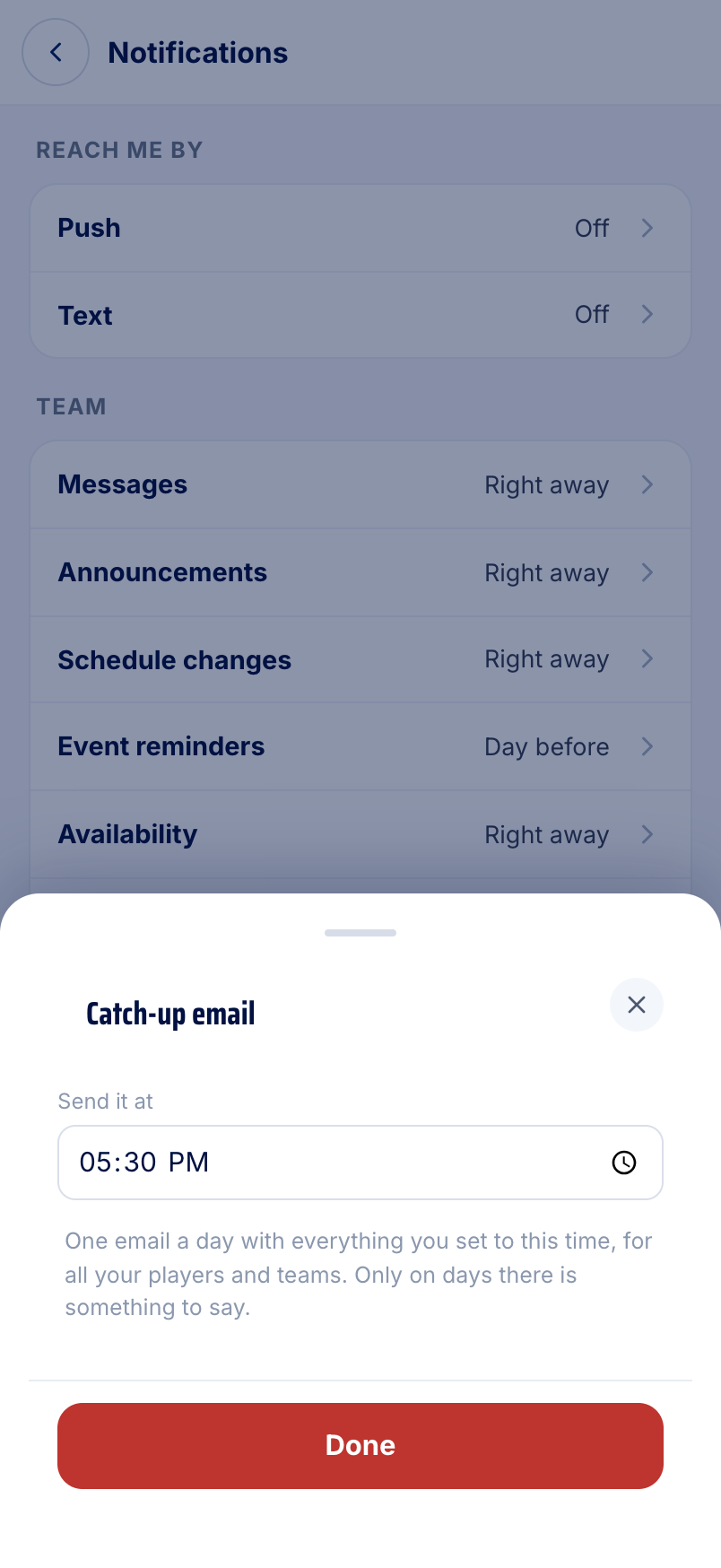
Catch-up email → Send it at. 5:30 pm unless you change it. You only get a catch-up if you set at least one line to it, and only on days there is something to say.
- Quiet hours
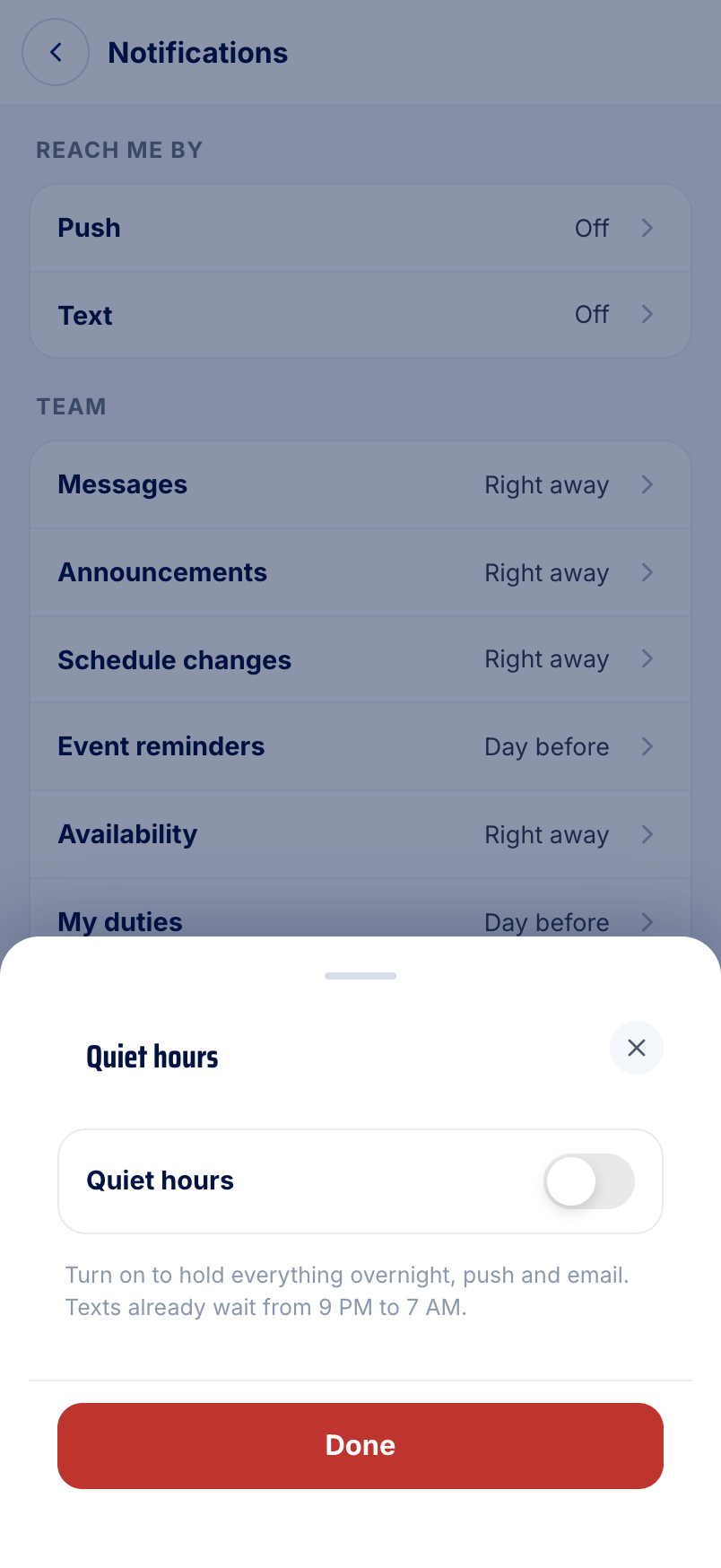
Quiet hours is off until you turn it on. On, it holds push and email overnight between the times you set and delivers them when quiet hours end. Texts already wait from 9 pm to 7 am.
What each line covers
- Messages. Chat in your teams and groups. Direct messages and @mentions always push.
- Announcements. A coach or manager posting to the whole team. They get past a muted chat.
- Schedule changes. A game or practice added, moved, cancelled or removed, whether it came from the team's calendar or a coach changed it by hand.
- Event reminders. A heads-up the day before each game and practice your kid is on.
- Availability. The team asking if your kid is coming, with buttons to answer.
- My duties. When you are the trainer or hold a game-day job: the day before, and again two hours before.
- Film. Game film ready to watch, or a coach's note for your kid.
- Ice and sessions I follow. New ice from the organizers you follow.
The fine print
- If you never open this screen, everything arrives the way it always has.
- Push never waits for the catch-up. Email at 5:30 PM with Push on means a notification now and the email later.
- With Push on and Email set to None, a notice still comes by email if your phone can't take a push (no app on a phone, or notifications blocked).
- A coach's hand-made schedule change goes out as one email per team a couple of minutes after they stop editing, so five quick edits are one email.
- Safety notices, booking receipts and account email are not on this screen. They always send.
- Each chat also has its own level: open the chat, tap its name, Notify me about. See Who gets pinged when you post.
Questions
I turned Push off for Messages. Will I still hear from the coach?
Yes, three ways. A direct message or an @mention still pushes. An announcement has its own line. And with Email on, unread chat still comes in one email at 5:30 pm.
What is the catch-up?
One email a day, at the time you pick, holding every line whose Email you set to that time: what needs an answer first, then a block for each of your players. You only get it if you chose it for at least one line.
Push is on here but nothing buzzes.
Check the top of the screen: Reach me by → Push must say On, and on the phone itself Settings → Notifications → PuckFinder must be allowed. Then check the chat's own level, and Quiet hours.
Can I turn everything off?
Every line on this screen, yes. Safety notices, receipts and account email still send.
Stuck?
Email john@puckfinder.app — a real person, usually the same day.