
Parents · 2 min read
Put the hockey schedule on your Skylight
Copy one link from PuckFinder, paste it into the Skylight app, and every game, practice and booked session shows on the family calendar in the kitchen.
Help › Put the hockey schedule on your Skylight
Step by step
Tap a screenshot to see it full size.
- Copy your link
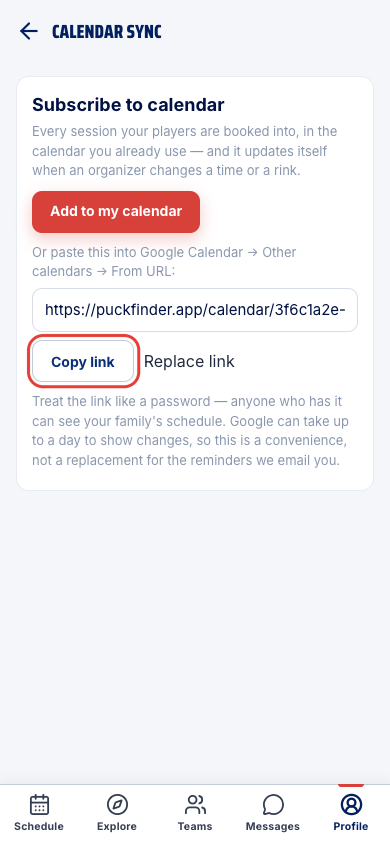
In PuckFinder: Profile → Calendar Sync. If you have never used it, tap Create my calendar link first. Then tap Copy link.
- Open the Skylight app
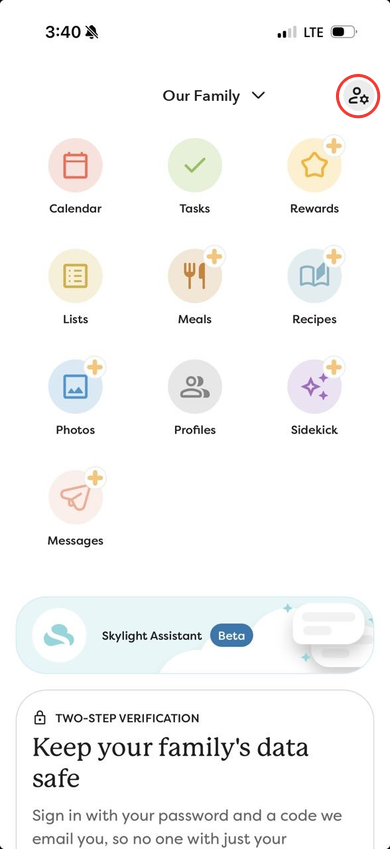
On your phone, not on the Skylight itself. On the home screen, tap the account button at the top right.
- Synced Calendars
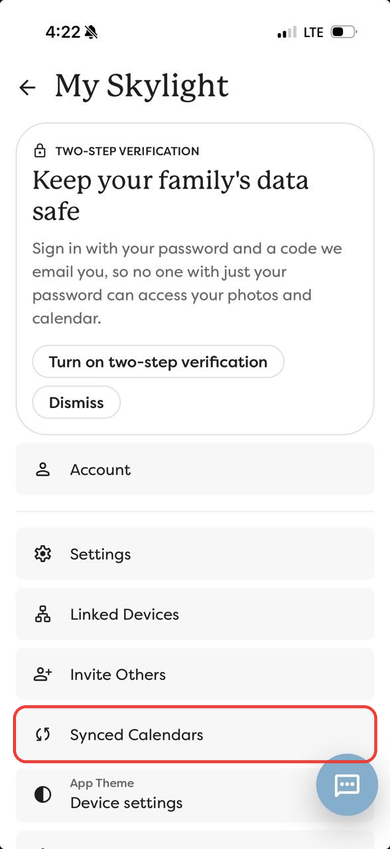
That opens My Skylight. Tap Synced Calendars.
- Sync New Calendar
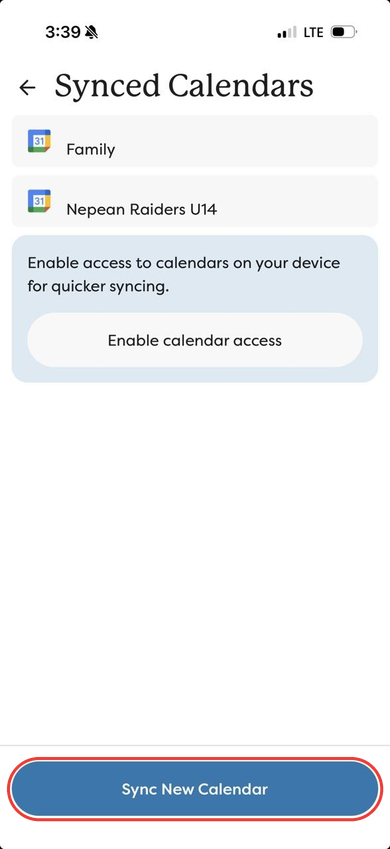
You see the calendars already on your Skylight. Tap Sync New Calendar at the bottom.
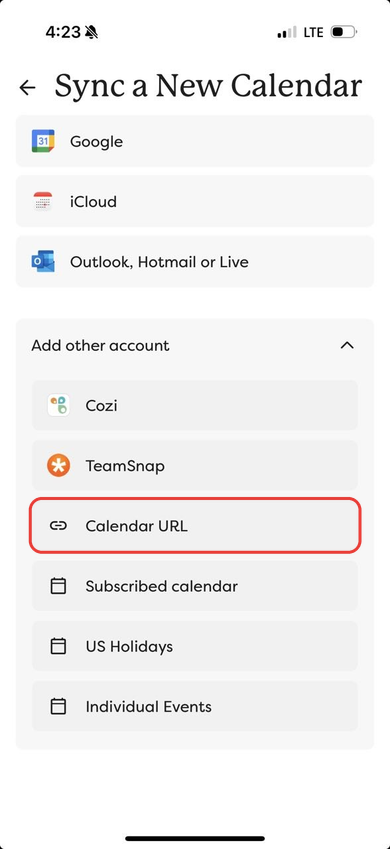
- Calendar URL
Under Add other account, tap Calendar URL. Not Google or TeamSnap: the link you copied is all Skylight needs.
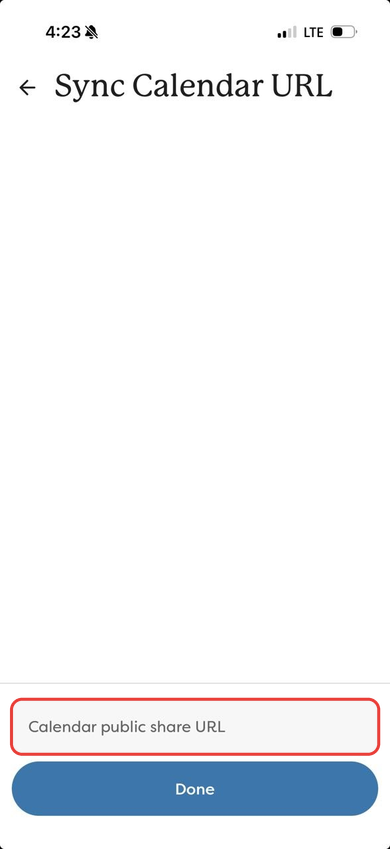
- Paste, then Done
Tap the Calendar public share URL box, paste the link, and tap Done. PuckFinder joins your list, and the events show on the Skylight within a few minutes.
What shows up
Every team event and every session your players are booked into, each with its rink and time. When a coach or an organizer moves something, the entry on the Skylight moves too. You don't re-do anything.
Good to know
- It goes one way. The Skylight shows the schedule. Answering Going, or changing an event, is still done in PuckFinder.
- It is not instant. Skylight re-reads the link on its own timetable, so a change can take a few hours to appear. For a late change, trust the PuckFinder notification.
- Pick a colour. In the Skylight app you can give the PuckFinder calendar its own colour or family member, so hockey stands out from the rest.
Questions
I already have my team's calendar on the Skylight. Will I see everything twice?
Yes, until you remove the old one. If your team is already coming in through Google or TeamSnap, take that one out under Synced Calendars once PuckFinder is showing.
Who can see the link?
Anyone you give it to. Treat it like a password. To switch it off, go back to Calendar Sync and tap Replace link; the old link stops working and you paste the new one into Skylight.
Does this work with other family calendars?
The same link works anywhere that takes a calendar by link: Apple Calendar, Google Calendar and Outlook.
Can each of my kids have their own colour?
Yes. A calendar app gives one colour to a whole calendar, and the main link is one calendar for the whole family. In Profile → Calendar Sync, open A colour for each player. Each player has their own link there: tap Add (Apple Calendar) or Copy link (Google, Outlook, Skylight), once per player, then pick a colour for each one in your calendar app. Each player's calendar has their team events and booked ice. Remove the family calendar if you had added it, or you will see everything twice.
Stuck?
Email john@puckfinder.app — a real person, usually the same day.