
Video · 1:26
Set up your kid's medical record
Two minutes, once a season: flag the conditions a trainer must know about, add who to call, sign, and save. The bench sees exactly what you wrote.
Help › Set up your kid's medical record
Step by step
The same flow as the video, in writing. Tap a screenshot to see it full size.
- Open the Medical tab
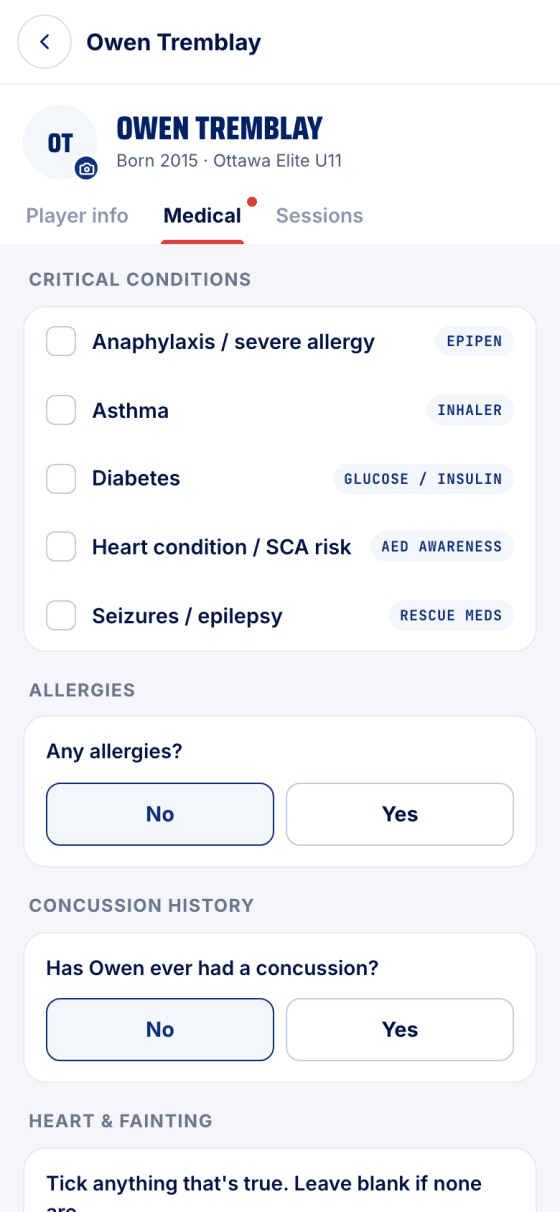
Profile → Players → your kid → Medical. A red dot on the tab means nothing is on file yet, and the form opens straight away.
- Flag the critical conditions
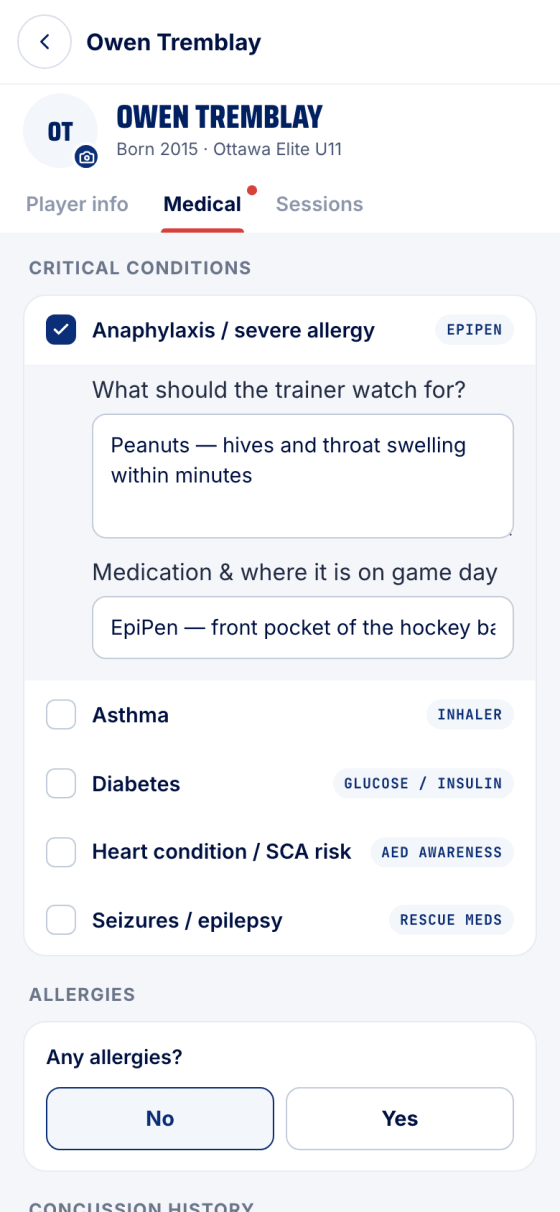
Tick anything that's true. Each one opens two lines: what the trainer should watch for, and the medication and where it is on game day — "front pocket of the hockey bag" is exactly the kind of thing the bench needs.
- Allergies
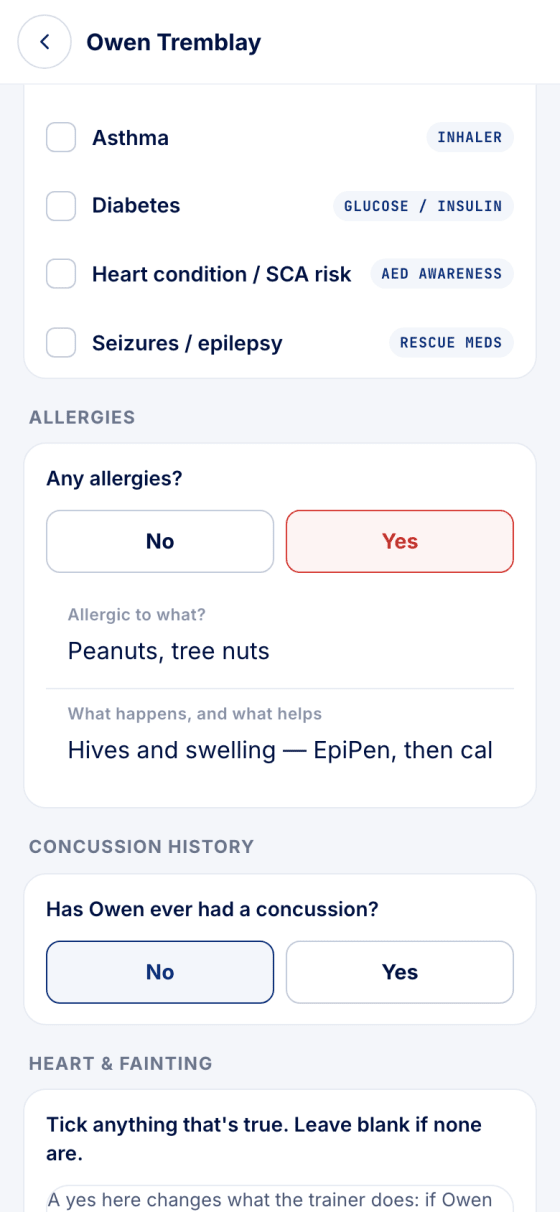
Any allergy counts, not just the severe ones. Yes opens two fields: what they're allergic to, and what happens and what helps.
- Who to call
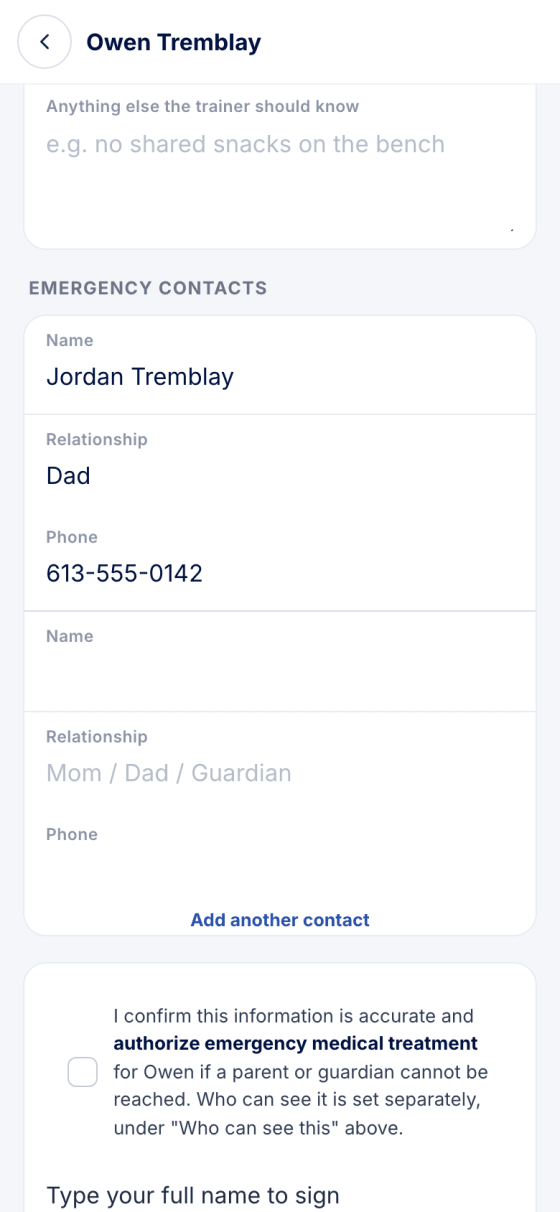
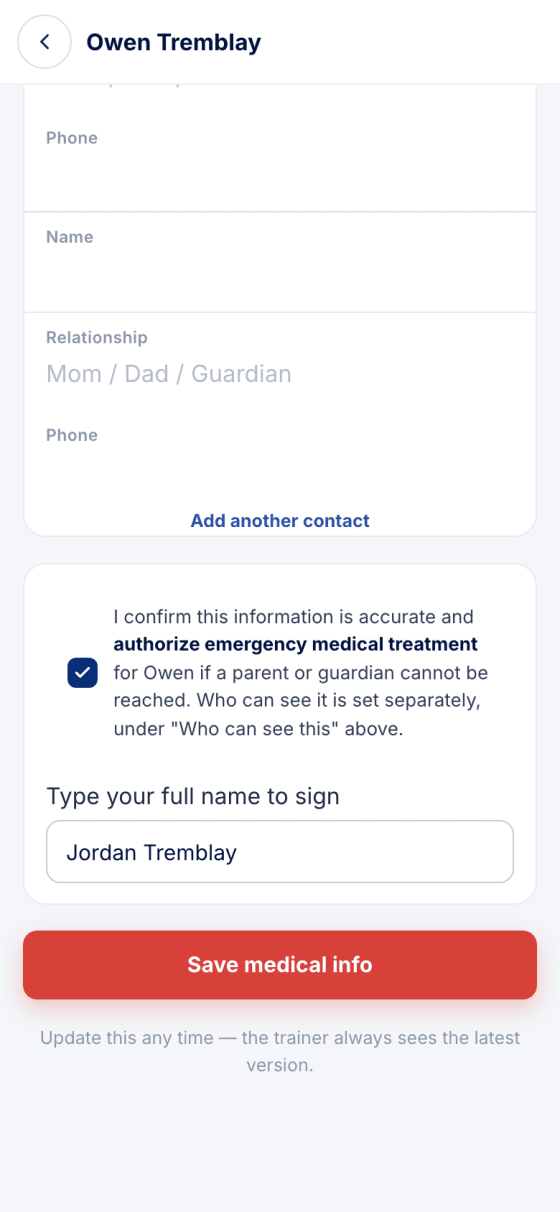
Two emergency contacts by default — name, relationship, phone. Add another contact if you need a third.
- Sign and save
Tick the confirmation — it authorizes emergency treatment if you can't be reached — type your full name, and tap Save medical info. Who can see the record is a separate decision, not this one.
- What's on file
The tab now shows the record read-only, alerts first. This is exactly what a trainer sees, nothing more. Edit reopens the form; every update is signed fresh.


Where it lives
Profile → Players → your kid → Medical. The first time, the form opens straight away. Once something is on file the tab shows the record read-only; Edit reopens the form, and every update is signed fresh against the list of what changed.
Stuck?
Email john@puckfinder.app — a real person, usually the same day.