
Guide · 11 steps
Notes on the play
Pause on a moment, draw on it, write a line, or turn the camera on and talk over the play. Mark a shot on the rink and the chart builds itself. Cut a clip. Say who it is about and who sees it, send it to a chat, and families get it on their phone, one message per game.
Help › Notes on the play
Step by step
Tap a screenshot to see it full size.
- Start from a frame
Stop on the moment and tap the red +. The film holds there and three tiles come up: Feedback (talk or type over it), Shot (where and how it ended) and Clip (cut these seconds). The frame you stopped on is the moment's frame: that is where families land when they open it.
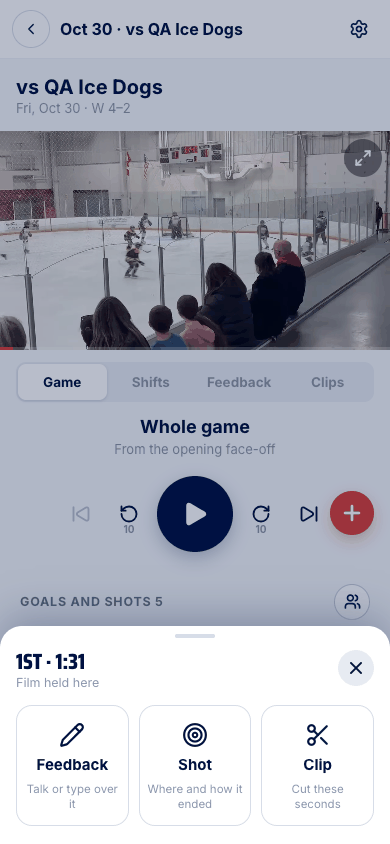
- Feedback on video
Feedback → Video: the camera comes on with the film held on your frame. Draw first if you like (pen, arrow, circle, colours), then ● Record and talk. Play film lets the film run under your voice; Hold freezes it again so you can draw. ■ Stop when you are done. Families see exactly that: your face in a square, the film holding and running as you did, your drawing appearing when you drew it.
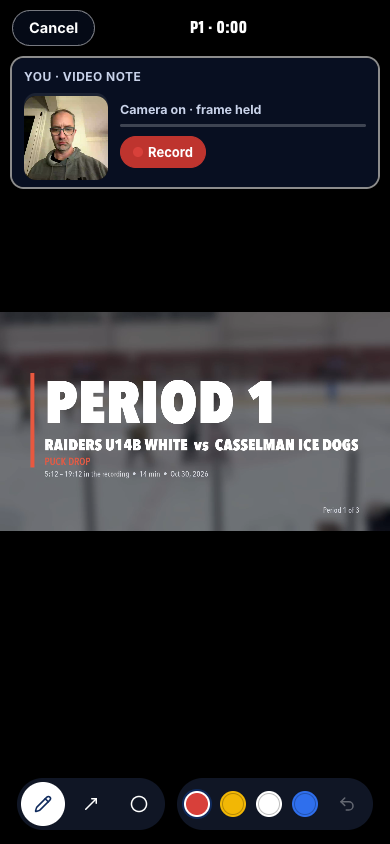
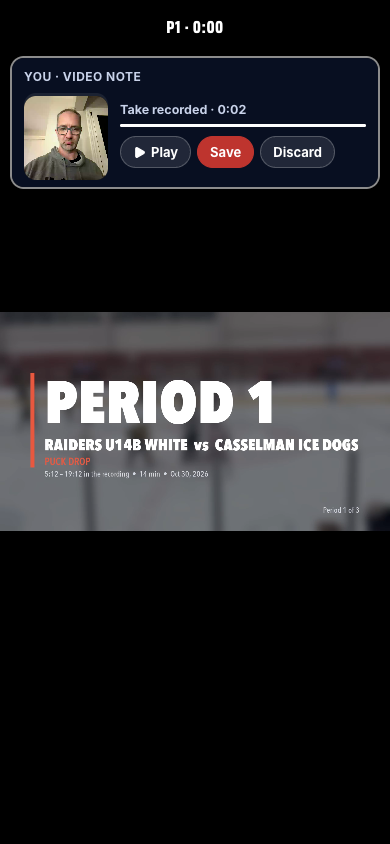
- Keep it or not
After Stop: ▶ Play replays the take right there so you can decide; Save keeps it, Discard throws it away. While it replays, a tap on the frame pauses it.
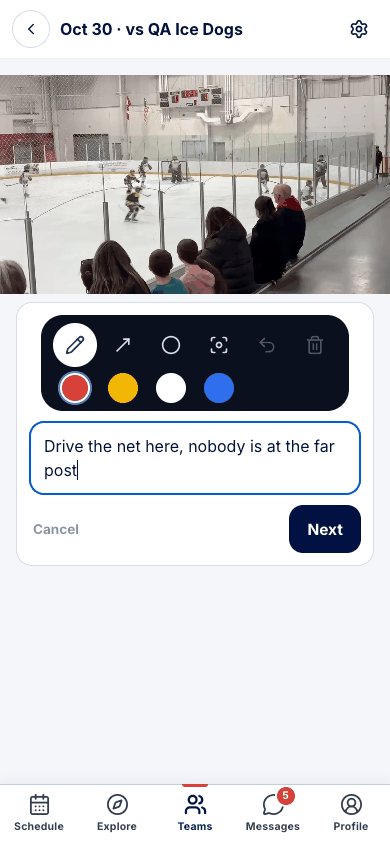
- Feedback in writing
Feedback → Text: the drawing tools sit under the frame (pen, arrow, circle and colours), with a box for a line or two. Draw on the play, write what you see, then Next.
- Who's this for
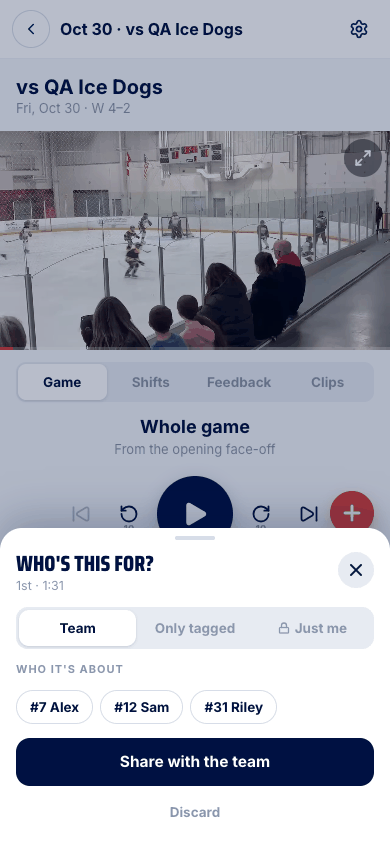
Before anything is saved, a sheet asks who it is for: Team, Only tagged (the families of the players you pick, plus the team's coaches and managers) or Just me. Tap the players it is about; their families are the ones told. The button at the bottom says what will happen, and Discard throws the feedback away. To change it later: ⋯ → Who sees this on the row.
- Mark the shots
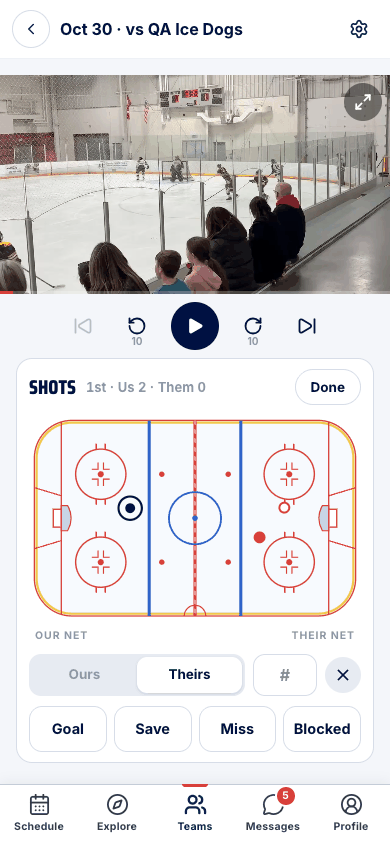
+ → Shot starts a run: the film keeps playing with the rink under it. Tap the rink where a shot came from, set Ours or Theirs and the number, then Goal, Save, Miss or Blocked. The dot lands and you are ready for the next one; Undo is there for five seconds. Done ends the run. The count beside the heading keeps the period's shots for each side.
- The shot chart
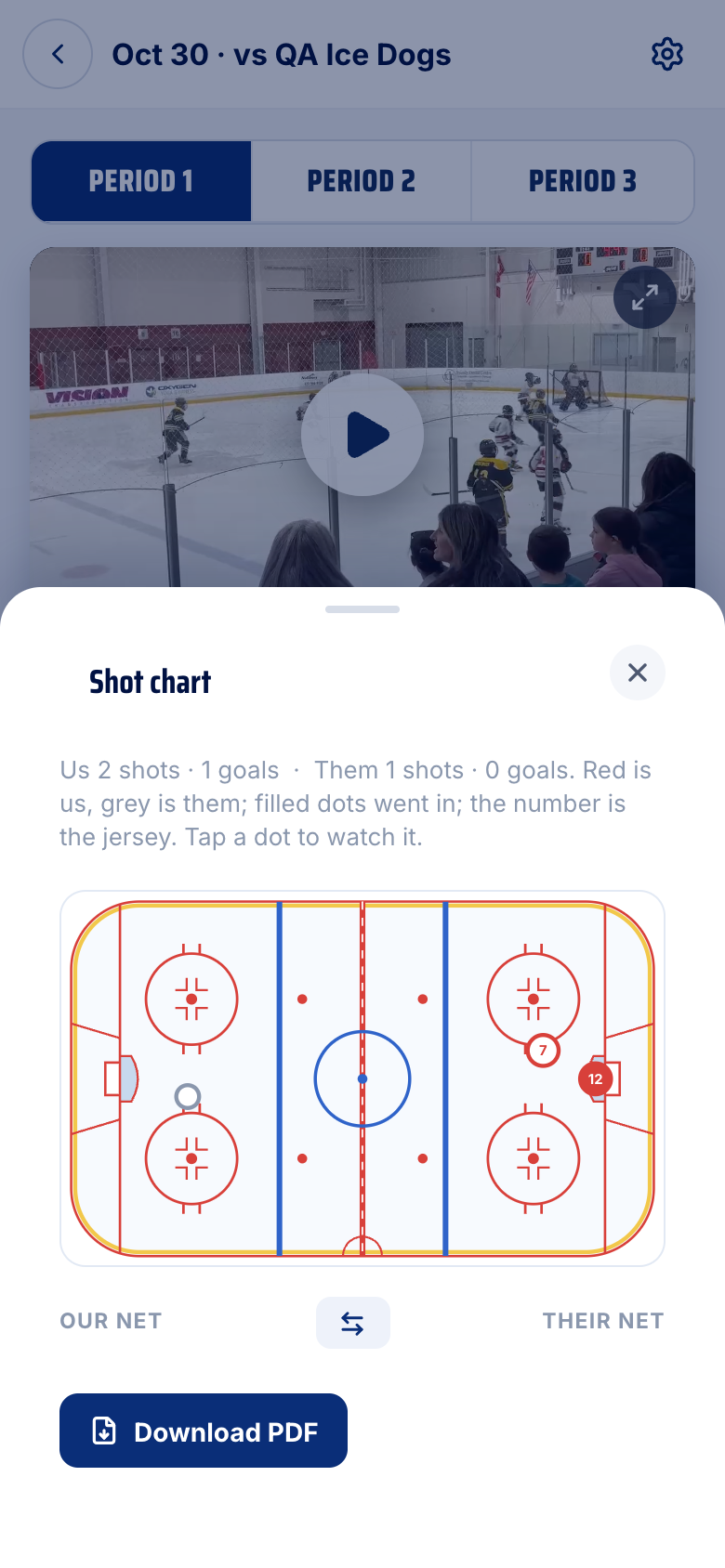
On the Game side, the Shot chart line unfolds the rink for the game: every shot, red for us, grey for them, filled when it went in. Tap a dot to watch that shot. Full chart opens the whole sheet. Download PDF makes the one-page sheet: shots and goals for and against per period, the score after each, and a rink per period.
- Cut a clip
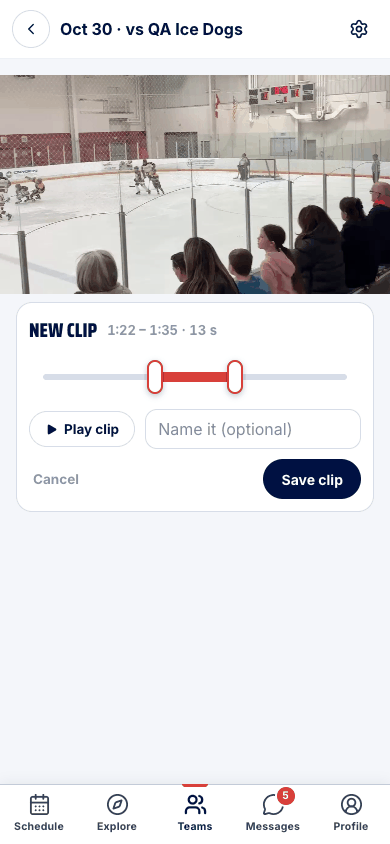
+ → Clip starts on your frame and runs thirteen seconds. Drag either end, Play clip to check it, give it a name if you like, then Save clip and say who it is for. Clips live on their own side of the game and in the team's Film tab. On a clip, ⋯ → Share a public link makes a link anyone can open without an account; it shows the clip, the teams and the date, never a player's name.
- Change or remove a moment
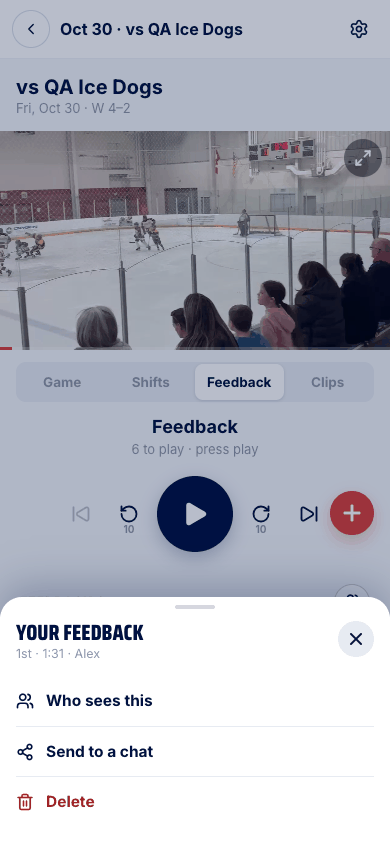
Under the film, one switch sorts everything: Game · Shifts · Feedback · Clips. Each row has a ⋯: Who sees this, Send to a chat and Delete (tap twice). A shot adds Move the spot; a clip adds Trim and the public link.
- Send a moment to a chat
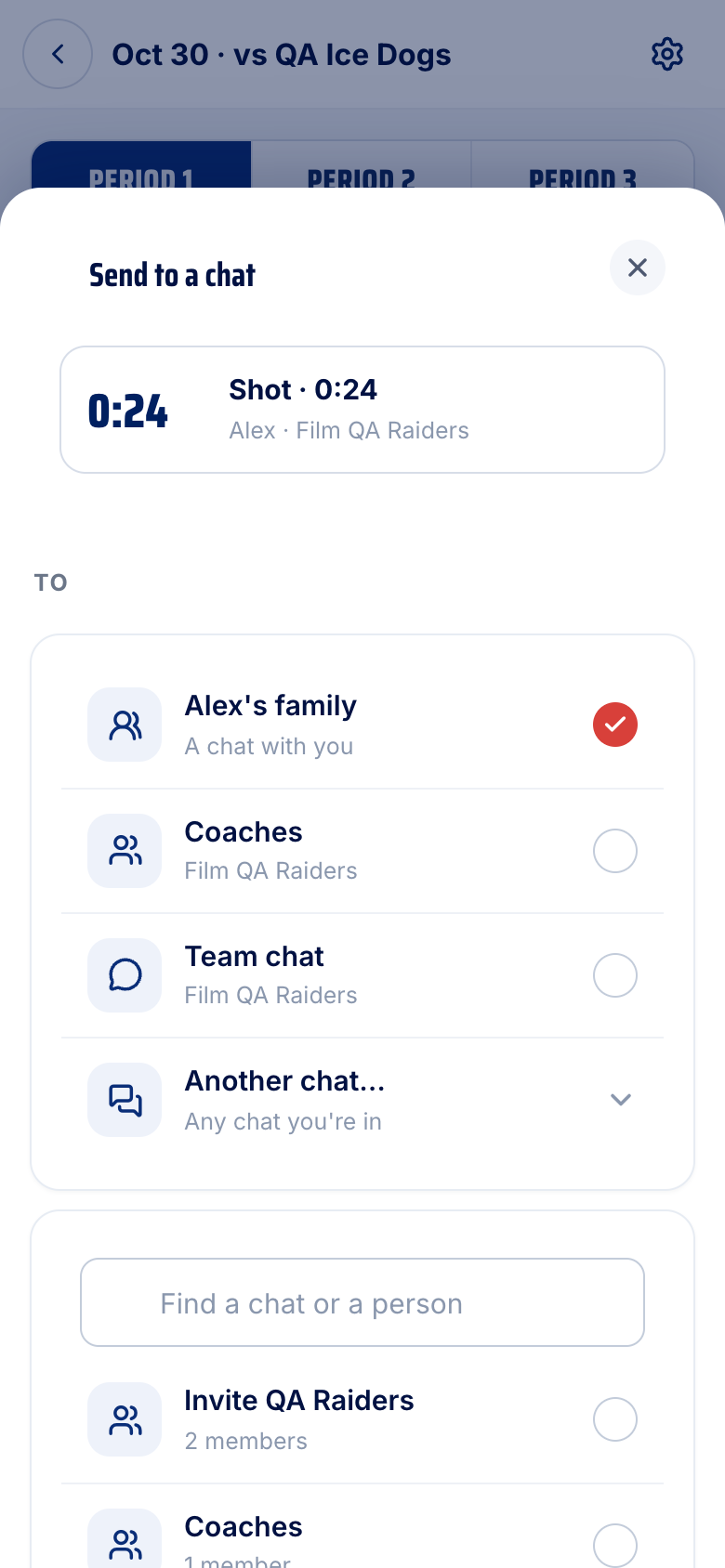
⋯ → Send to a chat on a row sends the moment where you say: the player's family chat, the coaches, the team chat, or Another chat… with a search over every chat you are in. It lands as a card with Watch; a line of your own can go with it. A moment already sent somewhere says so.
- Send to families
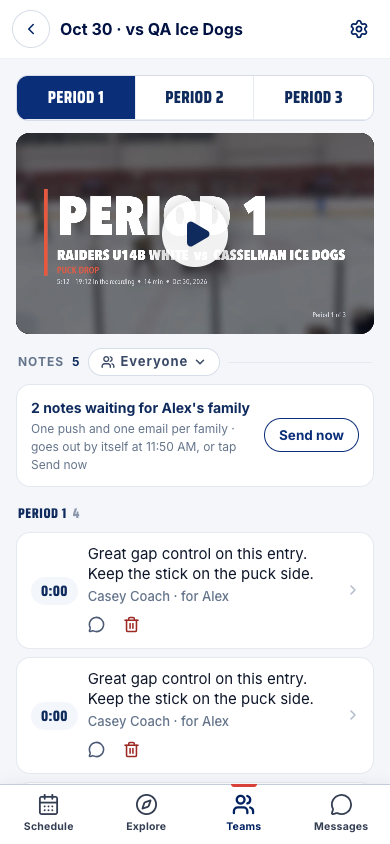
Tagged notes go out as one push and one email per family, fifteen minutes after your last note. The card under the notes names the families waiting and the time; Send now sends at once. Notes you add later go out in the next message, never one push per note.
Good to know
- Shifts: a player's shifts come from the shift tracker and play back to back on the Shifts side. While you tag feedback, the players on the ice at that second are offered first.
- Parents adding notes: off by default. The gear on the film page has Parents can add notes. Parents always have the + for clips; with the switch on it also offers a note to the coaches. Off again hides that; what they left stays.
- Private coaches: a parent can share their player's films with a coach outside the team. That coach sees the films and the player's shifts and can leave feedback for the family or keep it to themselves; the team's coaches do not see it.
- Recording needs the current app from the App Store or Google Play; on an older app the camera and microphone buttons say so. Text notes, shots, clips and watching work everywhere.
- Where the film comes from: the team's YouTube upload. Team settings → Game film holds the channel.
- Deleting: ⋯ → Delete on the row, then tap again. The families who were told keep the message, but the moment is gone from the film.
Stuck?
Email john@puckfinder.app — a real person, usually the same day.