
Guide · 5 steps
The coach's notes, on the play
The game film sits under the game. The coach's notes about your kid are right on the frame: a drawing, a line of text, or the coach talking over the moment. Shots and goals sit on the rink, your player's shifts have their own page, and a moment can land in your family chat. One push and one email per game, then watch it together.
Help › The coach's notes, on the play
Step by step
Tap a screenshot to see it full size.
- Find the film
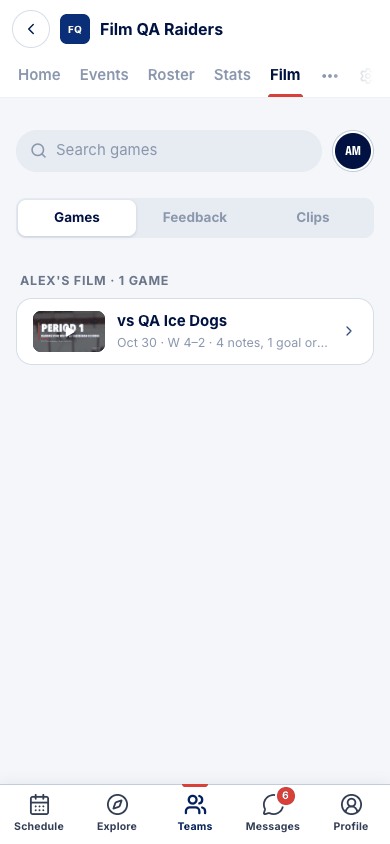
A game with film shows a Game film row on its card in the Schedule, and the push or email you got opens straight to it. On Teams, the team's card has a Film link that turns red with a count when there is feedback you have not watched. Inside the team, the Film tab lists it three ways: Games, Feedback and Clips. Your player's own page (Profile → the player → Film) lists their games on film too.
- One screen, four sides
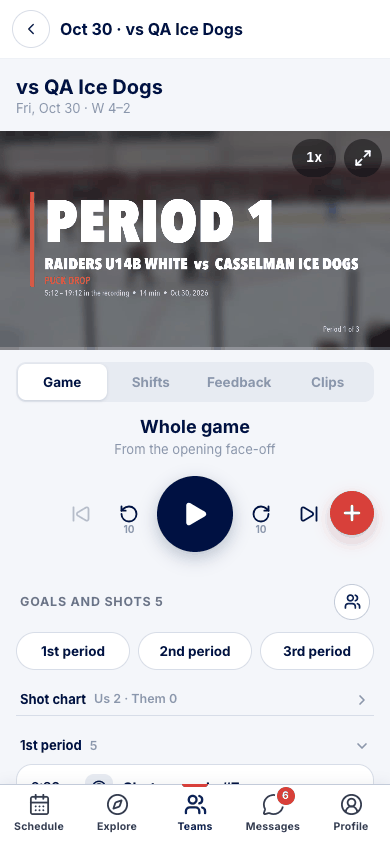
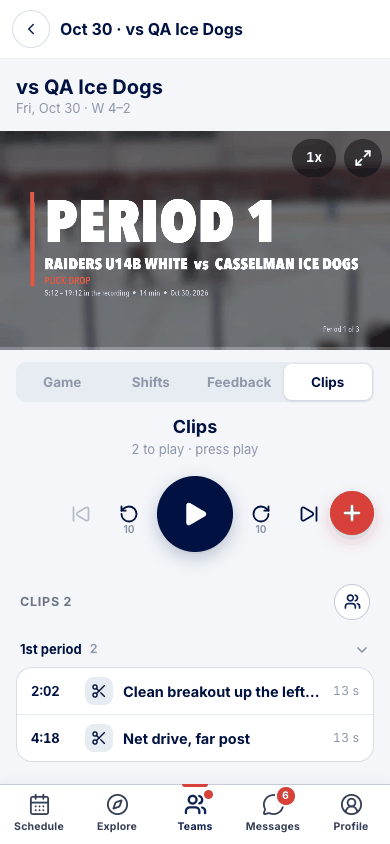
The film sits on top. Under it, one switch: Game · Shifts · Feedback · Clips. The side you pick is the list below and what ▶ plays. Game is the whole game, with its goals and shots as places to jump to. The other three play their rows one after another.
- Feedback from the coach
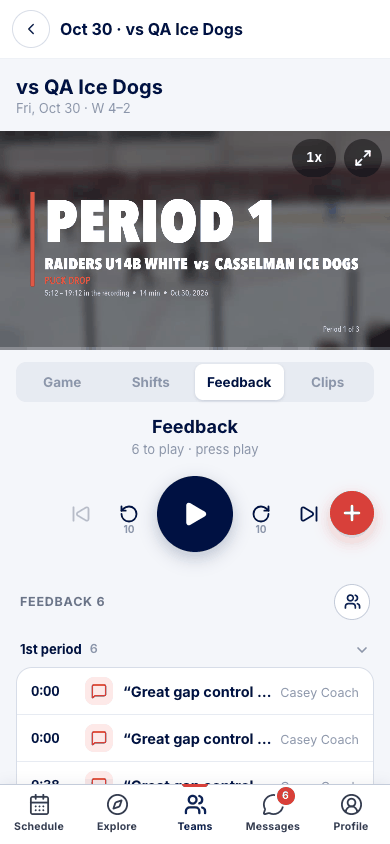
Feedback lists what the coaches left, by period and time, with a red dot on the switch while something is unwatched. Tap a row: a title names who it is from, then it plays. A recorded one puts the coach in a small square over the play, and you can drag the square aside. A written one holds the film on the coach's frame with the words and the drawing; Tap to carry on. Each feedback plays on its own and stops when it ends.
- Your player's shifts
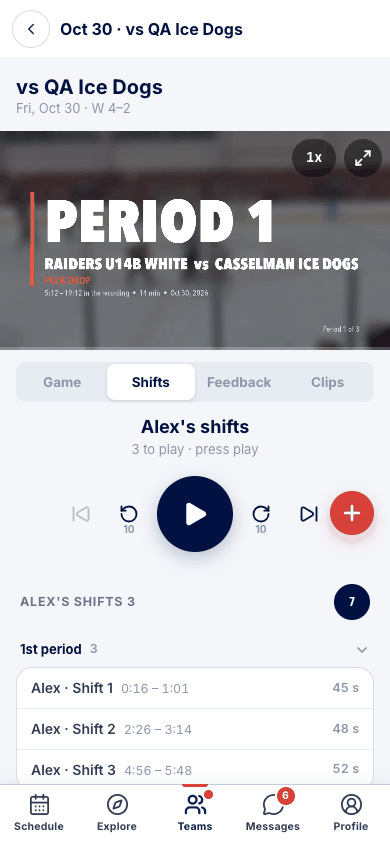
Shifts opens on your player: every shift of theirs in the game, with its start, end and length. ▶ plays them back to back, so the whole game takes a few minutes. Tap a shift to start there. The round button beside the heading chooses the player.
- Clips
Clips are short cuts of a play, each with a name. They play back to back, or tap one. To cut your own, stop on the play and tap the red +: the clip starts on that frame and runs thirteen seconds, and you can drag its ends. Then choose who it is for: the team, just you, or the coaches.
Good to know
- The controls: ▶ plays; the arrows beside it skip ten seconds back or ahead, and the outer ones step to the row before or after. The 1× button on the film steps the speed to 1.2, 1.5, 1.7 and 2; the arrows beside it go full screen. On Game, the period buttons jump to the start of a period. Scroll down and the film stays on top with a small set of the same controls.
- A clip for someone outside the team: on a clip you made, ⋯ → Share a public link gives a link anyone can open without an account. The page shows the clip, the two teams and the date, and no player names. Stop sharing in the same place turns it off.
- What you are told about: one push and one email per game, listing the notes about your kid, about fifteen minutes after the coach's last note (or sooner if the coach sends them). Nothing for notes that are not about your kid.
- A moment in your chat: the coach can send a note, a shot or a clip to your family chat. It arrives as a card with Watch; tap it and the game screen opens on that moment.
- The shot chart: on the Game side, the Shot chart line unfolds a rink with every shot on it; tap a dot to watch that shot, or Full chart for the whole thing.
- A private coach: on your player's Film page, Share films with a coach lets someone outside the team see every game on film and your player's shifts, and leave feedback for your family or keep it to themselves. Take it back from the same place.
- Who sees what: notes the coach marks for everyone, the notes about your kid, and your own. Never another family's notes.
- A note to the coaches: if the coach has switched on Parents can add notes, the + also offers a note on the frame. It goes to the coaches only.
- Phone, tablet, computer: all the same. Portrait or landscape on the phone; the coach's square sits in the corner and can be moved.
Stuck?
Email john@puckfinder.app — a real person, usually the same day.