
Video · 2:08
Fill your ice
Post a session in a minute, share one link, get paid to your bank. Parents book in one tap — no account, no app. Here's the whole organizer side in two minutes.
Help › Fill your ice
Step by step
The same flow as the video, in writing. Tap a screenshot to see it full size.
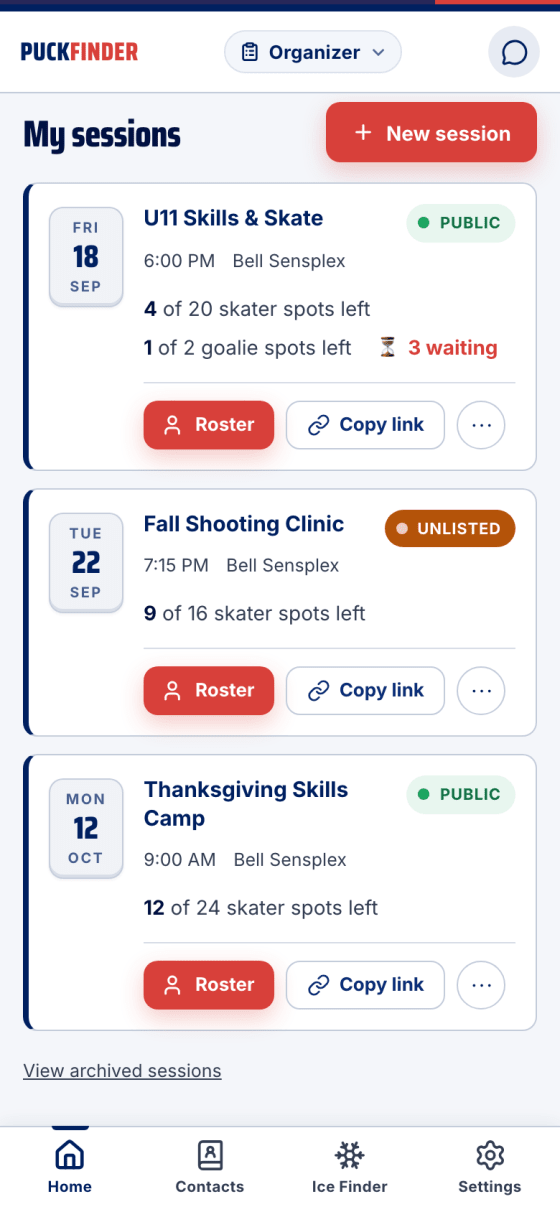
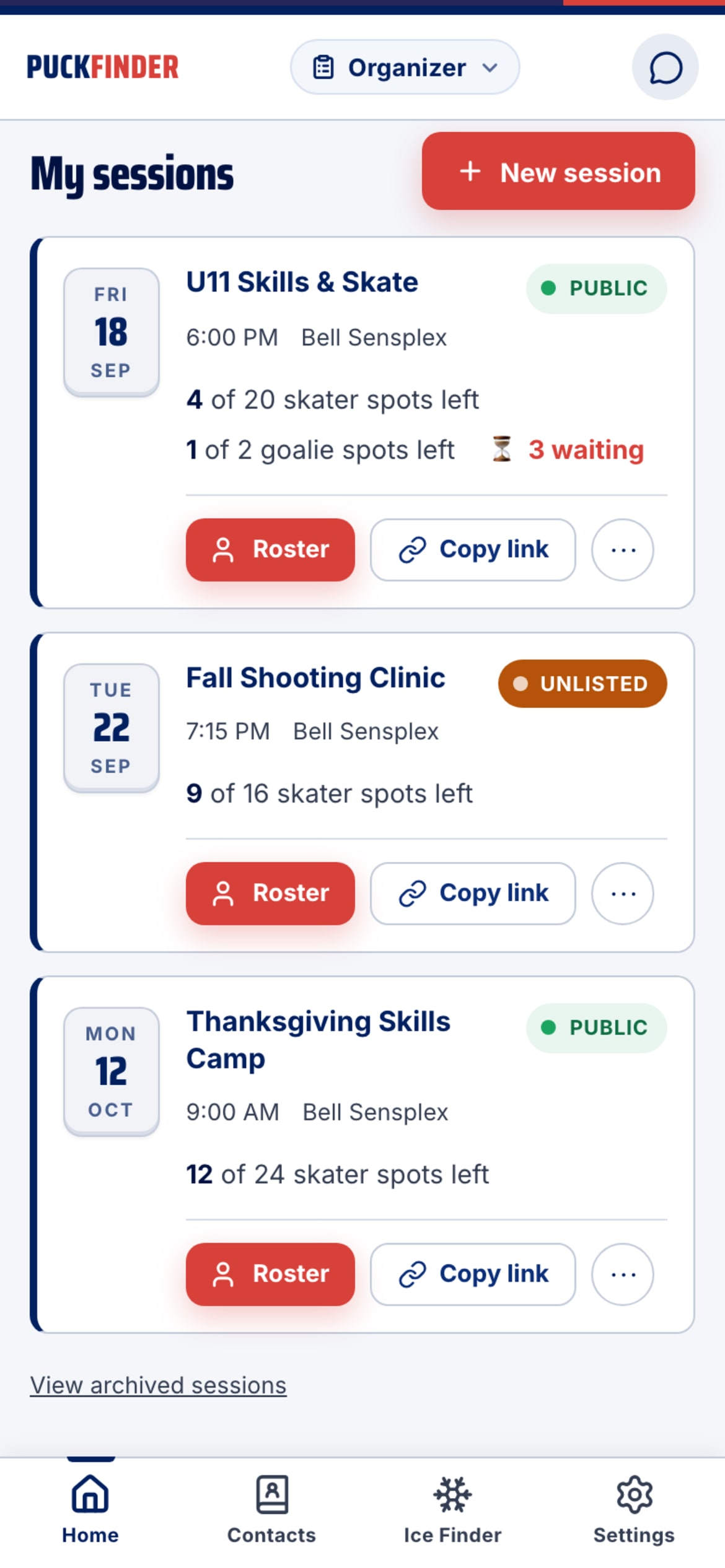
- Every session at a glance
Your organizer home lists each session with spots left, whether it's Public, Unlisted or Private, and how many families are waiting. Roster and Copy link sit right on the card.
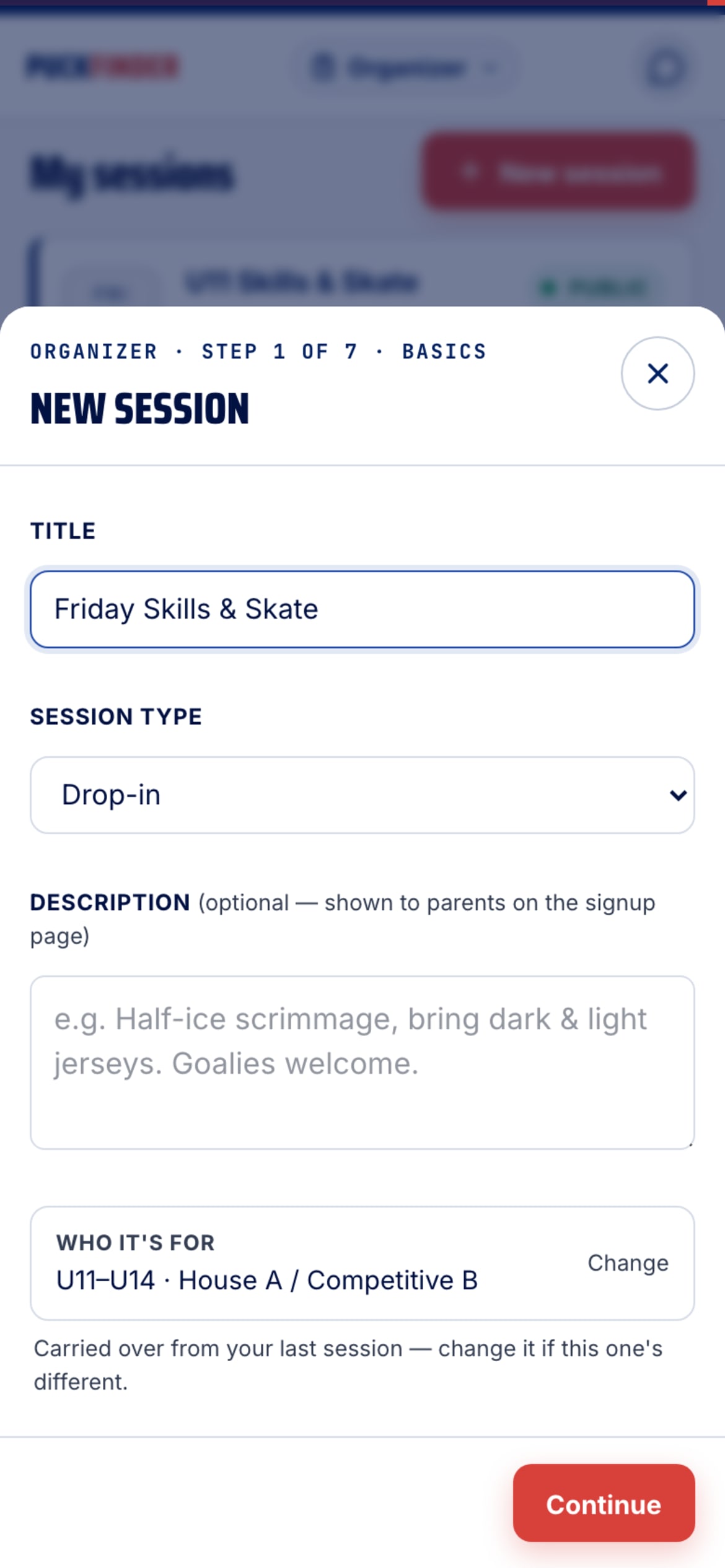
- Post a session in a minute
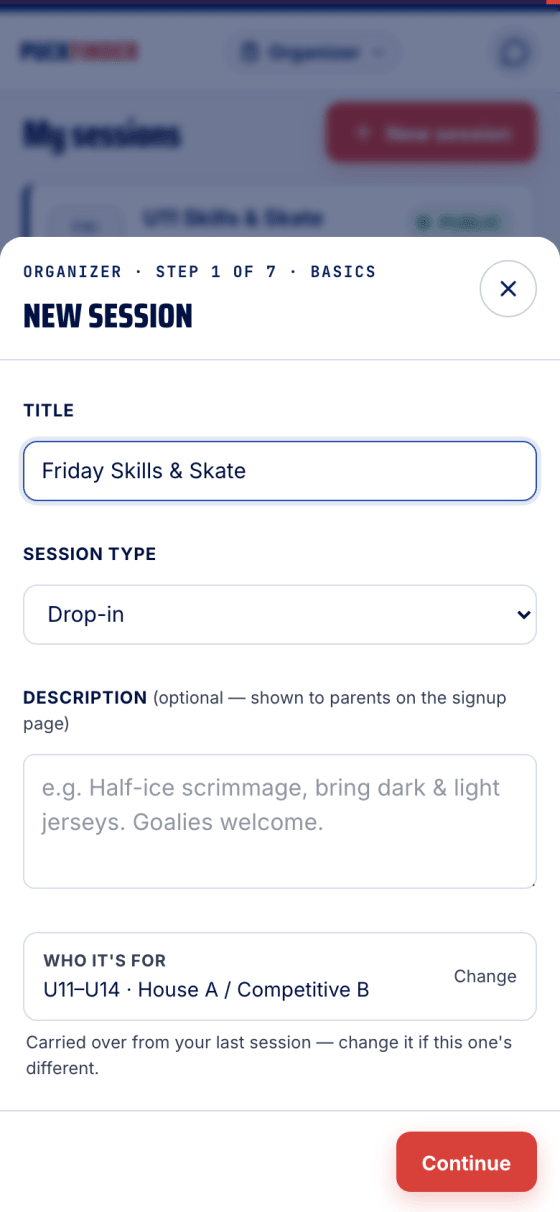
New session: name it, pick the type, then a few short steps — when and where, spots and positions, pricing, how parents pay, who can see it. Published, it lands in the feed of every matching family.
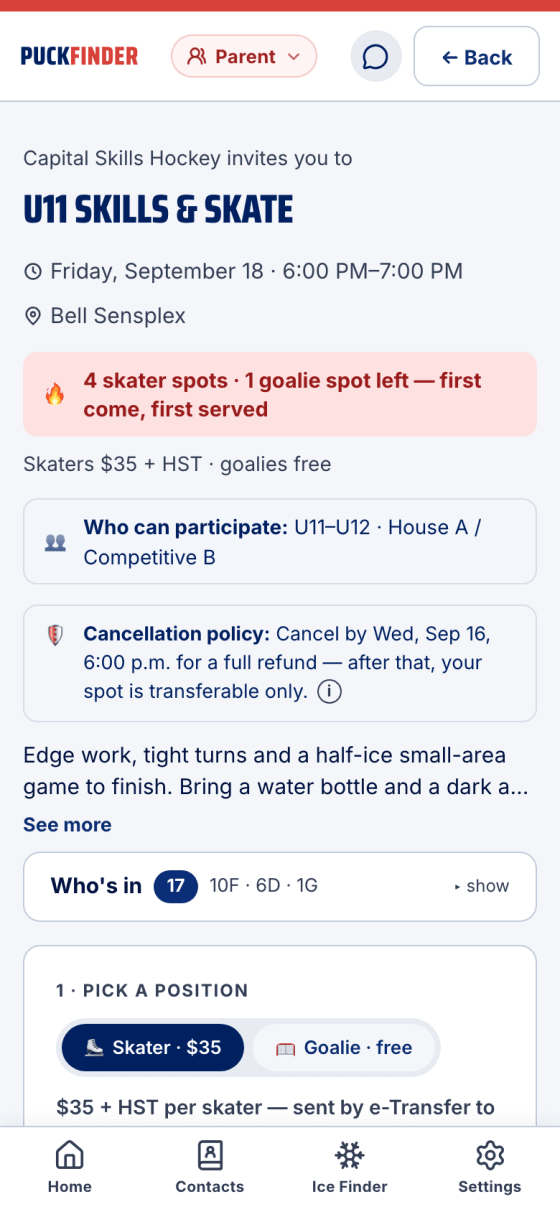
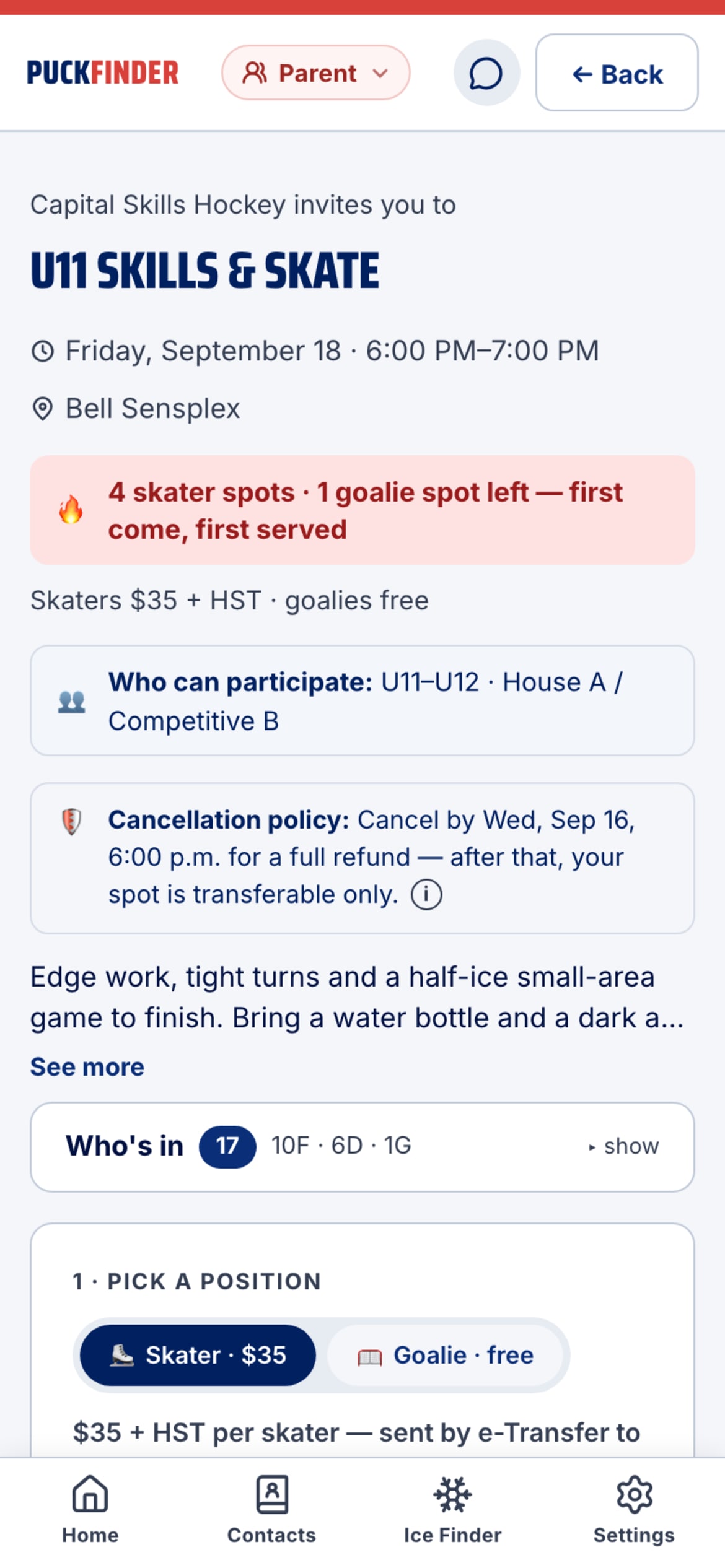
- What a parent sees
One link. Your name and crest, the time, the arena, the price and exactly how many spots are left. They pick a position and pay by card or e-Transfer. No account, no app install.
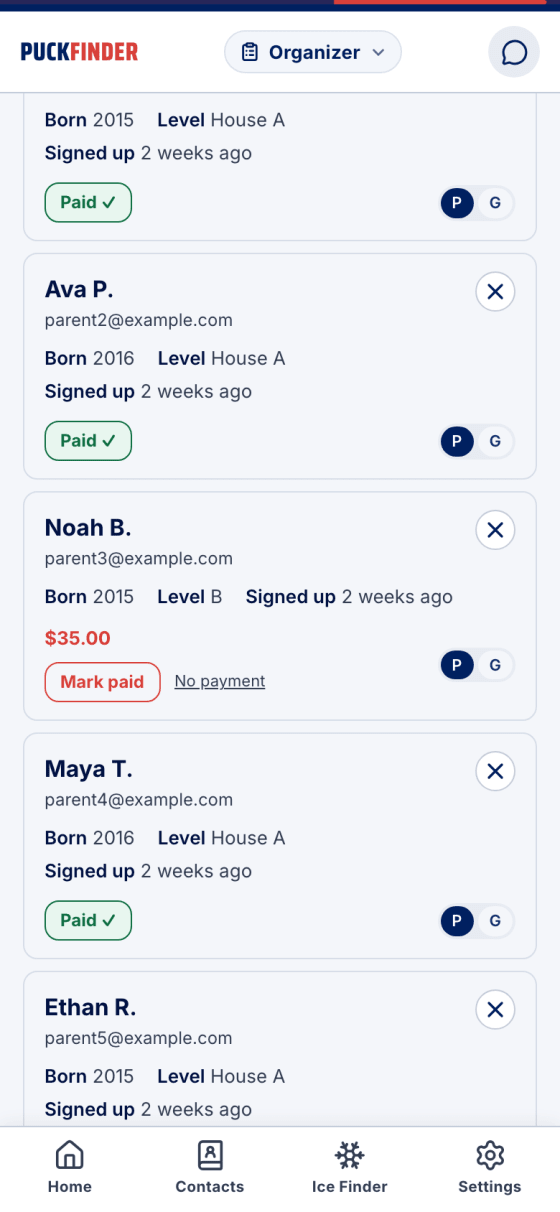
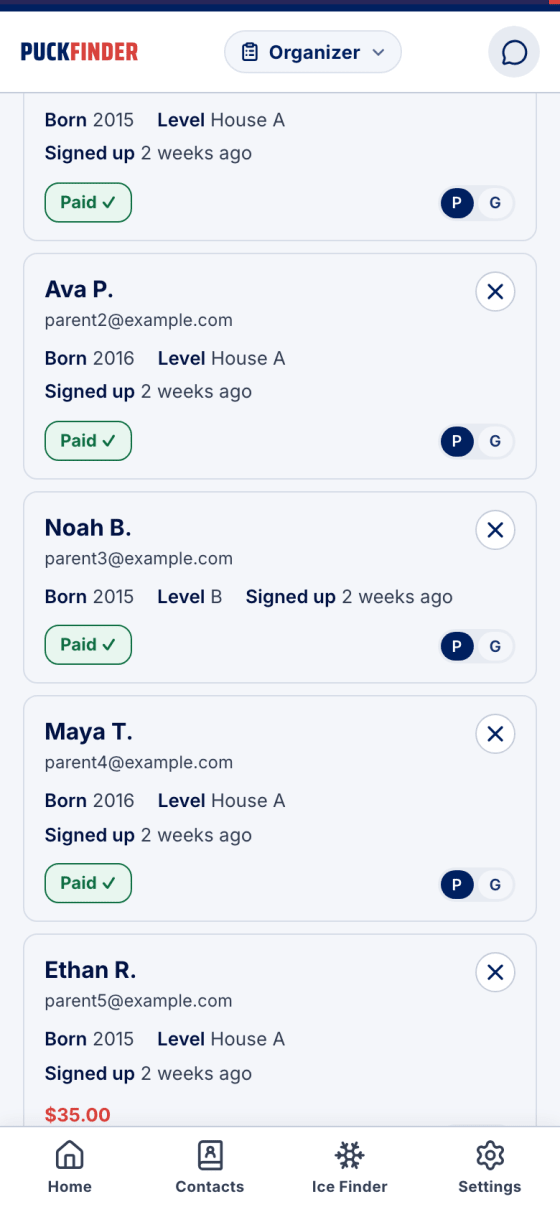
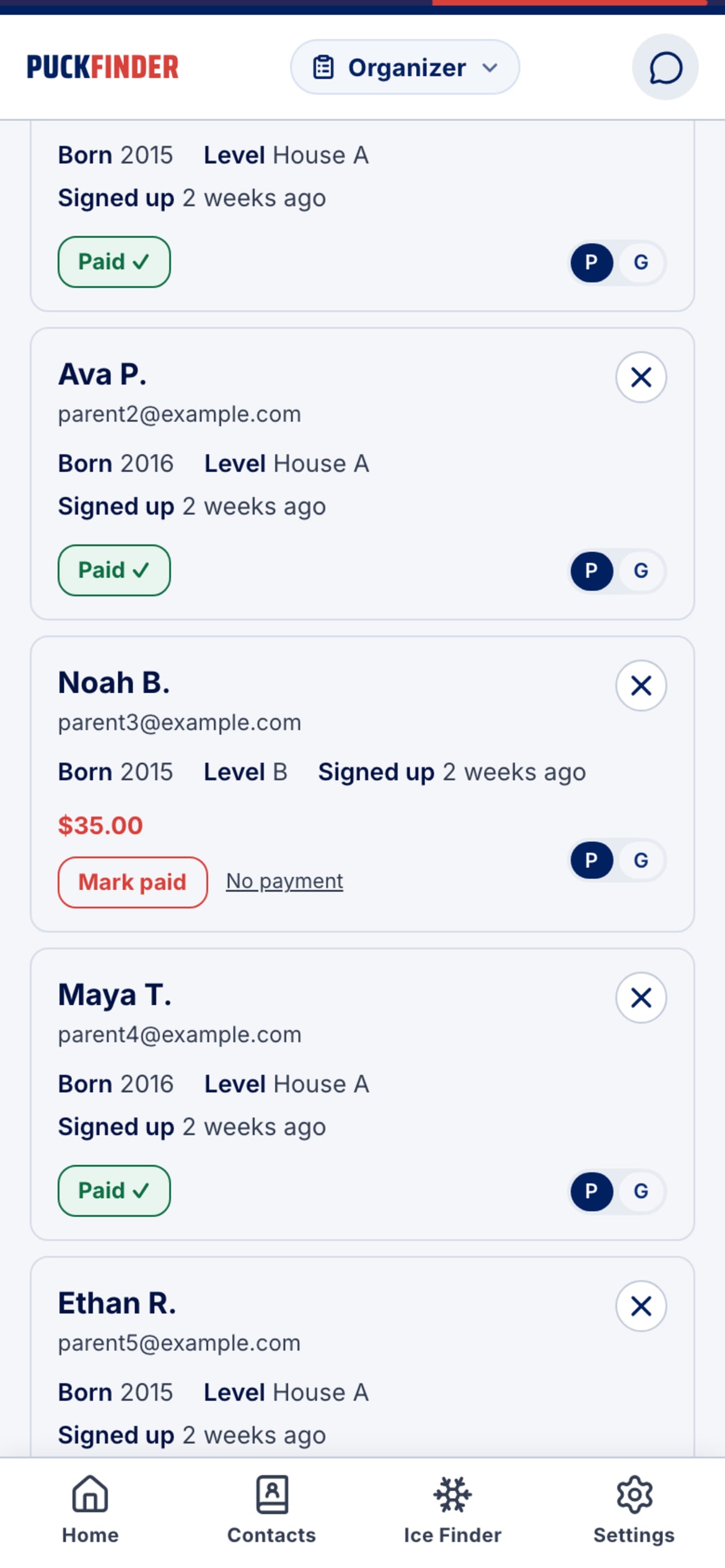
- Who's in, who's paid
The roster shows every booking with position, parent contact and payment. An e-Transfer landed? Mark paid.
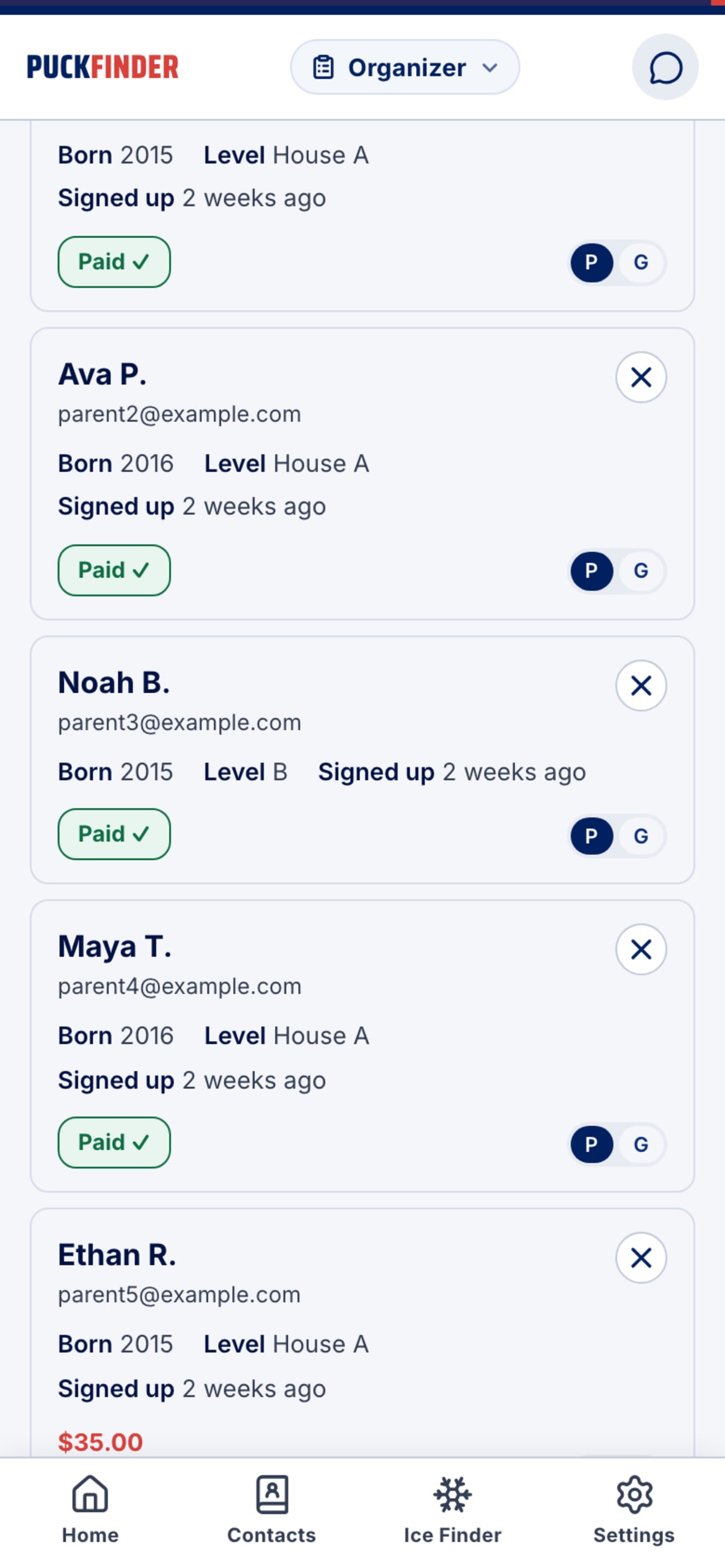
- One tap, paid
The row flips to Paid ✓. Waive a fee or apply a credit from the same row.
- The waitlist works for you
When a session fills, parents join the waitlist. The moment a spot opens, everyone waiting is emailed at once — first to claim it gets it. Three waiting is a signal to add a session.

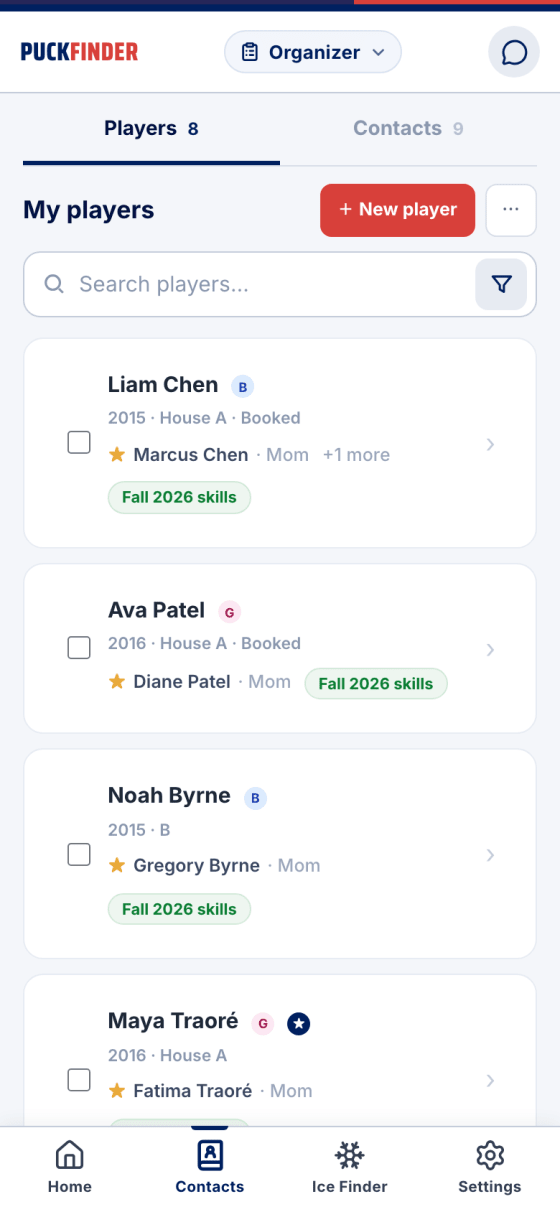
- Your players
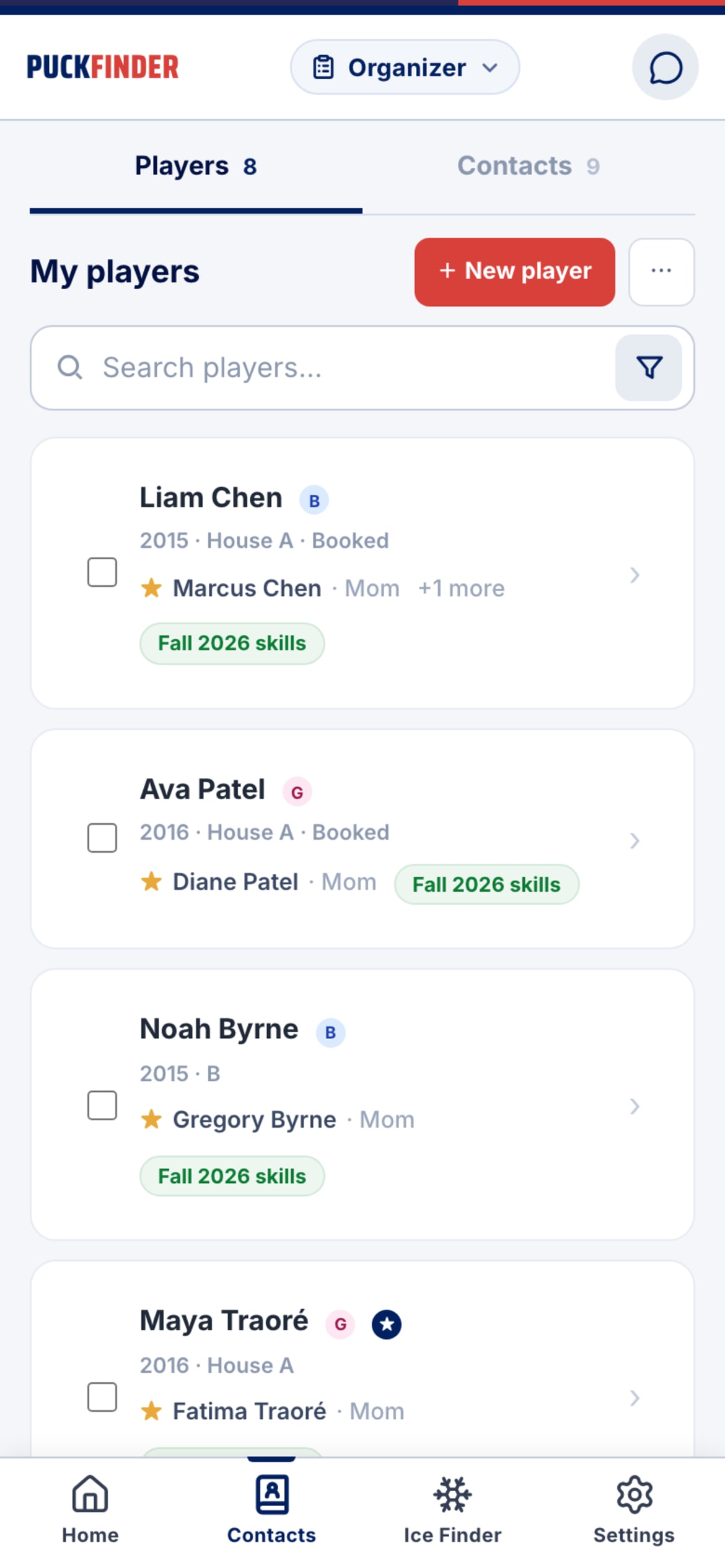
Contacts keeps every player who's ever booked, with a primary contact and the lists they're on. Merge duplicates, import a roster, grant a credit.
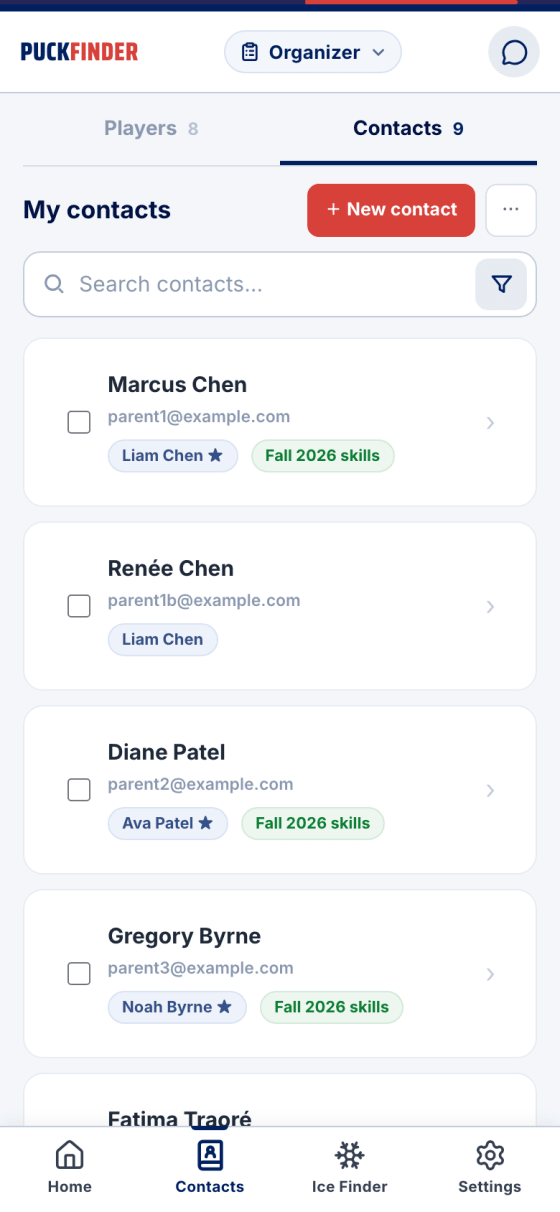
- Your parents
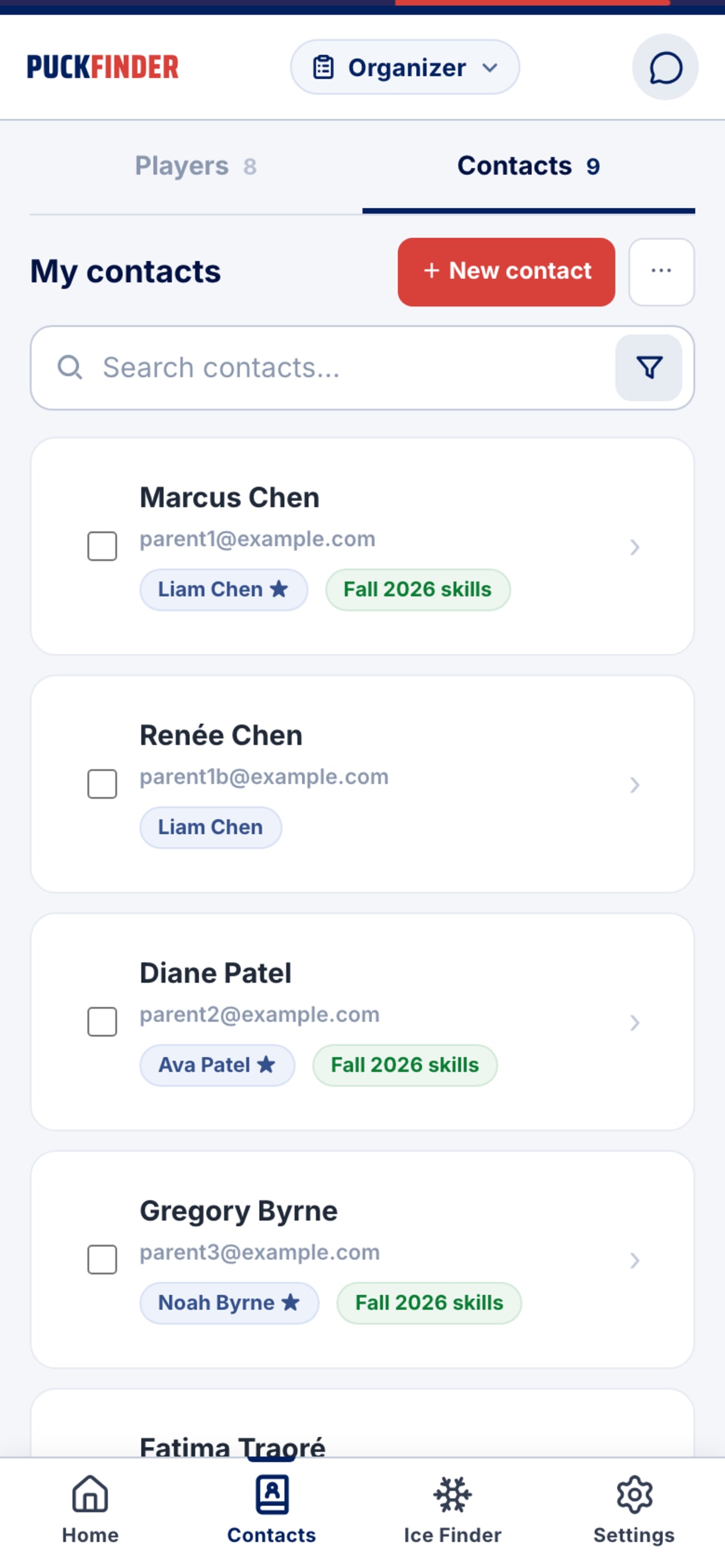
The Contacts tab is your address book. Next session, invite a list — that's what fills ice fastest.

How you get paid
- Card payments run through Stripe and are paid out to your bank automatically. PuckFinder's fee is 4.9% per card payment, all-in including card processing, with a $1 minimum. A $35 session pays you $33.28.
- e-Transfer is free. Your e-Transfer address and security answer go on the parent's confirmation and reminder emails; you mark the booking paid when it lands.
- HST, refunds and credits are handled on the receipt. Your cancellation policy is stamped on each session when you create it, so changing the template later never changes booked terms.
Becoming an organizer
Organizers are approved by hand. In the app, open Organizers and tap Request to be an organizer, or email john@puckfinder.app. Once approved, the Organizer view appears in the switcher next to the wordmark.
Stuck?
Email john@puckfinder.app — a real person, usually the same day.